




Most form tutorials show you what’s possible. This one shows you what actually works. The State of CSS 2024 survey puts Tailwind CSS at 62% developer usage. More teams are…
Table of contents
Most website forms fail. Zuko’s 2025 data shows the average view-to-completion rate sits below 50%, and contact forms convert at just 9%. That means the majority of visitors who see your form never finish it.
The fix usually isn’t more traffic. It’s a better form.
This guide breaks down real website form examples across every major category: contact forms, registration flows, lead capture, checkout pages, surveys, multi-step wizards, and file upload forms. Each section includes patterns from tools like Typeform, HubSpot, Shopify, and Gravity Forms, alongside data on what actually drives completion rates.
You’ll also find design patterns that directly improve form usability, along with a comparison of form builder tools so you can pick the right one for your setup.
What Is a Website Form?
A website form is an HTML element that collects user input through fields, buttons, and validation rules, then sends that data to a server or third-party service. That’s it. Name field, email field, submit button, some logic behind the scenes.
But the way these forms look, feel, and behave has changed a lot. What used to be a static block of text inputs now includes everything from drag-and-drop file uploads to conditional branching that shows different questions based on previous answers.
The basic anatomy hasn’t changed much: input fields, labels, a call-to-action button, and some kind of form validation. What has changed is user expectations.
Tools like Typeform, Jotform, and Google Forms pushed the bar on what a web form should feel like. People now expect clean layouts, inline error messages, and mobile-friendly inputs as standard.
Zuko’s 2025 benchmarking data shows the average form view-to-completion rate sits below 50%. That number drops to just 9% for contact forms when you factor in all page visitors. So the form itself matters, but so does everything surrounding it: placement, copy, trust signals, and the reason someone should bother filling it out.
There are dozens of types of forms you can put on a site. Contact forms, registration flows, checkout pages, surveys, lead capture widgets, file upload forms. Each one serves a different goal and needs a different design approach.
The sections below break down each type with real patterns you can actually reference or copy.
Website Form Examples
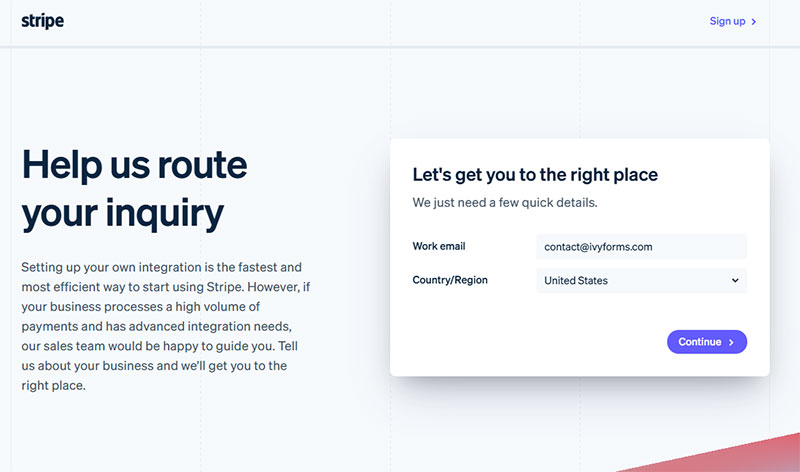
Image source: stripe.com
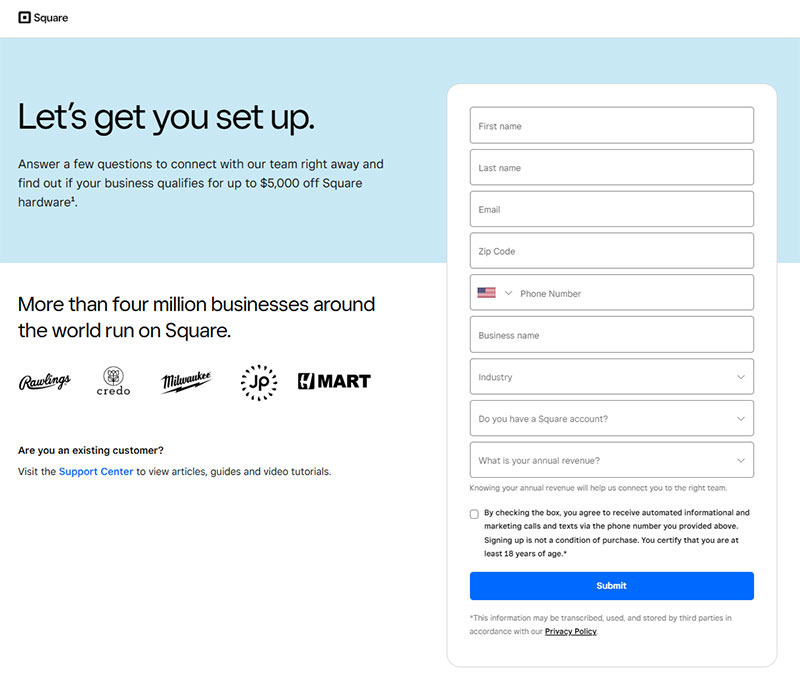
Image source: square.com
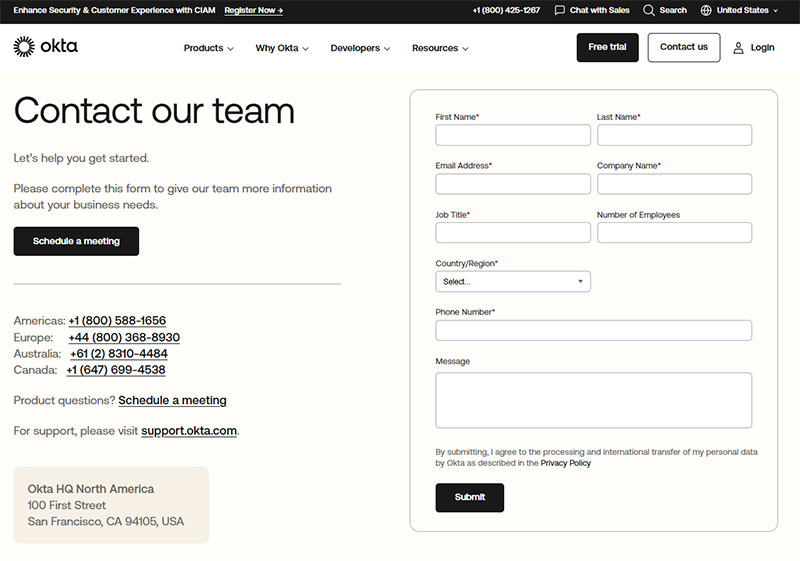
Image source: okta.com
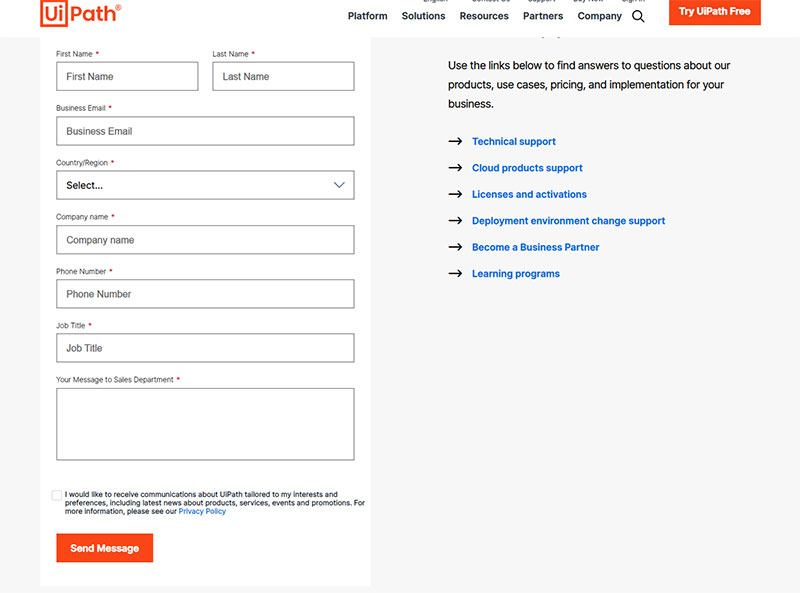
Image source: uipath.com
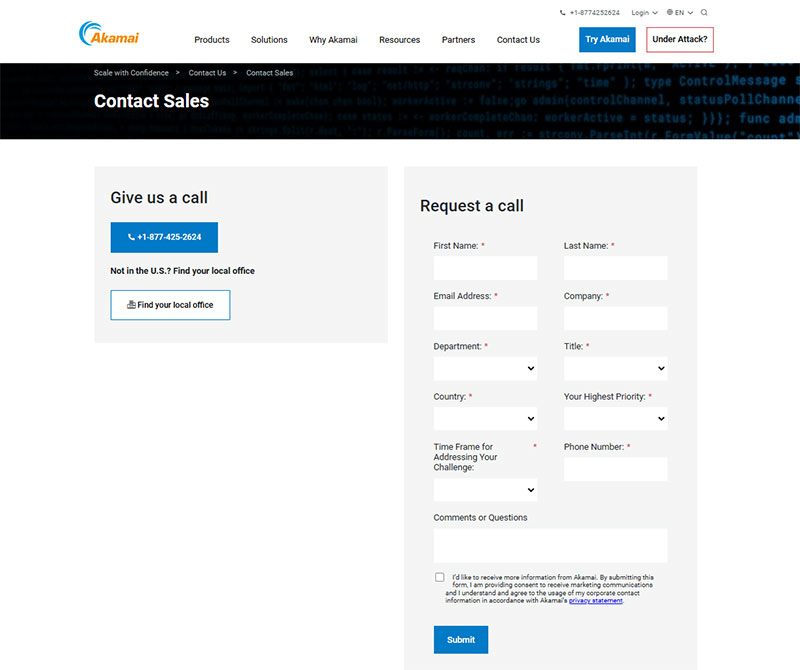
Image source: akamai.com
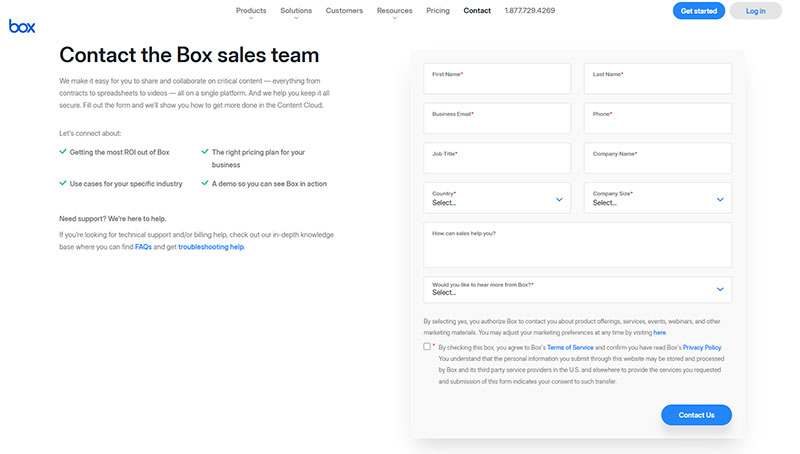
Image source: box.com
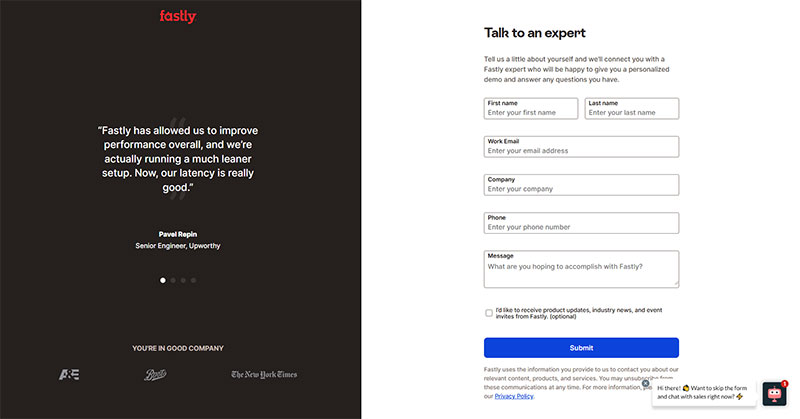
Image source: fastly.com
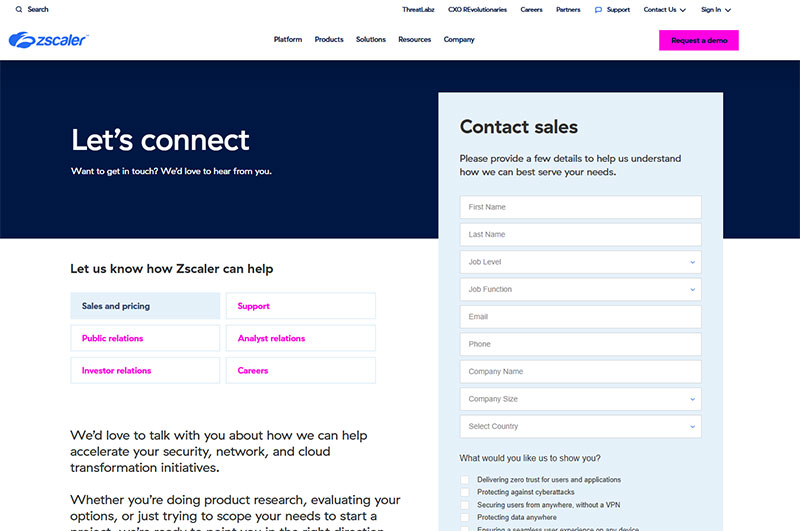
Image source: zscaler.com
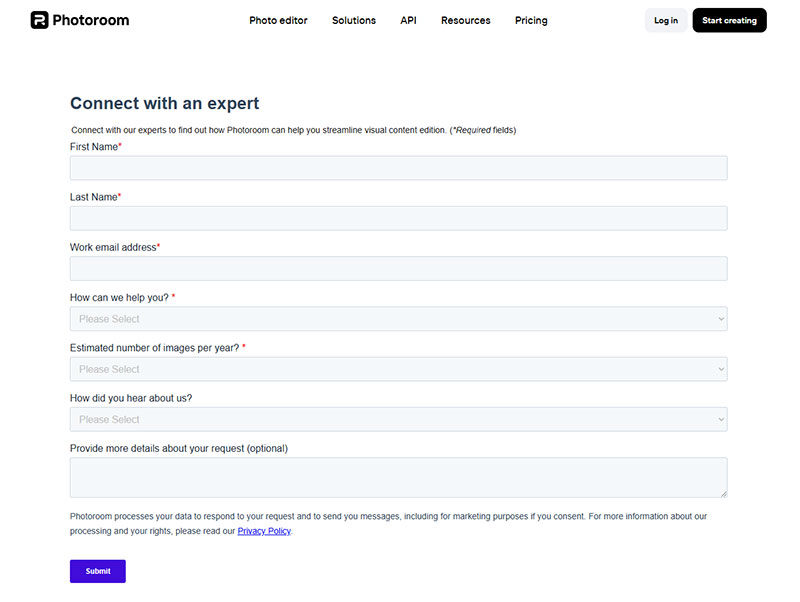
Image source: photoroom.com
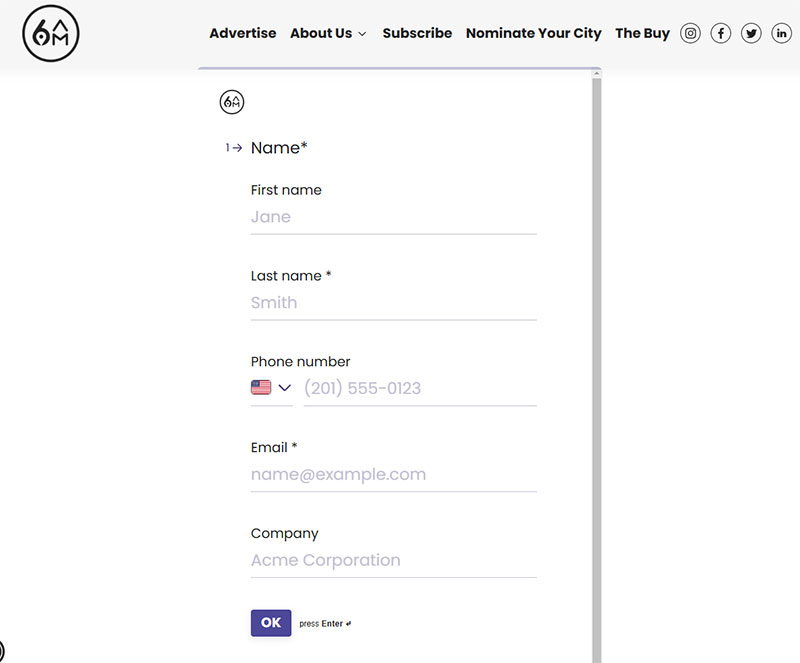
Image source: 6amcity.com
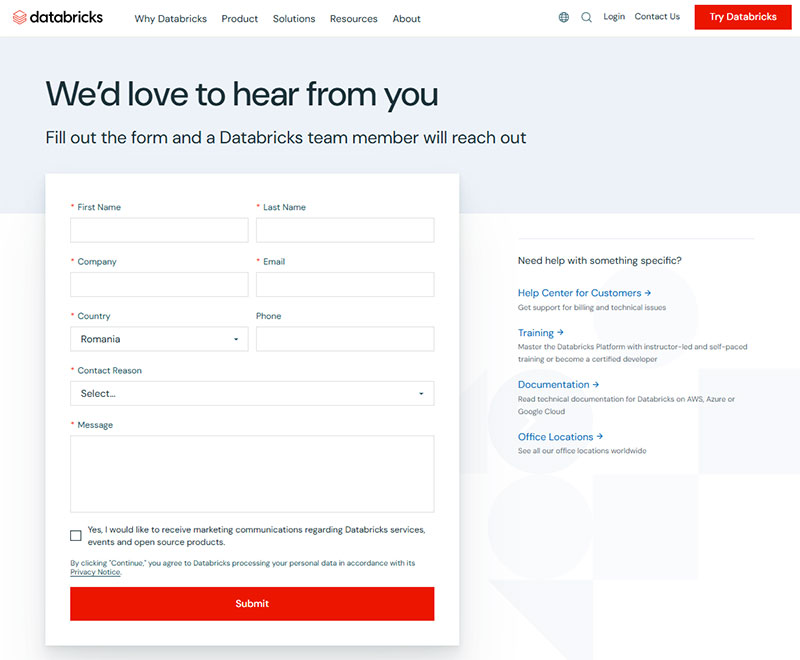
Image source: databricks.com
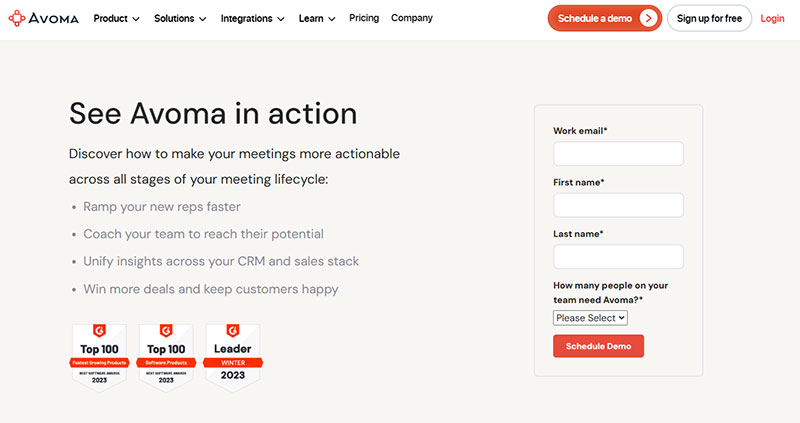
Image source: avoma.com
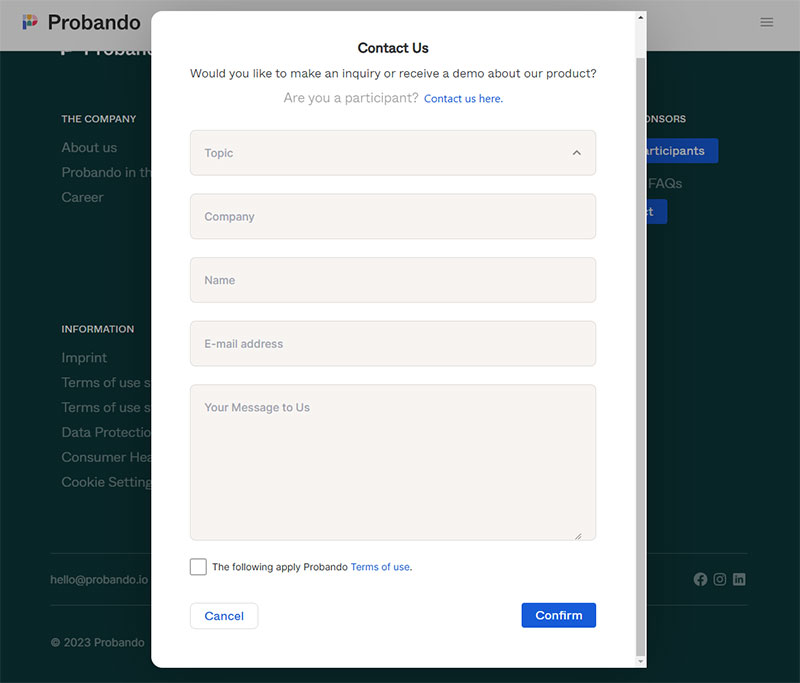
Image source: probando.io
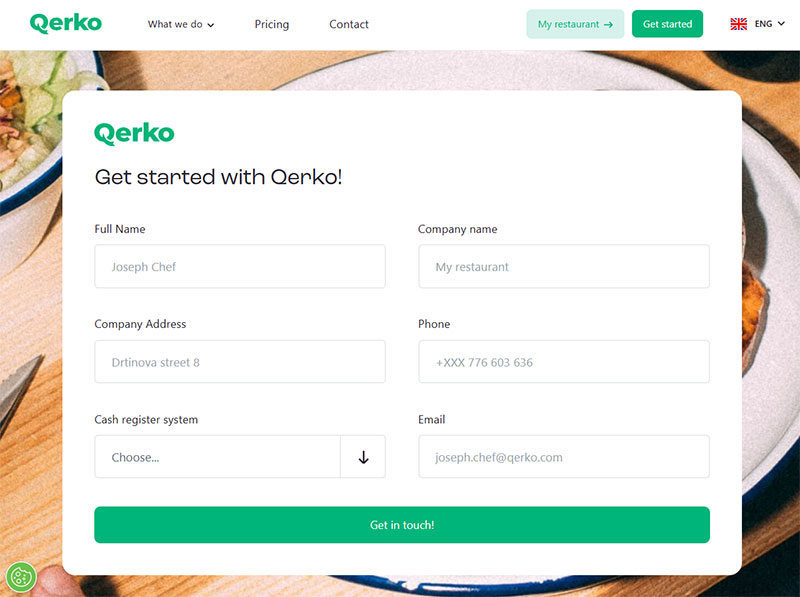
Image source: querko.com
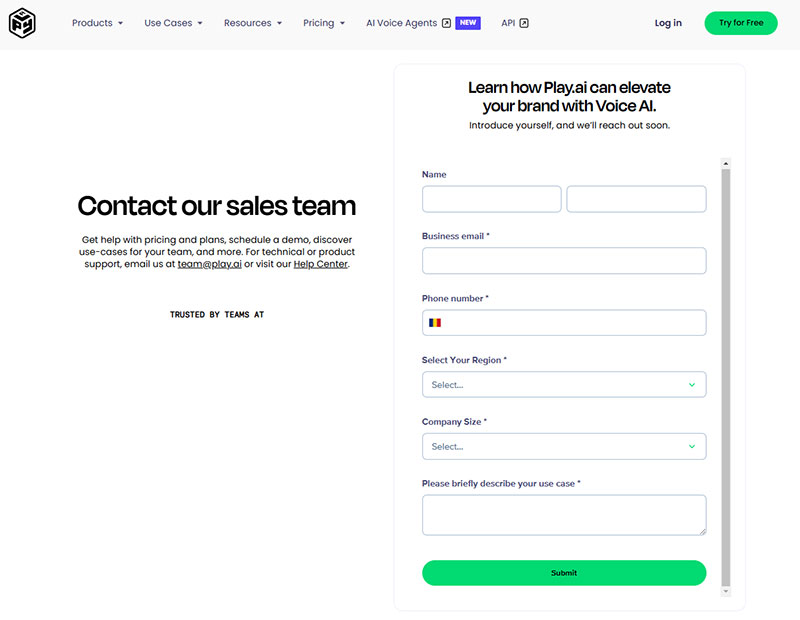
Image source: play.ht
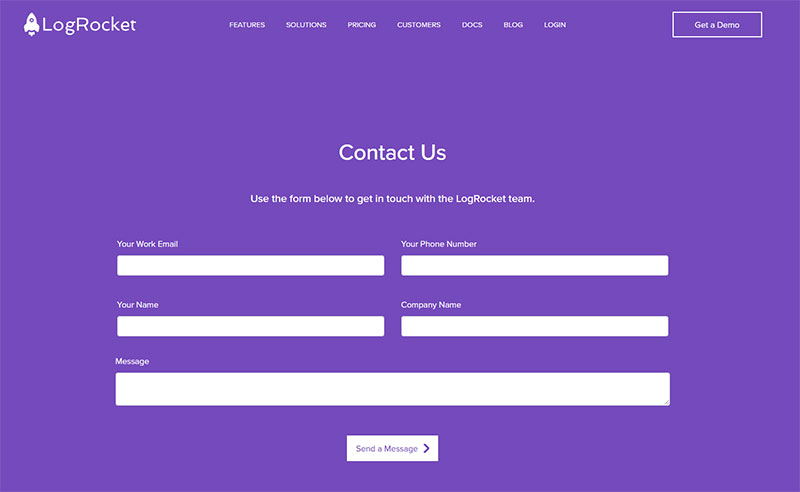
Image source: logrocket.com
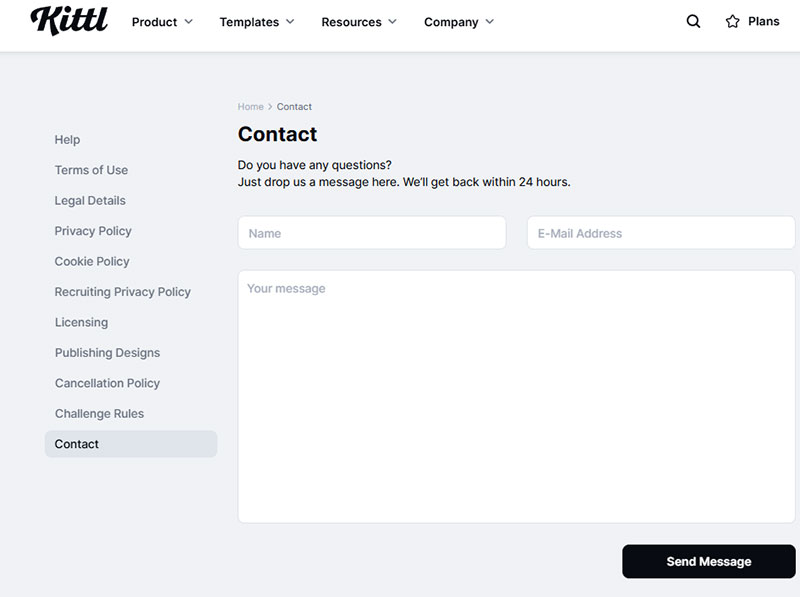
Image source: kittl.com
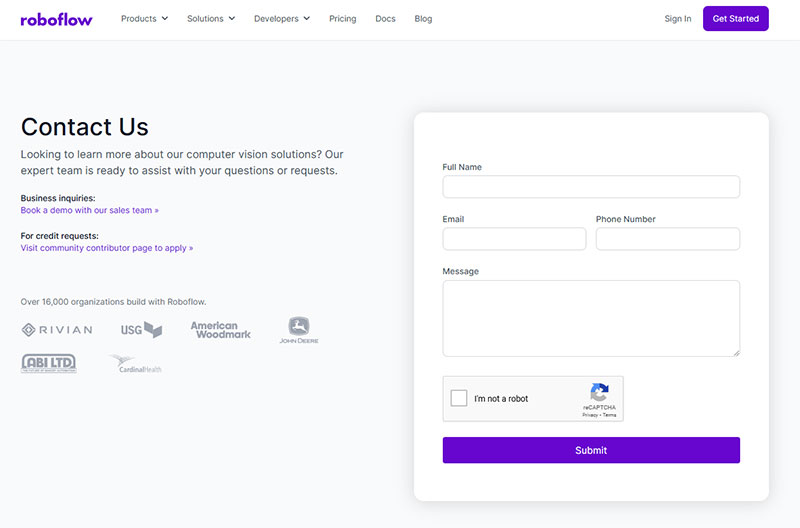
Image source: roboflow.com
Contact Form Examples
The contact form is the most common form on the web. And somehow, it’s still the one most sites get wrong.
Zuko’s data puts contact form conversion at a rough 9% view-to-completion rate. That’s brutal. Most of that drop-off comes from forms that ask too many questions or offer zero confirmation that the message actually went through.
Minimal Contact Forms
Three fields: name, email, message. That’s the template nearly every small business and freelancer should start with.
Squarespace ships this as the default form block, and it works. HubSpot’s free contact form tool follows the same pattern. The fewer required fields, the less friction.
Unbounce’s research found that landing pages with 5 or fewer fields convert 120% better than longer ones. For a basic “get in touch” form, you rarely need more than three.
Multi-Field Contact Forms With Routing
Department dropdown: Adding a single select field that routes messages to sales, support, or billing. Freshdesk and Zendesk both use this pattern on their own sites.
Subject line field: Forces the visitor to categorize their own request, which speeds up response time internally.
Phone number (optional): Asking for a phone number reduces form conversions by about 5%, according to Insiteful. Make it optional or skip it entirely unless your sales team needs it.
I’ve seen agencies add 8 or 9 fields to a contact form “just in case.” Your mileage may vary, but the data says that’s a bad idea almost every time.
Sticky and Floating Contact Forms
Service businesses (law firms, agencies, HVAC companies) often pin a short contact form to the sidebar or bottom of the screen. It stays visible as the visitor scrolls.
This approach works well on long-scroll pages where the visitor might decide to reach out at any point. The form is always right there.
A good contact us page puts the form above the fold with the business address, phone number, and hours visible nearby. That context builds trust and gives the visitor multiple ways to connect.
Took me a while to realize that the form submission confirmation message matters almost as much as the form itself. A blank page after hitting submit kills trust. Even a simple “Thanks, we’ll be in touch within 24 hours” goes a long way.
Signup and Registration Form Examples
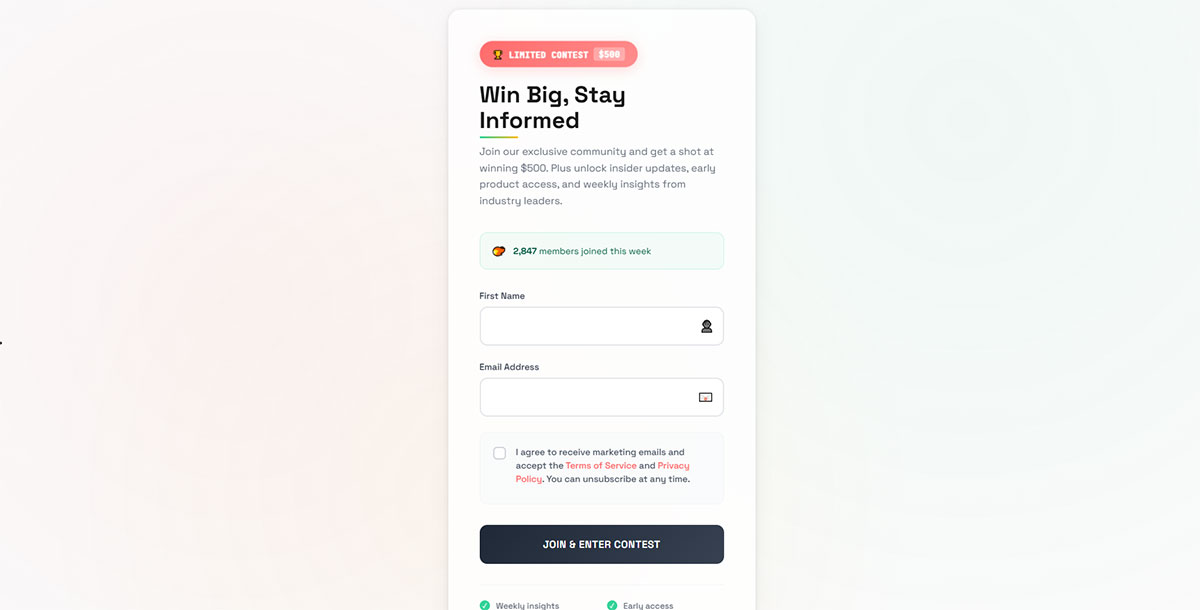
Registration forms are where you either gain a user or lose them forever. 67% of visitors will abandon a form permanently if they hit complications, according to WPForms research. Only 20% will ever come back. Signup and registration forms collect the minimum information needed to create an account or join a service.
So the signup flow has to be tight.
Single-Step vs. Multi-Step Registration
Slack’s signup form asks for one thing first: your email. That’s it. Everything else (workspace name, password, display name) comes after.
Notion follows a similar pattern. Email first, then choose between Google sign-in or setting a password.
HubSpot reports 86% higher conversion rates for multi-step forms compared to single-step alternatives. The logic is simple. Showing someone 8 fields at once feels heavy. Breaking it into 3 steps of 2-3 fields each feels manageable.
Formstack’s research puts the numbers at 13.85% completion for multi-page forms versus 4.53% for single-page forms. That gap is hard to ignore when you’re building registration forms.
Social Login Integration
Google, Apple, and GitHub sign-in buttons show up on nearly every SaaS registration page now. Dropbox, Figma, and Canva all offer them.
The appeal is obvious. No password to create, no email to verify, one click and you’re in. For consumer-facing products, social login can cut form abandonment significantly.
But there’s a catch. Some users don’t trust third-party auth, especially for business tools. So you still need the traditional email/password option alongside it.
Password Strength and Inline Validation
CXL research shows that inline form field validation decreases errors by 22% and cuts completion time by 42%. Real-time feedback as someone types, telling them their password is too short or their email is missing the “@” symbol.
Password strength meters (the colored bar that goes from red to green) are standard on most modern sign up forms. GitHub, WordPress, and most banking sites use them.
A well-designed registration successful message after signup should tell the user what to do next. Check your email, complete your profile, or jump straight into the product. Don’t just leave them staring at a generic “success” page.
Lead Generation Form Examples
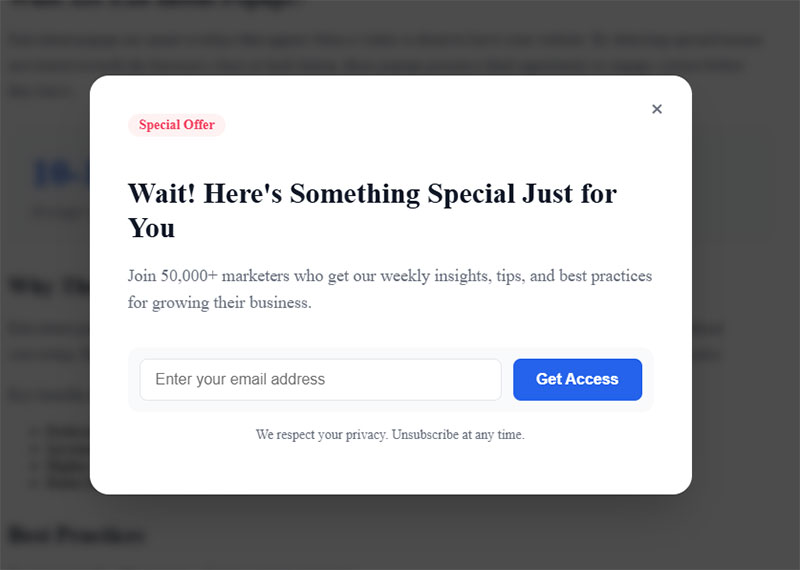
84% of marketers use form submissions to generate leads, according to Ruler Analytics. And the average form conversion rate across all industries sits at just 1.7%. That means for every 100 visitors who see your form, fewer than 2 actually fill it out.
The forms that beat those averages share a few common traits.
Gated Content Forms
The classic setup: offer an ebook, whitepaper, or toolkit behind a short form. Visitor gives their email, gets the download.
Demand Gen Report data shows 53% of marketers say gated webinars with a signup form generate the most high-quality top-of-funnel leads. Force24 research puts the best B2B gated content conversion rates at 10-15%.
Formstack’s 2024 study found that going from 3 required fields to 7 drops conversions by 19.6%. And adding a phone number field specifically causes a 57% decline. That’s not a rounding error.
If you’re gating content, keep the form to name, email, and maybe company name. Three fields, max. Collect the rest through progressive profiling later.
Landing Page Form Placement
Above the fold: Forms placed in the top visible area of landing page forms capture 57% of page-viewing time, per Nielsen Norman Group.
Below persuasion copy: For expensive or complex offers, the form works better after the visitor has read enough to be convinced. Think insurance quotes or enterprise software demos.
Chili Piper’s 2025 report shows that letting prospects book a meeting right after form submission doubles the inbound conversion rate, from 30% to 66.7%. Yet only 8% of top B2B SaaS companies do this.
Hidden Fields and UTM Tracking
Most lead generation forms that perform well include hidden fields the visitor never sees. UTM source, campaign ID, landing page URL, referral source.
This data flows into the CRM (HubSpot, Salesforce, Pipedrive) and tells the marketing team which campaigns actually produce qualified leads, not just form fills.
Companies generating 40% or more of their leads through online methods like forms grow 4x faster than companies relying on offline channels, according to WPForms data. That stat alone makes using website forms for lead generation worth the investment.
Checkout and Payment Form Examples
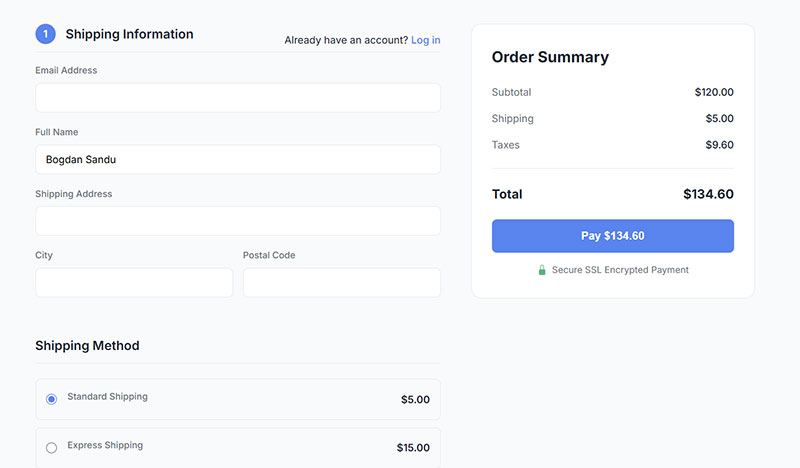
Checkout forms handle money. That changes everything about how they need to be built.
Baymard Institute’s research (49 studies aggregated) puts the average cart abandonment rate at 70.19%. The top reasons are all fixable: unexpected costs, forced account creation, and complicated checkout flows.
Single-Page vs. Multi-Step Checkout
Shopify moved to a single-page checkout as its default. Their data shows it converts better for simple products with average order values under $150, especially on mobile.
WooCommerce and Magento stores with complex products or high-value orders tend to perform better with multi-step checkout. Each step reassures the buyer: shipping info, then payment, then review.
Swell’s research found the average checkout contains 14.88 form fields. Optimized checkouts cut that to 7 or fewer. That 50% reduction delivers conversion increases up to 35.62% according to Baymard’s UX research.
Stripe Elements and Square Integration
Stripe Elements lets you embed a pre-built, PCI-compliant payment form directly into your site. The card number, expiration, and CVC fields look native to your design but Stripe handles all the security.
Square’s payment form follows a similar approach. Both reduce the form security burden on the developer while keeping the checkout experience smooth.
Trust signals matter here more than anywhere else. SSL badges, card brand icons (Visa, Mastercard, Amex), and a visible return policy reduce friction. Research from Insiteful shows 12% of people abandon checkout specifically because of missing trust badges.
Mobile Checkout Patterns
Mobile drives over 72% of ecommerce traffic but converts at roughly half the desktop rate. Swell’s data shows 85.65% mobile abandonment, the highest of any device.
Nearly 40% of mobile shoppers cite difficulty entering information as their reason for leaving. Small keyboards, autocorrect, and clunky field navigation create problems that don’t exist on desktop.
The fixes are specific:
- Apple Pay and Google Pay reduce checkout from 120 clicks to just 4 (Google’s own data)
- Address autofill via Google Places cuts typing by 60-70%
- Thumb-friendly buttons sized at minimum 44×44 pixels
- Number pad keyboards triggered automatically for phone and zip code fields
Guest checkout alone has a huge effect. Forced account creation causes 24% of all checkout abandonments, per Baymard Institute. If someone wants to buy something, let them buy it.
For more on this, check out checkout optimization strategies that directly reduce abandonment.
Survey and Feedback Form Examples
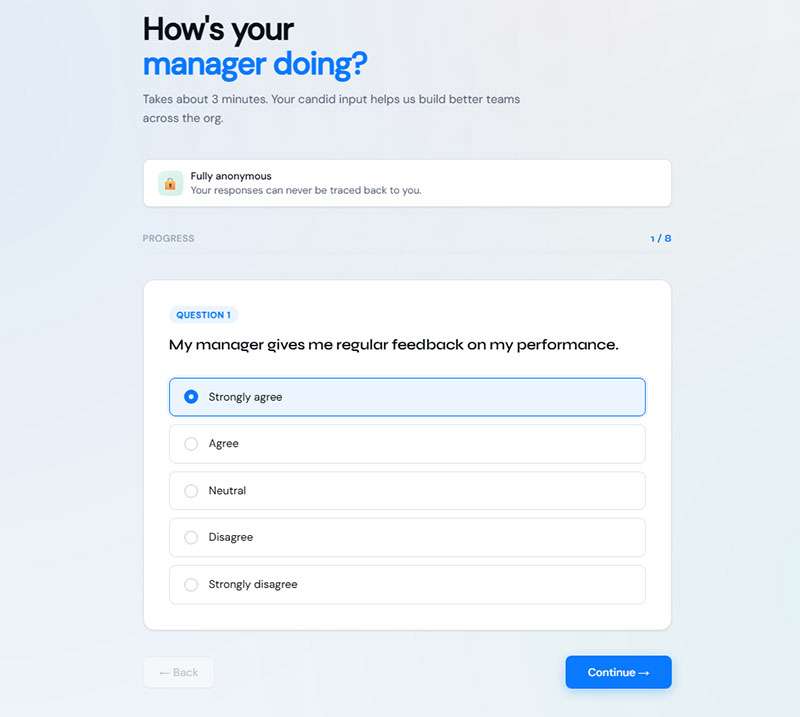
Survey forms serve a completely different purpose than lead capture or checkout forms. You’re not trying to convert someone. You’re trying to get honest answers.
That changes the design rules. Surveys can be longer. They can ask personal questions. But they still need to respect the person’s time.
Rating Scales: Stars, NPS, and Likert
Star ratings: Best for quick product or service reviews. Amazon, Google Maps, and Yelp all use them. Simple, fast, universally understood.
NPS (Net Promoter Score): The “How likely are you to recommend us?” 0-10 scale. Hotjar and Delighted make it easy to embed this as a single-question widget. Strong for tracking customer loyalty over time. You can explore different NPS survey questions to go beyond the default prompt.
Likert scale: The “Strongly disagree to Strongly agree” format. Best for employee surveys, course evaluations, and website usability survey questions where you need nuance beyond a simple number.
Conditional Logic in Surveys
Typeform built its entire product around this. Answer a question one way, and you see a follow-up. Answer it differently, and you skip ahead.
Conditional logic keeps surveys relevant. If someone rates your service a 9/10, don’t ask them what went wrong. If they rate it a 3/10, skip the upsell question and ask what needs fixing.
SurveyMonkey and Google Forms both support basic branching. For more complex flows with weighted scoring, tools like Gravity Forms or Tally handle it well.
Post-Purchase and In-App Feedback
The timing of a feedback form matters more than most people think.
Hotjar’s feedback widget appears as a small tab on the edge of the screen. Click it, rate your experience, leave a comment. No redirect, no full-page takeover. It gets responses because it stays out of the way until the user decides to engage.
Post-purchase survey questions sent via email 24-48 hours after delivery tend to get the best response rates. Too soon and the customer hasn’t used the product. Too late and they’ve moved on.
Survey Planet data shows B2B survey response rates run 10-15% higher than B2C. That gap likely comes from professional context and stronger relationships between vendor and buyer.
Following best practices for creating feedback forms means keeping the survey short (5-7 questions max for email surveys) and telling the respondent how long it will take up front. “This takes 2 minutes” is the single most effective line you can add to a survey form invitation.
One thing worth noting: survey fatigue is real. If you’re sending surveys after every interaction, response rates will crater. Pick your moments.
Multi-Step Form Examples
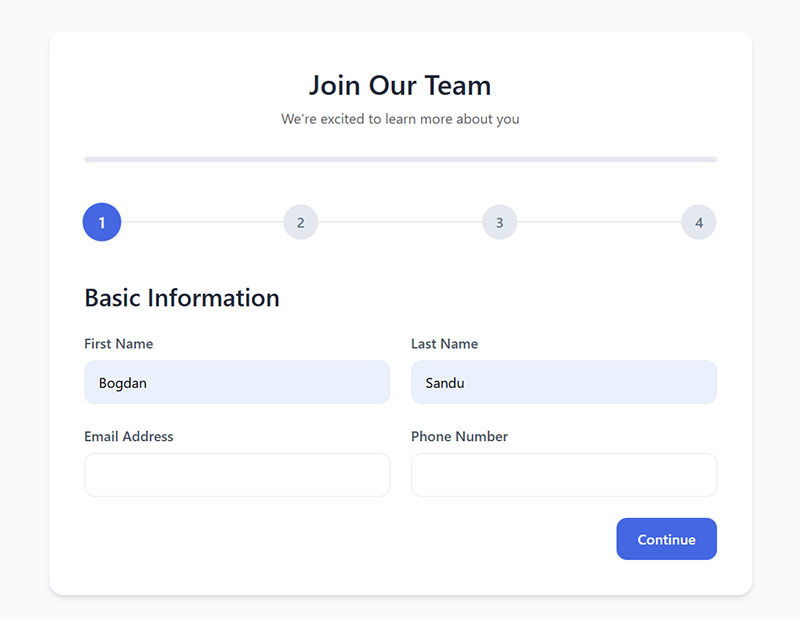
HubSpot data shows multi-step forms convert 86% higher than single-step alternatives. Formstack puts the numbers at 13.85% versus 4.53%. That gap is consistent across nearly every study.
The reason is psychological, not technical. Showing someone 12 fields at once feels heavy. Showing 3 fields across 4 steps feels manageable.
Progress Bars and Step Indicators
Progress indicators increase completion by 43%, according to conversion research. They answer the question every user has mid-form: “How much longer is this going to take?”
The two common patterns:
- Numbered steps with labels (“Step 2 of 4: Your Details”)
- A horizontal progress bar that fills as the user advances
Uber’s driver signup form uses a clean three-step flow. Step one asks for basic info (name, email, city), step two collects vehicle details, and step three handles document uploads. Each step feels short.
When to Use Steps vs. a Single Page
Single page works for: newsletter signups, basic contact forms, quick feedback widgets. Anything under 5 fields.
Multi-step works for: insurance quotes, loan applications, event registrations, onboarding flows. Anything over 5 fields or involving conditional branching.
Venture Harbour saw their consulting inquiry form jump from 0.96% to 8.1% conversion after switching from a single-page WordPress form to a multi-step layout. BrokerNotes went from 11% to 46% with the same structural change.
If you’re weighing the tradeoffs, the comparison between multi-step forms or single-step forms comes down to field count and complexity. But the data is pretty clear for longer forms.
Conditional Branching Between Steps
Not every user needs to see every step. A form builder with conditional logic lets you skip irrelevant sections based on earlier answers.
Gravity Forms handles this well for WordPress. Typeform and Tally both support it natively for hosted forms.
ConversionXL research found that multi-step forms with conditional branching can increase conversions by up to 300% compared to long single-page forms. The key is that users only see questions that apply to them.
Application and Upload Form Examples
Application forms ask for more than a name and email. They collect resumes, portfolios, project briefs, and supporting documents. The design challenge is keeping the process from feeling overwhelming.
Drag-and-Drop File Upload Zones
The drag-and-drop upload pattern has become standard. A dotted-border box with “Drop files here or click to browse” text, usually with a small icon.
File type restrictions need to be visible before the user tries to upload. Telling someone their file is the wrong format after they’ve selected it is a bad experience. Show accepted formats (PDF, DOCX, JPG) and size limits right on the upload area.
WordPress handles file uploads through plugins like WPForms and Gravity Forms. If you’re running a WordPress site, building a WordPress form with file upload is straightforward with either tool.
Job Application Form Patterns
Greenhouse and Lever both parse uploaded resumes to auto-fill name, email, and work history fields. That cuts the manual typing significantly.
The best job application forms front-load the easy questions (name, email, LinkedIn URL) and push longer inputs like cover letters to later steps. Formstack data confirms conversion rates drop 19.6% when required fields go from three to seven.
Client Intake and Project Brief Forms
Agencies use intake forms to qualify new leads and collect project details before the first call. These typically run longer than a standard contact form, sometimes 10-15 fields.
Breaking them into steps helps. Start with the basics (company name, website, budget range), then move to project specifics (timeline, goals, deliverables).
Zapier integrations can push intake form submissions directly into project management tools like Asana, Monday, or Notion, cutting out the manual data entry step entirely.
Form Design Patterns That Improve Completion Rates
Design details make or break form performance. Not the color of the submit button (though that matters a little). The structural decisions: where labels go, how errors display, whether fields validate in real time.
Reform’s research shows that well-structured designs can improve usability by 40% and grab the attention of 80% of users. And yet, 16% of ecommerce sites still use multi-column checkout forms, which confuse users and increase errors.
Label Placement and Single-Column Layouts
Top-aligned labels beat left-aligned labels for speed. Baymard Institute’s mobile testing confirmed that top-placed labels keep both the label and input field visible on small screens, while left-aligned labels leave too little room for the actual input.
Single-column layouts reduce eye jumps and missed fields. Research from multiple UX studies shows faster completion and fewer skipped inputs when the reading order is linear.
Reform’s data backs this up: single-column forms complete 15.4 seconds faster than multi-column forms. For form layout best practices, single column is the default. Always.
Error Messages and Inline Validation
Inline validation (real-time feedback as users type) reduces form errors by 22% and cuts completion time by 42%, based on Luke Wroblewski’s research. It’s one of the highest-impact design changes you can make.
Good form error messages are specific. “Please enter a valid email address” works. “Invalid input” does not. Position errors directly below the relevant field in red text.
And a quick note on placeholder text: Nielsen Norman Group’s research shows that using placeholders as labels hurts readability and increases errors. Placeholders disappear when users start typing, which means they lose context mid-field. Use actual labels. Always.
Accessibility in Form Design
WebAIM’s 2026 Million report found that 94.8% of the top one million websites have detectable WCAG failures. Nearly half of all websites have form inputs that lack proper labels, which is a direct barrier for screen reader users.
The fixes are concrete:
- Every input needs an associated
<label>element oraria-labelattribute - Error messages should be programmatically linked to their fields
- Tab order must follow the visual reading order
Form accessibility is not optional. Beyond ethics, ecommerce sites face disproportionate ADA litigation. Seyfarth Shaw reported 8,800 ADA Title III federal lawsuits filed in 2024, with a growing share targeting web accessibility. Making your forms WCAG 2.2 compliant protects your users and your business.
Tools for Building Website Forms Without Code
You don’t need to write HTML to build a good form anymore. The form builder market has grown fast, and most tools now include features (conditional logic, payments, file uploads) that used to need custom code.
The real question isn’t which builder has the most features. It’s which one fits your specific setup and budget.
Form Builder Comparison
Tally’s free tier stands out. Unlimited forms, unlimited submissions, conditional logic, and Stripe payments included. That’s a lot for $0.
Typeform looks great but gets expensive fast. Ten responses per month on the free plan is not enough for anything beyond testing.
Embedded Forms vs. Standalone Pages
Embedded forms sit inside your existing pages. A signup widget in the sidebar, a contact form at the bottom of a services page, or an inline form within a blog post. They work best when the form is short and the user is already browsing your site.
Standalone form pages are hosted on the form builder’s domain (or a custom subdomain). They work better for longer forms, surveys, and paid landing pages where you want zero distractions. Typeform and Tally both do this well.
Factors.ai research shows static embedded forms have a 45.53% success rate compared to 25.96% for modal popups. If you’re choosing between embedding a form on the page or showing it in a popup, the embedded version almost always wins for completion rates.
When to Code a Custom Form Instead
Form builders cover 90% of use cases. But there are situations where custom code makes more sense.
- Complex calculations or pricing logic tied to form inputs
- Deep integration with proprietary databases or APIs
- Strict GDPR compliance requirements where data can’t touch third-party servers
If you’re building on WordPress, free WordPress form plugins like WPForms Lite or Forminator handle most standard form needs. For more complex setups with payment processing, WordPress forms built with Gravity Forms or WPForms Pro give you the flexibility without writing everything from scratch.
Following solid HTML form best practices is still the foundation, whether you’re using a builder or coding by hand. Semantic markup, proper input types, and accessible labels matter regardless of the tool.
FAQ on Website Forms
What is a website form?
A website form is an HTML element that collects user input through fields like text boxes, dropdowns, and checkboxes. It sends that data to a server or third-party service for processing. Contact forms, registration pages, and checkout flows are all common types.
What are the most common types of website forms?
The most used types include contact forms, signup and registration forms, lead capture forms, checkout and payment forms, survey forms, and file upload forms. Each serves a different goal and needs a different form design approach.
How many fields should a website form have?
Five or fewer fields is the sweet spot for most forms. Unbounce research shows that forms with 5 or fewer fields convert 120% better than longer ones. If you need more fields, break them into a multi-step layout.
What is a good form conversion rate?
The average form conversion rate across all industries is 1.7%, according to Ruler Analytics. Anything above 3% is solid. Top-performing landing pages with optimized forms can hit 10% or higher.
Why do people abandon website forms?
Security concerns cause 29% of abandonments, form length causes 27%, and upselling or ads cause 11%. Unclear reasons for collecting information account for another 10%. Fixing these four issues covers most drop-offs.
Are multi-step forms better than single-step forms?
For forms with more than 5 fields, yes. HubSpot data shows multi-step forms convert 86% higher than single-step alternatives. They reduce perceived complexity by showing fewer fields at a time with progress bar indicators.
What is the best form builder for beginners?
Google Forms works for basic surveys. Tally offers unlimited free submissions with conditional logic included. For WordPress sites, WordPress contact form plugins like WPForms or Forminator are the simplest starting points.
How do I make my website forms accessible?
Add proper <label> elements to every input, use sufficient color contrast for error messages, and make sure tab order follows the visual layout. WebAIM’s 2026 report found nearly half of all websites have form inputs missing labels.
Should I use a popup form or an embedded form?
Embedded forms generally perform better. Factors.ai data shows static forms have a 45.53% success rate versus 25.96% for modal popups. Popups work for exit intent scenarios, but embedded forms win for standard lead capture.
How do I reduce form abandonment on my site?
Cut unnecessary fields, add inline validation, show a progress indicator on longer forms, and include trust signals near sensitive fields. Sending a follow-up link to partial responders can recover about 20% of abandoned submissions.
Conclusion
The website form examples above cover every major category, from simple contact pages to complex multi-step checkout flows. Each one proves the same point: small design decisions have outsized effects on whether someone finishes your form or leaves.
Field count, label placement, inline validation, mobile optimization, and trust signals all compound. Get three of those wrong and your completion rate tanks.
Pick the form type that matches your goal. Test it with real users. Track where people drop off using tools like Hotjar or Google Analytics.
Then adjust. Cut a field. Add a form optimization pass. Switch to a single-column layout. Try conversational forms if your current setup feels stale.
The data consistently shows that reducing friction beats adding features. Start there.