



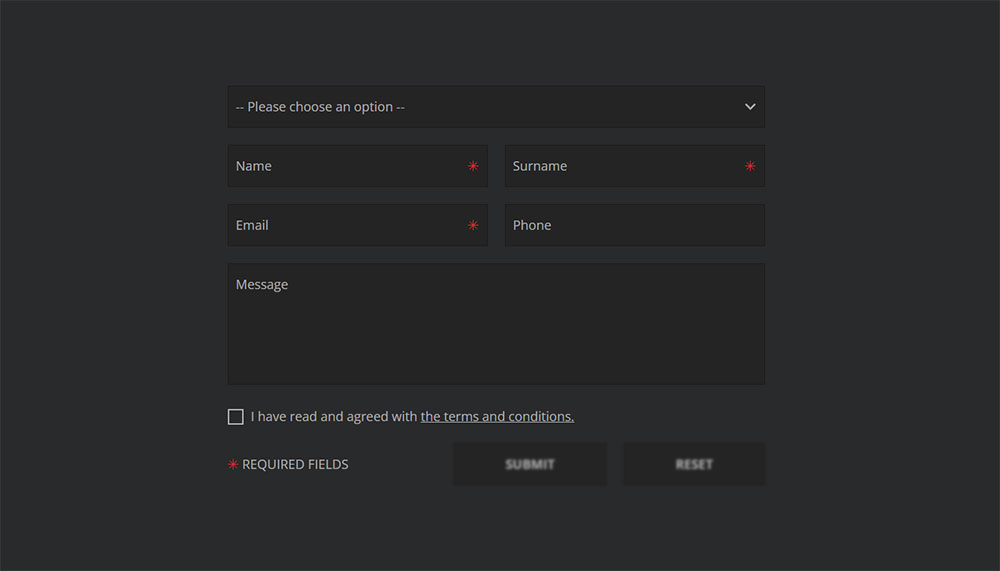





Most WordPress attacks don’t start at the login page. They start at a form, because a form is the one part of a site built to accept whatever a stranger…
Table of contents
A WordPress form works through a plugin, not a theme setting. There’s no form builder baked into core, so anyone who wants a contact box, a survey, or a checkout screen turns to something like WPForms or Contact Form 7, plugins that store submissions right inside the WordPress dashboard without a line of custom backend code.
That gap in core WordPress is bigger than it sounds. WPForms and Contact Form 7 didn’t just fill a hole, they turned filling that hole into an entire category of plugin. Contact Form 7 alone runs on more than 10 million active installations, according to its own WordPress.org listing, which makes it the most installed dedicated form plugin on the platform.
What Are WordPress Forms?
WordPress now runs 41.2% of all websites worldwide, according to W3Techs data as of August 2026. That scale is a big part of why form plugins built specifically for the platform turned into their own software category instead of staying a minor add-on somewhere in a theme options page.
A plain HTML form dropped into a template does nothing on its own. It just sits there until a script picks it up. A WordPress form plugin handles everything after that: field validation, spam filtering, saving entries to the database, firing off an email or a webhook once someone hits submit. None of that is visible to the person filling the form out, which is sort of the point.
What actually separates it from a random contact form scraped off some tutorial site: it lives inside the WordPress dashboard, so anyone with a login can edit it. Entries usually land in the WordPress database rather than a separate app somewhere. And most of the plugin comes with spam protection, notifications, and styling already built in, you’re not assembling that from scratch.
Most site visitors never think about any of this. They see a contact box or a survey and just fill it in. The plugin underneath is doing the actual work of turning that into stored, structured data.
What Types of WordPress Forms Exist?
Contact, survey, payment, registration, newsletter signup, that’s the rough map of what a WordPress form usually collects. Lumping all of that under one generic “contact form” label undersells what the category covers, since each type changes what fields and storage the form actually needs underneath.
| Form Type | Primary Purpose | Typical Fields |
|---|---|---|
| Contact form | General inquiries and support requests | Name, email, message |
| Survey form | Structured feedback and data collection | Rating scales, multiple choice |
| Payment form | Orders, donations, one off transactions | Amount, product, card details |
| Registration form | Account creation and event sign ups | Username, password, ticket type |
| Newsletter form | Email list building | Email address, name, opt in |
Real sites blur these lines constantly. A single lead form might collect contact details and double as a newsletter signup in the same submission, nobody bothers keeping the categories pure.
The broader universe of form types outside WordPress, things like intake forms and application forms, lines up with these same categories once you look at what each one is actually built to capture.
Payment forms are worth pulling out separately. WooCommerce runs its checkout as a specialized payment form with its own validation rules for card fields and shipping addresses. It’s not just a contact form with a price tag bolted on.
Registration forms carry the heaviest security load of the bunch. They’re creating a user account, not just logging a message somebody reads later.
For those looking to save time during the development phase, using pre-built form templates provides a structured starting point.
What Fields Do WordPress Forms Use?
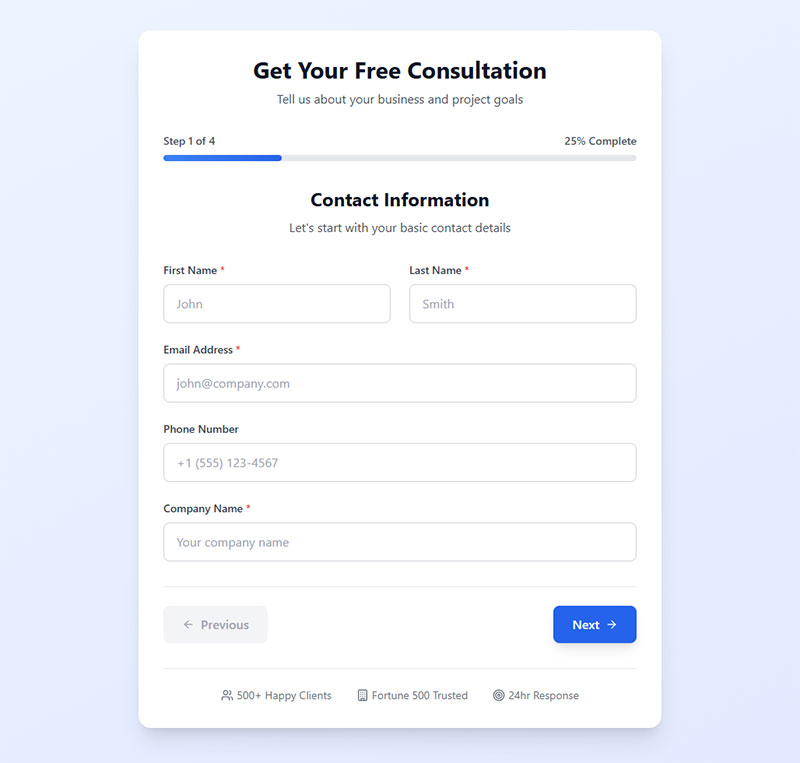
Text, email, number, dropdown, checkbox, radio button, file upload, date picker, that’s the standard toolkit most WordPress form plugins ship with. Each one maps to an HTML5 input element under the hood, which is why a browser can catch obvious formatting mistakes (letters typed into a phone number field, say) before the plugin even gets involved.
Text and paragraph fields cover names, addresses, and anything open ended. Email fields check for a valid address format on their own. Number fields reject non numeric entries right at the browser level, before a submission even reaches the server.
Choice based fields behave differently from each other. A dropdown works for a single choice buried in a long list. Checkboxes let someone pick more than one answer at once.
Radio buttons look almost identical to checkboxes but act nothing like them, and mixing the two up is honestly one of the most common field mistakes on WordPress sites. The real distinction between a radio button and a checkbox comes down to whether more than one answer should ever be allowed.
File upload fields let a visitor attach documents, images, or a resume straight through the form. Depending on how the plugin’s configured, those land in the media library or a private folder somewhere.
Conditional logic isn’t really a field type, it sits above all of them. It shows or hides fields based on an earlier answer, so a 40 field intake form can feel like a 6 field form to whoever’s actually filling it out. Anyone building something past a basic contact box benefits from understanding what conditional logic actually does before stacking a dozen fields most visitors will never see.
Multi step forms reuse these same field types. They’re just split across a few screens with a progress bar, which lowers how heavy a long form feels without cutting a single field.
How Do WordPress Forms Work Behind the Scenes?
Client side validation, a server side check, database storage, a triggered notification, that sequence runs every single time someone submits a WordPress form. Skip one of those steps and something breaks, sometimes quietly (a notification that never shows up), sometimes loudly (a form that lets garbage straight through).
Field Validation Before Submission
Validation actually happens twice, not once. The first pass runs in the visitor’s browser using HTML5 and JavaScript, before anything even gets sent anywhere. The second pass happens again on the WordPress server itself, because browser checks are trivial to bypass if someone wants to.
Relying on the client side check alone is a mistake that shows up more often than you’d expect, since disabling JavaScript or submitting a raw request takes about thirty seconds for anyone who wants to try it. That’s exactly why the gap between validating on the client side and the server side matters more than most tutorials bother explaining.
PHP handles that server side pass in almost every WordPress form plugin. Makes sense, it’s the language WordPress itself runs on.
What Happens After a Visitor Clicks Submit
Once someone hits submit, the sequence is fixed:
- The form data posts to WordPress, usually through AJAX so the page doesn’t reload
- Server side validation checks each field against the rules set in the builder
- Valid entries get written to the WordPress database
- A notification email fires to the site owner, and often a confirmation message to the visitor
- The visitor sees a confirmation message or gets redirected to a thank you page
Zuko pulled this from more than 93 million tracked form sessions and landed on an average starter to completion rate of 51.71% across all industries. Roughly half of everyone who starts a form never finishes it, which is exactly why so much attention gets paid to the validation and notification mechanics behind the scenes.
Notification delivery depends entirely on the site’s mail setup, and a form that works perfectly on the backend can still fail right here if the WordPress email settings aren’t actually sending mail through the server.
Where Do WordPress Form Entries Get Stored?
Most WordPress form plugins save every submission to the site’s MySQL database by default, either as a custom post type or in dedicated tables the plugin creates when it activates.
WPForms and Contact Form 7 both lean on the standard WordPress post structure for storing entries. Keeps things simple, but it also ties your entry data to the same tables as your posts and pages, for better or worse.
Gravity Forms went a different direction. Its own documentation describes custom database tables, prefixed gf_, built specifically for forms, entries, and entry metadata, kept apart from the rest of WordPress’s content tables.
A submission can end up in the WordPress database (the default, and by far the most common landing spot), in an email inbox running alongside or instead of that database record, or synced out to a third party CRM or spreadsheet through an integration.
Entry retention is a setting almost nobody touches until storage turns into a problem. Some plugins auto delete entries after a set number of days. Others just keep everything forever unless someone exports and clears them by hand.
Exporting is usually a CSV download straight from the dashboard. No database access, no developer needed, no drama.
How Do WordPress Forms Handle Spam Protection and Compliance?
Spam gets filtered through honeypot fields, CAPTCHA challenges, and machine learning services like Akismet. Compliance runs on a completely different track, mostly consent checkboxes tied to how the data actually gets stored and used. They live on the same settings screen, but they’re solving two unrelated problems.
Spam and Bot Filtering
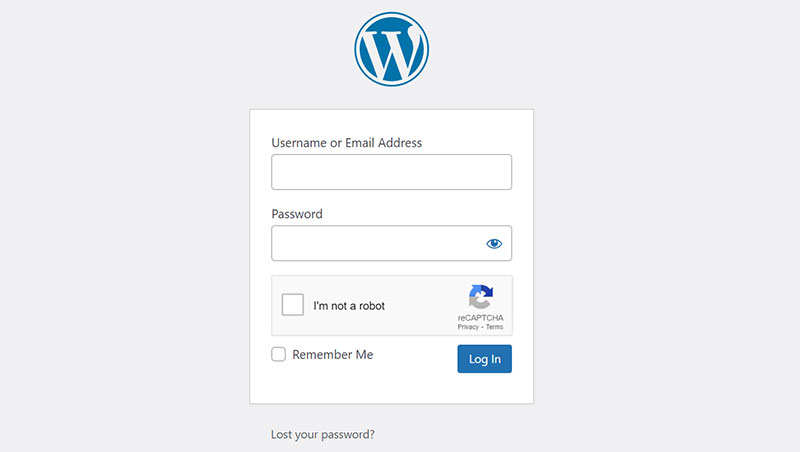
Honeypot fields are invisible to a human visitor but sit right there for a bot to find. Anything scraping and auto filling every input on a page trips what is a honeypot field almost instantly, while a real person never even notices it exists.
CAPTCHA and Google reCAPTCHA ask a visitor to prove they’re not automated, which works but occasionally annoys real humans in the process. Akismet skips the puzzle entirely and checks each submission against a global spam database instead of a local ruleset on your own site.
WPBeginner, one of the most visited WordPress resource sites around, runs its own contact forms on a built-in anti-spam token paired with Google reCAPTCHA. By their own account, that combination blocks spam without forcing real visitors through an annoying puzzle.
GDPR and Consent Fields
This risk isn’t hypothetical. It shows up in enforcement numbers every single year, and the numbers aren’t small.
DLA Piper’s GDPR Fines and Data Breach Survey (January 2026) put total GDPR fines across Europe in 2025 at EUR 1.2 billion. Cumulative fines since the regulation took effect back in May 2018 now sit at EUR 7.1 billion, per the same 2026 report. Daily data breach notifications across Europe averaged 443, up 22% year over year.
None of that money traces back to form spam. It comes from how personal data gets collected, stored, and consented to, which is exactly what a form’s privacy settings are supposed to control.
A compliant setup needs an explicit consent checkbox, a link to a privacy policy, and a defined retention period for stored entries. A vague notice buried in a footer somewhere doesn’t really cut it. Building one properly (rather than bolting on a single plugin setting and hoping for the best) is covered in how to build GDPR compliant forms in more depth, since the checkbox itself is genuinely the easy part.
Double opt in, where a subscriber has to confirm their email before joining a list, adds a second layer of proof that consent was real and not a typo or a bot submission.
Which WordPress Form Plugin Should You Use?
WPForms is the safe pick if you’re starting from zero and want a drag and drop builder that just works. Gravity Forms is what you reach for once you need serious multi step logic or calculations, though you’ll pay for the privilege since there’s no free tier at all. And if you don’t mind a shortcode based workflow and just want something free that gets the job done, Contact Form 7 is still hard to beat.
Picking wrong doesn’t usually break anything. It just means migrating entries and rebuilding forms later, which nobody enjoys doing twice.
| Plugin | Best For | Pricing Model | Active Installs |
|---|---|---|---|
| WPForms | Beginners, drag and drop building | Free tier plus paid plans | 5,000,000+ |
| Gravity Forms | Complex logic, calculations | Paid only, no free tier | Not published on WordPress.org |
| Contact Form 7 | Simple forms, developers | Free, donation supported | 10,000,000+ |
| Ninja Forms | Freemium flexibility | Free core, paid add ons | 600,000+ |
WordPress.org’s own plugin directory lists WPForms at more than 5 million active installations and Contact Form 7 at more than 10 million, as of 2026. That makes CF7 the single most installed dedicated WordPress contact form plugin on the platform, by a wide margin.
Gravity Forms never shows up in that same directory data, because it’s sold exclusively as a premium product with no free listing at all. That’s also why its install count gets estimated by third parties instead of published anywhere official.
Fluent Forms and Formidable Forms round out the field. Both aim at people who want more building power than Contact Form 7 offers, without paying Gravity Forms prices for it.
Jetpack, the all purpose WordPress plugin, ships a basic contact form too. Mostly useful for sites that already run Jetpack for other reasons and don’t want to install a second plugin just for one form.
Free Versus Premium Plugin Tiers
Free tiers cover the basics well enough for a lot of sites: contact and lead forms, standard field types without conditional logic, email notifications. Payment gateways and CRM integrations almost never make the cut on a free plan.
Paid tiers unlock conditional logic and multi step forms, gateway and CRM connections, priority support, and usually better spam filtering on top of all that.
Small sites running one contact form rarely need to pay for anything, honestly. The moment a form needs to take payments, branch based on an earlier answer, or push data into a CRM, the free tier runs out of road fast.
A fuller breakdown of which WordPress form plugins are genuinely free, versus the ones that just look free until a paywall shows up, is worth a read before committing to a paid plan too early.
Can You Build a WordPress Form Without a Plugin?
Yes, though “without a plugin” really means writing real code, not skipping a step in some setup wizard.
WordPress core hands you two raw ingredients: a block that accepts raw HTML, and the wp_mail() function that actually sends an email. Everything past that, you’re building yourself.
A full walkthrough of building forms in WordPress without plugins covers the code in more depth than fits here. The shape of it is worth understanding first, though.
What the Block Editor Can and Can’t Do Alone
Here’s the part most tutorials skip over: core Gutenberg has no native form block. It never has.
Search the block inserter for “form” on a plain WordPress install and nothing built for the job shows up.
Jetpack fills that gap with its own Form block, pre-built patterns included. But Jetpack is itself a plugin, so it doesn’t really answer the “without a plugin” question, does it.
The genuinely plugin free option is the Custom HTML block. You paste a raw form tag into it yourself, fields and all, by hand.
That markup does nothing on its own. It just sits there until something on the server catches the submission and acts on it.
Writing a Custom PHP Form Handler
Three pieces need to come together before that HTML block actually does anything. A form tag pointing to admin-post.php, WordPress’s built in endpoint for handling form actions. An action hook, registered in functions.php, that runs when that specific form gets submitted. And a call to wp_mail() inside that hook, sending the notification once the data checks out.
None of this touches the database automatically. Saving entries anywhere at all means a few more lines inserting into a custom table or a post type you register yourself.
Building something like a full registration form without a plugin this way also means handling password hashing and account creation through WordPress’s own user functions, not just firing off a contact message.
What you gain going this route: no plugin bloat, full control over every line, nothing to patch or update, and no ongoing license fee, ever. What you lose: no spam protection unless you build it yourself, no visual builder or entry management screen, and every new field or rule becomes a code change instead of a settings toggle.
For a single static contact form on a portfolio site, that trade works fine. For anything a client needs to edit themselves later, it usually doesn’t.
How Do You Create a WordPress Form?
Building a form with a plugin runs through six steps, start to finish, from installing the thing to publishing it on a live page. None of it touches code, which is really the whole point of using a plugin instead of the custom PHP route above.
- Install and activate a form plugin from the WordPress dashboard
- Choose a pre-built template or start from a blank form
- Add, remove, or reorder fields using the drag and drop builder
- Set up the notification email and, if needed, a confirmation message
- Place the finished form on a page using a shortcode or a block
- Publish the page and submit a test entry yourself before sharing it
Newer plugins add another route on top of these six steps: you can manage WordPress forms with an AI assistant, describing the form you want in plain language instead of dragging each field into place.
Step two saves the most time in practice, by far. WPForms alone ships with more than 2,100 pre-built templates, according to its own WordPress.org plugin listing, covering everything from a basic contact form to a multi step registration flow.
Picking a template close to what you actually need beats building from a blank canvas almost every time, even when you end up changing half the fields anyway.
Specialized form types branch off from these same six steps rather than replacing them outright. Building a survey form just means step three leans heavily on rating scales and multiple choice fields instead of plain text inputs.
File upload heavy forms follow the same pattern. The extra care in building a drag and drop file upload form is mostly about getting the file size and type restrictions right during step three, not some entirely different process.
Testing before launch matters more than it sounds like it should. A form that looks perfectly fine in the builder can still fail silently if the notification step wasn’t configured right, and nobody notices until a real submission just goes missing.
How Do You Style a WordPress Form?

Two paths exist here: the plugin’s built in style settings, or custom CSS layered on top of that. Most people never leave the first option, and for a huge number of sites, that’s genuinely the right call.
Built in styling handles field spacing, border radius, and color themes, along with button color and text, and (in newer plugin versions) a font family that matches whatever theme is already active.
Custom CSS gets pulled out mainly for matching a very specific brand color the built in picker can’t quite reach, overriding spacing that clashes with a theme’s own layout rules, or restyling multi step progress bars past what the plugin’s presets allow.
Theme conflicts are the most common styling complaint, and they almost always trace back to CSS specificity. The theme’s stylesheet loads after the form plugin’s and just wins.
Getting the visual side right isn’t only cosmetic, either. Established form design practice treats field width, label placement, and spacing as functional choices, not decoration, since cramped fields slow people down before they even reach the submit button.
Responsive behavior deserves its own attention rather than an afterthought. Most form plugins output mobile responsive markup by default, but a theme with fixed width containers can still break that on a phone screen without anyone noticing until a user complains.
This matters enough that mobile form best practices exist as their own category of advice, separate from general form design.
What Integrations Do WordPress Forms Support?
Email marketing platforms, payment gateways, CRMs, general automation services, these are the four places a WordPress form usually plugs into once it needs to do more than sit in a database. Each one turns a submission from a static entry into a trigger that does something somewhere else entirely.
| Category | Example Services | What It Solves |
|---|---|---|
| Email marketing | Mailchimp, ActiveCampaign | Adds a submitter straight to a mailing list |
| Payment gateway | Stripe, PayPal | Charges a card without leaving the form |
| CRM | HubSpot | Logs a lead with full context, not just an email |
| Automation | Zapier, Uncanny Automator | Passes data to almost anything else |
Email Marketing Connections

Connecting a form to Mailchimp turns every newsletter signup into an automatic subscriber addition. No manual list upload, no copy pasting emails into a spreadsheet first.
Email address and name usually get mapped over at minimum, along with any interest tags or custom fields the form collects, plus double opt in status if the list requires confirmed consent.
Autoresponders sit on top of this connection rather than being a separate integration of their own. Once someone’s added to the list, the welcome sequence just fires on its own schedule.
Payment Gateway Connections
Payment forms need a gateway that can process card details without WordPress itself ever touching that data directly, and for good reason.
Stripe and PayPal cover the overwhelming majority of WordPress payment form setups. Both connect through an API rather than redirecting a visitor off to some separate checkout page.
Almost 60% of businesses have already put some form of automation in place, per Zapier’s own 2026 research, and payment or CRM connections are usually the first automation a small business form ever picks up.
A webhook is what makes most of this invisible plumbing actually work. The form submits, a webhook fires to the payment processor or CRM, and the response comes back before the visitor even sees a confirmation page.
What happens after that connection fires is its own separate question. Tracking form submissions in Google Analytics shows which integration actually drove a result, not just that a submission happened at some point.
When Do WordPress Forms Not Work?
Aggressive caching, broken notification delivery, and setups that strip out whatever a form actually depends on to function, that combination covers almost every failure case. None of these are exotic edge cases either. Most WordPress sites run into at least one of them eventually, usually without warning.
Caching conflicts cause the most trouble by far. A page caching plugin serving up a static HTML snapshot can freeze a form in whatever state it happened to be in when the cache was built, old security tokens and stale hidden fields included.
WP Super Cache alone runs on more than 1,000,000 sites, per its WordPress.org listing, and its own documentation calls out excluding dynamic pages from the cache as a required step, not an optional one.
Most form plugins solve this automatically by excluding their own form pages from the cache. A hand built form using a raw HTML block has no such protection, none at all.
Notification failure is quieter, and honestly more common than caching problems. The form submits successfully, WordPress reports success, and the email still never shows up anywhere.
Shared hosting environments frequently misconfigure the server’s default mail setup. WordPress’s default PHP mail() function sends without any authentication attached to it. Spam filters increasingly reject or just bury anything that arrives unauthenticated, which is most of what PHP mail sends.
WP Mail SMTP’s own data puts authenticated email at 96.4% deliverability, against roughly 64% for unauthenticated PHP mail. That gap alone is basically the entire reason SMTP plugins exist. Anyone chasing a specific case of WPForms not sending email is almost always looking at this exact problem, not a bug hiding in the plugin itself.
Structural mismatches round out the list. Static site exports, fully headless WordPress front ends, and AMP pages all strip out the live PHP processing or JavaScript a form needs to submit anywhere at all.
A form embedded on an AMP page loses most of its interactivity by design, since AMP restricts custom JavaScript specifically to keep pages lightweight and fast.
None of this means the form itself is broken, to be clear. It means the environment around it stopped providing something the form assumed would be there.
FAQ on WordPress Forms
What Is the Difference Between a WordPress Form and a Plain HTML Form?
A plain HTML form only defines fields in markup, and does nothing at all without a script to process it somewhere. A WordPress form pairs that same markup with built in validation, spam protection, database storage, and email notifications, all managed straight from the WordPress dashboard.
Do WordPress Forms Need a Database to Function?
Not strictly, no. A form can skip storage entirely and just fire an email notification on submission. Most plugins default to saving each entry in the WordPress database anyway, since that entry management screen is where exports, spam review, and reporting actually happen.
Does a WordPress Form Work With Page Builders Like Elementor or Divi?
Yes. Elementor and Divi both ship their own dedicated form widgets that build fields visually right inside the page builder, separate from a standalone plugin. A lot of site owners still prefer a dedicated plugin for the spam protection and entry management the widgets don’t really replace.
What Causes a WordPress Form to Stop Sending Emails?
A mismatched from address is the usual culprit, since receiving servers reject mail claiming to come from a domain they don’t recognize or authorize. Host level mail restrictions and messages that land straight in a spam folder account for most of what’s left.
Can a WordPress Form Send Entries to Google Sheets or a CRM Automatically?
Yes, either through a native integration or an automation layer like Zapier. Most plugins offer a direct Google Sheets connection that appends a row per submission, while routing to a CRM usually needs a paid add-on or a webhook pointed at that CRM’s API.
How Many Submissions Can a WordPress Form Handle Before It Slows Down?
There’s no fixed ceiling, really. Hosting is the actual limit: shared hosting can start straining past a few hundred submissions a day, while a managed WordPress host handles thousands without blinking. Database size and unoptimized entry tables slow things down more than the plugin itself usually does.
What Does a WordPress Form Cost to Maintain After Launch?
Running a WordPress form costs next to nothing. The real expense shows up later, in ongoing security patching, deliverability checks, and compliance review, once the form actually starts collecting visitor data and doesn’t stop.
That upkeep has an order worth following, not a random checklist you get to whenever.
- Update the form plugin before anything else on the site
- Re-test notification delivery after any hosting or plugin change
- Revisit stored entries against the retention window before it lapses
Plugin updates come first because that’s where the risk actually concentrates. Patchstack’s State of WordPress Security in 2026 report found that 91% of new WordPress vulnerabilities in 2025 originated in plugins rather than core, with a weighted median gap of just five hours between disclosure and the first mass exploitation attempt among the most heavily targeted vulnerabilities.
Skipping that update cycle buys a bit of convenience today and trades away the security margin the whole setup depends on. A closer look at WordPress form security covers what that patching schedule is actually protecting against.