





Most WordPress attacks don’t start at the login page. They start at a form, because a form is the one part of a site built to accept whatever a stranger…
Table of contents
I’ve seen forms with 15 fields when 6 would do. Every extra question that doesn’t apply to the person filling it out is a small push toward the back button.
Conditional logic is how you fix that. It controls what appears in a form based on what someone actually answers, so people only see what’s relevant to them.
If you’ve ever wondered what is conditional logic in WordPress forms and whether it’s worth setting up, this covers the mechanism, what it can do, where it actually helps, and where it tends to break.
What Is Conditional Logic in WordPress Forms
Conditional logic is a rule-based system that controls what happens inside a form based on what a user inputs.
It runs on a simple if/then principle: if a field equals a specific value, then show, hide, require, or change another field. No coding needed.
That’s the whole idea. A static form shows every field to everyone. A form with conditional logic shows only what’s relevant to each person based on what they’ve already answered.
| Form Type | Field Behavior | User Experience |
|---|---|---|
| Static | Same fields for everyone | Often shows irrelevant questions |
| Conditional | Fields change based on input | Personalized, relevant only |
WordPress powers 43.4% of all websites globally as of 2025 (W3Techs). That’s a lot of forms that could be doing more work with this one feature turned on.
The logic applies at multiple levels: individual fields, entire sections, multi-step form pages, and even post-submission behavior like confirmation messages and email routing.
The core mechanism
Trigger (condition): A field and a specific value that activates the rule.
Action: What happens when that condition is met: show a field, hide it, mark it required, skip a page, or redirect after submission.
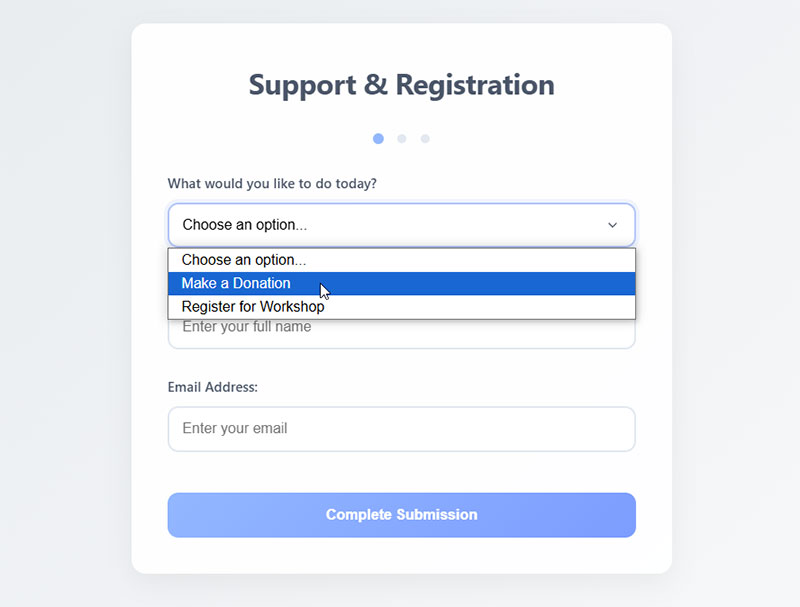
Here’s a real example: a contact form that shows a “Company Name” field only when someone picks “Business Inquiry” from a dropdown. Choose “Personal” and that field never appears.
Simple. But genuinely useful once you start applying it across different form types.
Static forms vs. conditional forms
Static forms ask everyone the same questions. Whether those questions apply or not.
I’ve worked on a client intake form that had a 12-field layout, and honestly about 5 of those fields were irrelevant to at least half the people who saw them. That kind of thing quietly kills completion rates.
The numbers are pretty clear: 10% of users abandon forms because of unnecessary questions, and 27% leave because the form is too long (FormStory, 2024).
Conditional forms adapt. They hide what doesn’t apply and surface what does, making the whole thing feel leaner even when the underlying field count is actually quite high.
How Conditional Logic Works in a Form
See the Pen
Modern Conditional Form with Pastel Theme by Bogdan Sandu (@bogdansandu)
on CodePen.
Every conditional logic rule has two parts: the condition and the action.
The condition monitors a field. The action responds when that field hits a specified value.
Single condition rules
The structure is always the same:
- Source field (what you’re watching)
- Operator (equals, does not equal, contains, is greater than, etc.)
- Value (the specific input that triggers the rule)
- Target field (what changes)
- Action (show, hide, require, skip)
Example: If “Are you a returning customer?” equals “Yes,” then show the “Order Number” field.
One condition, one action. Clean and easy to manage.
Multiple conditions with AND/OR logic
This is where things get more precise, but also trickier to debug.
AND logic means all conditions must be true before the action fires.
OR logic means any one condition being true is enough to trigger the action.
| Logic Type | When It Fires | Best Used For |
|---|---|---|
| AND | All conditions are true | Highly specific rules |
| OR | Any one condition is true | Broader triggers |
| Mixed AND/OR | Custom combination | Complex form flows |
A support form might use AND logic like this: if “Product Category” equals “Hardware” AND “Issue Type” equals “Defective,” then show the “Serial Number” field and mark it required.
OR logic works better for broader triggers. Showing a discount field when someone selects “Returning Customer” OR “Referral” as their source is a good example.
Most WordPress form builders with conditional logic handle AND/OR operators visually, without touching a line of code.
Types of Actions Conditional Logic Can Trigger
Most people think conditional logic just shows or hides fields. It does a lot more than that.
Show/Hide fields: The most common use. A field appears or disappears based on a previous answer.
Show/Hide sections: Entire groups of fields can be toggled at once, which is cleaner than managing fields one by one.
Mark as required: A field can become mandatory only when it’s relevant. Hidden fields won’t block form submission.
Skip pages in multi-step forms: Users can jump over entire form pages that don’t apply to them. This is sometimes called page-level logic or skip logic.
Change submission behavior: After submission, the form can redirect to different URLs or show different confirmation messages depending on what the user answered.
Update field values dynamically: Some WordPress forms support calculated fields, where conditional logic can populate a field’s value automatically. Useful for quote builders and cost calculators where the output depends on earlier inputs.
Roughly 67% of site visitors will abandon a form entirely if they hit usability issues (Feathery, 2024). A form that adapts to the user directly reduces the friction that causes those drop-offs.
Common Use Cases for Conditional Logic in WordPress Forms

Conditional logic solves one core problem: not every question applies to every person.
Here are the scenarios where it makes the biggest difference.
Booking and service forms
A WordPress booking form for a photography studio might open with ‘What type of shoot?’ — and conditional logic then reveals date pickers, venue questions, and a guest count field only when ‘wedding’ is selected.
If someone picks “wedding,” the form expands to show date fields, venue questions, and a guest count field. Portrait? None of that appears.
Without conditional logic: every customer sees every question, most of which won’t apply to them.
A WordPress event registration form works the same way. Different ticket types often need completely different sets of information, and conditional logic handles that inside a single form.
Survey and quiz forms
Surveys are where skip logic matters most.
If someone says they’ve never used your product, asking about their experience with specific features makes no sense. Conditional logic routes them past those questions automatically.
This also reduces survey fatigue. A typical survey form response rate sits between 5% and 30% (Survey Planet), and irrelevant questions are one of the fastest ways to push people toward the lower end of that range.
Lead generation and intake forms
Lead generation forms often need different information depending on the type of lead.
A B2B lead might need company size, industry, and budget range. A B2C lead doesn’t. Conditional logic splits those paths inside a single form rather than requiring two separate forms.
The same applies to intake form flows for service businesses. A law firm intake form that asks about the type of legal issue can surface relevant follow-up fields based on that answer, rather than listing every possible question upfront.
Support and contact routing
A form on a contact us page with a “Department” or “Issue Type” field can use conditional logic to route submissions to the right inbox automatically.
“Billing issue” goes to finance. “Technical problem” goes to support. “Sales inquiry” goes to the sales team. The form handles the sorting so no one has to do it manually.
How to Set Up Conditional Logic in WordPress
The setup process follows the same general pattern across most form builders, even if the interface looks different from plugin to plugin.
Step one: build your base form
Add all the fields you need, including both the source field (the one that triggers the condition) and the target field (the one that will show or hide).
Don’t set any conditional rules yet. Get the full field structure in place first.
Step two: open the conditional logic panel
Click on the target field. In most form builders, conditional logic settings appear as a tab or expandable section within the field’s settings panel.
Enable conditional logic by toggling it on.
Step three: define the condition
Set three things:
- Which field to watch (the source field)
- The operator (equals, is not, contains, is greater than, etc.)
- The value that triggers the rule
Example: “If ‘Inquiry Type’ equals ‘Business'”
Step four: set the action
Choose whether to show or hide the target field when the condition is met.
Most builders default to “show if,” meaning the field is hidden by default and only appears when the condition fires. That’s usually the right setup.
Step five: test before publishing
Preview the form. Run through every condition you set. Check that fields appear and disappear correctly, that required field behavior works, and that the form submits cleanly in both the conditional and non-conditional paths.
Worth noting: conditional logic in web forms depends on JavaScript to run. Testing with a JS blocker active means the logic won’t fire. Always test in a clean browser session.
For multi-step forms, test the page-skip behavior separately. Page-level conditions are the most common place things break, especially on forms with many pages.
Conditional Logic on Form Confirmations and Notifications
Most people set up conditional logic on fields and stop there. The post-submission side of a form is where a lot of the real routing work happens, and it runs on the same if/then logic.
This layer operates after the user clicks submit, not during form interaction.
| Trigger | Action | Common Use |
|---|---|---|
| Answer equals specific value | Show custom confirmation message | Qualified vs. unqualified leads |
| Department field selection | Route email to specific team | Support, sales, billing routing |
| Product category selected | Notify relevant team member | Multi-department businesses |
| Budget range answered | Redirect to tailored landing page | Sales funnel segmentation |
Conditional confirmation messages
The default behavior: every user sees the same thank-you message after submitting.
Conditional confirmations change that. A form submission confirmation message can say different things depending on what the user answered.
A qualification form might show “We’ll be in touch within 24 hours” to leads that meet criteria, and “We’ll review your details and contact you if there’s a fit” to those who don’t.
Two different messages. One form.
Conditional email notifications and routing
This is the highest-value use of post-submission logic for most businesses.
Routing works like this: the form watches a specific field value, then sends the notification to the email address that matches that condition.
- “Sales inquiry” field value fires a notification to the sales team inbox
- “Technical issue” fires to the support queue
- “Partnership request” fires to the business development contact
No manual triaging. The form handles it on submission.
A real-world example: an auto dealership inquiry form can route leads by vehicle type, sending electric vehicle inquiries to one salesperson and used car inquiries to another, based purely on what the user selected.
Conditional URL redirects
After submission, users can be sent to different pages depending on their answers.
A pricing inquiry form might redirect high-budget leads to a premium consultation booking page, while lower-budget leads land on a self-serve resource page.
This ties directly into improving form abandonment rate strategies. Matching the post-submit experience to the user’s profile keeps the conversation relevant instead of dropping everyone onto the same generic confirmation page.
Conditional Logic vs. Multi-Step Forms
These two features get confused often. They’re related but they solve different problems.
Conditional logic controls what appears. Multi-step forms control how content is grouped and paced.
| Feature | What It Controls | Primary Purpose |
|---|---|---|
| Conditional logic | Field and section visibility | Show relevant content only |
| Multi-step forms | Page structure and flow | Reduce cognitive load per step |
| Combined | Both visibility and flow | Complex, adaptive form journeys |
Only 40% of marketers use multi-step forms, yet those who do report conversion rates 86% higher than single-step forms with many questions (HubSpot).
That gap gets wider when conditional logic is layered in.
How they differ in practice
A multi-step form splits questions across pages. Every user sees those pages in sequence.
Conditional logic determines what’s on each page for each specific user.
Without conditional logic on a multi-step form: users see every page, even ones with fields that don’t apply to them.
With conditional logic added: users skip entire pages based on earlier answers, and see only the fields relevant to their path.
Took me a while to fully appreciate this distinction, but it matters a lot when you’re designing complex registration forms or application flows where different user types need completely different information.
When to use one vs. the other
Three scenarios worth knowing:
- Short form, varied audience: use conditional logic only, no multi-step needed
- Long form, uniform audience: use multi-step without conditional logic
- Long form, varied audience: combine both for the best experience
The combination is where forms like insurance applications, onboarding flows, and detailed service intake questionnaires do their best work.
Multi-step pacing reduces the visual overwhelm. Conditional logic keeps each page lean and relevant. Neither one alone does what both do together.
Limitations and Known Issues with Conditional Logic in WordPress Forms
Conditional logic works well when everything is configured correctly. But there are real failure points worth knowing before you build something complex.
JavaScript dependency
Conditional logic in WordPress forms runs entirely on JavaScript. The field visibility rules, the AND/OR evaluations, the page-skip behavior — all of it happens client-side.
If JavaScript is blocked, deferred incorrectly, or conflicts with another plugin, the logic breaks entirely. Fields that should hide stay visible. Fields that should appear never show up.
Common JavaScript conflict sources (oddjar.com troubleshooting guide, 2026):
- Optimization plugins that defer or minify JS files without exclusions
- jQuery version conflicts, especially after WordPress 5.5+ removed jQuery Migrate
- Theme-level JS that interferes with form scripts
The fix is usually adding form-related JS files to the exclusion list in your optimization or caching plugin.
Caching plugin conflicts
Aggressive page caching can serve a static version of your form to users, bypassing the JavaScript-driven logic entirely.
Caching plugins that handle dynamic content poorly are a consistent source of conditional logic failures. The general guidance from hosting and caching documentation is clear: forms, user accounts, and personalized pages need to be excluded from full-page caching rules.
Most caching plugins support exclusion rules. The issue is that most users never configure them for form pages.
Complex nested logic
Three or four conditions on a single form are easy to manage. Twenty conditions across a multi-step form with branching page logic? That becomes tricky to maintain.
The practical problems with deeply nested logic:
- Hard to debug when something breaks
- Difficult to hand off to another person to manage
- Small field label changes can silently invalidate conditions
The rule most developers follow: if a conditional rule can’t be explained in one sentence, it’s probably too complex and should be broken into simpler, separate rules.
Required field validation gaps
This one catches people off guard. A hidden field that’s marked as required can still block form submission in some configurations.
The expected behavior: if a field is hidden by conditional logic, it should not be required.
Most well-built form builders handle this correctly. But it’s worth testing explicitly — submit the form while a conditional field is hidden and verify the form goes through without a required-field error.
Fields that toggle between hidden and visible based on user input need to be tested in both states before going live. Skipping this step is the most common cause of “form error message on submit” reports from confused users.
FAQ on What Is Conditional Logic in WordPress Forms
What is conditional logic in WordPress forms?
Conditional logic is a rule-based system that shows, hides, or changes form fields based on user input. It works on if/then logic: if a field equals a specific value, then an action fires. No coding required.
How does conditional logic improve form completion rates?
It removes irrelevant questions from view, making forms feel shorter and more personal. Unnecessary questions account for 10% of form abandonment (FormStory, 2024). Fewer irrelevant fields means less friction and higher submission rates.
What actions can conditional logic trigger in a form?
Beyond showing and hiding fields, it can mark fields as required, skip pages in multi-step forms, redirect users after submission, send emails to different recipients, and update field values dynamically based on earlier inputs.
What is the difference between AND logic and OR logic in forms?
AND logic fires only when all conditions are true. OR logic fires when any single condition is met. AND is better for specific rules. OR works for broader triggers. Most form builders support both operators visually.
Can conditional logic work on multi-step forms?
Yes. It can control both field visibility within a page and skip entire pages based on earlier answers. This is called page-level logic or skip logic. Combined with multi-step structure, it creates fully adaptive form journeys.
Does conditional logic affect form email notifications?
It does. Notification routing lets you send submissions to different email addresses based on user answers. A “Department” dropdown, for example, can route support requests to one inbox and sales inquiries to another automatically.
What causes conditional logic to stop working in WordPress?
The most common cause is a JavaScript conflict. Optimization plugins that defer or minify JS files, jQuery version mismatches, and aggressive page caching can all break form field visibility rules silently.
Can hidden fields still block form submission?
Sometimes. A hidden field marked as required may still trigger a validation error in some form configurations. Always test the form with conditional fields in their hidden state before publishing to catch this issue early.
Does conditional logic work on mobile forms?
Generally yes, since it runs on JavaScript in the browser. However, complex nested conditions with many fields can cause rendering delays on lower-powered mobile devices. Keep rule sets lean and test on actual devices.
Is conditional logic available in free WordPress form plugins?
Some free plugins include basic conditional logic natively. Others lock it behind paid plans or add-ons. Field-level show/hide is the most commonly available free feature. AND/OR operators and notification routing typically require a paid tier.
Conclusion
Understanding what is conditional logic in WordPress forms gives you a direct way to reduce form abandonment, improve data quality, and make every form field earn its place.
The if/then rule system handles field visibility, skip logic, required field behavior, and post-submission routing inside a single form.
Used well, it removes the friction that pushes people away before they hit submit.
Whether you’re building a lead capture form, a multi-page intake flow, or a dynamic contact form with department routing, conditional logic is what separates a form that works for everyone from one that actually works.