




Most WordPress attacks don’t start at the login page. They start at a form, because a form is the one part of a site built to accept whatever a stranger…
Table of contents
Most landing page forms lose visitors before they ever hit submit.
A poorly designed lead capture form kills conversions that your ads, SEO, and copy already earned. The form is the last step, and for a lot of pages, it is where things fall apart.
This guide covers the landing page form best practices that actually move the needle: field count, CTA copy, mobile form design, trust signals, multi-step structure, page load performance, and what happens after submission.
Each section is grounded in real data so you know what to change and why it works.
What is a Landing Page Form
A landing page form is a conversion-focused input element built to capture one specific action from a targeted visitor. That action could be a lead, a signup, a demo request, or a purchase. It is not a general-purpose web form.
The distinction matters. A standard website form collects information broadly. A landing page form is designed around a single goal, a single audience, and a single moment in the funnel.
Core components
Every landing page form has a few non-negotiable parts that work together to drive submission rates.
- Input fields: The data you collect from the visitor, kept to the minimum needed
- Field labels: Clear identifiers placed above or beside each field
- CTA button: The submission trigger, usually the most visually prominent element
- Microcopy: Short supporting text near the form that reduces hesitation, like “No credit card required”
According to Unbounce’s Q4 2024 analysis of 41,000 landing pages, the median conversion rate across all industries sits at 6.6%. Landing pages, however, convert 160% better than other signup methods.
How it differs from other form types
There are several types of forms used across websites. A contact form exists to start a conversation. A checkout form processes a transaction. A landing page form does something different: it captures intent at a specific moment, usually tied to a campaign or an offer.
Key difference: Landing page forms exist within a persuasion context. The entire page, headline, hero copy, and visuals are all working to prime the visitor before they ever see the form.
Popups make up about 66% of all signup forms, but landing page forms have the highest signup rate at 23% (HubSpot). That gap is not accidental.
Free Form Conversion Rate Calculator
Field Count and What to Ask
More fields mean fewer completions. That is the default assumption. And for most cases, it holds.
Over 30% of marketers report the highest conversion rates from forms with exactly 4 fields (HubSpot). The average landing page form sits at 5 fields. There is a gap between what converts and what most teams actually ship.
The tradeoff between volume and quality
Removing fields increases submissions. But it can also reduce the quality of leads that come through.
Formisimo Analytics reviewed over 2 million B2B form submissions in 2024 and found asking for annual revenue carries a -12.3% conversion impact, while also being rated “High” in qualification value. That is a genuine tradeoff, not a simple fix.
For most top-of-funnel lead capture forms, name and email is enough. For bottom-of-funnel requests like demo bookings or custom quotes, asking for company size or role is reasonable. The key is matching field count to funnel stage, not removing fields blindly.
Required vs. optional fields
Top-of-funnel (high volume, low commitment):
- First name and email only
- No phone number
- No company details
Bottom-of-funnel (lower volume, higher intent):
- Name, email, company, role
- Phone optional if the sales process requires it
- One qualifying question at most
Progressive profiling is worth considering for returning visitors. Instead of asking everything upfront, platforms like HubSpot Forms serve different fields based on what data you already have. You collect more over time without front-loading friction.
Check out some lead generation form examples to see how different industries handle this balance in practice.
What to actually ask
Ask yourself: does this field help us serve the lead better, or does it just help us qualify faster?
If the answer is the latter, remove it from the landing page form and collect it post-submission or during onboarding. Friction at the point of conversion is expensive. Friction after conversion is much cheaper.
| Funnel Stage | Recommended Fields | Avoid |
|---|---|---|
| Top of funnel | First name, email | Phone, company, role |
| Mid funnel | Name, email, company | Annual revenue, team size |
| Bottom of funnel | Name, email, company, role | More than 5–6 fields total |
Form Placement on the Page

Where your form appears on the page affects whether visitors ever see it. That sounds obvious. But plenty of landing pages bury the form below two paragraphs of copy and a product screenshot.
Pages with a single CTA have a 371% higher conversion rate compared to those with multiple CTAs on the same page (WPForms data).
Above the fold vs. below the fold
Above the fold placement works well for simple, low-commitment offers. If someone lands on a “Get your free guide” page, they should see the form immediately without scrolling.
Below the fold works better when the offer needs context. SaaS demo request forms, for instance, often benefit from placing the form after a few benefit statements or social proof elements. The visitor needs a reason before they commit to typing anything.
Hotjar used a popup on their pricing page and saw 60 new trial signups per month from that placement alone. Context and placement worked together, not independently.
Layout decisions that affect completion
Single-column layouts outperform multi-column forms in most cases. The eye moves down naturally. Two-column form layouts create visual confusion about which field comes next, especially on mobile.
Sticky forms on long-form landing pages are worth testing. If someone scrolls 70% of the page, there is a good chance they are interested. A sticky sidebar or bottom bar keeps the form accessible without forcing a scroll back to the top.
Mobile placement rules
Mobile devices account for 82.9% of landing page visits (Unbounce, 2024). But desktop visitors convert at a higher rate.
This matters for placement. On mobile, above-the-fold real estate is smaller. A long headline followed immediately by a 5-field form can feel overwhelming on a 390px screen. Consider leading with the headline and one benefit statement before showing the form on mobile layouts. Small change, measurable difference.
CTA Button Design and Copy
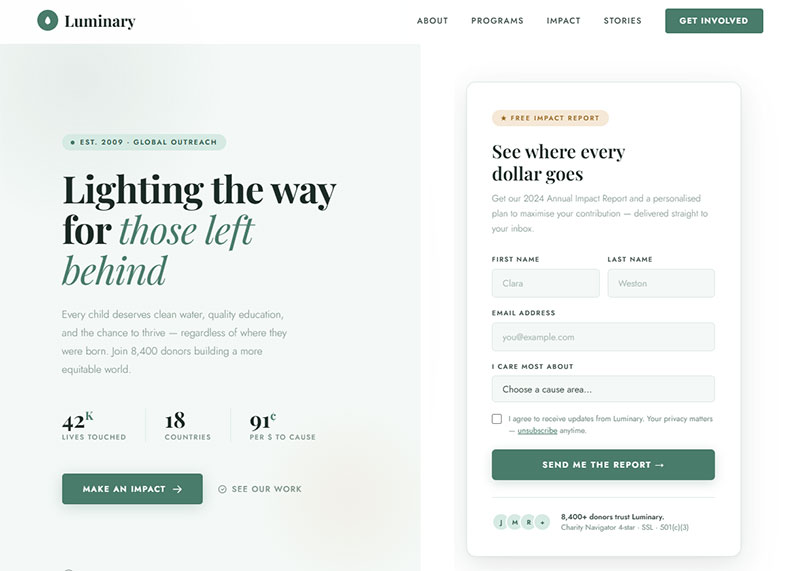
The CTA button is not the last thing people see. For many visitors, it is the first thing they look for when deciding whether to stay on the page.
Most developers and designers underinvest here. The button gets 10 minutes of thought after hours of work on the hero section.
Copy that works
First-person phrasing consistently outperforms generic alternatives. When ContentVerve changed “Start your free 30-day trial” to “Start my free 30-day trial,” click-through rates jumped by 90%.
That is one word. One character change, actually.
The reason is straightforward: first-person framing puts the action in the user’s voice. “Get my free guide” feels like a decision the user made. “Get your free guide” feels like an instruction someone gave them.
| Weak copy | Stronger alternative |
|---|---|
| Submit | Get my free report |
| Click here | Start my free trial |
| Sign up | Create my account |
| Download | Send me the guide |
Visual design factors
Contrast, not color trend, is what matters. The button needs to stand out from its background. Whether that is orange, green, or blue depends on the page’s color palette, not on any conversion study claiming one color beats another.
Button color changes can boost conversions by up to 21%, but only when the change genuinely improves contrast and visibility (Kissmetrics, 2024).
Size matters too. The button should be large enough to tap comfortably on mobile (minimum 44x44px per Apple Human Interface Guidelines) and prominent enough to anchor the visual hierarchy on desktop.
Microcopy below the button
One sentence below the CTA button can remove a surprising amount of friction.
- “No credit card required”
- “Cancel anytime”
- “We never share your information”
- “Takes less than 2 minutes”
These are not design flourishes. They address the exact hesitation a visitor has at the moment they are deciding whether to click. According to HubSpot, personalized CTAs convert 202% better than generic defaults. Microcopy is part of that personalization stack.
For a broader look at call to action examples across different use cases, the patterns are pretty consistent: specificity wins over vagueness every time.
Field Labels, Placeholders, and Input UX
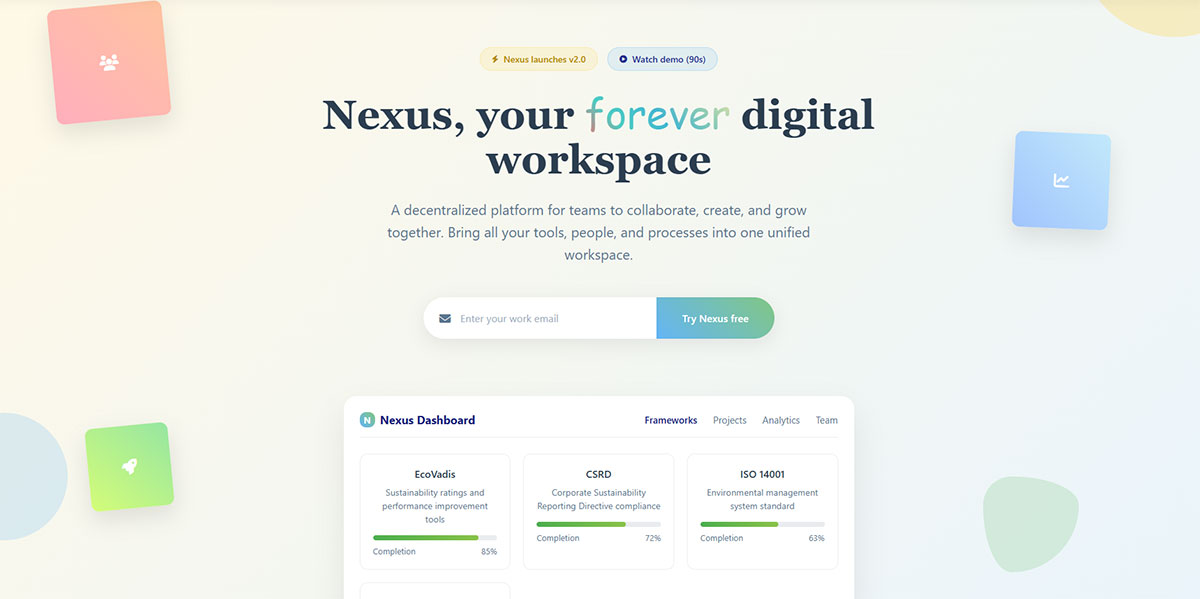
Most people filling out a form are not paying close attention. They are skimming. The field label and input design need to work for someone moving fast.
Labels vs. placeholder-only designs
Placeholder-only forms look clean. That is their only advantage.
When the user clicks into a field, the placeholder disappears. Now they have to remember what goes there. If they tab away and come back, they have no idea what they filled in without re-reading the value. This is a real usability problem, not a theoretical one.
Floating labels (labels that move above the field on focus) solve this without cluttering the design. The label stays visible while the user types. This is also the approach recommended under form accessibility best practices to support screen readers and assistive tech.
Input type matching
This one is specific to mobile and takes five minutes to implement correctly.
type="email"triggers the email keyboard on iOS and Androidtype="tel"triggers the numeric dial pad for phone fieldstype="number"for numeric inputs prevents text entry errorsautocomplete="email"andautocomplete="name"attributes allow autofill
Skipping these attributes means users on mobile have to manually switch keyboards. Small friction. Adds up quickly across thousands of form visits.
Error messages and validation timing
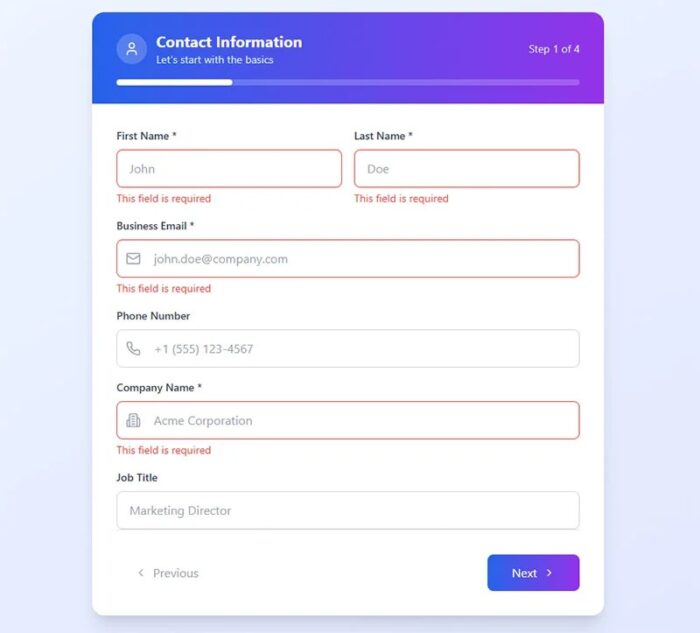
There is a real debate about when to show validation errors: on blur (when the user leaves a field) or on submit (after they click the CTA).
On-blur validation catches errors early, which most users prefer. On-submit validation forces users to scroll back and hunt for red fields. According to form validation best practices, inline error messages placed directly below the offending field reduce correction time and submission drops.
Error copy matters too. “Invalid email” tells the user what went wrong. “Please enter a valid email address, for example [email protected]” tells them how to fix it. That is the version that gets submissions.
See some form error message examples that handle this well without making users feel blamed for the mistake.
Trust Signals Around the Form
A visitor who reaches your form has already decided the offer is interesting enough to read. What stops them from submitting is not indifference. It is hesitation.
Baymard Institute (2024) data shows nearly 18% of online shoppers abandon a form or checkout because they do not trust the site with their personal details. And that is just the people who admit it.
Security signals
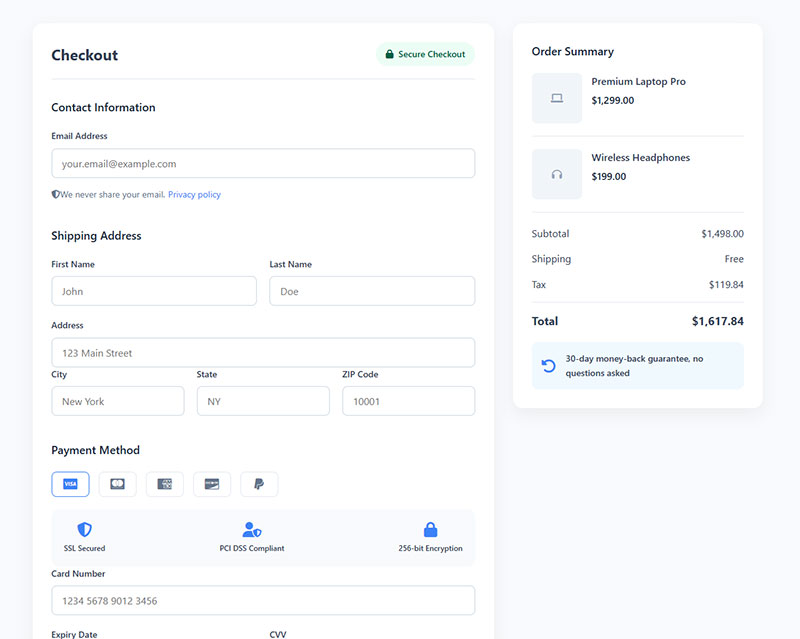
Adding a visible security seal near a form or checkout can increase conversion rates by up to 42%, based on a Blue Fountain Media case study using a VeriSign badge.
The key word is “recognizable.” Badges from Norton, McAfee, or widely known SSL providers carry weight because users already associate them with safety. A custom “Secure Form” badge you made in Figma does not. Place these signals close to the CTA button, not buried in the footer.
SSL is non-negotiable. If your form is on an HTTP page in 2025, you have a bigger problem than copy optimization.
Social proof placement
Social proof near a form reduces the perceived risk of submitting. Adding social proof to forms can increase conversion rates by up to 26% (GetLeadForms).
What works:
- A short testimonial from a real customer, placed directly above or beside the form
- A review count: “Trusted by 14,000+ marketers”
- Recognizable client logos placed between the hero section and the form
What does not work as well: generic star ratings without names or companies attached. Specificity matters. “John at Acme Corp saved 3 hours a week” is more persuasive than “5 stars, great product.”
GDPR and privacy copy
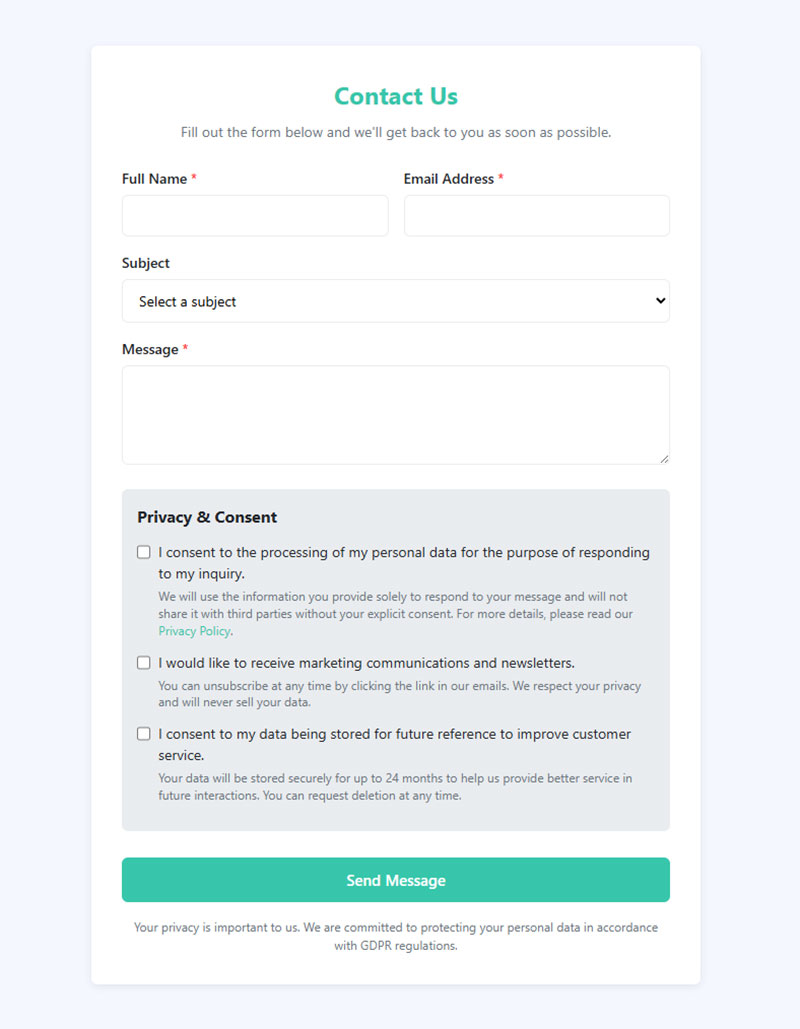
Compliance copy does double duty. It keeps you legal and it builds trust.
A line like “We never sell your data” placed below the form, near the submit button, addresses the exact anxiety visitors feel at that moment. It does not need to be long. It needs to be specific.
Link to your privacy policy. Visitors who are going to read it will. Visitors who just need to see it exists will feel reassured anyway. For more on building GDPR-compliant forms, the requirements are straightforward once you understand what counts as consent and what counts as data processing.
A few GDPR consent form examples show how well-designed compliance copy can actually add to the form’s credibility instead of cluttering it.
Mobile Form Optimization
Desktop still converts better. Unbounce 2024 data shows desktop achieves a 12.1% conversion rate vs. mobile’s 11.2%, despite mobile driving 82.9% of all landing page traffic.
That gap is mostly a form problem.
Tap target and font size basics
Google recommends a minimum tap target of 48×48 pixels. Apple’s Human Interface Guidelines set 44x44px as the floor. Either way, anything smaller causes missed taps, which causes frustration, which causes drop-off.
Font size below 16px in iOS Safari triggers automatic zoom on field focus. That breaks the layout and disorients the user mid-form. Use 16px or above for all input fields.
Keyboard type and autofill
Matching keyboard type to field context takes about 10 minutes to implement across a form.
type="email"– shows @ symbol on iOS and Androidtype="tel"– shows numeric keypad, no switching neededautocomplete="email"andautocomplete="name"– enables device autofillinputmode="numeric"– numeric keyboard without tel formatting
These attributes are free. Most forms shipping today are still missing half of them.
Single-column layout on small screens
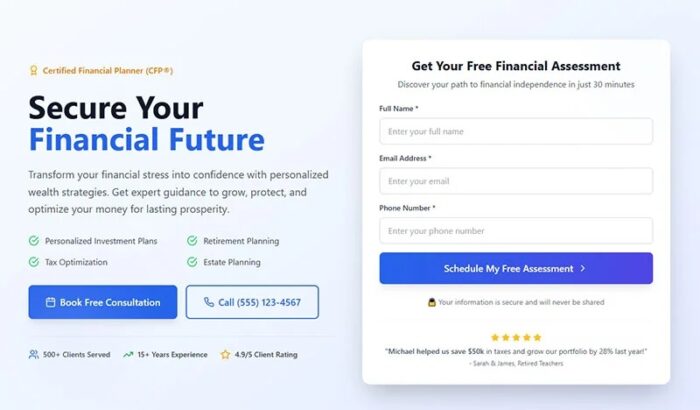
Fluent Forms data shows multicolumn forms take 15.4 seconds longer to complete on average than single-column versions.
On a 390px screen, two-column form fields shrink to the point where labels become hard to read and inputs are too narrow for comfortable typing. Stack everything vertically. It is not a creative choice, it is a usability requirement.
For a full breakdown of what changes between desktop and phone, the mobile form best practices guide covers layout, input handling, and error display in the right order.
Multi-Step Forms vs. Single-Step Forms
Multi-step forms convert at 13.85% on average. Single-step forms at 4.53%, according to Formstack and Venture Harbor data from 2024-2025. That is a 206% difference.
But context matters. A two-field email signup does not need three steps.
| Format | Best for | Avg. conversion |
|---|---|---|
| Single-step | 1–3 fields, low-commitment offers | 4.53% |
| Multi-step | 5+ fields, complex lead qualification | 13.85% |
Why multi-step forms convert better
The psychology is called foot-in-the-door. Once someone completes step one, they are more likely to finish the rest.
Start with the easiest, least-sensitive question. Name or email. Save the harder fields (phone, company size, budget) for later steps when commitment is already established. HubSpot found only 40% of marketers use multi-step forms, even though their conversion rate is 86% higher than traditional formats.
Progress indicators
A simple “Step 2 of 3” label does real work.
Users who can see how far along they are abandon less, especially on mobile where the end of a form is not visible without scrolling. Check out some form progress bar examples to see how different brands present this without cluttering the form UI.
When single-step is the right call
Low-friction offers: newsletter signup, free tool access, waitlist joins
Short field count: 3 fields or fewer
High-trust context: existing customers, retargeted visitors who already know the brand
Forcing a multi-step experience onto a simple email capture form adds unnecessary friction. The format should match the complexity of what you are asking, not a template. For more on when each approach works, the multi-step vs. single-step form comparison breaks it down with data by use case.
Form Loading Speed and Technical Performance
A landing page that loads in under 1 second converts at 31.79%. At 5 seconds, that drops to under 3% (Portent data). The form is part of that load.
Third-party form scripts and page performance
Most form builders (HubSpot Forms, Typeform, Gravity Forms) inject external JavaScript that blocks rendering until it executes.
The practical issue: a JavaScript-heavy form widget can add 300-600ms to your LCP score. On a landing page where every millisecond of load time matters, that is not a trivial number.
Google requires an LCP under 2.5 seconds for a “Good” Core Web Vitals rating. Form embed scripts are a common reason pages fail that threshold on mobile.
Native HTML vs. third-party builders
Native HTML forms load with zero external dependencies. No JavaScript required for basic input collection and submission via POST. The tradeoff is manual validation logic and no built-in CRM integration.
For teams using WordPress, the performance gap between a lightweight plugin like a well-optimized free form plugin and a heavy page-builder form can be significant, especially on shared hosting.
Lazy loading form scripts is worth testing. If the form appears below the fold, deferring its JavaScript until the user scrolls close to it reduces initial page weight without affecting usability.
Form submission speed
After the user clicks submit, the wait time matters. A confirmation that takes 3+ seconds to appear feels like an error.
- Show a loading indicator immediately on click
- Target sub-1-second server response for form processing
- Never leave the button in a clickable state after submission (prevents duplicate submissions)
You can track form submission performance in Google Analytics 4 to catch slow response times and see drop-offs between field interaction and successful submission.
Post-Submission Experience
Every visitor who submits your form sees the post-submission screen. That is a 100% view rate, compared to 20-30% for confirmation emails (Apexure research).
Most teams spend an hour designing the form and five minutes on what happens after.
Thank you page vs. inline confirmation

Both options work. But they are not equal for tracking or follow-up.
Dedicated thank you page:
- Clean conversion tracking in GA4, Google Ads, and Meta Pixel via URL-based events
- Space for a relevant next step (download, related content, booking link)
- A/B testable with your highest-intent audience
Inline confirmation message:
- Simpler to set up
- Harder to track reliably without custom event tagging
- No space for a meaningful next step
Thank you pages with a single focused next action convert at 2-3x the rate of pages with multiple competing options (Apexure, 800+ A/B tests). Keep it to one CTA.
Setting expectations immediately
The post-submission moment is when anxiety peaks. The visitor just handed over their contact info and is wondering what comes next.
Answer that question directly. “We’ll be in touch within one business day” outperforms “Thank you for your submission” in both trust and follow-up rate. The more specific the message, the better. Some good form submission confirmation message examples show how to do this without sounding robotic.
Double opt-in considerations
Double opt-in reduces raw list size. It also produces higher-quality leads with lower unsubscribe rates.
Use it when list quality matters more than volume: email newsletters, high-value content offers, or any GDPR-regulated audience. Skip it for bottom-of-funnel forms (demo requests, quote inquiries) where adding a confirmation step just delays your sales process.
After the submission, what happens in the visitor’s inbox matters as much as the page they see. Registration confirmation message examples are worth reviewing if your current post-signup email reads like a system-generated notification rather than a deliberate first impression.
FAQ on Landing Page Form Best Practices
How many fields should a landing page form have?
Keep it to 3-4 fields for top-of-funnel offers. HubSpot data shows forms with 4 fields get the highest conversion rates. More fields work for bottom-of-funnel requests, but every extra field costs you submissions.
Where should the form be placed on a landing page?
Above the fold works for simple, low-commitment offers. Complex offers benefit from placing the form after key benefits or social proof. On mobile, single-column placement directly below the headline performs consistently well.
What CTA button copy converts best?
First-person phrasing outperforms generic labels. “Get my free guide” converts better than “Submit” or “Download.” ContentVerve testing showed switching from second-person to first-person CTA copy increased click-through rates by 90%.
Should I use a multi-step form or a single-step form?
Multi-step forms average a 13.85% conversion rate vs. 4.53% for single-step, according to Formstack data. Use multi-step for longer forms with 5 or more fields. Single-step is fine for short, low-friction lead capture forms.
What trust signals should I place near my form?
Add a privacy assurance line below the CTA button, a recognizable security badge, and a short testimonial nearby. Blue Fountain Media found adding a VeriSign seal increased form conversion rates by 42%.
How does form load speed affect conversions?
Portent data shows pages loading in under 1 second convert at 31.79%. Third-party form scripts can slow LCP significantly. Keep form embeds lightweight, lazy-load scripts below the fold, and target sub-2.5-second LCP scores.
What are the best practices for mobile form design?
Use single-column layouts, minimum 16px font size, and tap targets of at least 44x44px. Set correct input types per field so mobile keyboards match what users need to type. Enable autocomplete attributes throughout.
Should I use a thank you page or an inline confirmation?
A dedicated thank you page is better for conversion tracking, paid ad pixels, and follow-up CTAs. Inline messages are simpler but harder to track reliably. Thank you pages with one focused next step convert 2-3x higher.
Do form field labels or placeholders work better for UX?
Persistent labels above each field outperform placeholder-only designs. Placeholders disappear on focus, leaving users confused mid-entry. Floating labels combine clean design with usability and meet WCAG accessibility guidelines without compromising the form layout.
How do I reduce form abandonment rate?
Remove unnecessary fields, show inline validation errors on blur rather than on submit, add microcopy below the CTA, and place a trust signal near the button. Switching to a multi-step structure also reduces perceived friction significantly.
Conclusion
This conclusion is for an article presenting the core decisions that shape whether a landing page form converts or quietly bleeds leads.
Field count, CTA copy, mobile UX, trust signals, and post-submission flow are not isolated tweaks. They work as a system.
Fix one and ignore the others, and you will still leave conversions on the table.
Small changes compound fast. Switching to first-person button copy, reducing form friction with a progressive profiling approach, or adding inline validation can each move your form completion rate in meaningful ways.
Test one element at a time. Use real data from tools like Hotjar, Google Analytics 4, or Optimizely to guide what to change next.
The best-performing forms are never finished. They are just better than last month.