





Most WordPress attacks don’t start at the login page. They start at a form, because a form is the one part of a site built to accept whatever a stranger…
Table of contents
Every input box on a page is doing one job: catching a single piece of data before it moves anywhere else. A name, a date, an email address. Type it, tab away, and the value gets carried along whenever that form submits.
Browsers, screen readers, and the no-code builders behind half the forms on the web all lean on the same underlying markup. They’re checking it against the same native input types, the same validation attributes, regardless of which builder assembled the page.
That markup isn’t infinite. The WHATWG HTML Living Standard defines 21 distinct states for the input element, covering text, email, date, checkbox, and file among others, going by the specification’s own numbering (WHATWG, 2024).
What Is a Form Field?
One field, one value. That’s the whole contract. A name goes into a name field, a date goes into a date field, and the moment the form submits, that value travels with it.
It’s easier to describe by what it’s not, honestly. A block of static text isn’t a field, since nothing changes based on user input. A button isn’t one either, because a button fires an action rather than storing anything. And the form wrapping everything together isn’t a single field at all, it’s the container that can hold dozens of them.
Input, select, and textarea already do most of the heavy lifting here. Before anyone writes a line of custom JavaScript, these elements already know how to hold a value, validate it loosely, and hand it off on submit.
A checkout page is just a stack of these wired to one submit button. So is a newsletter signup. So, for that matter, is a mortgage application with forty fields spread across six screens.
What Are the Different Types of Form Fields?
Native input types aren’t unlimited, but there’s more variety than most people building their first form realize. Each type exists because some kind of data doesn’t fit neatly into plain text: an email address needs an @ symbol, a date needs a calendar, a phone number needs a numeric keypad on mobile.
HTML5 added 13 new input types on top of the original ten from HTML4, giving browsers a way to validate and present data without any extra scripting (SitePoint).
| Input Type | Typical Use Case | Native Validation | Accessibility Note |
|---|---|---|---|
| Email address | Checks for @ and a domain | Triggers email keyboard on mobile | |
| tel | Phone number | None enforced by default | Triggers numeric keypad |
| date | Birthdate, appointment | Calendar-restricted format | Needs a text fallback for screen readers |
| checkbox | Multiple selections | None | Needs its own bound label per option |
| radio | Single choice from a set | None | Needs fieldset and legend for grouping |
Text-Based Fields

These all inherit from the same base behavior (single line, string output) but each one narrows what’s expected from the user.
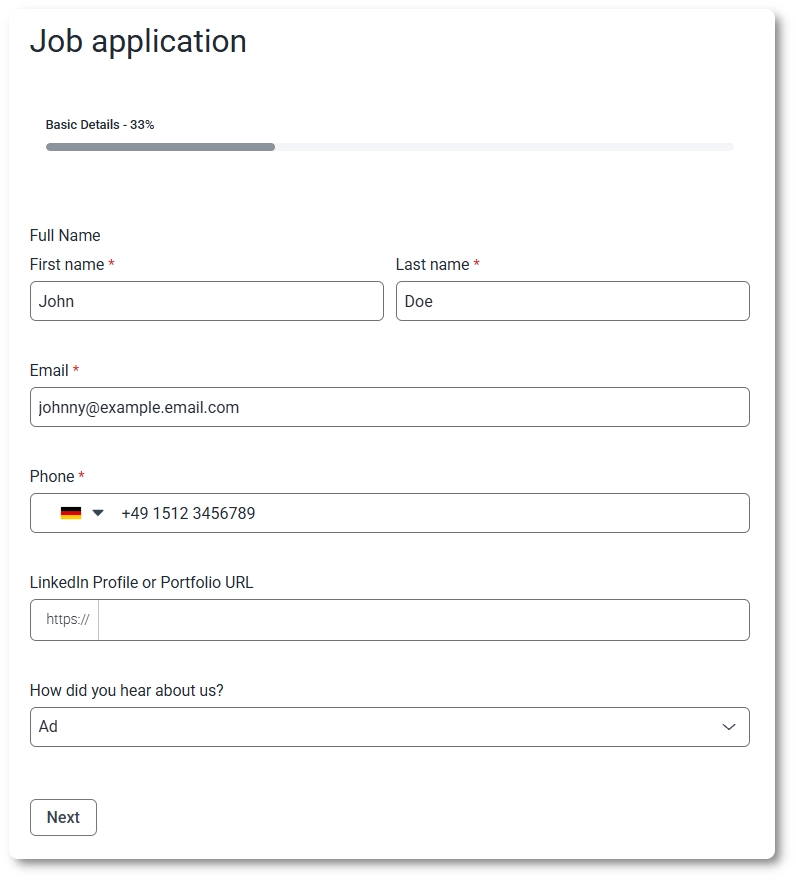
Text is the default and the most permissive. No format check, no special keyboard, nothing. It’s the fallback for anything that doesn’t fit a stricter type, which is exactly why it gets overused. A lot of forms still run names, emails, and phone numbers through plain text fields, and that throws away free validation and the correct mobile keyboard for no real reason.
Email checks for an @ symbol followed by something resembling a domain. That’s it, that’s the whole native check. It won’t catch a fake domain or a typo like “gmial.com.” Still worth using though, since it triggers the email keyboard on mobile (with @ and .com shortcuts baked in) and lets you hook into the :invalid CSS state without writing a line of JavaScript.
Password masks the characters as they’re typed and does nothing else on its own; there’s no built-in strength meter. What people miss is the autocomplete attribute paired with it. Setting autocomplete="new-password" versus current-password actually changes how the browser’s password manager behaves, whether it offers to save a new one or fill an existing one.
Tel triggers a numeric keypad and nothing more. The spec doesn’t enforce any format, no dashes, no country code check, nothing. Formatting is entirely on the developer, usually through a pattern attribute or JS. Because phone formats differ so much across countries, most builders leave the pattern loose and validate properly on the server.
URL wants a scheme, so example.com without the https:// will fail native validation. On mobile it opens a keyboard with a slash key and a quick .com button, small thing, but it adds up over a long form.
Search behaves like a text field with one visual extra: most browsers add a small clear (“x”) button once you’ve typed something. It also carries a semantic role that assistive tech picks up on, telling a screen reader this is a search box, not a generic field.
Numeric and Range Fields
Number restricts input to digits and adds spinner arrows for incrementing. It supports min, max, and step, so you can lock a quantity field to whole numbers between 1 and 10, for example. One thing that trips people up: some mobile keyboards triggered by type="number" don’t reliably show a minus sign or decimal point, depending on the OS. That’s a real reason phone numbers should never use this type, even though they’re technically numeric.
Range shows a slider instead of a text box. It’s genuinely great for things like volume or budget filters, but it has no visible number by default. If the user needs to see the exact value they’re on, that’s on you to add with a bit of script tied to the input event.
Date and Time Fields
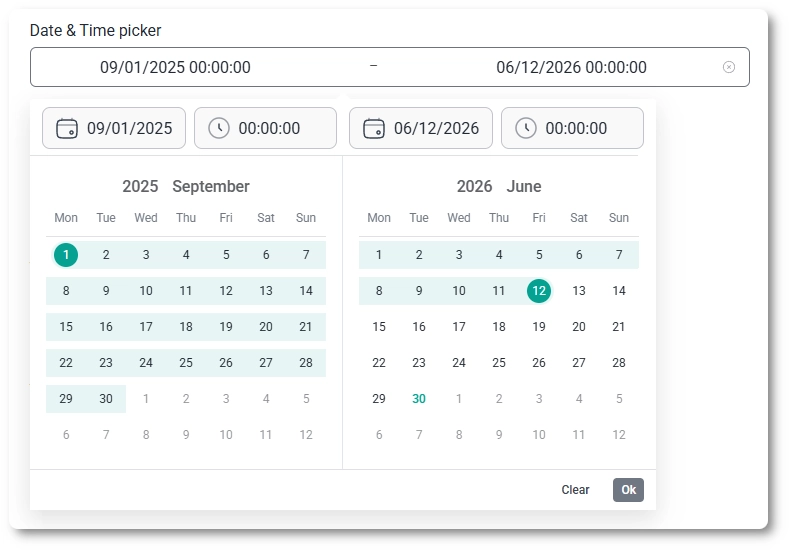
This group covers date, time, month, week, and datetime-local. All five open some kind of native picker rather than asking the user to type freely, which cuts down on formatting errors (nobody has to remember if it’s DD/MM/YYYY or MM/DD/YYYY).
- date opens a calendar. Whatever format shows on screen, the underlying value the form submits is always ISO, YYYY-MM-DD. That’s worth knowing before you try to store or display it elsewhere.
- time gives an hour and minute picker, often with an AM/PM toggle depending on locale.
- month and week are the least used of the bunch, but they fit billing cycles, subscription periods, or planning tools where a full date is more precision than needed.
One catch across the whole family: native date pickers don’t render consistently across browsers, and screen reader support for them is patchy. Test with an actual screen reader before assuming it just works.
Choice Fields
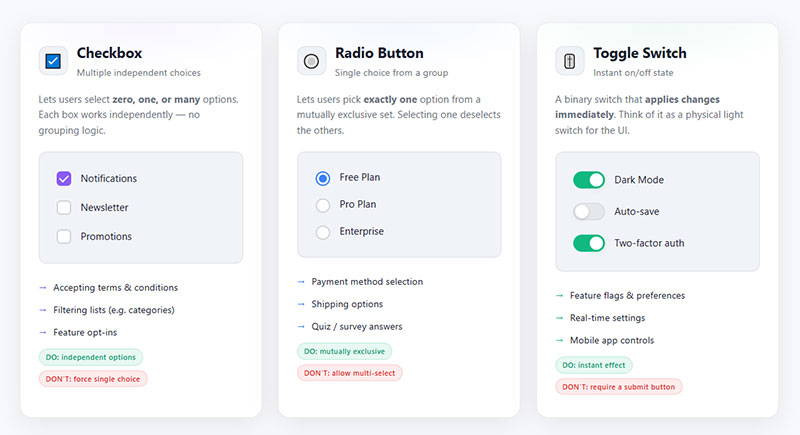
Checkbox and radio get confused constantly, so here’s the actual distinction. A checkbox is independent. Ten checkboxes on a page are ten separate yes/no answers with no relationship to each other unless you group them visually. A radio button only makes sense as part of a set, and that set is defined by a shared name attribute. Check one radio in the group, the rest uncheck automatically. That’s the whole mechanism.
Forget the fieldset and legend around a radio group and a screen reader user has no idea what question the options are answering. Same goes for checkboxes when several relate to one bigger question (“which of these apply to you”). Small addition, big accessibility difference.
Select (the dropdown) collapses a list of options into a closed menu, which saves space, and the OS takes over rendering it: iOS shows a spinning wheel, Android shows a full list. Add the multiple attribute and you get a multi-select, but honestly, most designers avoid the native multi-select because it breaks the interaction pattern users already know (you’d need to hold Ctrl or Cmd to pick more than one, which nobody figures out on their own). A checkbox group or a custom tag-style picker usually wins here.
Other Field Types Worth Knowing
Textarea isn’t technically an input type, it’s its own element, and it’s built for multi-line, unstructured text like comments or messages. Most browsers let users resize it by dragging the corner; if that’s not wanted, resize: none in CSS turns it off.
File uploads get two useful, often-ignored attributes. accept limits which file types show up in the picker (say, only .pdf or .jpg). capture on mobile skips the gallery entirely and opens the camera. Add multiple and users can select several files at once instead of uploading one at a time.
Color opens whatever color picker the operating system provides and returns a hex value. The look varies a lot between browsers (Chrome and Firefox render their swatches differently), but the value coming out the other end is standardized, so it’s safe to work with.
Hidden fields carry data the form needs on submission, a session token, a product ID, a referral code, without ever showing up to the user or taking focus. Not glamorous, but plenty of forms would break without one tucked away somewhere.
Submit and other button types don’t collect data themselves, they trigger the form’s submission. Worth flagging: inside a <form>, a button defaults to type="submit" unless told otherwise. Miss that on a “Cancel” or “Clear” button and you’ll submit the whole form when the user only wanted to reset it. This one’s caused more broken forms than it should.
Native HTML5 Input Types vs Custom Components
Text, email, password, number, date, tel, url, file, all the boring ones handle themselves. Browser-level validation and the correct mobile keyboard come free, no setup required.
Custom components earn their keep somewhere else: multi-select dropdowns, date range pickers, drag-and-drop file uploads. Anything native HTML can’t express on its own.
Building a custom select is more work than people expect. You’re now responsible for keyboard handling and ARIA roles by hand, work a plain native dropdown gets for free.
Whether a field should be a radio button or a checkbox usually comes down to one question: is a single answer allowed, or several? That distinction gets a fuller treatment in this breakdown of radio buttons versus checkboxes.
Which fields show up depends entirely on what the form is for. Contact forms stick to text and email. Event sign-ups pull in date pickers and file uploads because there’s more to capture. Surveys go heavier on radio groups and checkboxes since the answers need to stay structured.
This overview of the different types of forms breaks down which fields typically pair with which goal.
Labels, Placeholders and Helper Text: What Is the Difference?
A label names the field and stays put, visible for as long as someone’s looking at the form.
A placeholder disappears the second someone starts typing, taking whatever information it held with it. That’s why it works fine as a hint but fails badly as a name.
Helper text does neither job exactly. It sits below or beside a field to spell out formatting rules the label doesn’t have room for, an eight-character minimum on a password, say, or the expected date format.
When there’s genuinely no room for a visible label, an aria-label attribute still gives the field a name a screen reader can announce, even though nothing shows up on screen.
Why Placeholder Text Should Never Replace a Label
This is one of the easiest form mistakes to make, and one of the easiest to fix once you know to look for it.
- The placeholder vanishes the moment someone starts typing, and the field’s name goes with it
- Low-contrast placeholder styling often fails WCAG’s contrast requirement on its own, before accessibility even enters the conversation
- Screen readers don’t reliably treat placeholder text as an accessible name at all
Form fields are missing a proper label on 45.9% of homepages, according to WebAIM’s 2024 Million analysis (cited in TestParty’s 2025 accessibility guidance). Placeholder-only fields are a big part of why.
Seeing the pattern done well, and badly, sticks better than reading a description of it. This collection of placeholder text examples pulls both from real forms.
Some teams sidestep the whole problem with field masking instead. It enforces the expected format as someone types rather than just hinting at it in grey text that disappears on contact.
Form Field States: Default, Focus, Error and Beyond
A field looks different depending on what’s happening to it, and each state needs to read as visually distinct from the others or people start missing things.
Default, focus, hover, error, disabled, readonly, success. Most design systems account for all seven, following patterns similar to Google’s Material Design guidelines.
| State | Trigger | Visual Cue |
|---|---|---|
| Focus | User clicks or tabs into the field | Outline or border color change |
| Error | Validation fails | Red border plus inline message |
| Disabled | Field can’t be interacted with | Greyed out, no cursor change |
| Success | Input passes validation | Green check or border |
Disabled vs Readonly: What’s the Functional Difference?
A disabled field can’t be focused, edited, or submitted at all. Its value gets excluded from the request entirely, as if it never existed.
A readonly field is different. Someone can still tab into it and a screen reader can still read it out, the value just can’t change, and it still rides along with the rest of the form on submit.
Mixing the two up is a genuinely common bug. A readonly total field on a checkout page should still submit its value. A disabled one silently disappears from the request instead, and nobody notices until the order total comes back wrong.
Keyboard users feel the difference immediately, even if they couldn’t explain the spec behind it. Tab index lands on a readonly field. It skips a disabled one entirely.
How Does Form Field Validation Work?
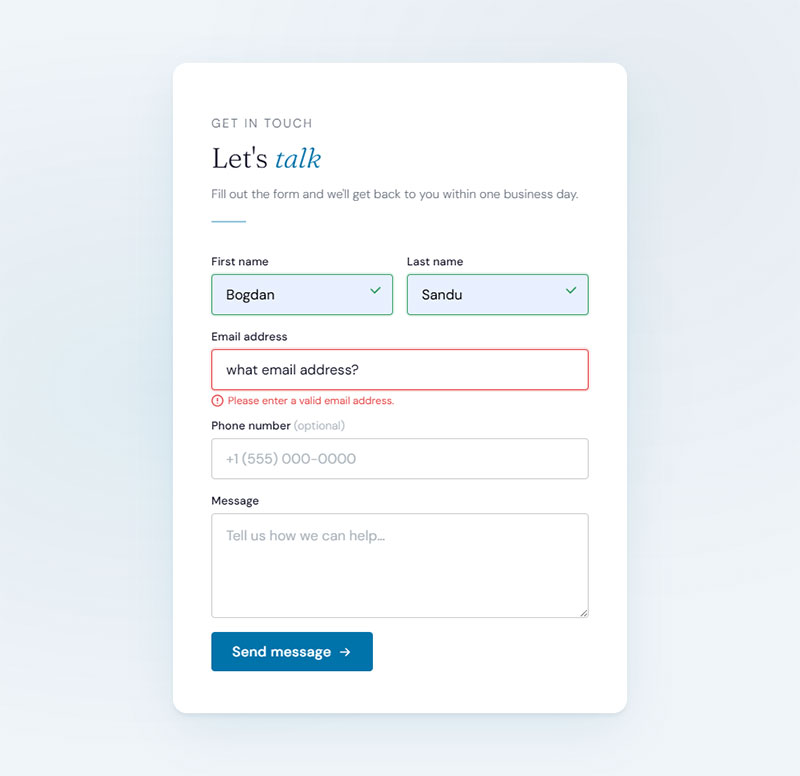
Validation checks a value against a rule before letting the form move on, whether that rule is “don’t leave this blank,” a pattern match, or a minimum length.
The check can happen in the browser, on the server, or both, and each layer tends to catch something the other one misses.
- Required means the field can’t be left empty
- Pattern means the value has to match a regular expression, which shows up constantly on phone and postal code fields
- Min and max length caps how short or long a text entry is allowed to be
- A custom function handles anything HTML alone can’t check, like confirming two password fields actually match
Client Side vs Server Side Validation
Client side validation fires the instant someone types into a field or tabs away from it, no round trip to a server required. It feels fast because it is fast.
Server side validation runs after the form submits, and it’s the only layer that actually can’t be bypassed by disabling JavaScript or editing the page’s HTML directly in dev tools.
Relying on client side checks alone leaves a form wide open, more than most people building their first one realize. This comparison of client-side and server-side form input validation walks through where each one actually belongs.
Most production forms run both. Client side for speed, server side because speed isn’t the point there, security is.
When Errors Should Appear: On Blur, On Submit, or in Real Time
Timing matters almost as much as what the error message actually says.
GOV.UK’s design system waits until a field loses focus, or the form gets submitted, before flagging anything wrong. It doesn’t mark every keystroke as an error while someone’s still mid-word.
- Real time validation while typing feels harsh on fields like passwords, where every character is briefly “wrong” until the whole thing is finished
- On blur validation catches mistakes right as a person moves to the next field, which is usually the sweet spot
- On submit validation is the bare minimum, though it’s still the only option some older, legacy forms support
Message length matters too. The UK Ministry of Defence’s design system, closely modeled on GOV.UK’s, asks for error messages written in plain language that name both the problem and the fix, without padding it out to hit some arbitrary word count.
“Invalid input” tells a user nothing. This set of form error message examples shows the gap between a message that blames someone and one that actually helps them.
Free Email Regex Validator for Forms
What Makes a Form Field Accessible?
Someone using a keyboard, a screen reader, or a switch device needs to be able to find a field, operate it, and understand what it wants, without ever touching a mouse.
- A label programmatically tied to the input, not just sitting nearby on the page
- A visible focus state that doesn’t depend on color alone to register
- Enough contrast between the text, the border, and the background
- An accessible name that doesn’t quietly depend on placeholder text
Touch target size trips up more teams than you’d think. WCAG’s actual minimum, Success Criterion 2.5.8 (Level AA), asks for touch targets of at least 24 by 24 CSS pixels. The stricter 44 by 44 pixel target people quote more often is the enhanced Level AAA criterion (2.5.5), not the baseline. Undersized touch targets are still one of the failures most commonly flagged in mobile audits, TestParty’s included.
Fitts’s Law explains a chunk of why this matters: smaller and farther targets take longer to hit accurately. A cramped checkbox or radio button costs real, measurable completion time on a phone screen, not just annoyance.
Government and enterprise sites treat this as a compliance matter on top of everything else. Section 508 and similar regulations mostly point back to the same criteria WCAG already lays out.
Turning all of this into a habit rather than a one-time fix is the actual challenge. This rundown of form accessibility best practices covers the checklist most teams end up needing eventually anyway.
How Does Browser Autofill Affect Form Fields?
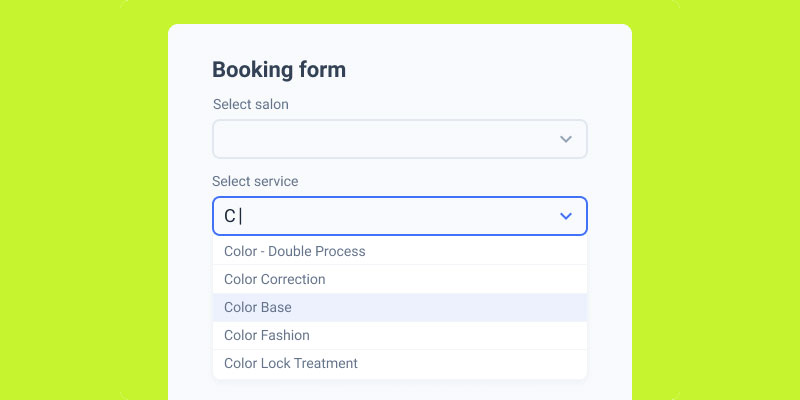
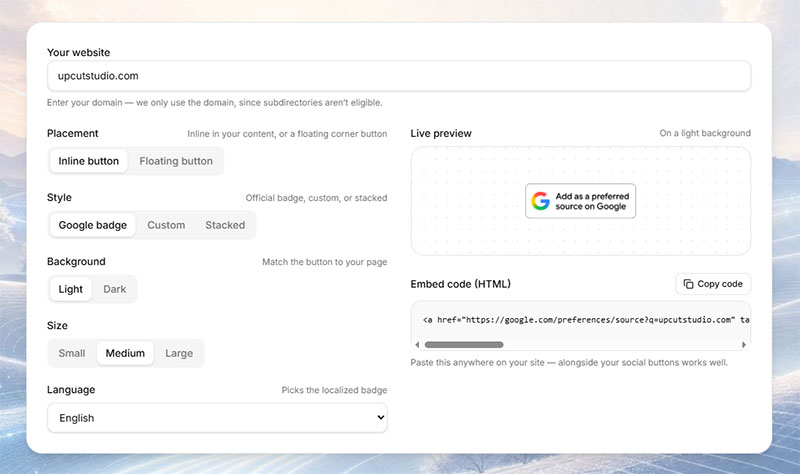
Image source: JetFormBuilder
Autofill fills a field’s value in automatically based on data someone’s saved before, and the autocomplete attribute is the main signal telling the browser what kind of data actually belongs there.
Get that token wrong, or skip it, and the browser has to guess. That’s usually the moment autofill starts dropping a street address into a name field.
- name, email, and tel for the straightforward contact fields
- street-address, address-level1, address-level2 for shipping and billing forms
- cc-number and cc-exp for payment fields
- new-password versus current-password, so a browser doesn’t helpfully autofill someone’s login password into a signup field
Getting the tokens right satisfies WCAG’s Success Criterion 1.3.5, Identify Input Purpose, which asks that a field’s purpose be readable by assistive technology, not just implied by where it happens to sit on the page.
Autofill behavior isn’t identical across browsers, by the way. Safari’s engine and Chrome’s handle address and payment data differently enough that testing in only one hides bugs the other one will happily expose.
Chrome DevTools has a dedicated Autofill panel tucked under “More tools” that shows exactly which token a field matched. Faster than guessing from the outside.
Turning autocomplete off entirely gets used for security sometimes, one-time codes being the obvious case. Doing it across an entire form, though, removes a feature that people with motor or cognitive disabilities specifically rely on. Worth thinking twice about.
Single Column or Multi Column: Which Form Field Layout Converts Better?

Single column wins for most forms because it keeps someone’s eyes moving in one direction instead of bouncing side to side.
Participants completed single-column forms 15.4 seconds faster than multi-column ones, a difference Speero researcher Ben Labay found statistically significant at a 95% confidence level.
Single column tends to finish faster, misses fewer fields, and scans more naturally for screen reader users moving through the page in document order. It does eat up more vertical space, and on a genuinely short form it can start to feel repetitive, three fields stacked top to bottom when they’d fit comfortably side by side.
Multi column earns its place with logically paired fields, city, state, and zip being the obvious example. What it costs you is the natural top-to-bottom scan pattern, and it’s harder to adapt cleanly once the screen narrows.
Fieldsets solve a different problem than columns do entirely. Wrapping related fields in a fieldset with a legend gives screen reader users context that column placement alone just can’t provide.
Floating labels save space by collapsing the label into the placeholder position until a field gets focused. That space comes at a cost though, a smaller, harder-to-read label once the field actually fills in.
Mobile screens make all of these trade-offs sharper than desktop ones do. This guide to building forms that hold up on small screens covers field width and spacing decisions that desktop-focused advice tends to skip entirely.
Getting the base layout right matters more than chasing whatever visual pattern is newest. This overview of how to structure a form layout for better completion covers the decision in more depth.
What Causes Form Abandonment, and Which Fields Are Most Responsible?
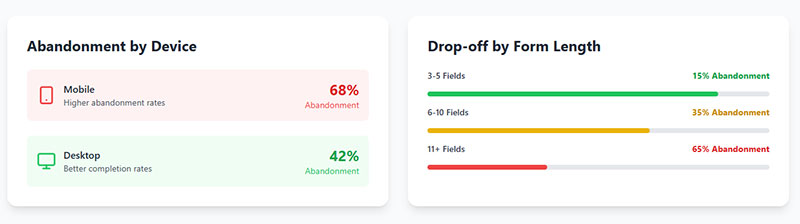
Abandonment rarely comes down to one dramatic problem. It builds from small friction points stacking up across several fields at once, and by the time someone closes the tab, they usually couldn’t even tell you which field finally did it.
- Asking for information the task doesn’t actually need
- Required fields that feel invasive relative to whatever the user gets back in return
- Error messages that show up too late, or don’t say what to actually fix
- Fields too cramped to tap accurately on a phone
The average checkout in 2024 asked for 11.3 form fields, though most sites only need about 8 to complete a purchase, according to Baymard Institute’s research. Every field beyond what the task requires is just one more chance for someone to stop and leave.
Imaginary Landscape (Imagescape) cut its contact form from 11 fields down to four and saw submissions rise by 160%, according to the company’s own published case study. That’s not a small win, and it’s the kind of number that’s hard to argue with once you see it.
Multi-step forms sometimes soften this drop-off by spreading fields across several screens instead of listing everything at once. That approach isn’t automatically better though, more on that further down, in the section on when extra structure backfires.
Fixing this pattern usually means auditing which fields actually earn their place, not redesigning the whole form from scratch. This guide to raising your form completion rate walks through the audit most teams skip.
Checkout carries its own set of triggers beyond field count alone, and that’s covered separately in this piece on tightening up a checkout flow.
How Do You Design and Build a Form Field, Step by Step?
Building a single field the right way follows a fairly fixed order, whether it’s a plain text input or a custom file upload field with all the extra plumbing that requires.
- Choose the input type that matches the data: email for an email address, tel for a phone number, date for a date
- Write semantic markup with a label bound to the field through matching for and id attributes
- Attach validation attributes like required, pattern, minlength, and maxlength, plus a custom function for anything HTML can’t check alone
- Style the default, focus, and error states so each one looks visually distinct
- Set the correct autocomplete token so browsers and password managers can fill the field correctly
- Test with keyboard-only navigation, then again with a screen reader running
Teams usually go wrong by skipping that last step and shipping a field that only really works with a mouse in hand.
A field can pass every visual QA check and still fail a screen reader test. Visual correctness and code-level correctness just aren’t the same thing, no matter how good the field looks in a browser preview.
Cleaning up whatever a field actually receives belongs in this sequence too, sitting right alongside validation rather than tacked on after it. This walkthrough of sanitizing what a field actually receives covers the step most tutorials skip.
Broader guidance on building solid HTML forms covers the form-level decisions, method and action attributes among them, that sit outside any single field.
Which Tools and Frameworks Are Used to Build Form Fields?
The tools people reach for split fairly cleanly into two camps: code libraries for custom-built sites, and no-code builders for pretty much everyone else.
Code-Based Libraries vs No-Code Form Builders
- React Hook Form and Formik manage field state and validation inside React applications
- Yup defines validation rules as a schema instead of a pile of scattered if-statements
- Bootstrap and Tailwind CSS style the field itself, states included, without writing custom CSS from scratch
No-code builders dominate WordPress specifically. WPForms alone reports over 6 million active installations as of its 2025 year in review, which puts it among the most widely deployed form plugins on the platform.
Teams running a WordPress site rarely reach for a JavaScript library at all, honestly. This roundup of WordPress plugins built specifically for contact forms covers the builders most sites end up picking between.
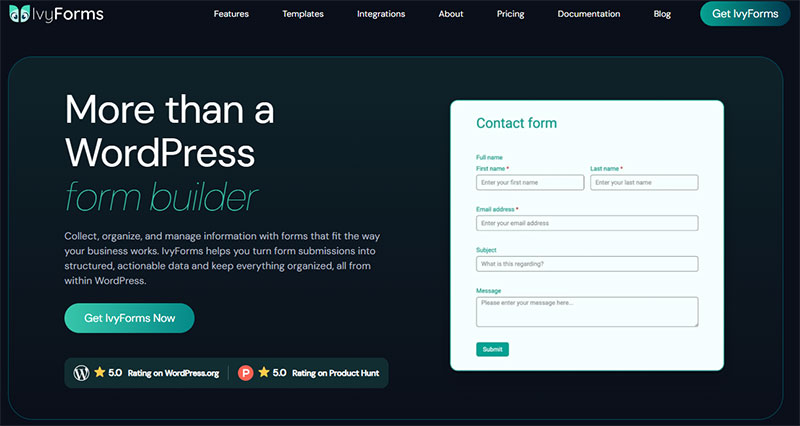
IvyForms fits into that same no-code category, though it takes a slightly different angle. Instead of stopping at form creation, it treats every submission as data meant to be reused. It converts submissions into structured, actionable data that can be reviewed, exported, and connected to other tools. Fields go in through a drag-and-drop builder, same as most of its competitors, but the field logic behind it goes further than the basics.
A few things worth noting about how it handles fields specifically:
- Conditional logic shows or hides fields based on what a user already typed, so a form doesn’t dump every possible field on someone who only needs three of them
- Multi-step forms break long field lists into stages instead of one long scroll, which tends to help completion rates on anything past a basic contact form
- Spam protection is baked into the field layer itself, with support for hCaptcha, Turnstile, and reCAPTCHA, so you’re not bolting on a separate plugin just to stop bot submissions
It also connects into whatever page builder you’re already using rather than fighting with it. It works with Gutenberg, Elementor, and Divi, and pushes data out to services like Mailchimp, Slack, Google Sheets, and Zapier.
Worth mentioning too, since it shapes how the plugin was built: it comes from the Melograno team, the same group behind Amelia and wpDataTables, so the reporting side of things (turning field data into actual tables and views) isn’t an afterthought bolted on later.
One tradeoff, and it’s not a small one: IvyForms only runs on WordPress, so it’s not an option if you’re building outside that ecosystem. If your stack is WordPress already, that’s a non-issue. If it isn’t, you’re back to the code libraries or a hosted tool.
Outside WordPress, hosted tools like Google Forms and Typeform handle simple field collection with zero hosting and zero code involved, though teams tend to outgrow their customization limits eventually. This comparison of tools people switch to once Google Forms feels limiting covers what usually comes next.
Payment fields are usually their own category entirely. Stripe Elements ships pre-built, PCI-compliant card fields rather than asking a developer to build one from scratch, which, given the compliance stakes, is probably for the best.
When Does Extra Form Field Validation or Structure Not Apply?
More validation, more required fields, more structure, none of it is automatically better. Each one has a point where it starts working against the form instead of for it.
Field count and conversion don’t move in a straight line. The common assumption is that fewer fields always convert better, and the data mostly backs that up, just with some nuance worth knowing about.
An analysis of over 40,000 HubSpot landing pages found conversion rates declining as fields get added, but unevenly: simple single-line text fields barely moved the needle, while multi-line text areas and dropdown selects hurt conversion far faster than raw field count alone would suggest. A separate compilation of Unbounce data found one- and two-field forms converting best, but almost no real difference between four-field and seven-field forms, with that dataset averaging around 4.5 fields.
Both studies agree that trimming fields generally helps. Where they disagree is on exactly which fields matter most, which means “just remove fields” was never the complete rule people wanted it to be.
Hick’s Law explains part of the pattern: the more options or fields sitting in front of someone, the longer they take to decide how to respond. That’s exactly why extra structure costs more on a form that was already simple to begin with. The extra layer tends to get in the way in a handful of specific situations.
- Real time validation on a short, low-stakes form like a newsletter signup, where it feels intrusive rather than helpful
- Strict pattern rules that reject valid but unusual input, international phone numbers being a frequent casualty, or non-US postal codes
- Fieldset grouping or multi-step layouts bolted onto a form that only has three fields to begin with
- Mandatory fields collecting data nobody downstream actually ends up using
A single-step, single-column layout with light validation is usually the right call for short forms. Save the heavier structure for forms that are actually long enough to need it.
Simple sign-up flows tend to punish over-engineering fastest of all. This guide to getting a sign-up form right covers where that line usually sits.
FAQ on Form Fields
What Is the Difference Between a Form Field and a Form?
A form bundles multiple fields into one submittable unit. Each field captures a single value, an email address, a date, whatever the case may be.
The form itself defines the action, method, and submission behavior. Fields do the collecting. The form does the sending.
What Is an Input Mask and How Does It Work?
An input mask forces a field’s value into a fixed format as someone types, adding slashes to a date or parentheses to a phone number automatically as the characters go in. It heads off malformed entries before validation even runs, which cuts down on formatting-related error messages considerably.
Should a Form Field Be Required or Optional?
Mark a field required only when the form genuinely can’t function without that value. Every optional field still adds visual clutter and a little decision fatigue, even a small one.
When in doubt, make it optional and collect the detail later through a follow-up instead of blocking submission over it.
How Many Fields Should a Form Have?
There’s no fixed number, whatever anyone tells you. The right count matches what the task actually requires, not some template pulled from a different industry.
Shorter forms typically finish faster and get abandoned less. That said, a longer form justified by a genuinely valuable outcome, a detailed quote request, say, can still convert well.
How Do You Test Form Field Usability?
Testing with five real users typically surfaces about 85% of a form’s usability problems, according to Nielsen Norman Group’s research.
Watch where people hesitate or backtrack, then fix those exact points first. Pair that with keyboard-only and screen-reader passes before anything ships.
What Common Form Field Design Mistakes Should You Avoid?
The recurring ones: placeholder text standing in for a label, vague error messages that never name the actual fix, checkboxes too small for accurate mobile tapping, and required fields nobody downstream ends up using anyway.
What Should You Fix First in a Form Field?
The label comes first, before anything else gets touched. A missing or ambiguous label breaks accessibility, autofill, and validation messaging all at once, three separate systems tripping over the exact same missing piece of markup. Start there, then work outward.
- Bind a persistent label to every input before touching anything visual
- Back client side checks with server side validation
- Set autocomplete tokens and touch target size for mobile last
Fixing the label first means the visual layout waits its turn.
A plainer form now costs less, in accessibility complaints and abandoned sessions, than a polished one with broken labels underneath it.
Once these three hold, the broader guide to designing a form that holds up end to end covers the layout and content decisions that come next.