



Most WordPress attacks don’t start at the login page. They start at a form, because a form is the one part of a site built to accept whatever a stranger…
Table of contents
Most WordPress sites reach for a plugin the moment they need a contact form. It works, but it is not the only way.
You can create forms in WordPress without plugins using the Gutenberg block editor, a PHP child theme template, or a third-party form endpoint. Each method gives you a working form that collects submissions and sends email notifications.
This guide covers every native option available on both WordPress.org and WordPress.com, including:
- Building an HTML form in the Custom HTML block
- Processing submissions with wpmail() and nonce security
- Connecting to endpoint services like Formspree and Web3Forms
- Styling, validation, and when a plugin is the smarter call
What Are Native WordPress Form Options
Before writing a single line of HTML or touching your theme files, you need to know what you’re actually working with. “Without plugins” means different things depending on whether you’re on WordPress.org or WordPress.com. Most tutorials skip this part entirely, which is why so many people end up confused.
WordPress.org (self-hosted) gives you three real paths: a Custom HTML block inside the Gutenberg editor, a PHP-based custom page template in a child theme, or a third-party form endpoint service that handles submission processing. None of these require installing a plugin.
WordPress.com hosted sites get a fourth option: the [contact-form] shortcode, which is part of Jetpack’s built-in features. It works without any extra setup, but it only runs on WordPress.com. If you try it on a self-hosted site, it does nothing.
WordPress.org vs. WordPress.com: The Key Difference
| Platform | Native Form Option | Email Processing |
|---|---|---|
| WordPress.org (self-hosted) | Custom HTML block, PHP template | Requires endpoint or wp_mail() |
| WordPress.com (hosted) | [contact-form] shortcode |
Handled by Jetpack automatically |
Worth knowing: 96% of WordPress vulnerabilities in 2024 came from third-party plugins, not the core (Patchstack, 2025). That’s part of why some developers prefer keeping forms code-side rather than adding yet another plugin to the stack.
There’s no single “right” method here. Which path you take depends on your hosting setup, your comfort with code, and how much control you actually need over the form’s behavior.
What “No Plugin” Actually Covers
Custom HTML block: Available in the Gutenberg block editor on any WordPress install. Renders raw HTML. No PHP execution, no server-side logic.
PHP page template: Requires a child theme. Gives you full control over form processing using WordPress’s built-in wpmail() function and nonce verification.
Third-party form endpoint: Services like Formspree, Web3Forms, or Getform receive your POST submissions and forward them to your email. No PHP required on your end.
To understand what WordPress forms are and how they fit into your site’s structure before choosing a method, that context matters.
One more thing: the method you pick also affects WordPress form security. HTML-only forms with no backend validation are easier to abuse. PHP-based forms let you add nonces and sanitize inputs properly. Endpoint services handle some of this for you, with tradeoffs.
How to Add a Form Using the HTML Block in Gutenberg
Gutenberg adoption has climbed to over 60% of WordPress sites, up from 37% in 2020 (Varun Dubey, 2026). Chances are, you’re already using it. The Custom HTML block is the simplest way to drop a working form into any page or post without touching theme files.
Go to your page, add a new block, search for “Custom HTML,” and paste your form markup directly inside it. WordPress renders it exactly as written. No processing, no filters applied.
Basic HTML Form Structure for WordPress
Here’s a minimal working form structure you’d add into the Custom HTML block:
<form action="https://formspree.io/f/YOURID" method="POST">
  <label for="name">Name</label>
  <input type="text" id="name" name="name" required>

  <label for="email">Email</label>
  <input type="email" id="email" name="email" required>

  <label for="message">Message</label>
  <textarea id="message" name="message" rows="5"></textarea>

  <button type="submit">Send Message</button>
</form>
The action attribute is where the form sends its data. The method="POST" attribute tells the browser to send the data as a POST request, not append it to the URL. Both are required for the form to do anything useful.
Important: a form built this way inside a Custom HTML block has no backend. It collects data and sends it wherever the action URL points. Without that URL pointing to something that processes submissions, the form just reloads the page.
Field Types You Can Add Without Extra Code
HTML5 gives you a solid set of native input types that work in any browser.
- text – single-line text, works for names, addresses, short answers
- email – triggers email keyboard on mobile, basic format validation built in
- tel – triggers numeric keyboard on mobile
- textarea – multi-line text, good for messages
- checkbox and radio – for yes/no options or single-select lists
- select – dropdown menus
The required attribute on any field forces the browser to validate before submitting. No JavaScript needed for that part. For a deeper look at how different types of forms work structurally, that affects which fields you actually need.
One thing people miss: the mailto: action. You’ll see tutorials suggesting action="mailto:[email protected]" as a way to skip a backend entirely. It opens the user’s desktop email client and pre-fills a message. It doesn’t work on most mobile devices, doesn’t work in webmail clients, and sends data in a barely-readable format. Avoid it.
How to Process Form Submissions Without a Plugin
This is where most “no plugin” form tutorials fall short. They show you the HTML. They don’t explain how you actually receive the submission.
A Custom HTML block form on its own does nothing with the data once submitted. You need something on the receiving end. For WordPress.org users who aren’t writing PHP, third-party form endpoint services are the practical answer.
Connecting Your HTML Form to Formspree
Formspree is the most widely used option in this category. The setup takes about two minutes.
- Create a free account at formspree.io
- Create a new form project – you’ll get a unique endpoint URL
- Set your form’s
actionattribute to that URL - Verify your email address to activate the form
After that, every submission goes to Formspree’s servers, which forward it to your email. The free tier allows 50 submissions per month and includes basic spam filtering. Good enough for most small sites or low-traffic contact forms.
Formspree also supports a hidden _next field to redirect users to a thank-you page after submission, and a _replyto field to set the reply-to address dynamically from the submitted email field. Both are useful without writing any JavaScript.
Connecting Your HTML Form to Web3Forms
Web3Forms is a solid Formspree alternative with a more generous free tier: 250 submissions per month at no cost, no account required to get started.
The setup differs slightly. Instead of pointing your action at a unique URL, you use a single universal endpoint and pass your Access Key as a hidden input field:
<input type="hidden" name="access_key" value="YOUR_ACCESS_KEY">Get the access key from web3forms.com by entering your email. It’s generated instantly. Web3Forms also supports honeypot spam protection via a hidden field, which catches most bots without adding a CAPTCHA.
Which service to use:
| Service | Free Submissions/Month | Account Required | Branding on Free |
|---|---|---|---|
| Formspree | 50 | Yes | No |
| Web3Forms | 250 | No | No |
| Getform | 50 | Yes | Yes |
All three handle spam protection at the endpoint level, meaning you don’t need to add reCAPTCHA or any JavaScript validation on your end to get basic protection. Well, basic is the right word there. Heavy-traffic forms will need more.
How to Add a Form with PHP in a Child Theme
This method gives you full control. No submission limits, no third-party service in the middle, no branding. You write the form HTML, you handle the processing, and you use WordPress’s own wp_mail() function to send the email notification.
It’s also more work. If you’re not comfortable editing PHP files, the endpoint approach above is the better starting point.
Setting Up the Page Template
Always use a child theme. Editing your parent theme’s files directly means your changes get wiped on the next theme update. Create a child theme first if you don’t have one.
Inside your child theme folder, create a new PHP file, for example page-contact.php. Add the WordPress template header at the top:
<?php
/*
 * Template Name: Contact Page
 */
get_header(); ?>
Then add your form HTML below that. Assign the template to your contact page through the WordPress editor under Page Attributes. The page will now use this file instead of the default page template.
Processing the Form with wp_mail()
At the top of your template file, before the HTML output, add the PHP processing block. This checks whether the form was submitted and handles it:
<?php
if ( isset( $_POST['contact_submit'] ) ) {
    $name    = sanitize_text_field( $_POST['name'] );
    $email   = sanitize_email( $_POST['email'] );
    $message = sanitize_textarea_field( $_POST['message'] );
    $to      = get_option( 'admin_email' );
    $subject = 'New contact form submission from ' . $name;
    $body    = "Name: $name\nEmail: $email\n\nMessage:\n$message";
    wp_mail( $to, $subject, $body );
    $sent = true;
}
?>
The sanitize_text_field(), sanitize_email(), and sanitize_textarea_field() functions are built into WordPress. They strip out potentially harmful input before anything gets passed to wp_mail(). Never skip sanitization. Raw $_POST data going directly into a mail function is a header injection risk.
wp_mail() uses PHPMailer under the hood. It’s part of WordPress core and works on any self-hosted WordPress install. The function returns true if the mail was handed off to the server without errors, though that doesn’t guarantee delivery.
Adding Basic Security with Nonces
A nonce (number used once) is a WordPress-generated token that verifies a form submission came from your own site. It’s the standard way to prevent Cross-Site Request Forgery (CSRF) attacks on WordPress forms.
Add this inside your form HTML:
<?php wp_nonce_field( 'contact_form_submit', 'contact_nonce' ); ?>Then add this check at the top of your processing block, before anything else runs:
if ( ! wp_verify_nonce( $_POST['contact_nonce'], 'contact_form_submit' ) ) {
    die( 'Security check failed.' );
}
This is a two-line addition that blocks a meaningful class of form abuse. There’s no reason to skip it. For a broader look at form security practices in WordPress, nonces are just the starting point. Input sanitization, CAPTCHA, and rate limiting all layer on top.
How to Use the Built-In Contact Form on WordPress.com
If your site is hosted on WordPress.com (not self-hosted), you already have a working contact form option built in. No code, no endpoint service, no PHP. Just a shortcode.
The [contact-form] shortcode is part of Jetpack, which comes pre-installed on all WordPress.com sites. It renders a fully functional form with email delivery handled automatically by WordPress.com’s infrastructure.
Using the contact-form Shortcode
The simplest version drops a default form with name, email, and message fields:
[contact-form]You can add, label, and configure fields using the [contact-field] shortcode nested inside:
[contact-form]
  [contact-field label="Name" type="name" required="true"]
  [contact-field label="Email" type="email" required="true"]
  [contact-field label="Phone" type="text"]
  [contact-field label="Message" type="textarea"]
[/contact-form]
Supported field types include: name, email, url, text, textarea, checkbox, radio, select, and date. That covers most standard contact form needs without writing a line of code.
Submissions go to the email address on file for the site owner. On Jetpack-connected sites, you can also review submissions inside your WordPress dashboard under Feedback.
Plan Restrictions and Limitations
The shortcode works on all WordPress.com plans, including the free tier. But some features, like form response notifications to custom email addresses, require a paid plan.
This does not work on WordPress.org (self-hosted) sites unless you have Jetpack installed and connected. Jetpack is a plugin, which means using this method on a self-hosted site contradicts the “no plugin” goal entirely.
If your self-hosted site already has Jetpack for other reasons (performance, security, stats), using the [contact-form] shortcode is perfectly fine. You’re not adding a new dependency. But if the only reason you’d install Jetpack is for the form, the HTML block approach or PHP method is the cleaner path.
One honest limitation: the built-in shortcode form has no conditional logic, no multi-step layout, and no file upload support. For forms that need any of that, you’re looking at a plugin regardless of the platform. See the section at the end of this article on when to stop and use a plugin instead.
Adding Basic Styling to Your WordPress Form
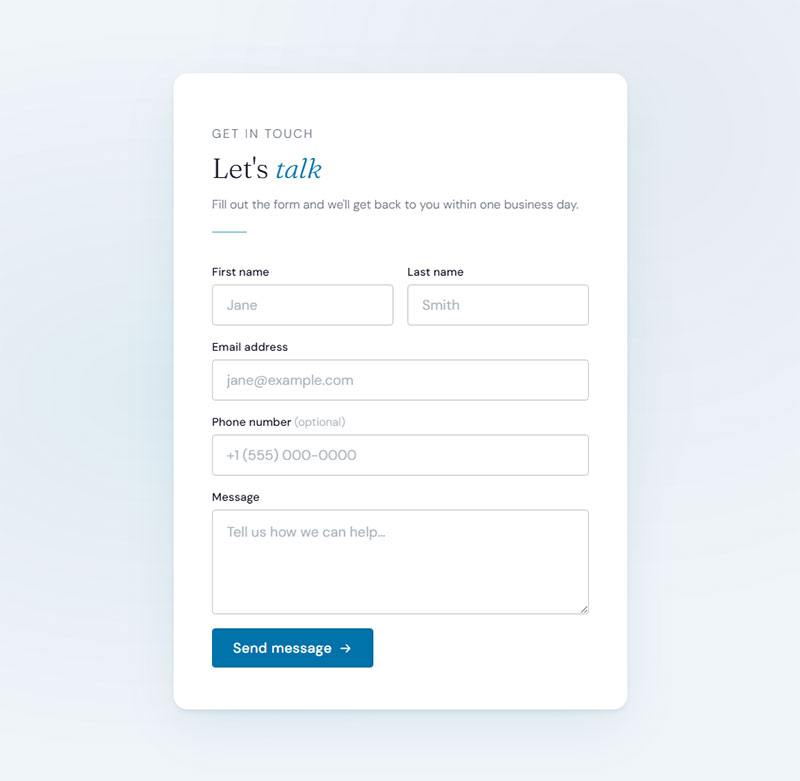
A form that works but looks broken or out of place will lose submissions. Users trust forms that match the rest of the site. This isn’t a small detail.
The good news: styling a no-plugin form is straightforward. You’re working with standard HTML elements, so standard CSS applies. You don’t need a page builder or a plugin to make it look clean.
Where to Add Your Form CSS
The right place depends on how you built the form.
If you used a Custom HTML block: go to Appearance > Customize > Additional CSS. Paste your styles there. They’re stored in the database and applied site-wide without touching any files.
If you used a PHP page template: add styles to your child theme’s style.css file. Keeps everything in one place and survives theme updates.
Avoid inline styles inside the form HTML itself. Mixing layout logic with structural markup creates maintenance headaches. Changing button colors across multiple forms means editing each one individually.
A Working Base Stylesheet for Form Elements
This covers the most common form elements with clean, accessible defaults:
.contact-form input[type="text"],
.contact-form input[type="email"],
.contact-form input[type="tel"],
.contact-form textarea {
  width: 100%;
  padding: 12px 16px;
  border: 1px solid #ccc;
  border-radius: 4px;
  font-size: 16px;
  box-sizing: border-box;
  margin-bottom: 16px;
}

.contact-form input:focus,
.contact-form textarea:focus {
  border-color: #0073aa;
  outline: none;
  box-shadow: 0 0 0 2px rgba(0, 115, 170, 0.2);
}

.contact-form button[type="submit"] {
  background-color: #0073aa;
  color: #fff;
  padding: 12px 24px;
  border: none;
  border-radius: 4px;
  font-size: 16px;
  cursor: pointer;
}

.contact-form button[type="submit"]:hover {
  background-color: #005177;
}
The box-sizing: border-box; line is easy to forget and causes forms to overflow their containers. Always include it. The width: 100%; on inputs means they scale with whatever container they’re in, which handles most mobile sizing without extra media queries.
Mobile Responsiveness
The base styles above already handle most of it. A few additions help on smaller screens:
font-size: 16px;on inputs – anything smaller triggers auto-zoom on iOS Safari- Use
min-heighton textareas instead of a fixed height so they don’t get clipped - Add
touch-action: manipulation;on the submit button to remove the 300ms tap delay on older mobile browsers
For more structured guidance on how form layout decisions affect usability across devices,
mobile form best practices
covers field sizing, label placement, and keyboard type selection in more detail. And if you’re thinking about the broader UX picture,
form UX design
is worth reading alongside this.
One last thing on styling: don’t skip the ::placeholder pseudo-element. Default placeholder text is usually too light to read clearly against a white background. Bump it to at least a 4.5:1 contrast ratio against the input background to stay accessible.
Validation and Error Handling Without a Plugin
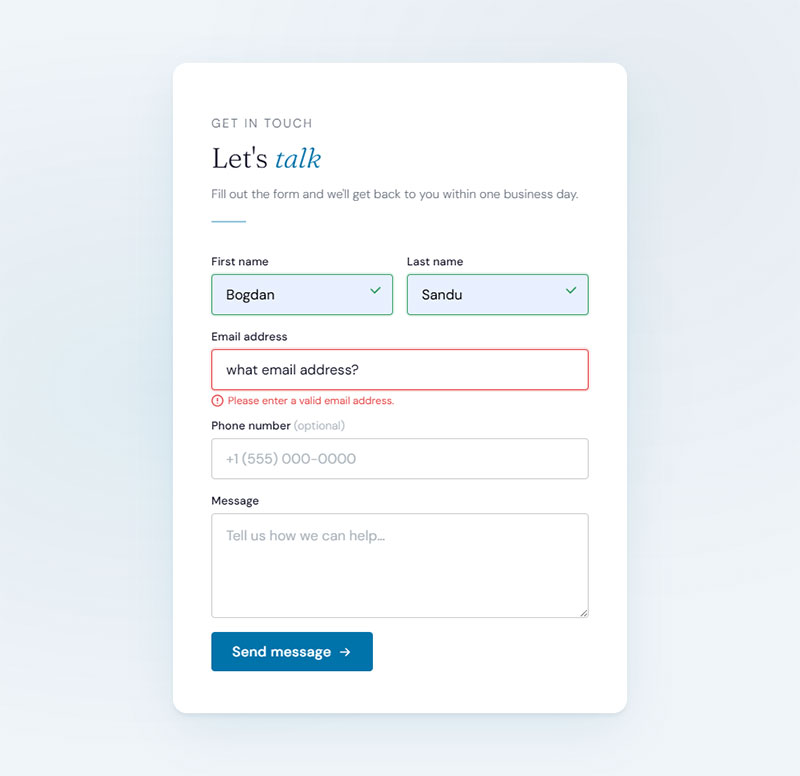
Zuko Analytics data shows only 45% of people who visit a form go on to complete it, meaning 55% abandon it. Poor validation UX is a big part of that.
The good news: HTML5 handles a lot of this without JavaScript. The bad news is it’s not quite enough on its own. Here’s what you actually get and where the gaps are.
What HTML5 Validation Covers
Built-in attributes that do real work:
required– blocks submission if the field is emptytype="email"– checks for a valid email formattype="url"– checks for a valid URL structurepattern="[A-Za-z]+"– matches against a regex patternmaxlength="200"– limits character countminandmax– bounds for number and date inputs
HTML5 form validation has a cross-browser compatibility score of 97 out of 100, according to LambdaTest. The only consistent gaps are in older iOS Safari versions. For the vast majority of users, native attributes work without a single line of JavaScript.
Research by CXL shows that inline field validation reduces form errors by 22% and cuts form completion time by 42%. The mechanism is built into HTML5 already. You just need to use it correctly.
Where HTML5 Validation Falls Short
Native validation is client-side only. Anyone who knows how to use browser developer tools can bypass it and POST whatever they want directly to your endpoint or server.
What it can’t do:
- Validate custom business rules (“is this email already registered?”)
- Stop bots that send requests directly, skipping the browser entirely
- Provide custom-styled error messages (browser defaults look different in every browser)
If you’re using the PHP page template method with wpmail(), add server-side validation before the mail function runs. Check that fields aren’t empty, that the email address passes isemail(), and that submitted values have been sanitized with sanitizetextfield(). Client-side validation is for UX. Server-side validation is for security.
Showing Success and Error Messages
SitePoint notes that browser-default error bubbles are inconsistent. Chrome shows an inline tooltip, Firefox used to show a red border, and Safari showed nothing for years. Relying on browser defaults means your users see different things.
For the PHP template approach, the cleanest pattern is a conditional block at the top of the page template:
<?php if ( isset( $sent ) && $sent ) : ?>
  <p class="form-success">Your message was sent. We'll be in touch soon.</p>
<?php elseif ( isset( $error ) ) : ?>
  <p class="form-error">Something went wrong. Please check your details.</p>
<?php endif; ?>
Style these explicitly. A green background on success and a red border on error gives users clear, immediate feedback without any JavaScript.
For endpoint-based forms (Formspree, Web3Forms), redirect users to a dedicated thank-you page using the next hidden field. That’s cleaner than trying to inject a message into the current page after an external POST.
For more on how to handle these messages well, form submission confirmation messages covers the UX patterns worth following. And if you want to understand what breaks validation flows for real users, form validation best practices is worth reading alongside this section.
When to Stop and Just Use a Plugin
This is the section most tutorials skip. The no-plugin approach works well for specific situations. Outside those situations, it creates more problems than it solves.
The honest answer: a well-maintained lightweight plugin is usually the better choice for anything beyond a basic contact form.
| Requirement | No-Plugin Approach | Plugin Needed |
|---|---|---|
| Basic contact form | Works fine | Optional |
| File uploads | Complex, risky without validation | Yes |
| Multi-step form | Requires significant JavaScript | Yes |
| CRM integration | Not practical | Yes |
| Conditional logic | Requires custom JavaScript | Yes |
With a modern plugin you can even build a form just by asking AI, which removes the hand-coding entirely for anything past a simple static form.
The Maintenance Cost of Custom Forms
I’ve seen developers spend two days building a custom PHP form and then spend another day every six months fixing something. That’s not rare. The PHP template approach is genuinely powerful, but it’s also yours to maintain entirely.
When a WordPress core update changes how nonces behave, or when your hosting environment changes PHP versions, custom form code can break quietly. A plugin’s development team handles that. Your custom code doesn’t have a team.
Ask yourself:
- Do I have time to maintain this code ongoing?
- Is this form doing anything a free plugin couldn’t do in 10 minutes?
- Am I solving a real constraint, or just avoiding a plugin out of principle?
Contact Form 7 has over 10 million active installations on WordPress.org. WPForms Lite has over 6 million. These plugins are tested across thousands of WordPress configurations, updated regularly, and free at the basic tier. Modern lightweight plugins like Fluent Forms are built without jQuery, which means they add negligible load time.
Use Cases Where No-Plugin Is the Right Call
Performance-critical setups where every HTTP request matters. A custom HTML form posting to Web3Forms adds zero plugin overhead to your site’s load.
Sites with very strict dependency management, like agency setups where the plugin list is locked down and adding even a free plugin requires a change request process.
Sites where the form is dead simple, unchanging, and owned by a developer who will maintain it. A three-field contact form in a page template is not a burden. A conditional multi-step registration form in a page template absolutely is.
If you do decide a plugin is the right move, the comparison between options like WordPress contact form plugins is useful for sorting through what’s actually different between them. For fully free options specifically, free WordPress form plugins covers the ones worth considering without a paid upgrade required.
File Uploads and Advanced Features
File upload handling is the clearest example of where custom code becomes risky fast.
A WordPress form with file upload needs server-side MIME type validation, file size limits enforced both client-side and server-side, and a secure upload directory outside the web root. Getting all of that right in a custom page template without security holes takes real effort. A plugin handles it in a few clicks.
Same applies to:
- Payment collection – requires PCI-compliant handling that no DIY form should attempt
- User registration forms that write to the WordPress users table
- Multi-step forms with conditional branching
For creating registration forms in WordPress without a plugin, there’s a workable approach for simpler cases, but it hits the same maintenance ceiling quickly once the requirements grow. The no-plugin approach is a real option. Just know exactly when it stops being one.
FAQ on How To Create Forms In WordPress Without Plugins
Can you create a contact form in WordPress without a plugin?
Yes. Use the Custom HTML block in Gutenberg to write a standard HTML form, then point the action attribute to a third-party endpoint like Formspree or Web3Forms. Submissions get forwarded to your email with no plugin required.
What is the easiest no-plugin method for beginners?
The Custom HTML block paired with Web3Forms is the most beginner-friendly path. You paste your form HTML into the block, add your access key as a hidden field, and email delivery is handled automatically. No PHP, no server configuration.
Do HTML forms in WordPress actually send emails?
Not on their own. A raw HTML form collects input but needs a backend to process and deliver it. You need either a form endpoint service in the action attribute or a PHP page template using wp_mail() to actually send anything.
How do you process form submissions without a plugin?
Create a child theme page template in PHP, use WordPress’s built-in wp_mail() function to handle delivery, and add nonce verification to block CSRF attacks. Sanitize every field with sanitize_text_field() before passing data to the mail function.
Is the contact-form shortcode available on self-hosted WordPress?
No. The [contact-form] shortcode is a Jetpack feature built into WordPress.com hosted sites. On self-hosted WordPress.org, it does nothing unless you install and connect the Jetpack plugin, which defeats the no-plugin goal.
What is Formspree and how does it work with WordPress?
Formspree is a third-party form endpoint service. You set your form’s action attribute to a unique Formspree URL, submit the form, and Formspree forwards the data to your email. The free tier allows 50 submissions per month.
How do you add form validation without a plugin?
Use HTML5 validation attributes like required, type="email", pattern, and maxlength directly on your input fields. For PHP-based forms, add server-side checks using WordPress functions like is_email() before any data reaches wp_mail().
How do you protect a WordPress form from spam without a plugin?
Add a honeypot field, a hidden input that bots fill in but real users ignore. Web3Forms and Formspree both support this natively. For PHP forms, combine nonce verification with server-side validation to block most automated submissions without adding reCAPTCHA.
Can you style a WordPress HTML form without a plugin?
Yes. Add CSS to Appearance > Customize > Additional CSS for block-based forms, or to your child theme’s style.css for PHP templates. Standard CSS targets all form elements. Set width: 100% and box-sizing: border-box for basic mobile responsiveness.
When should you stop and use a plugin instead?
Once your form needs file uploads, conditional logic, multi-step layouts, or CRM integration, a plugin is the practical choice. Custom PHP forms become a maintenance burden fast. A free plugin like WPForms Lite handles these cases with far less ongoing effort.
Conclusion
This conclusion is for an article on building WordPress contact forms without adding a plugin to your site.
The Custom HTML block, PHP page templates with wpmail(), and endpoint services like Web3Forms each cover different needs. None of them require a plugin installation.
Form submission handling, nonce verification, HTML5 validation, and basic CSS styling are all achievable with native WordPress tools and standard web code.
That said, know your limits. File uploads, conditional logic, and CRM integrations push past what custom code handles cleanly without significant ongoing maintenance.
Pick the method that matches your actual requirements, not the one that sounds most impressive. A simple form done well beats a complex one done carelessly.