


How to import forms from other plugins into IvyForms
Table of contents
You can import a form from WS Form, Fluent Forms, WPForms, or Gravity Forms into IvyForms by uploading its JSON export. Say you are moving a client site from Gravity Forms: instead of rebuilding every field by hand, you export each form as JSON, import it, and review a ready-made copy. IvyForms detects the source plugin from the file and always creates a new form, so your existing forms are never touched.
Which plugins can I import forms from?
You can import JSON exports from WS Form, Fluent Forms, WPForms, and Gravity Forms. Forms exported from IvyForms itself also work, which is useful for moving a form to another site. The file must be a JSON export and no larger than 5 MB.
How do I import a form into IvyForms?
You import a form from IvyForms → All Forms by clicking the Import forms button and uploading the JSON file you exported from the other plugin.
- In the other plugin, export the form as a JSON file.
- In your WordPress dashboard, go to IvyForms → All Forms.
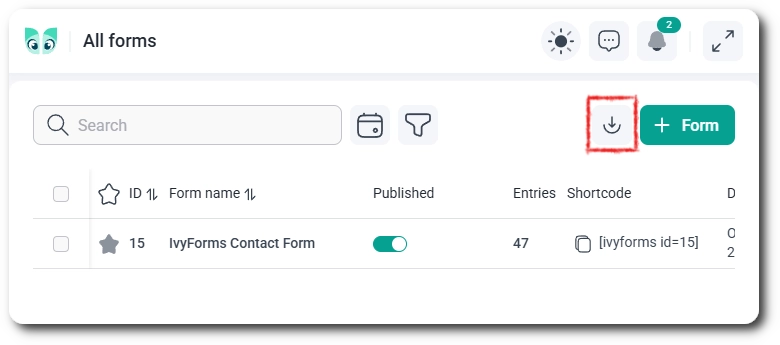
- Click the Import forms icon next to the + Form button in the top-right corner.
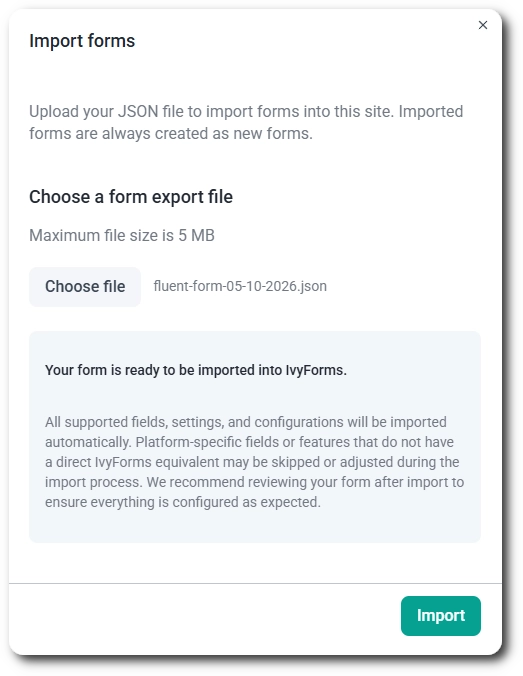
- In the Import forms dialog, click Choose file and select your JSON file.
- Read the compatibility notice that appears once IvyForms detects the source plugin.
- Click Import.
The import always creates a new form and never overwrites an existing one, so you can safely import the same file again while you test.
What gets converted when I import a form?
IvyForms converts the form’s fields, field settings, choice options, and confirmation. Every supported field keeps its label, placeholder, description, required setting, and default value, and choice fields keep their options. The table below lists the field types that convert from every plugin, followed by the types that are specific to each one.
| Source plugin | Fields that convert |
|---|---|
| All plugins | Text, email, number, paragraph, phone, website, dropdown, radio, checkbox, date, file upload, and HTML |
| WS Form | Time and range fields become Time and Slider; a multiple-choice dropdown becomes Multi-select; name parts are merged into one Name field when IvyForms can identify them; rating |
| Fluent Forms | Name, password, GDPR agreement, multi-select, and rating; fields inside containers are placed as regular fields |
| WPForms | Name and address; number slider becomes Slider; dividers become Section and page breaks become Page; payment fields (products and total); GDPR checkbox; rating |
| Gravity Forms | Name and address; sections; time; multi-select; consent; payment fields (products, quantity, and total); a CAPTCHA field becomes reCAPTCHA |
What is not transferred when I import a form?
Notifications from the other plugin are not transferred; IvyForms creates a default notification instead, so you need to recreate your own emails. Fields with no IvyForms equivalent, such as a signature or a captcha in WS Form, are skipped. The import does not fail because of them; the form simply arrives without those fields.
If none of the fields in a file can be converted, nothing is imported, and IvyForms shows an error instead of creating an empty form.
What should I check after importing a form?
After the import, open the new form in the builder and check three things: the confirmation, the notifications, and the layout. Recreate your emails in the notification settings, confirm the confirmation behaves as expected, and adjust the layout and style to match your site. For any field that was skipped, add the matching field manually from the available field types.
Why does IvyForms say my file is unsupported?
IvyForms shows an “Unsupported file” error when the file is not a JSON export from IvyForms, WS Form, Fluent Forms, WPForms, or Gravity Forms. Export the form again as JSON from the original plugin and make sure the file is under 5 MB. If the file is valid but contains no convertible fields, the import stops, and nothing is created.
What can I remember about importing forms?
Export your form as JSON, upload it in IvyForms → All Forms → Import forms, and review the new form. Fields, options, and confirmations come across; notifications and fields without an equivalent do not, so plan a few minutes of cleanup per form.