


Table of contents
IvyForms stores all form submissions as entries, allowing you to review, manage, and track user responses directly from your WordPress dashboard. This page shows where to access entries and what to expect when you open them.
Entries are only available if the Store entries in database option is enabled for the form. If this option is disabled, submissions will not be saved and will not appear in the entries list. In that case, you can only receive submissions via email, if notifications are configured.
IvyForms provides multiple entry access points so you can reach submissions quickly without opening the form builder.
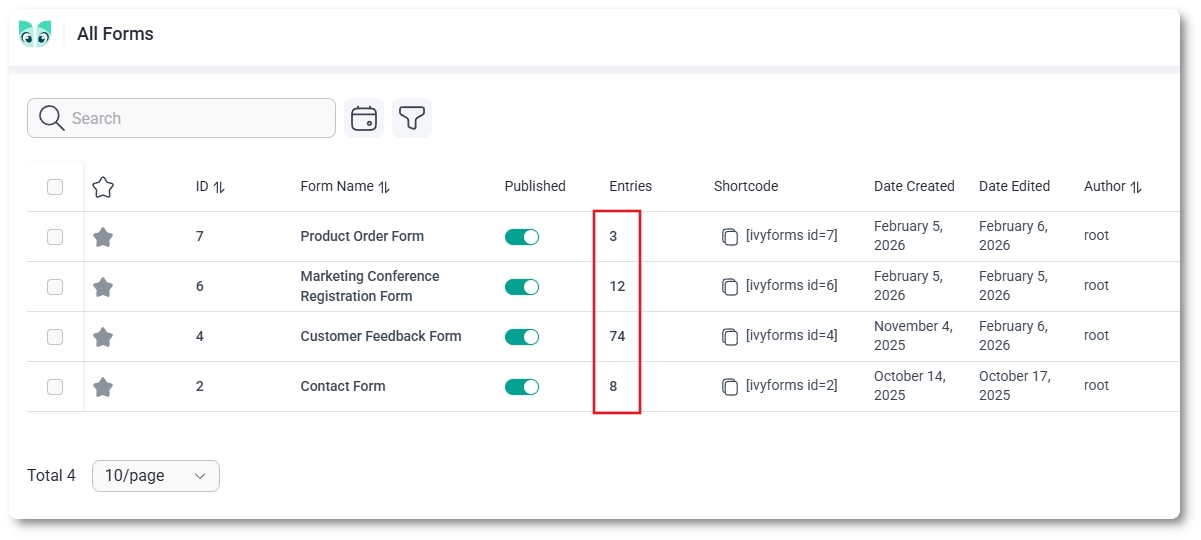
Go to WordPress Dashboard → IvyForms → All Forms. In the Entries column, each form displays the total number of submissions it has received. Clicking this number opens the entries list for that specific form.
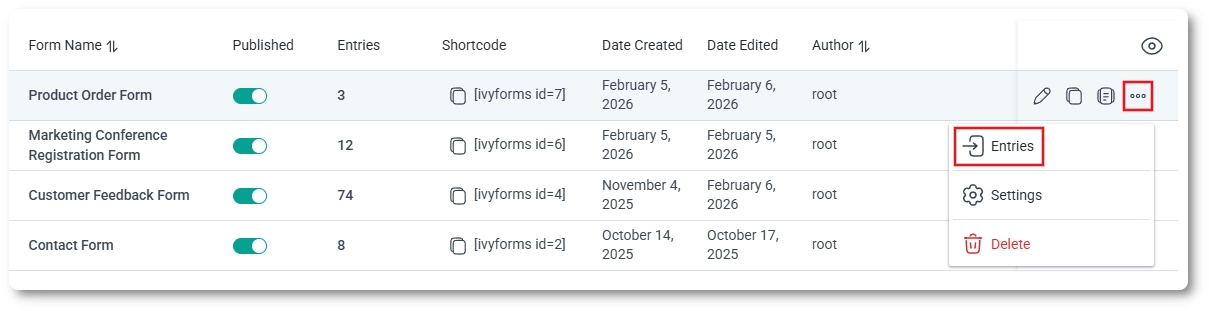
You can also access entries from the form’s action menu. Hover over a form row, click the three-dots menu, and select Entries. This opens the submissions list for the selected form.
IvyForms also includes a dedicated Entries section in the admin menu. Navigate to WordPress Dashboard → IvyForms → Entries to access entries directly, without starting from a specific form.
Entries are created when visitors submit your form on the front end. With IvyForms Pro, you can also add entries manually from the back end. Once a form is added to a page, it appears on the front end exactly as shown in the preview.
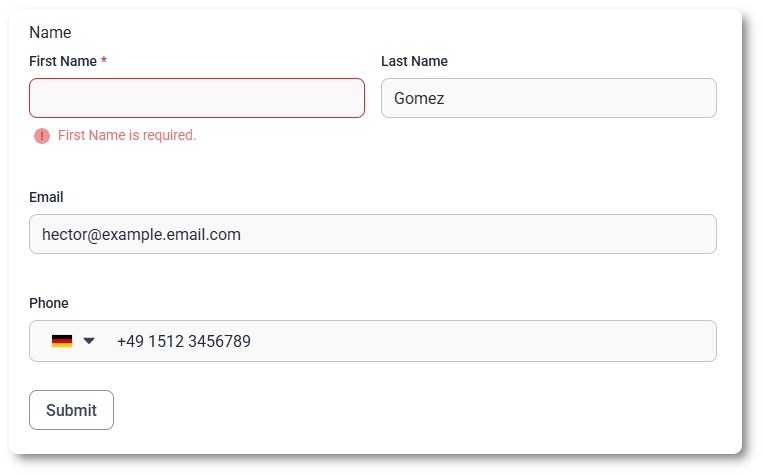
Users fill out the available fields and submit the form. If a required field is left empty, it will be highlighted and a default validation message such as “First Name is required” will appear, where “First Name” reflects the field’s label or sublabel.
When a field is marked as required, you can also define a custom Required message, which overrides the default validation message.
After a successful submission, the user will see the confirmation behavior defined in Form Settings → Confirmation, such as a success message or a redirect to another page or URL.
If the Store entries in database option is enabled, the submission is saved as an entry and becomes available in the Entries table. If this option is disabled, the submission will not be stored and will only be sent via email, if notifications are configured.
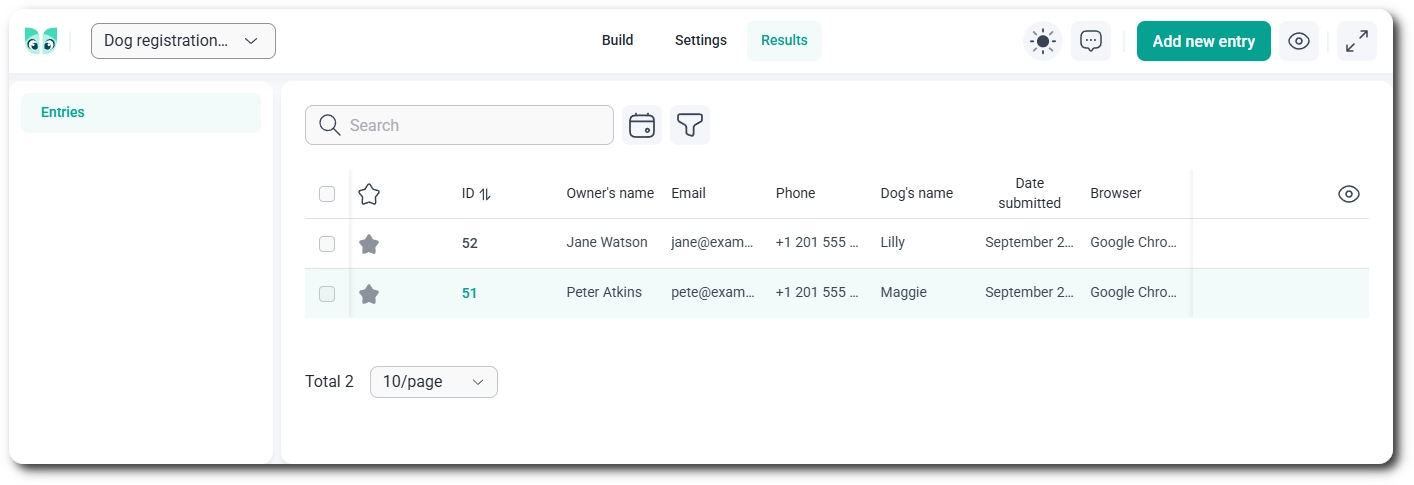
Yes, you can add an entry without submitting the form on your website, with an IvyForms Pro Essentials license or higher. Open the form, go to the Results tab and click Add new entry in the top-right corner. Fill in the form fields in the window that opens and click Save entry. This is useful for recording submissions you received by phone, email or in person, so all your responses stay in one place.
Manually added entries go through the same validation as front-end submissions, so required fields and unique values are checked before the entry is saved.
Manually added and duplicated entries are processed like regular submissions, so the form’s notifications are sent and connected integrations run. Check your Notifications settings before adding entries if you don’t want emails to go out.
When you open the entries list, IvyForms displays a table where each row represents a single submission. From this view, you can quickly scan submitted data, identify entries by date or ID, and open individual submissions for full details.
You can also:
Once entries are submitted, you can review them, track responses, and manage your data without leaving the dashboard. IvyForms lets you view individual submissions, organize entries using filters, and perform actions such as marking or deleting entries.
For a full breakdown of available actions and table features, see the How does the entries table work article.

