


Table of contents
The entries table displays all submissions stored for a selected form. If no entries are stored in the database (table settings), the table will appear empty.
Each row represents a single entry, and the table is designed to help you review, sort, and organize submissions efficiently.
By default, the entries table shows a set of core columns that help you identify and review submissions quickly. The exact columns shown depend on the form structure, but standard metadata is always available.
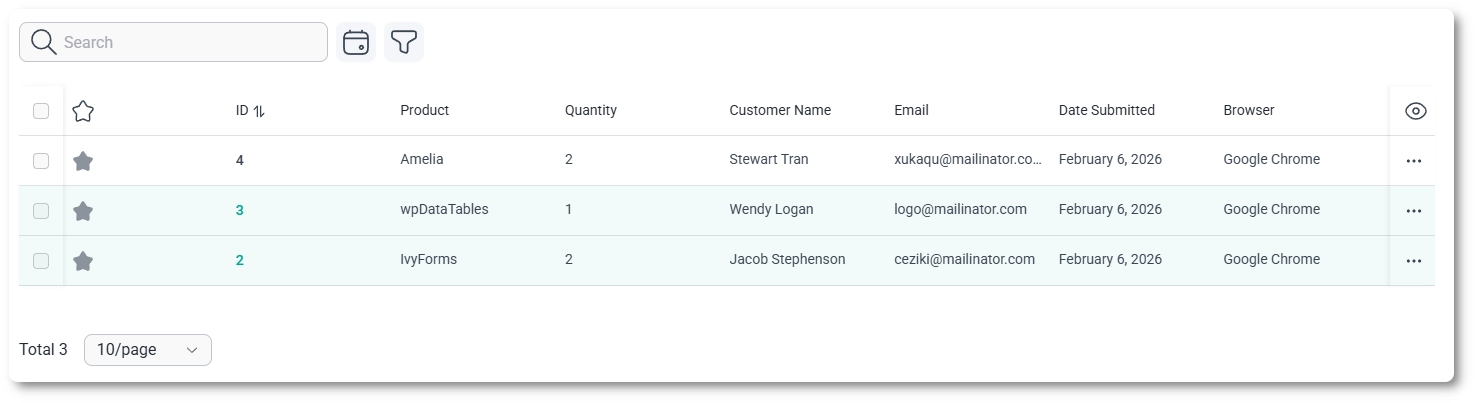
In the top-right corner of the entries table, click the eye icon to open the column visibility panel. From here, you can choose which columns are displayed in the table.
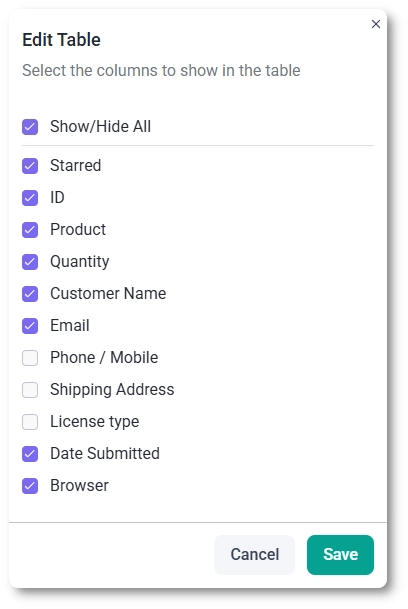
In addition to standard metadata, this panel allows you to show or hide individual form fields. This is useful when working with larger forms, as you can focus only on the fields relevant to your current task.
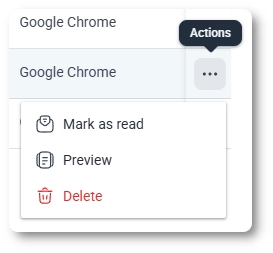
Each entry includes a three-dots action menu that provides quick actions without leaving the table view.
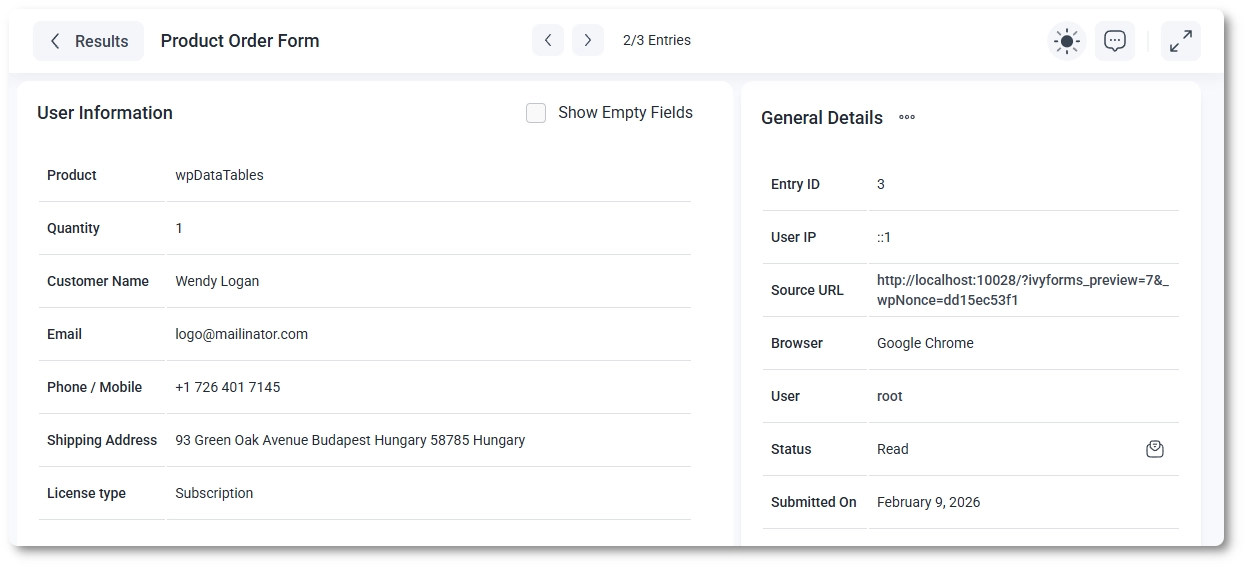
Previewing an entry opens a full details page where you can review all submitted information, including user-provided field values and system-generated metadata.
In addition to single-entry actions available through the three-dots menu in each row, you can apply actions to multiple entries at once. Use the checkboxes on the left side of each entry to select specific rows, or use the master checkbox in the table header to select all entries.
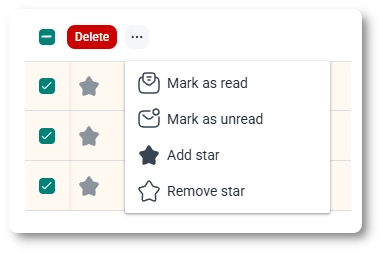
Once selected, bulk actions become available:
Each action is applied to all selected entries at once.
The toolbar above the entries table lets you narrow down visible entries and understand how many submissions are currently shown.
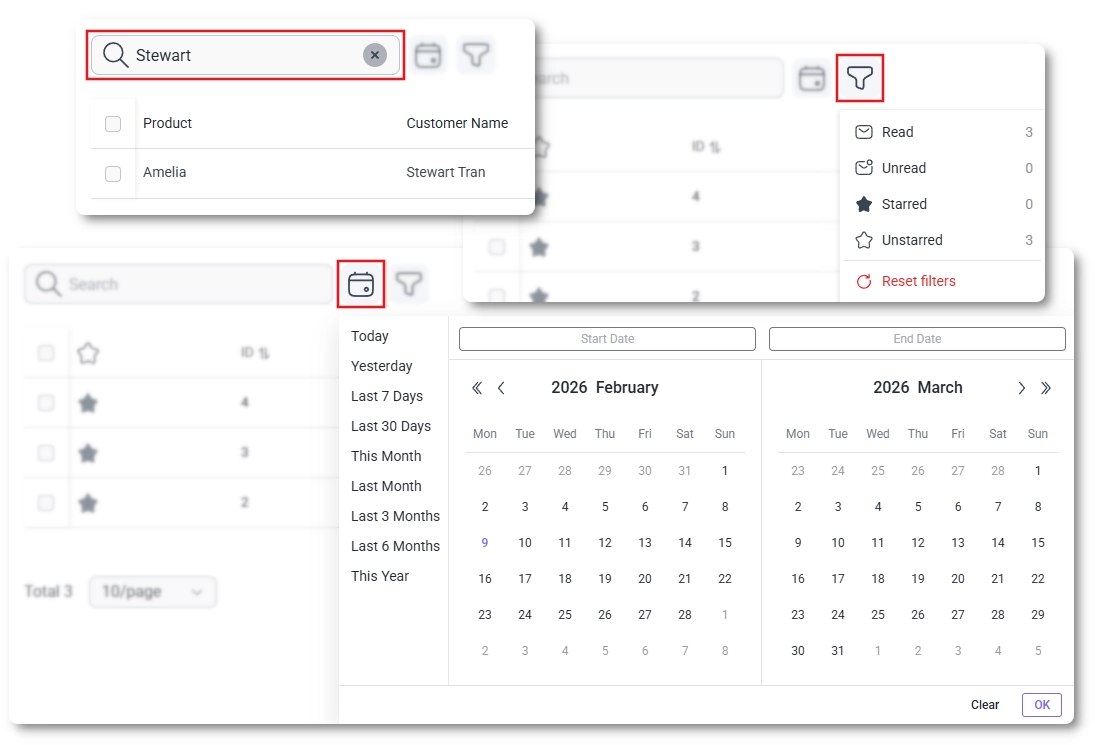
When there are more entries than can fit on a single page, pagination controls appear at the bottom of the table, allowing you to navigate through larger result sets.
The entries table acts as the central workspace for reviewing submissions. From here, you can quickly scan responses, adjust which data is visible, and open individual entries for a more detailed review when needed.
Search, filtering, and pagination states are preserved when navigating through entries. If you open an entry and then return to the entries table using your browser’s Back button, the table will remain exactly as you left it, with the same filters, search results, and page selected.

