


Table of contents
By default, only administrators can manage IvyForms, but you will often want to share access more narrowly: let an editor build forms without touching the rest of your site, or let a teammate read submissions without being able to change anything. The Permissions settings make that possible, granting specific form and entry access either to WordPress roles or to individual users. This article covers where to find the page, how to add a permission rule, what each permission allows, and how the rules are managed.
Open IvyForms → Settings → Permissions in the WordPress admin. The page starts empty, showing “No permission rules added yet” until you create your first rule, and any rules you add later appear here in a table.
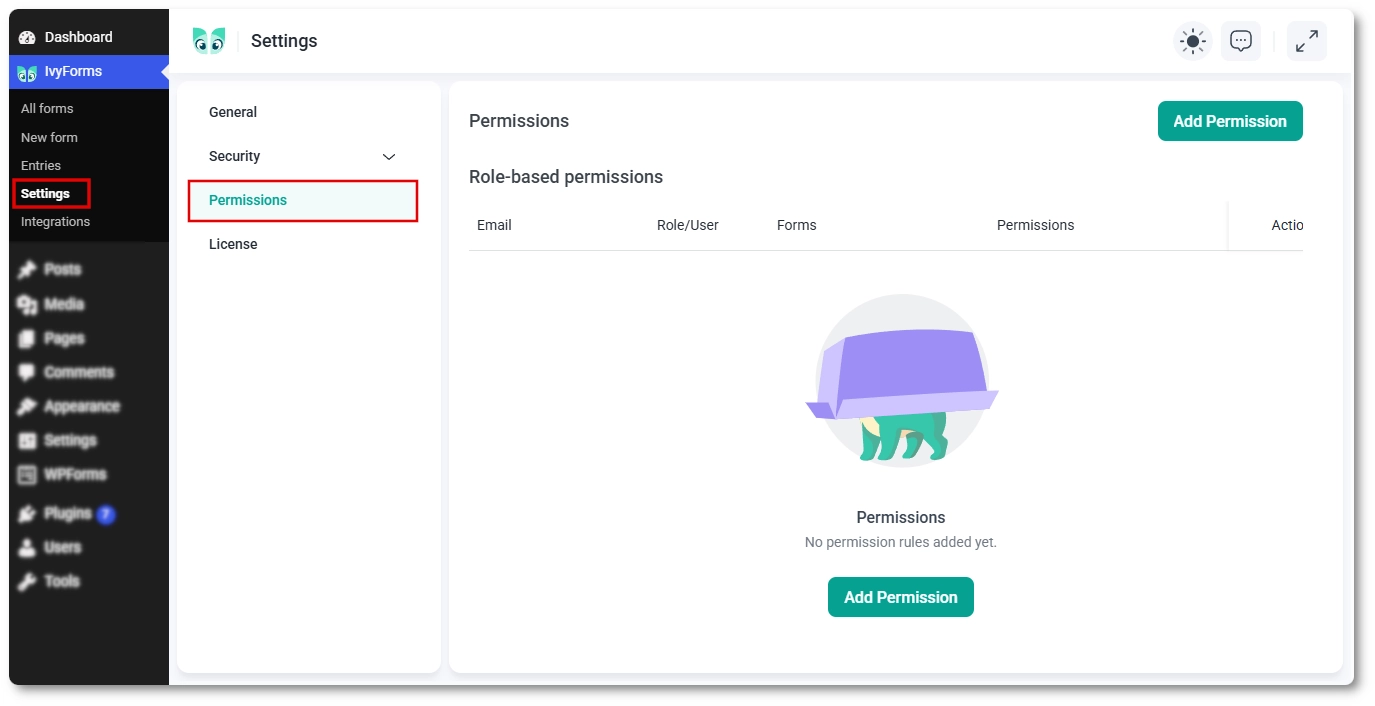
Click Add Permission to open the rule dialog. Start by choosing a Target Type, which decides who the rule applies to:
Once you have chosen who the rule is for, tick the permissions you want to grant, optionally limit the rule to certain forms, and click Save.
The Administrator role and administrator users never appear in these dropdowns, because administrators already have full access to everything. Every other role is listed, whether it is a default WordPress role or a custom one you have created.
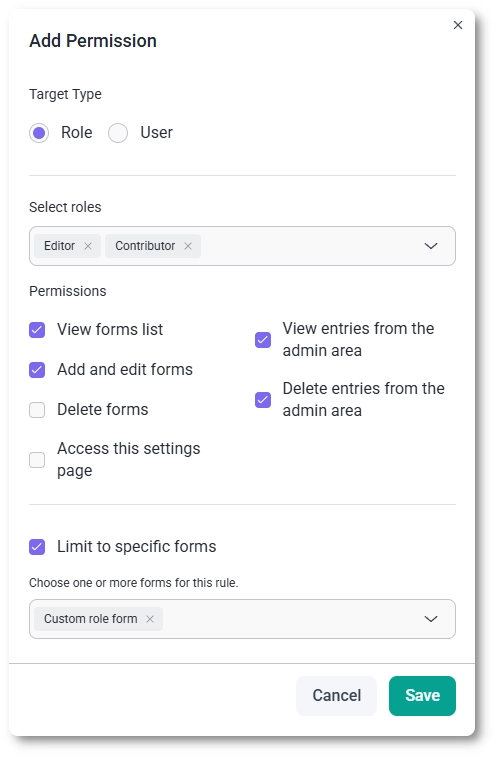
The dialog offers a fixed set of permissions, which you can mix and match for each rule.
By default a rule applies to every form on your site. To narrow it, tick Limit to specific forms at the bottom of the dialog, then choose the forms it should cover from the multi-select that appears. This is useful when a role or user should only manage or read submissions for a particular set of forms rather than all of them.
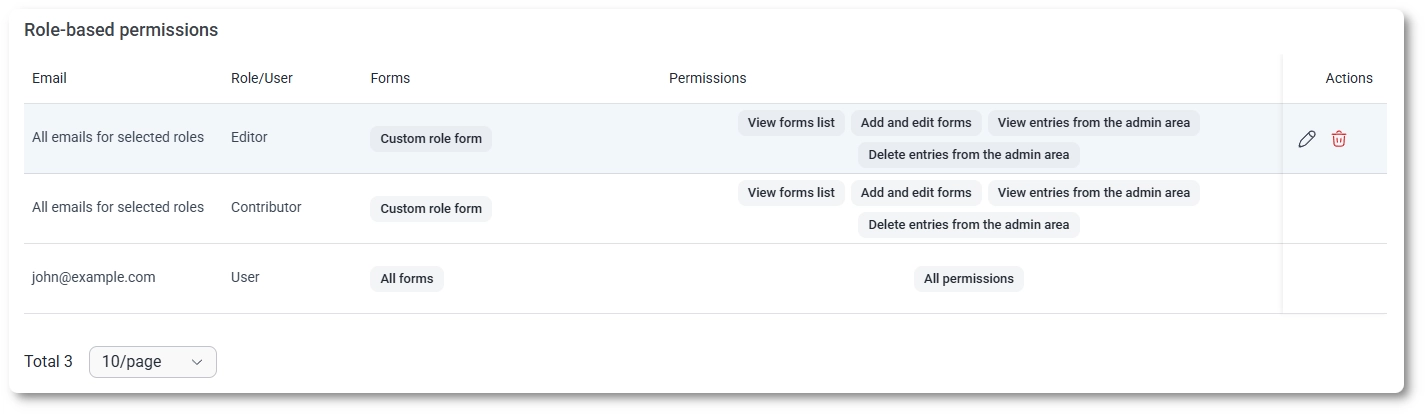
Each saved rule appears as its own row in the permissions table. The Email column shows the address tied to the rule, which is the user’s email for a user rule and “All emails for selected roles” for a role rule; the Role/User column shows the role name for role rules or “User” for user rules; the Forms column lists the specific forms the rule covers or “All forms”; and the Permissions column lists each granted permission, or “All permissions” when every option is selected. Every row has Edit and Delete actions under Actions, so you can adjust a rule later or remove it. When a role already has a rule, it is locked in the selection dropdown and can only be changed through Edit.
When rules overlap, a user-specific rule overrides a role-based one, and if two rules still conflict, the most recently added rule takes priority. Keep that in mind when layering role and user rules on the same person.
Grant only what each role or user needs; View forms list on its own is a safe baseline, and you can add editing or deletion rights from there. Remember that administrators always keep full access regardless of any rule, so you cannot lock yourself out through this page. For shared teams, role-based rules are easier to maintain than per-user ones, with user rules best kept for the occasional exception.

