
Table of contents
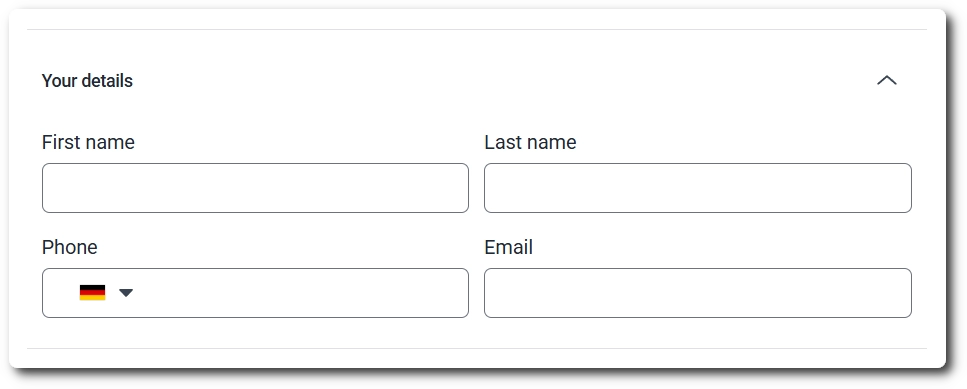
Say you’re building a longer form with a contact details block, an address block, and a preferences block. Instead of leaving every field stacked in one long column, you can group related fields into a Sections field, arrange them side by side, and even let visitors collapse the group once they’ve filled it in.
The Sections field sits under the Layout category in the Add field panel, alongside any other layout elements. Click it to add an empty section to your form, then drag other fields into it.
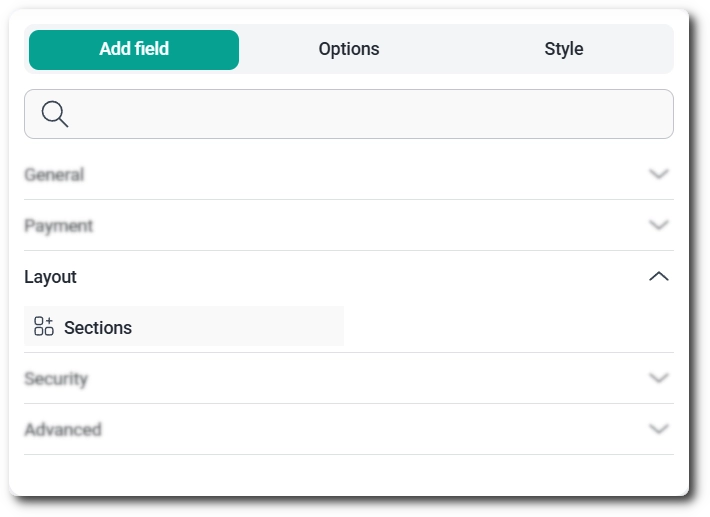
The Sections field is available from the Essential plan onward. It isn’t included on the free plan.
The Sections field is a container, so it doesn’t do anything on its own. Its only job is to group other fields together; add fields into it and arrange them side by side, up to five per row. The section itself can’t be resized, but each field placed inside it can, so you control how the row splits up (for example, two fields at equal width, or one wider field next to two narrower ones).
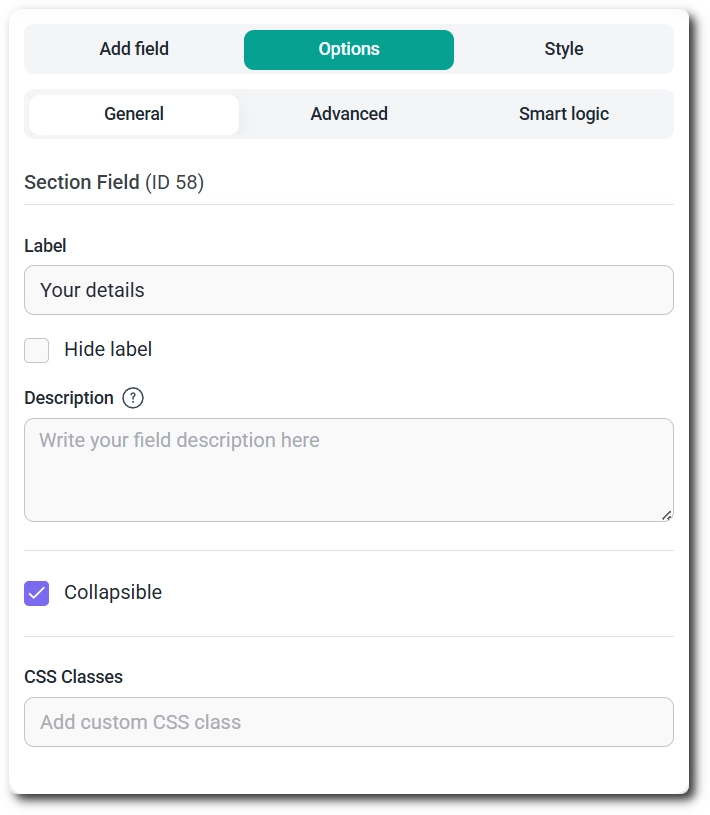
Click the Sections field in the builder to switch the left panel from Add field to Options, where you’ll find three tabs: General, Advanced, and Smart logic.
The General tab holds the section’s core settings: Label sets the title shown above the group, Hide label removes that title from the front end, and Description adds explanatory text that appears below the label. Turning on Collapsible lets visitors expand or collapse the whole section, and CSS classes lets you add custom classes for styling.
The Advanced tab only contains Label position, which controls where the section’s label sits relative to its content: Default, Top, Left, or Right.
Smart logic on the Sections field works the same way it does on any other field: turn on Conditional logic, then build one or more rules from a field, a condition such as equals, and a value. Conditional match controls how multiple rules combine: Any shows the section if at least one rule is met, All requires every rule to be met. When a rule’s condition isn’t satisfied, the entire section and everything inside it stays hidden.
Yes; each field placed inside a Sections field keeps its own Smart logic settings, exactly as if it weren’t inside a section. The one limitation is that a field inside a section can’t use the Sections field itself as a condition, since the section holds no value of its own; it can reference any other field on the form as usual.