


Table of contents
A dog grooming salon needs to know the breed, coat type, and temperament of every dog before the owner picks a time slot. With the Amelia integration, the salon builds that questionnaire in IvyForms and sets it as a pre-booking intake form. The owner answers the questions first. Then the Amelia booking form opens with their name, email, and phone number already filled in. You collect the details that matter to your business, and your customers don’t type the same information twice.
The Amelia integration works with both the free Lite and the premium versions of IvyForms and Amelia. Which fields and features you can use depends on the version you run on each side.
You need IvyForms and Amelia installed and active on the same WordPress site, plus at least one published IvyForms form with Store entries in database turned on. You enable the integration from Amelia’s side, in Features & Integrations → Integrations. If IvyForms isn’t installed yet, Amelia’s integration card lets you install and activate IvyForms Lite without leaving that page.
For installation steps, refer to the IvyForms installation documentation.
Amelia only receives fields from entries that IvyForms saves. If Store entries in database is off in the form’s General settings, nothing syncs to the booking, even when the fields are mapped. Learn more in the form general settings documentation.
Build the form as usual, and make sure it includes the fields Amelia can map to its customer details. Amelia can pick up four values from your form:
Every other field (dropdowns, checkboxes, text areas, ratings) is still saved with the entry and shown in the appointment. It just isn’t mapped to a customer detail. Mapping itself is optional, so you can run a pure questionnaire with no contact fields. In that case, customers enter their details in the Amelia booking form as usual.
For detailed steps on building a form, refer to the creating forms in IvyForms documentation.
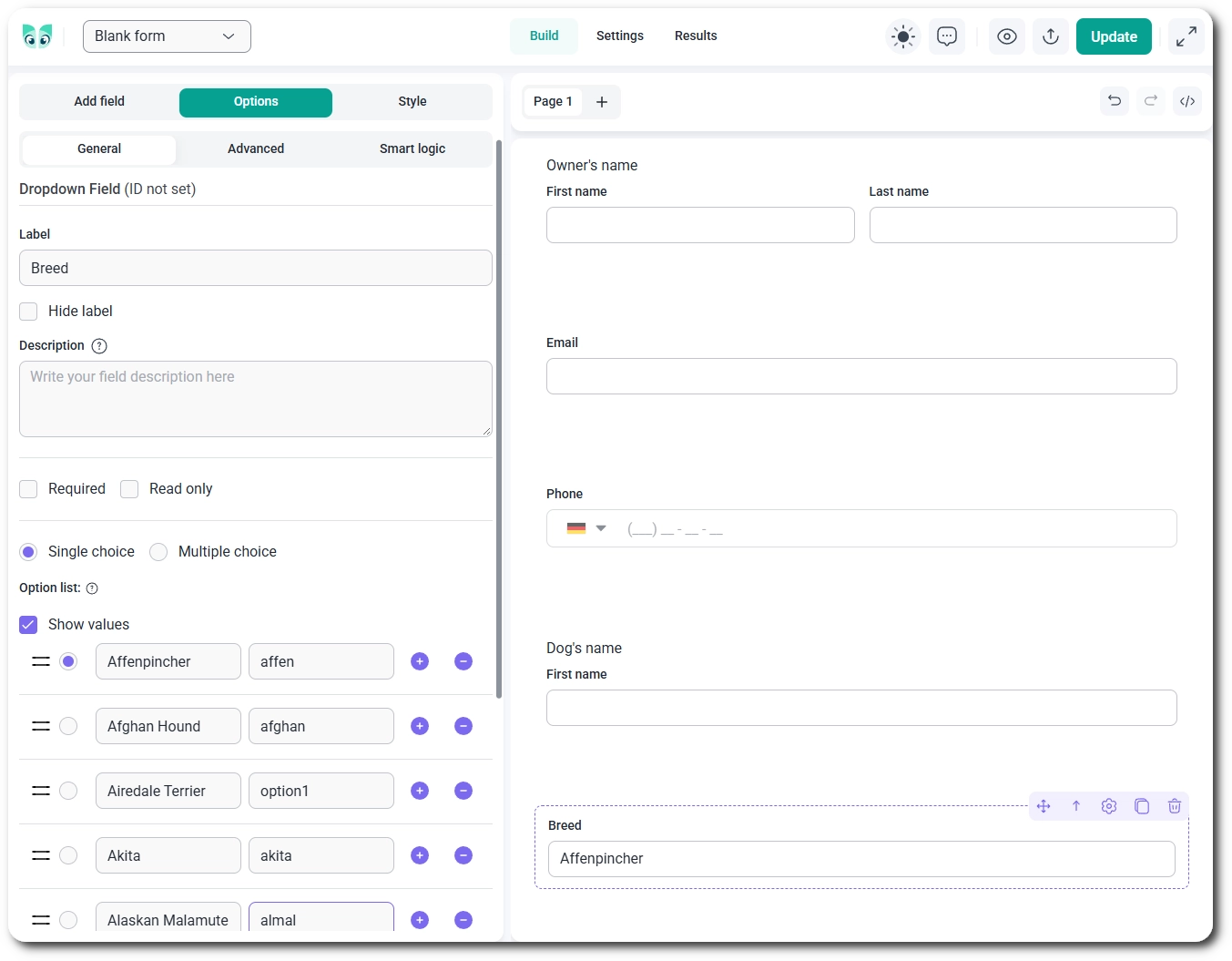
You connect the form in two places in Amelia: you map its fields in the integration settings, then you attach it to a booking form on your page.
You map fields in Amelia under Features & Integrations → Integrations by clicking Set up on the IvyForms card and choosing your form from the IvyForms Form dropdown. Match each Amelia customer field to the IvyForms field that collects it, or leave it unmapped. You can map one IvyForms form at a time.
For the full walkthrough, refer to the IvyForms integration in Amelia documentation.
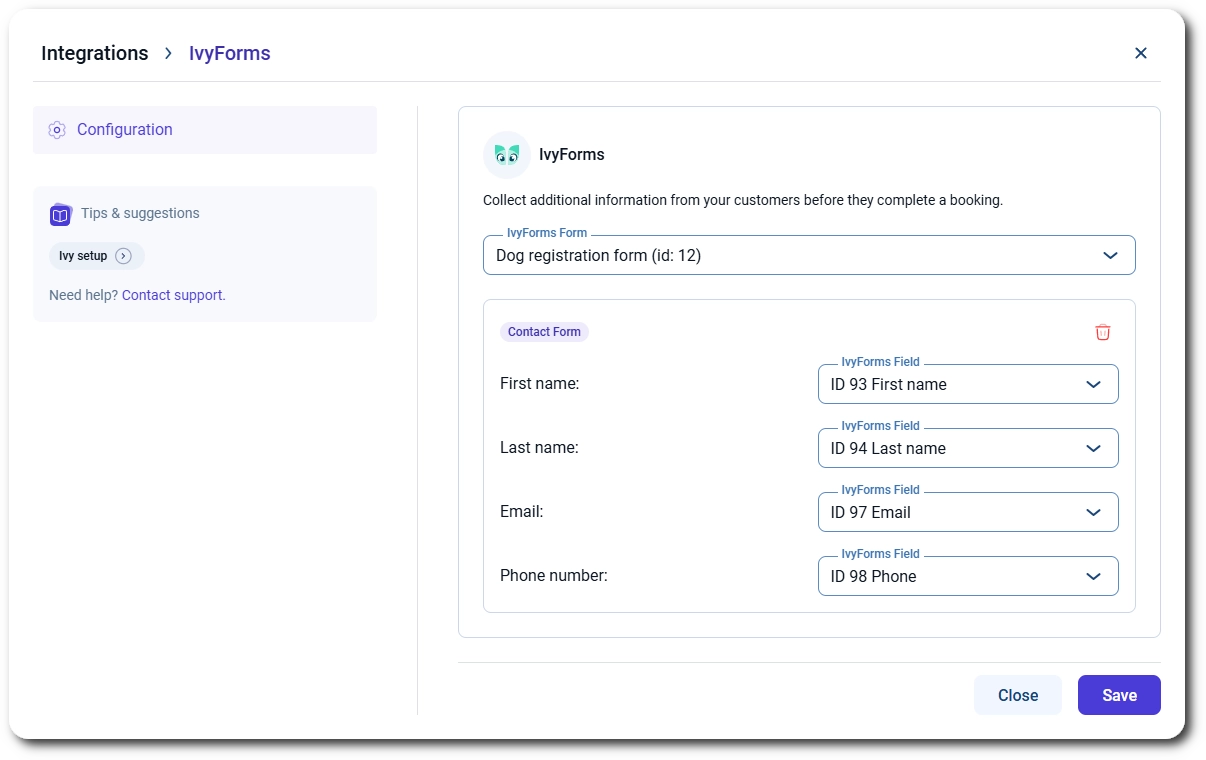
You attach the IvyForms form to an Amelia booking form through the Pre-booking intake form option in the Amelia booking element of your page builder. This works in Gutenberg, Elementor, the Classic Editor, and Divi 5 (Divi 4 isn’t supported). Visitors see your IvyForms form first; once they submit it, the Amelia booking form loads. If the linked form is later deleted or unpublished, the page skips the intake step and shows only the booking form, so bookings keep working.
Every intake submission is saved as a regular IvyForms entry, so you’ll find it in IvyForms → Entries or through the Entries count for that form in IvyForms → All Forms. The same data appears in Amelia too. Open the appointment in Amelia → Bookings and look for the Pre-booking form details section. It lists every saved field (not just the mapped ones) and links back to the full entry in IvyForms.
Learn more about managing submissions in the form entries documentation.
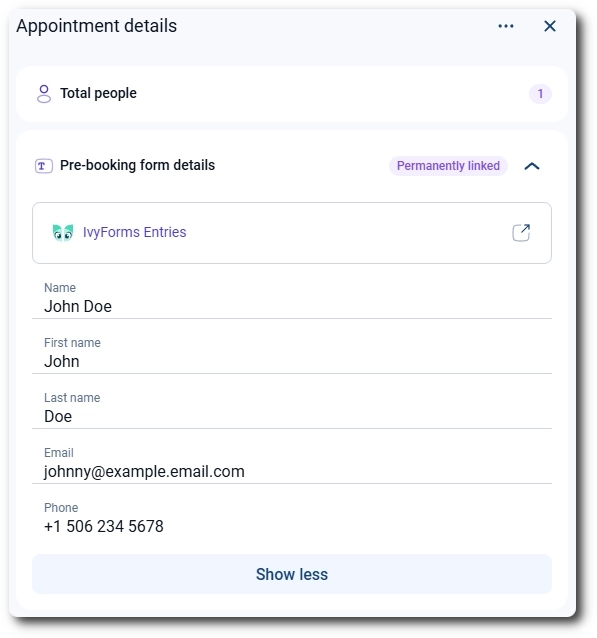
Mapped name, email, and phone values only fill in the customer when the visitor is not logged in. Logged-in users keep the details already saved to their account, but their full intake answers still show in the entry and in the appointment.
A few rules decide whether the intake data reaches the booking: