

Table of contents
You’re collecting sign-ups and you need every person to actively agree to your terms before they submit; the GDPR field gives you that consent checkbox, with agreement text you control and a link to the policy they’re agreeing to. It’s built for exactly this kind of explicit, on-the-record consent. This article covers where to find the field, how its settings work, and how to point the agreement text at your official statements.
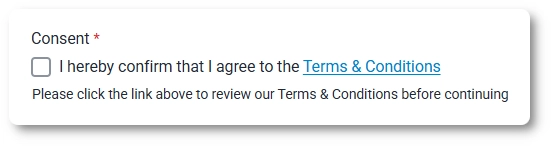
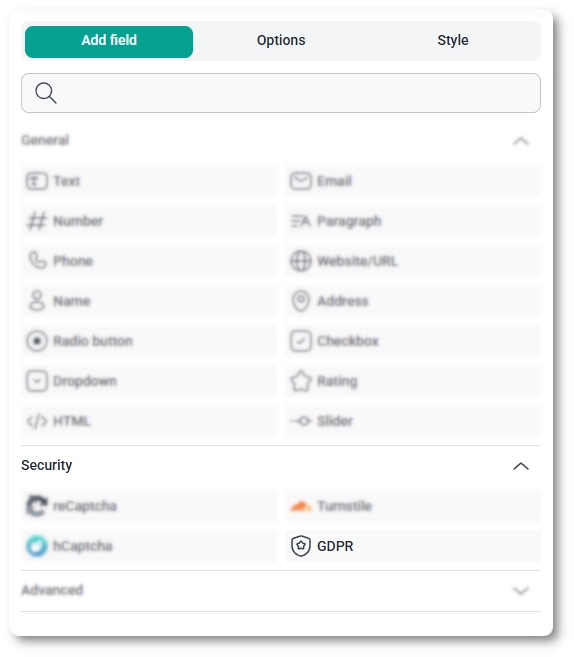
You add the GDPR field from the Security category in the left panel of the IvyForms builder. Expand the category, then drag the field onto your form to drop it in place or simply click on the field to add it to the bottom of your form.
When you click the field on the form, the panel on the left switches from Add field to Options, opening on the General tab. The top of the tab shows the field type (GDPR field) and its ID, followed by the settings you can adjust:
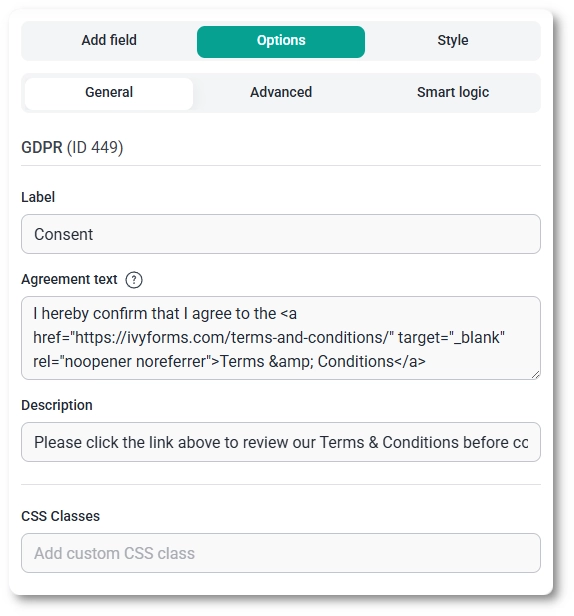
Because Agreement text accepts HTML, you add a link by writing an anchor tag around the words you want to be clickable, which is the cleanest way to send users to an official statement like your terms or privacy policy. Open the link in a new tab so people don’t lose the form, for example:
<a href="https://YOUR-SITE/terms-and-conditions/" target="_blank" rel="noopener noreferrer">Terms & Conditions</a>Use target="_blank" with rel="noopener noreferrer" on the link so the policy opens in a separate tab and the original form stays exactly where the user left it.
The Advanced tab has no settings for the GDPR field, so everything you configure lives on the General tab. Smart logic behaves just like it does on other fields, letting you show or hide the consent checkbox based on conditions tied to other fields; for the full walkthrough, see the conditional logic documentation.
To customize colors, spacing, typography, buttons, and the overall form appearance, see the style tab documentation.


