
Table of contents
The Style tab manages the overall look of your form, including the background, fields, buttons, and confirmation messages. You can pick a pre-made style and customize it, save your customized design as a reusable theme, or disable IvyForms styling so the form inherits the look of your active WordPress theme. Style settings apply to the whole form rather than to individual fields.
IvyForms Lite includes two styles, Ivy (Default) and Amelia, listed under Ivy styles in the Style tab. With an IvyForms Pro Essentials license or higher, you get the full collection of professionally designed styles, from light and minimal to bold and dark. Without a Pro license, the Pro collection shows as a card with an Explore Collection button, and its styles can’t be applied. Themes you save yourself also appear in this list (see the section on saving a theme below).
Click any available style to apply it to your form and see the result instantly in the preview.
The style list is only shown while the Disable styles toggle at the top of the tab is off. To use your theme’s styling instead, see the section below.
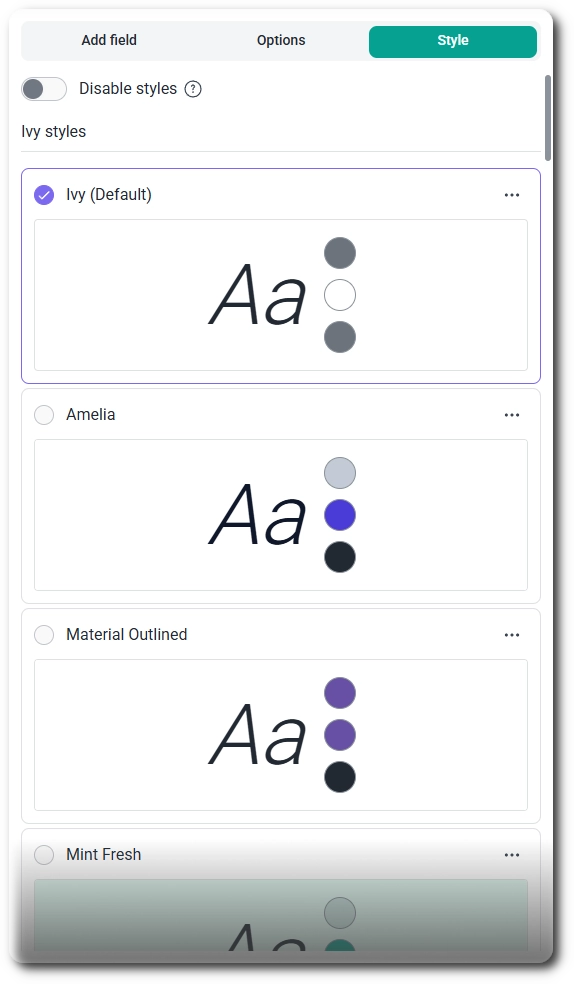
Switching to a different style replaces your current style settings with that style’s values. Pick your base style first, then customize it.
You can disable IvyForms styles by turning on the Disable styles toggle at the top of the Style tab, which makes the form use your active theme’s styling instead. The toggle is off by default, so every form starts with the selected IvyForms style applied. While it’s on, the style list is hidden, and the form takes its fonts, field appearance, and colors from the theme. This is useful when you want forms to blend into your site without recreating your theme’s design inside IvyForms.
Hover over the question mark next to the toggle for a short description of what it does. Turn the toggle off again at any time to bring back the style list and keep customizing the selected style.
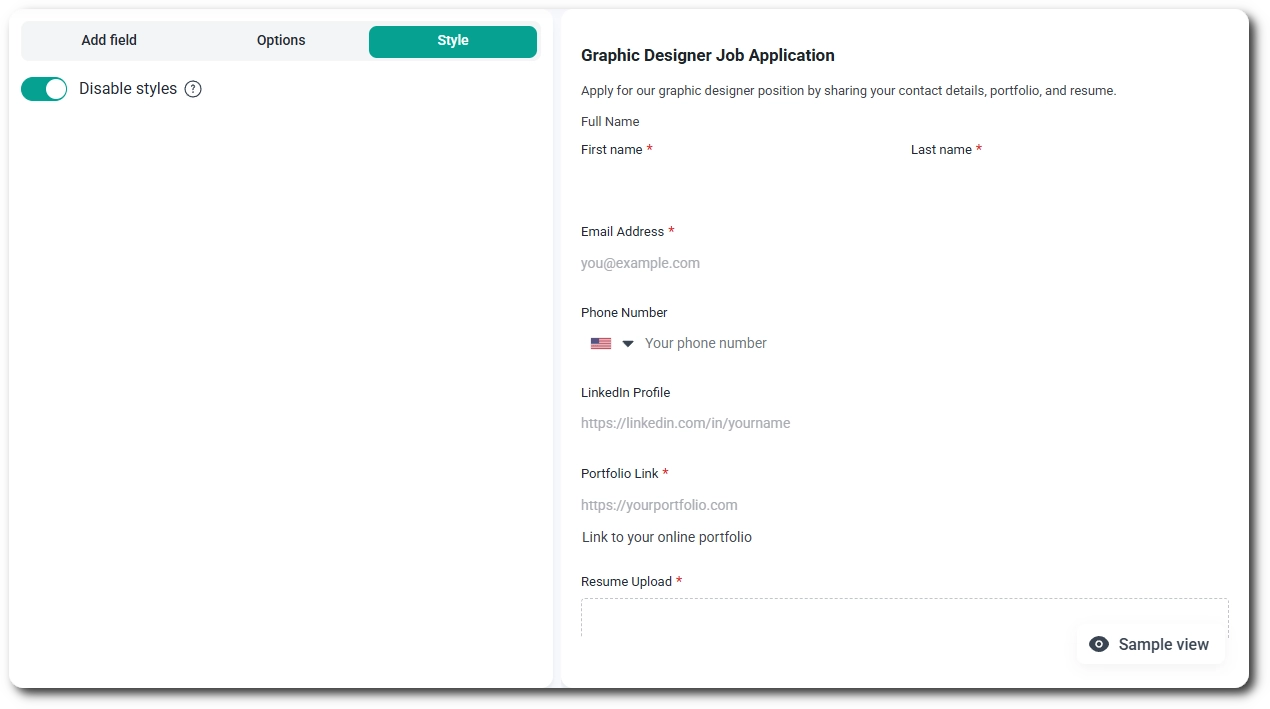
While Disable styles is on, you can’t edit or switch styles because the style list is hidden. Any customizations you made earlier aren’t shown on the form, so turn the toggle off to bring them back.
How the form looks depends on your active theme, so it may change if you switch themes. Check the form on the front end after turning this option on.
Make sure the Disable styles toggle is off; otherwise, the style list and its editing options aren’t available.
You edit a style by clicking the three-dot menu next to it and selecting Edit. This selects the style and opens its settings, where you can choose between Quick Start and Advanced mode. All changes appear in the preview right away. The header of the editor also contains the Reset and Save as theme buttons. Click the back arrow to return to the list of styles.
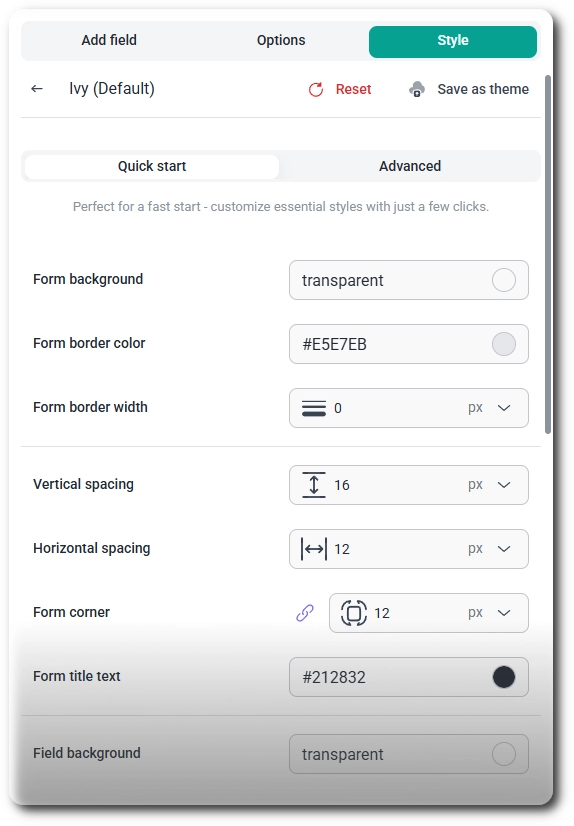
Quick Start gives you the essential controls to restyle a form in a few clicks: form background, borders, spacing, field appearance and button styling. It’s the right choice when you want your form to match your brand quickly without adjusting every element.
Advanced mode gives you detailed control over each part of the form, including colors, typography, borders, and spacing. Settings are grouped into sections:
Some IvyForms Pro features add their own sections here when they’re active.
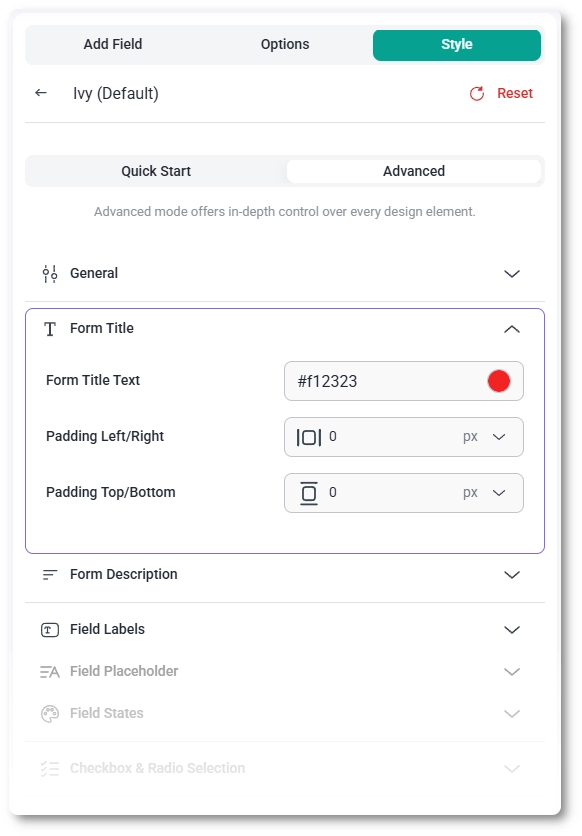
You can save your current style settings as a new theme by clicking Save as theme in the style editor, or by choosing Save as new theme from the three-dot menu of any style. The new theme copies everything currently applied to your form, including colors, typography, field and button styles, spacing, and borders, so you can reuse the same design on other forms without rebuilding it.
Saving a custom theme requires an IvyForms Pro Essentials license or higher. Without one, both options open an upgrade prompt instead.
There are two places to start from, and both open the same window.
You name and save the theme in the Save as theme window by typing a name into the Theme name field and clicking Save. The name is required, so IvyForms shows an error if you leave the field empty. Click Cancel to close the window without saving anything.
Once saved, a confirmation message appears, and the new theme is selected on your form and added to the Ivy styles list. Your original style stays unchanged, and the new theme can be applied to any other form on your site.
You reset style changes by clicking Reset at the top of the style settings and confirming. This restores the selected style’s original values, and it can’t be undone. If you want to keep your customized design, save it as a new theme before you reset.
A few habits help your forms look good and stay easy to use: