


Table of contents
Once IvyForms is installed and activated, you can configure its main options directly from your WordPress dashboard.
At this stage, IvyForms includes three configuration areas: General settings, security settings, and License settings. General and security settings control accessibility and spam protection. The License tab is used to activate the Pro version of IvyForms. Learn more about activating your IvyForms license.
Pro features remain unavailable until the license is activated.
You can open all IvyForms configuration options by navigating to WordPress Dashboard → IvyForms → Settings.
Inside this page, you’ll see the following tabs:
The General tab lets you enable WCAG accessibility, control what happens to your data when IvyForms is uninstalled, and switch on MCP access for AI assistants.
The WCAG-compliant backend layout toggle updates the interface to follow WCAG (Web Content Accessibility Guidelines), improving keyboard navigation and screen reader support; turn it on if you want a more accessible experience in the WordPress admin area.
The Delete IvyForms content when the plugin is deactivated option removes all forms, entries, settings, and database tables when the plugin is deactivated from the WordPress Plugins page.
The Enable MCP for AI assistants toggle lets AI assistants work with your forms through MCP; for what it does, how to set it up, and its limits, see the IvyForms MCP documentation.
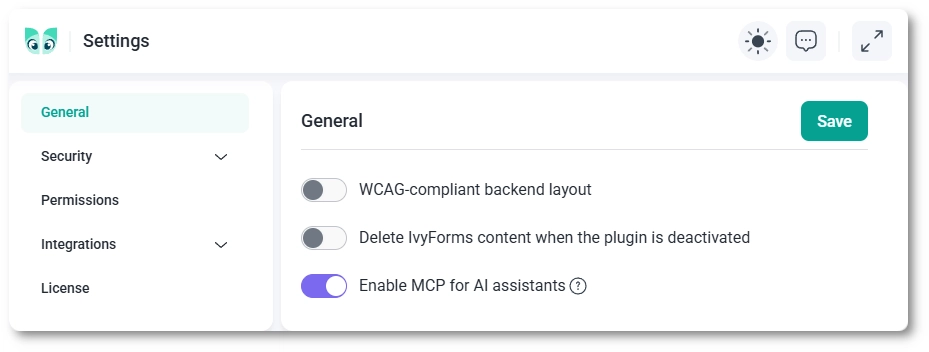
Enabling the Delete IvyForms content when the plugin is uninstalled option will permanently delete all IvyForms data when the plugin is removed from WordPress. This action cannot be undone. You will see a warning before deletion, but if you proceed, all forms, entries, settings, and related data will be removed. Please use this option with caution.
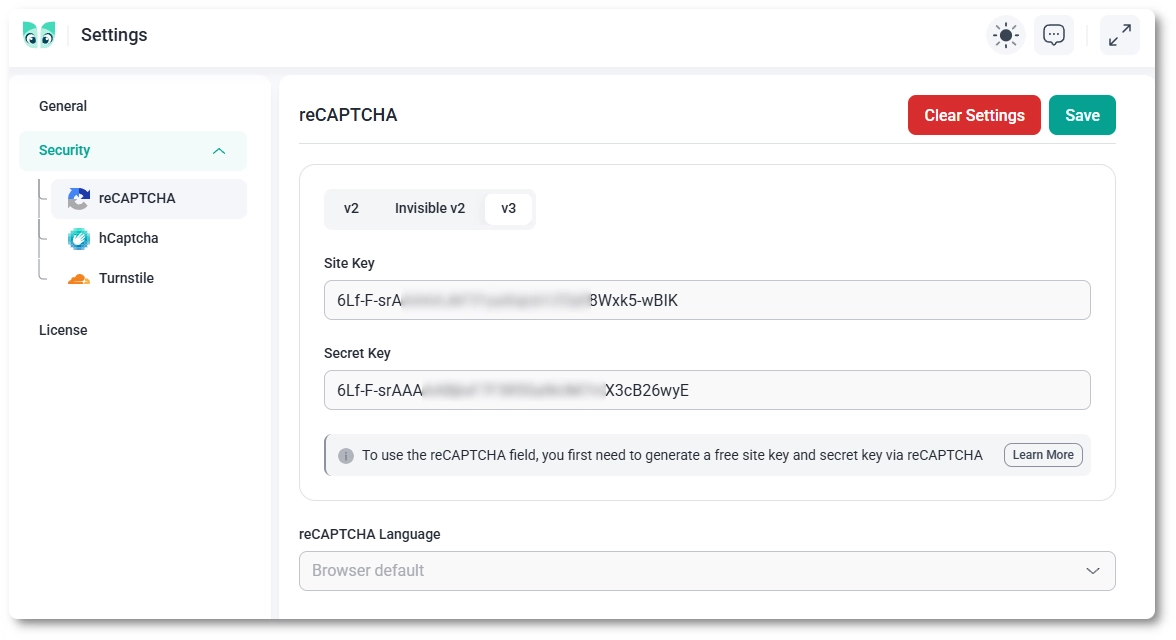
You can enable Google reCAPTCHA under the Security tab. This feature helps protect your forms from spam and automated submissions. Follow these steps:
Some languages in the dropdown are marked with an asterisk (*). The asterisk indicates that the audio challenge is only available for the Checkbox widget.
You can check the complete list of supported languages in the Google reCAPTCHA language documentation.
You can generate your keys from the Google reCAPTCHA Admin Console.
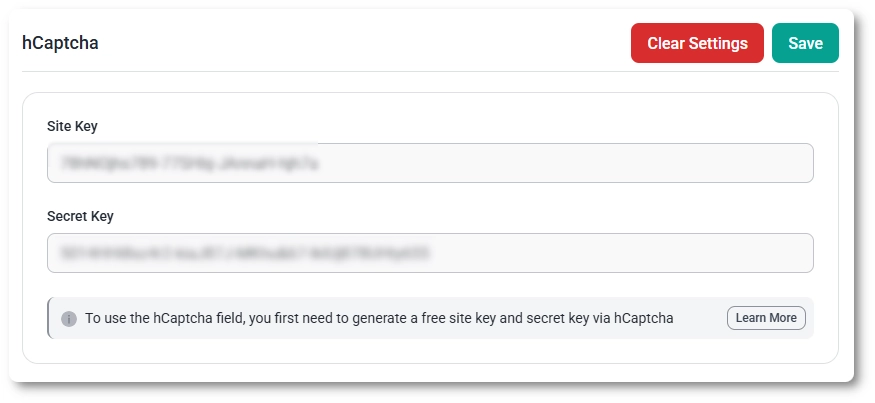
hCaptcha helps protect your forms from spam and automated submissions while respecting user privacy. You can enable it directly from the hCaptcha tab in the form settings.
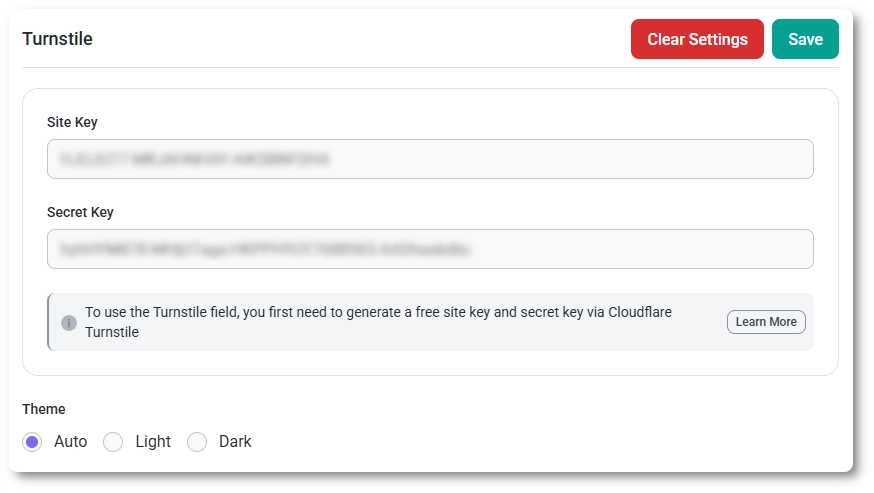
Cloudflare Turnstile provides spam protection without interactive challenges for most users. You can enable it from the Turnstile tab in the form settings.
All settings you save will be applied globally across IvyForms. Any new form you build will automatically inherit your accessibility and spam-protection preferences.
When your license is activated, all Pro templates, fields, and advanced features become available throughout the plugin.
You can read the full activation guide on the license activation page.

