

Table of contents
The Date field is used to collect calendar dates, such as birth dates, booking dates, or deadlines. It supports different input styles, multiple display formats, and rules that control which dates users can pick. This article explains how the Date field works and how you can customize it in the IvyForms builder.
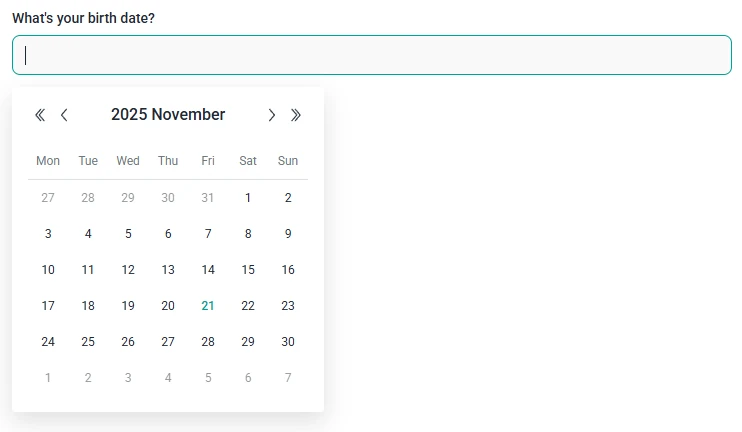
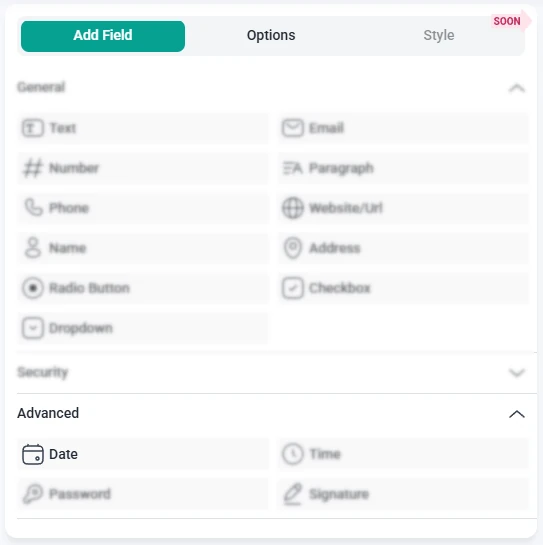
You can add the Date field from the Advanced section in the left panel of the IvyForms builder. When you expand this section, the Date field appears together with other advanced inputs like Time, Password, and Signature. Click the Date option to insert it into your form, then select the field in the preview to open its settings.
After you select the Date field in the preview, the sidebar switches to the Options view. The settings are divided into three parts: General, Advanced, and Smart logic. These control how the field looks, which dates are allowed, and when the field is shown to users.
The General tab contains the main configuration options for the Date field. Here you can define the label, helper text, input style, and the format in which dates are shown and stored.

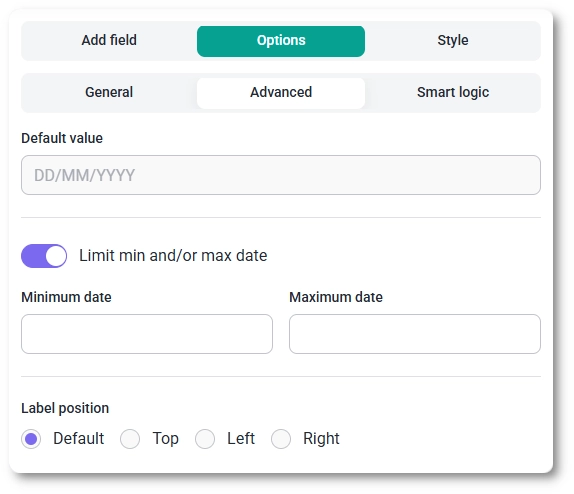
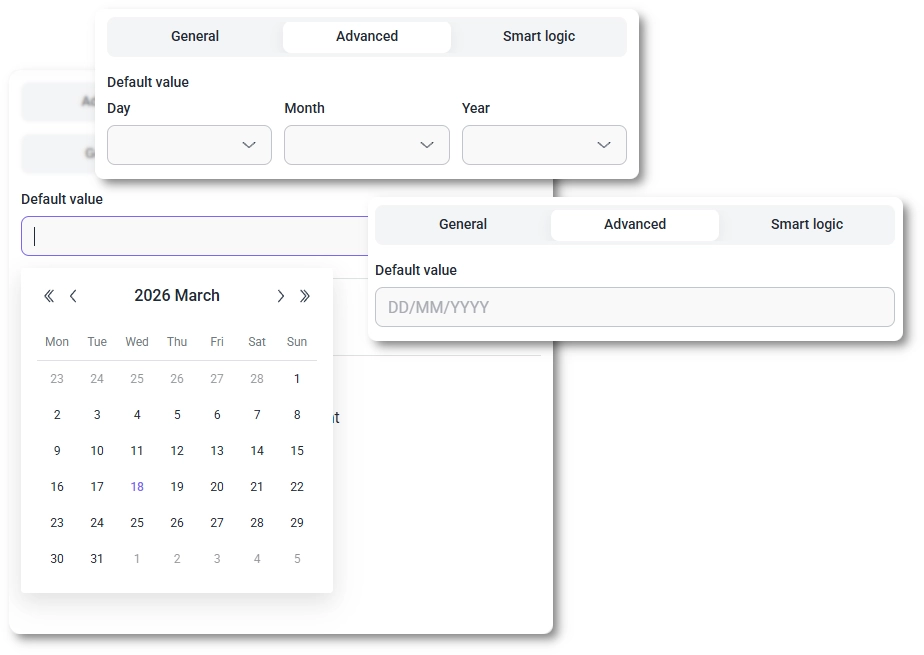
The Advanced tab gives you more control over which dates can be selected and what value appears by default. These options work together with the chosen Date field type, so the input style stays consistent across all date-related settings.
Smart Logic is available only in the Pro version of IvyForms.
The Smart logic settings let you control when the Date field appears on the form. By default, the field is always visible. When you enable smart logic, you can define conditions based on other answers that determine whether the Date field should be shown.
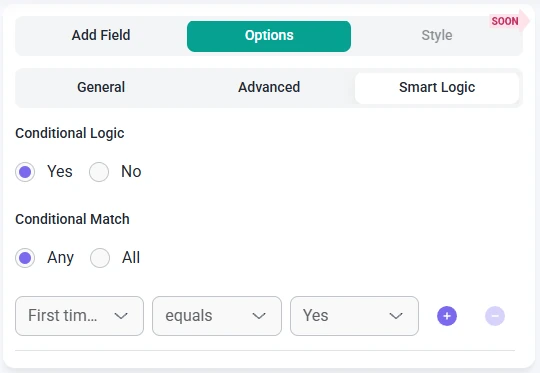
Once smart logic is activated, the Conditional match setting becomes available and offers two ways to evaluate your rules:
These conditions use values from other fields in the same form. For example, you can show the Date field only after a user selects a specific service type, chooses an event option from a dropdown, or indicates that they want to schedule something in the future. This helps you display date selection only when it is relevant, keeping your forms clear and focused.


