

Table of contents
After you install and configure IvyForms, you can start building your first form directly from your WordPress dashboard. From there, the process is simple, visual, and requires no coding knowledge.
IvyForms uses a modern drag-and-drop interface that lets you add, reorder, and customize fields quickly. In addition, you can style each form to match your website’s look and feel.
To create a new form, go to:
WordPress Dashboard → IvyForms → New Form
When you click New Form, a popup appears with several ways to start your form:
Below these options, the popup also shows a Select a template section with ready-made templates.
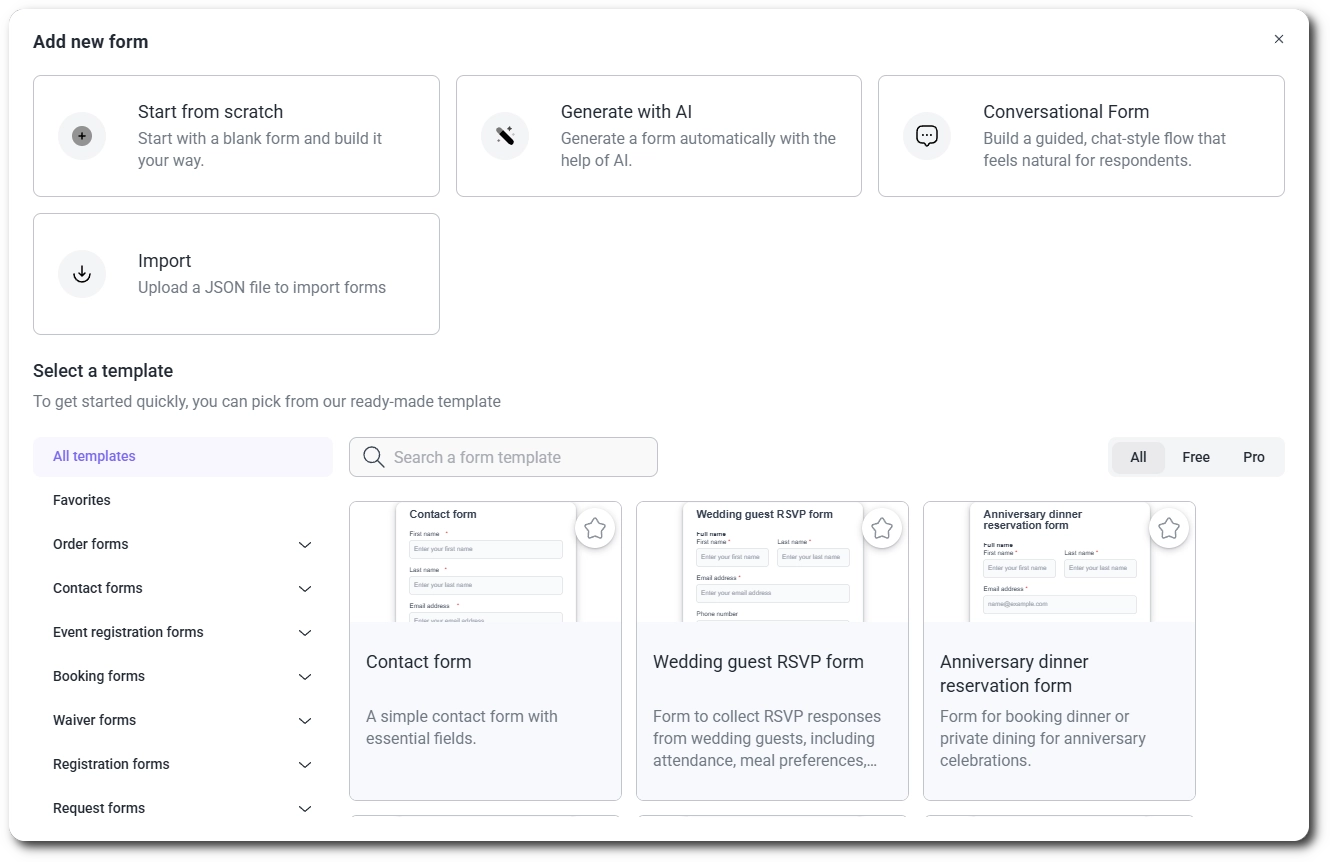
When creating a new form, you can start by selecting one of the available templates from the template selection popup. IvyForms offers a wide range of free and premium form templates, organized into categories and subcategories on the left side, making it easier to find a suitable starting point.
You can mark a template as a favorite by clicking the star icon in the top-right corner of the template preview. When hovering over a template, you can preview it or click Use this template to start working with it.
The preview allows you to interact with the form fields, but the Submit button is disabled and does not send any data. Within the preview window, you can also switch between desktop, tablet, and mobile views to see how the form will look on different devices.
Once you select a template, it becomes fully editable. You can change field types, adjust field options, add or remove fields, and customize the form to match your needs.
Select Start from scratch to open the form builder interface. This is where you’ll add and organize fields, preview your design, and configure the form’s behavior.
If you’ve already created some forms, you can also use the + Form button located on the All Forms page to start a new one quickly.
When you open the form builder, IvyForms automatically saves your new form and adds it to the All Forms table. Any changes you make afterward must be saved manually using the Update button in the top-right corner.
At the top of the interface, you’ll find quick-access tools for toggling Light/Dark Mode, accessing Support, Previewing the form, and enabling Full Screen view (you can also press F11 for a distraction-free workspace).
You create a form with AI by choosing Generate with AI in the new form popup, describing what you need, and clicking Generate form. IvyForms builds the form and opens it in the builder, where you can edit it like any other form. The feature needs an AI provider connected in Settings → Connectors in WordPress, so the option is locked until you set one up.
The option is locked when WordPress has no connected AI provider that supports text generation. When you click it, a popup explains the problem and offers a button to fix it; for a missing provider, click Open Connectors to go straight to the right screen. The popup can also ask you to update WordPress to a version that supports AI, install and activate the WordPress AI plugin, or ask your administrator or host to enable AI, depending on your site.

You connect a provider in WordPress, using an API key created in your AI provider’s account. The steps below use Anthropic as an example.
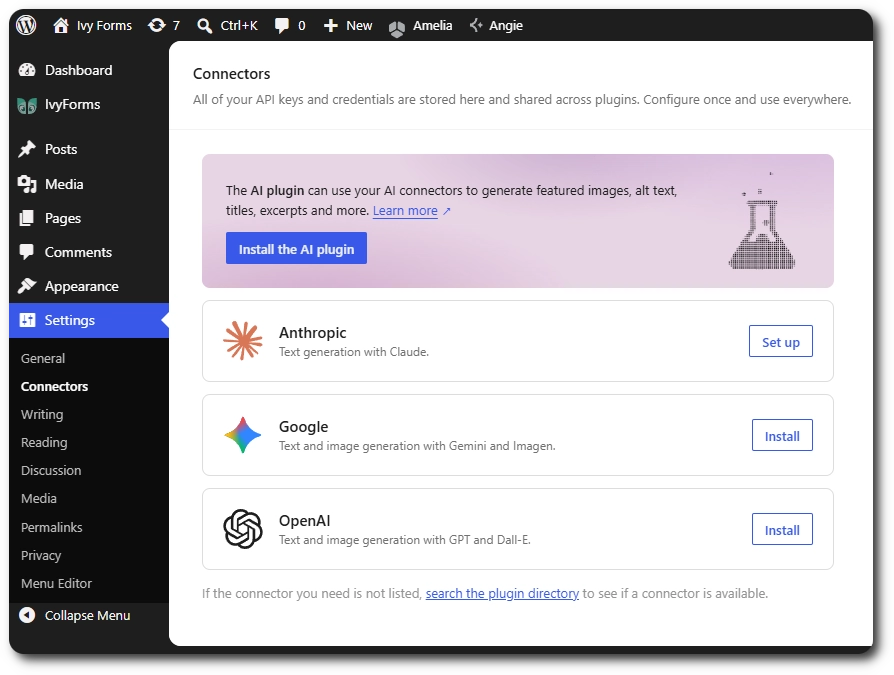
ivyforms-key, choose when it expires, pick the linked account and scope, and click Create key.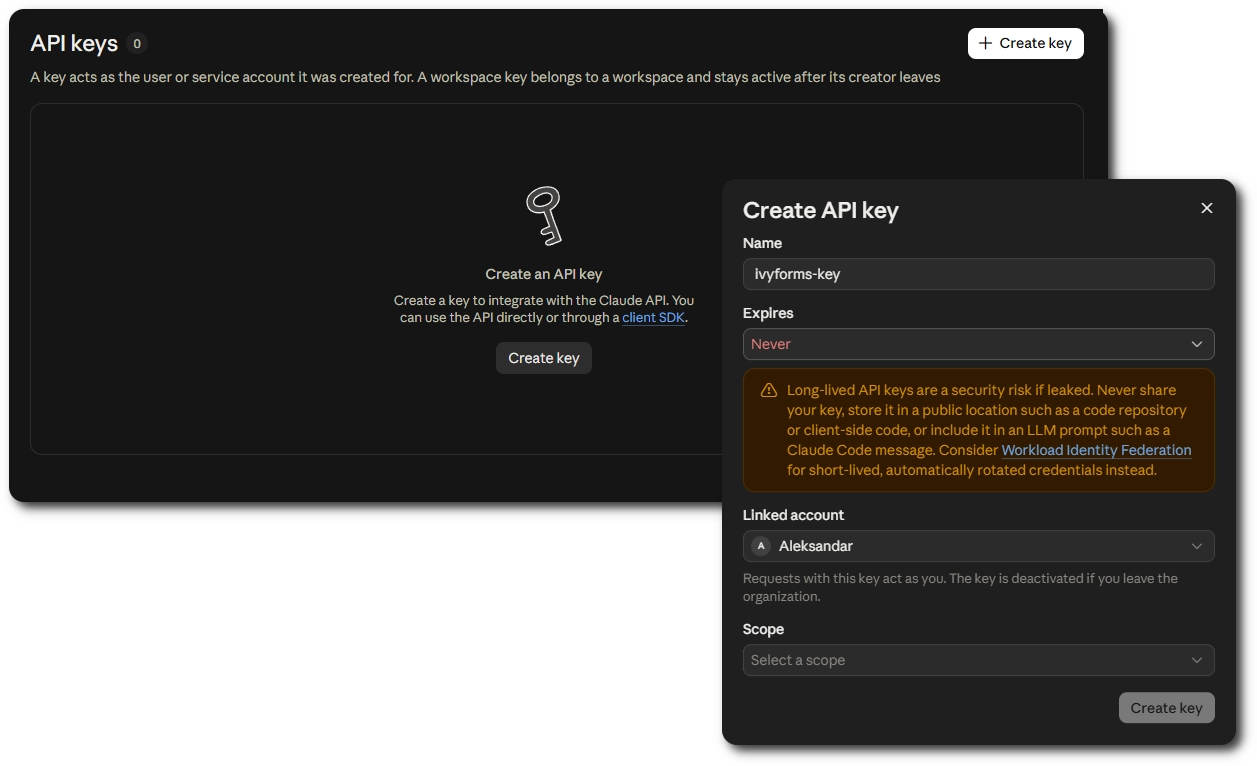
The API key is shown only once, when you create it. Copy it immediately and store it in a safe place such as a password manager, because you cannot view it again later. If you lose it, create a new key.
Choosing Never in the expiration field makes the console show a warning that long-lived keys are a security risk if they leak. A key with an expiry date is safer, but you then have to create a new key and update it in Connectors each time it expires. Requests made through the connector are billed by your AI provider.
Go to WordPress Dashboard → IvyForms → New form and click Generate with AI. In the Describe your form box, write what the form should collect, up to 1000 characters, or click one of the suggestions below the box. For example, you can ask for a graphic designer job application form with contact details, LinkedIn and portfolio links, a resume upload, a preferred work arrangement, and reference emails. Click Generate form, wait a moment while IvyForms builds it, and the finished form opens in the builder.
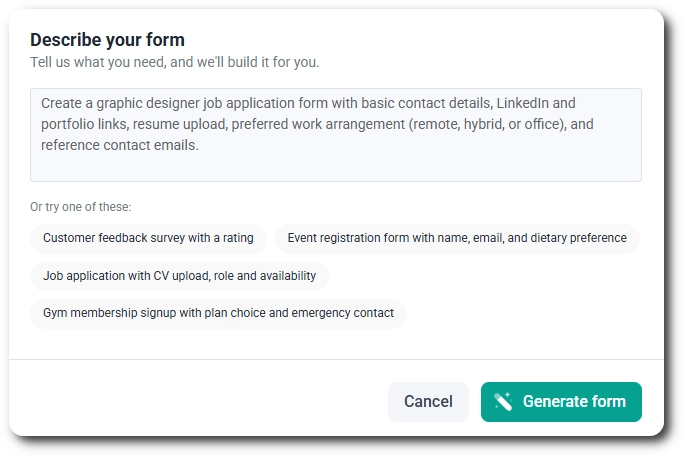
Unless you ask for more or fewer, the AI usually builds between 4 and 12 fields, with the right field types, labels, required settings, and options for choice fields. The form is saved like any other, and you can edit the fields, change the settings or delete it. Click Update after making changes. Multi-page and chat-style forms are available with Pro.
If generation fails, IvyForms shows a message and you can try again without losing anything. If the description is not understood, name the fields the form should collect. If it is too long, shorten it to under 1000 characters. If the provider returns an invalid response, click Generate form again, or check your key in Settings → Connectors.
On the left panel, the General category expands automatically, showing all available field types: Text, Email, Number, Paragraph, Phone, Website/URL, Name, Address, Radio Button, Checkbox, Dropdown, Rating, HTML, File upload, and Slider. From time to time, you may also notice options marked as Soon, which will be available in future updates.
To build your form, drag a field from the left panel into the form area, or click a field once to automatically add it below the last one. When a new field is added, the form scrolls down to keep it in view.
Fields in IvyForms are not limited to a single vertical layout. You can resize fields to adjust their width and place multiple fields side by side within the same row, making it easy to create multi-column layouts. Up to five fields can be placed in a single row. When all five positions are filled, fields are evenly sized; with fewer fields, their widths can be adjusted manually.
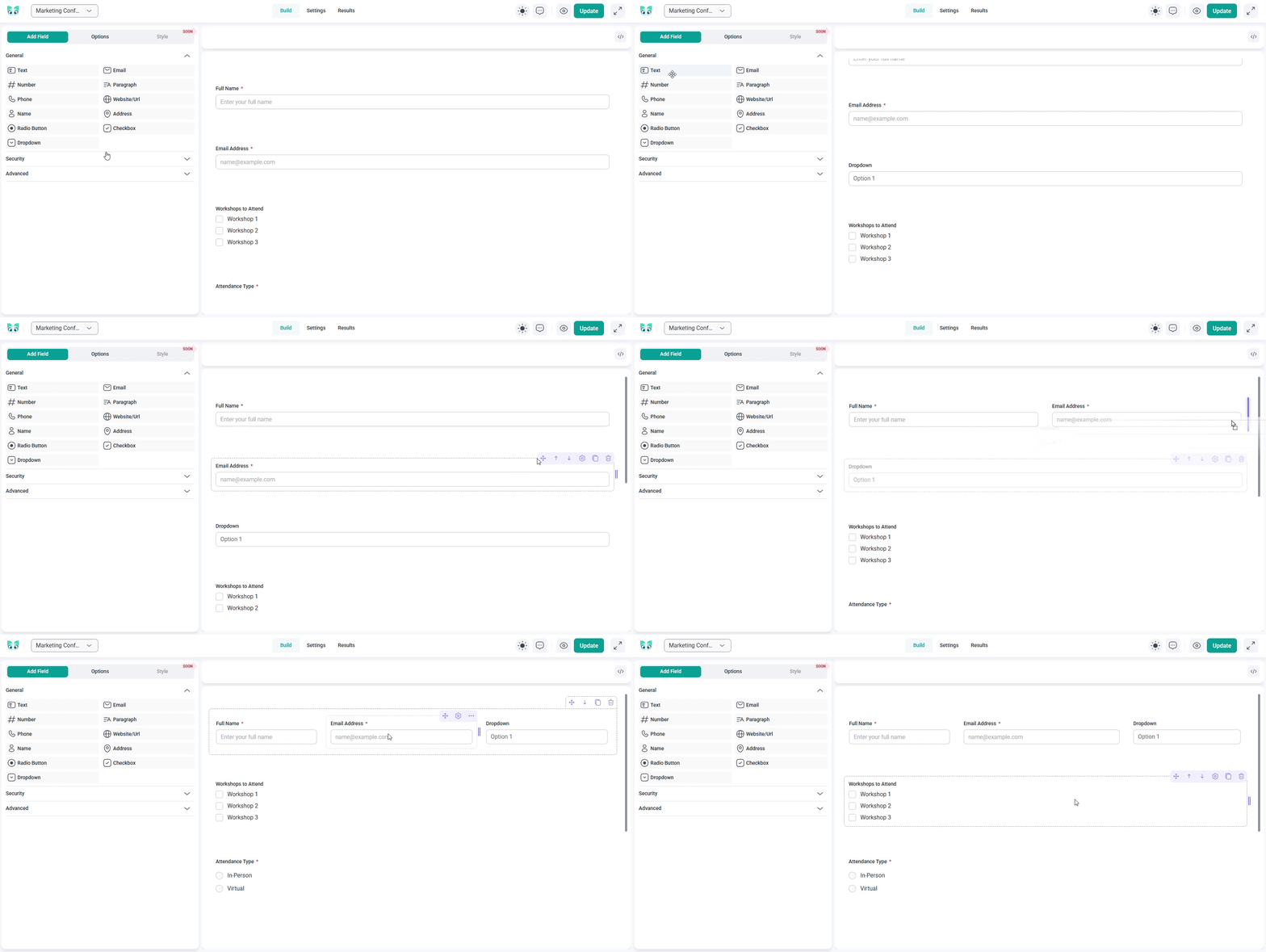
You can reorder fields by dragging them up or down, move them within the same row by dragging left or right, and edit their labels or placeholders by clicking on each field once it’s added.
Continue adding as many fields as you need to collect the information you want. As you add or remove fields, the builder automatically updates the layout.
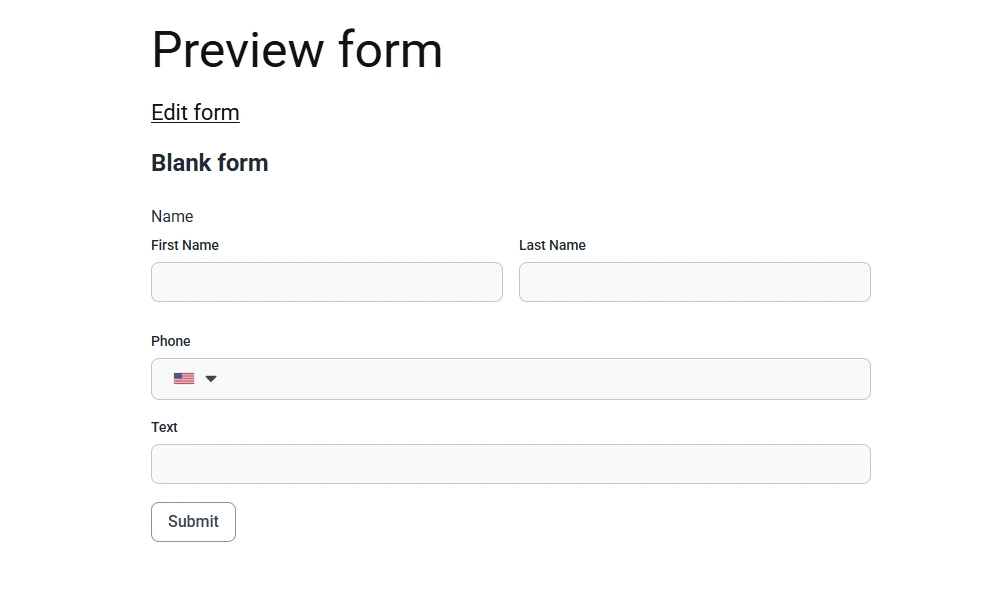
At any time, you can preview how your form will appear to visitors by first clicking Update to save your changes, then selecting the Preview (eye) icon in the top-right corner of the builder.

A new tab opens with a live preview that shows exactly how your form will look on your website.
The preview automatically adapts your form to your WordPress theme’s styling, ensuring it blends naturally with your site’s design. It also accepts submissions, so you can test your form right away and confirm everything works as expected.
Before publishing your form, open the Settings tab at the top of the builder. In this section, you can define your form’s basic details and control what appears on the front-end.
Under General Settings, you can:
Once you’ve made your changes, click Save in the top-right corner to save them.
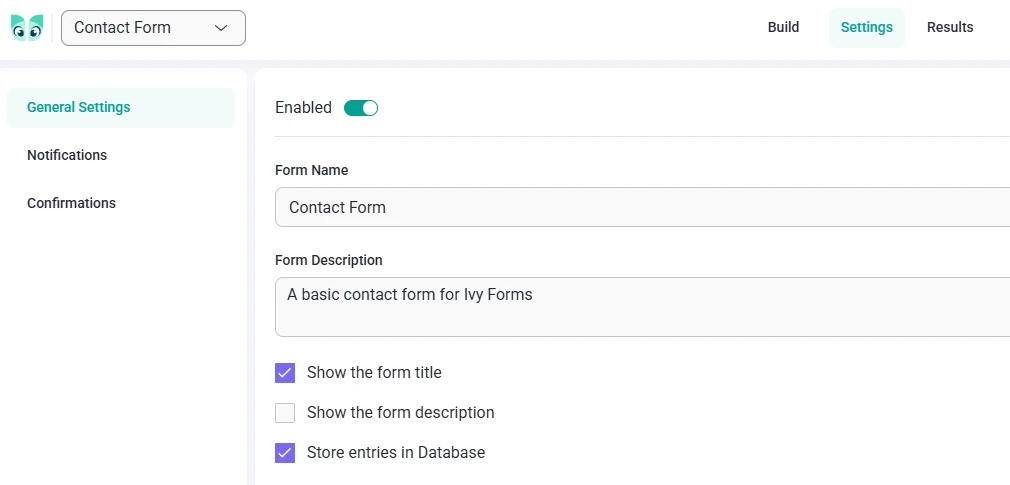
If the Store entries in database option is disabled, form submissions will not be saved in IvyForms and will not appear in the Entries table. In this case, submissions can only be received via email, provided that notifications are enabled in Form Settings → Notifications and a mailing system (such as WP Mail SMTP or a similar plugin) is properly configured.
When your form is ready, go back to the Build tab. In the top-right corner, you’ll find a </> button that copies the shortcode in this format: [ ivyforms id=2 ] (no spaces).

Clicking that button copies the shortcode to the clipboard. You can then paste it into any page or post using the WordPress block editor.
After you publish the page, your form appears live and ready to receive submissions.


