


Table of contents
Each form submission in IvyForms is stored as an individual entry. When you open a single entry, you can review all submitted field values, check system metadata, and perform basic management actions without returning to the entries list.
If the Store entries in database option is disabled in the form settings, submissions will not be saved. In this case, entries are only sent via email, provided that notifications are enabled and a mailing system is properly configured in your WordPress installation.
You can open the detailed view of a specific entry in two ways:
Both actions open the same detailed entry view.
The entry details view is split into two main sections, making it easy to review submitted data and entry metadata side by side.
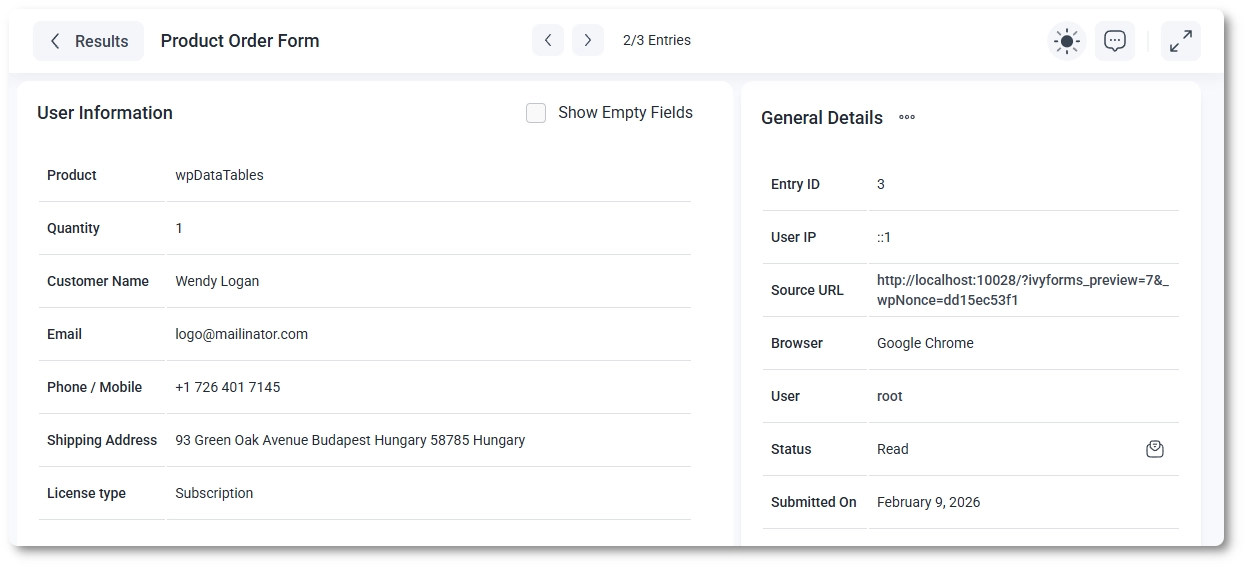
When you open an entry and navigate back to the entries table, your search, filters, and pagination settings remain unchanged, so the table appears just as you left it.
The General details panel contains system-generated information that helps you understand when, how, and from where the entry was submitted.
At the top of the entry details view, you can enable the Show empty fields option. When enabled, IvyForms displays all form fields, including those that were left empty by the user.
When disabled, only fields with submitted values are shown. This can make reviewing longer forms faster by hiding unused fields.
You can manage an entry from the entry details view using the arrows and the three-dot Actions menu in the General details panel:
Edit entry, Add entry and Duplicate entry require an IvyForms Pro Essentials license or higher. For more on adding entries, see How can I view form entries in IvyForms.
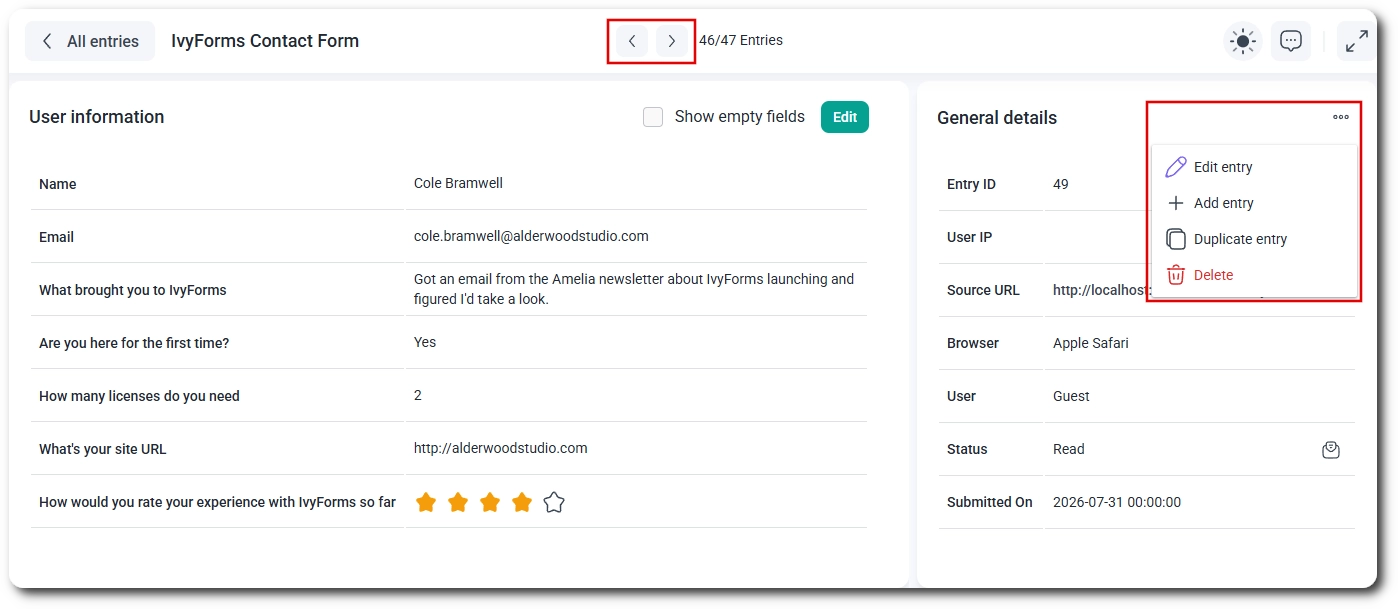
A duplicated entry is saved right away as a new submission and sends the form’s notifications again. Fields that only accept unique values stop the duplicate from being saved.

