Limited time discount
First Birthday, Big Savings
Up to 80%Off
Up to 80%Off
Grab Now
documentation-logo
Menu
  • Guides
  • Form Management
  • Advanced fields

How does the NPS field work in IvyForms

You want a quick read on how your customers feel, the kind you get from a single “how likely are you to recommend us?” question scored out of ten. The NPS field captures exactly that: a Net Promoter Score question on a fixed 0 to 10 scale, with labels at each end to anchor what the low and high numbers mean. This article covers where to find the field, the handful of settings behind it, how it appears on the front end, and where the scores land after submission.

The NPS field is a Pro survey feature, available on the Growth plan and above.

Where can I find the NPS field in IvyForms?

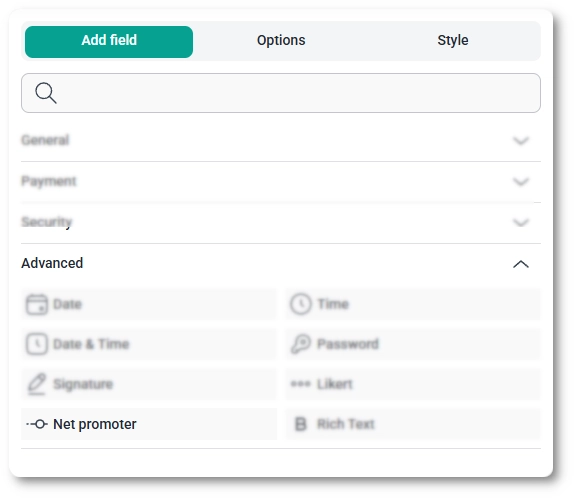
You can add the NPS field from the Advanced fields section in the left panel of the IvyForms builder, where it is listed as Net promoter. Expand Add field → Advanced, select Net promoter, and it is added to your form, ready to configure in the options panel.

Advanced fields section in the IvyForms builder showing the Net promoter field

What settings can I configure for the NPS field?

After selecting the NPS field in the preview, the side panel switches to the Options view, split across the General, Advanced, and Smart logic tabs. The scale itself is fixed at 0 to 10, so the settings are short and mostly about wording and placement.

How do general settings work for the NPS field?

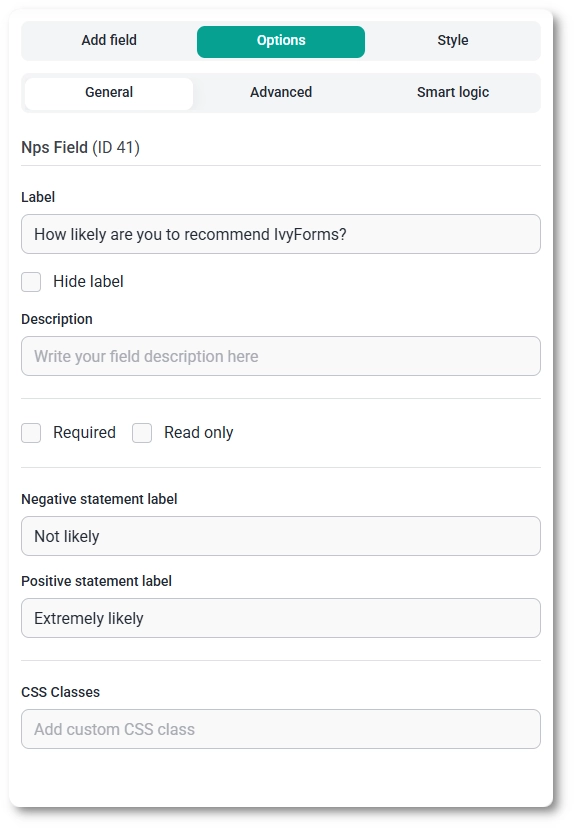
The General tab shows the field type (NPS) and its field ID, along with the options that control the question text and the labels at each end of the scale.

  • Label – the question shown above the scale, such as “How likely are you to recommend us?”.
  • Hide label – removes the label on the front end.
  • Description – a short note under the field to add context.
  • Required – makes a score mandatory before the form can be submitted.
  • Required message – the text shown when someone submits without choosing a score; it appears once Required is enabled.
  • Read only – shows the field in a non-interactive state, and it is unavailable while Required is on.
  • Negative statement label – the text under the low end of the scale, for example “Not likely”.
  • Positive statement label – the text under the high end of the scale, for example “Extremely likely”.
  • CSS classes – custom class names for styling the field.
General settings tab for the NPS field in IvyForms

How do advanced settings work for the NPS field?

The Advanced tab holds a single option, Label position, which places the label in the Default position or to the Top, Left, or Right.

How can I use smart logic with the NPS field?

The Smart logic tab adds Pro conditional rules that decide whether the NPS question appears at all. Set Conditional Logic to Yes, pick Any or All to set how strictly the rules must match, then add rules comparing another field’s value with equals, does not equal, contains, or does not contain. You might hold the recommendation question back until someone confirms they are an existing customer.

How does the NPS field look on the front end?

On the front end the field shows your question with a row of buttons numbered 0 through 10, the negative statement label sitting above the low end and the positive statement label above the high end. The respondent taps a single number to score, and the labels at either end make clear which direction is which.

NPS field on the front end showing a 0 to 10 scale with endpoint labels

Where do NPS scores appear after submission?

After a form is submitted, the chosen score appears in both the single entry view and the all-entries table, and the value is included in email notifications and webhook payloads when those are enabled. By the standard Net Promoter method you can then read those scores as detractors (0 to 6), passives (7 to 8), and promoters (9 to 10) when you analyze them.

What should I keep in mind when using the NPS field?

Keep the question phrased as a recommendation so the 0 to 10 scale reads naturally, and set clear Negative and Positive statement labels so respondents know which end is which. One NPS question per form is usually plenty; it measures a single overall sentiment rather than feedback on lots of separate items, which is what the Likert field is for. To customize colors, spacing, typography, buttons, and the overall form appearance, see the Style tab documentation.