Table of contents
An applicant filling out your job form needs to attach a CV, and maybe a portfolio or two. The File upload field lets them drag files into the form or browse for them, and on a Pro plan you can let them attach several files at once, restrict which file types you accept, and cap how many they send. This article covers where to find the field, the settings you can configure, how it behaves on the front end, and where uploaded files end up after submission.
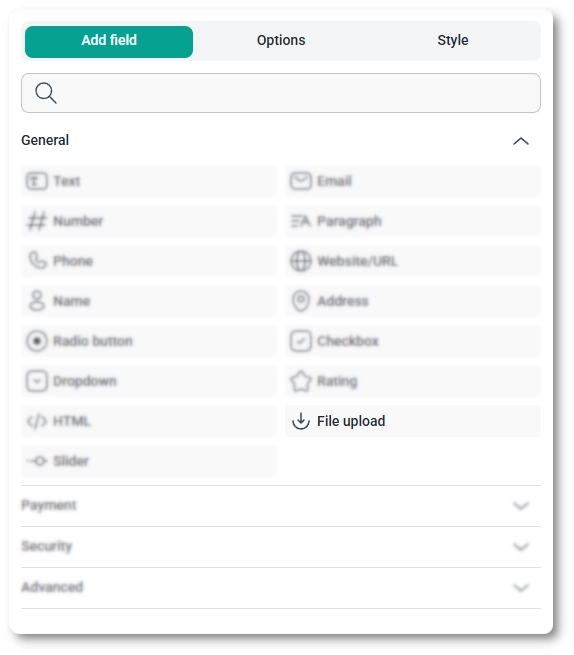
You can add the File upload field from the General fields section in the left panel of the IvyForms builder. Expand Add field → General, select File upload, and it is added to your form, ready to configure in the options panel.
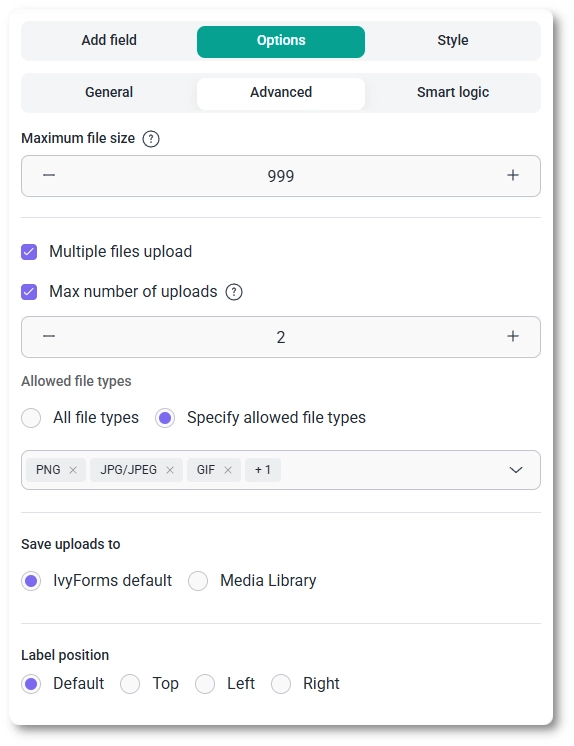
The File upload field is free for single-file uploads. Multiple files upload, Max number of uploads, Allowed file types restrictions, and Smart logic are available only on IvyForms Pro plans.
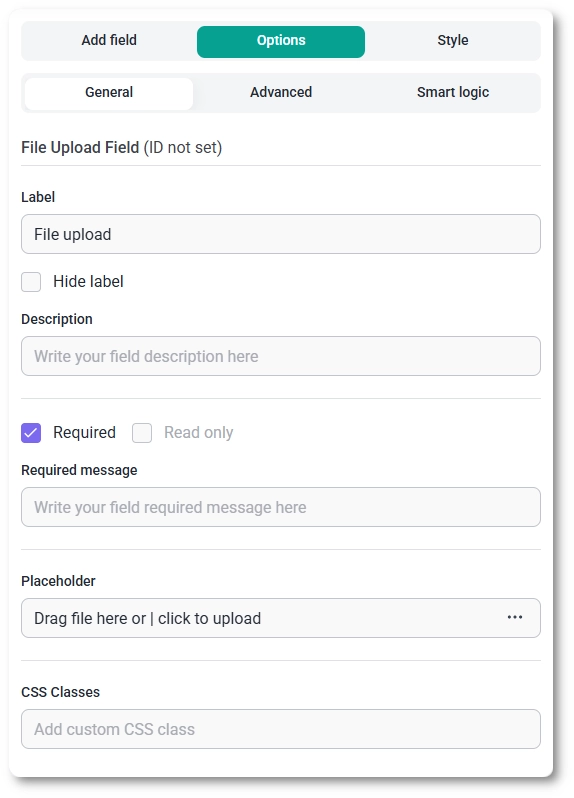
After selecting the File upload field in the preview, the side panel switches to the Options view. The settings are split across three tabs, General, Advanced, and Smart logic, which control how the field looks, how uploads behave, and when the field appears.
The General tab shows the field type (File upload) and its field ID, along with the core options that control how the field appears and how users interact with it.
The Advanced tab controls upload limits, file handling, and layout. Several options here are Pro only.
When you pick Specify allowed file types, a dropdown opens so you can select exactly which extensions the field accepts; anything outside that list is rejected as the file is added.
Smart logic is a Pro feature. It lets you show or hide the File upload field based on what users enter in other fields: set Conditional Logic to Yes, choose whether Any or All rules must match, then build rules from a source field, an operator (equals, does not equal, contains, or does not contain), and a value. For example, you can ask for a file only after a user selects a particular option earlier in the form.
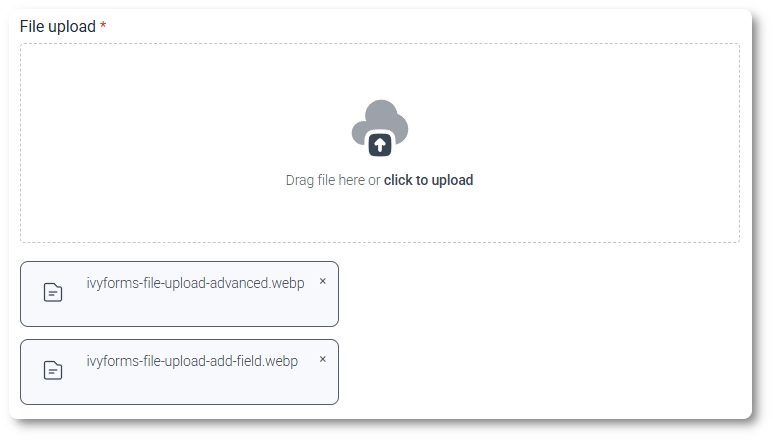
On the front end, the field shows an upload area with a cloud icon and your helper text, where users can drag files in or click to browse. With Multiple files upload enabled, they can add several files and remove any of them before submitting; otherwise the field takes a single file. Each file is validated against your size, type, and count limits as it is added, so invalid files are caught before the form is sent.
After a form is submitted, uploaded files appear in both the single entry view and the all-entries table, and the field value is included in email notifications and webhook payloads when those are enabled. Where the files physically live depends on the Save uploads to setting: the IvyForms default location keeps them tied to the plugin, while Media Library adds them to your WordPress media so you can reuse them elsewhere.
Match your limits to what you actually need: set a sensible Maximum file size, restrict Allowed file types when only certain formats make sense, and use Max number of uploads to keep submissions manageable. Reach for Media Library storage when you want uploaded files available across your site, and leave it on the IvyForms default when the uploads belong only to the form. To customize colors, spacing, typography, buttons, and the overall form appearance, see the Style tab documentation.