

Table of contents
Say you’re collecting customer satisfaction scores and you want people to rate their experience on a 0 to 10 scale by dragging a handle instead of typing a number; the Slider field does exactly that. It captures a single numeric value inside a range you define, which makes it a natural fit for ratings, budgets, quantities, or any answer that lives on a scale. This article covers how the Slider field works, where to find it, and how to configure its settings in the form builder.

You add the Slider field from the General fields section in the left panel of the IvyForms builder. Expand the section, then drag the field onto your form to drop it in place, or simply click on it to add it to the bottom of the form.
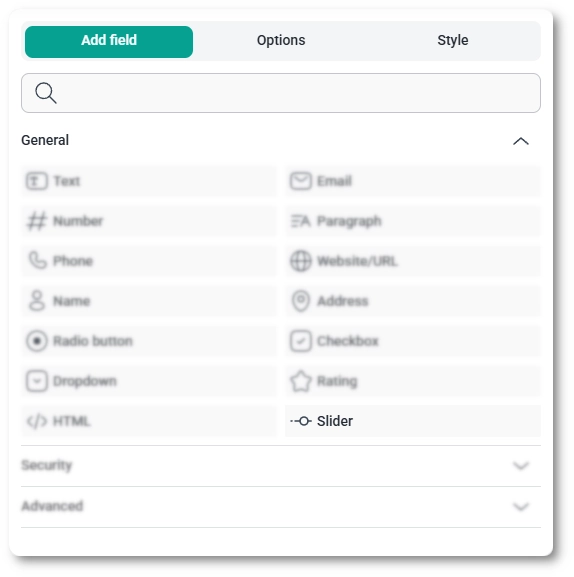
Once the field is on the form, click it to open the panel on the left, which switches from Add field to Options. From there, the General, Advanced, and Smart logic tabs hold everything you can adjust for the slider.
The General tab shows the field type (Slider) and the field’s ID. It also holds the basics that control how the slider looks and behaves on the front end. The settings are:
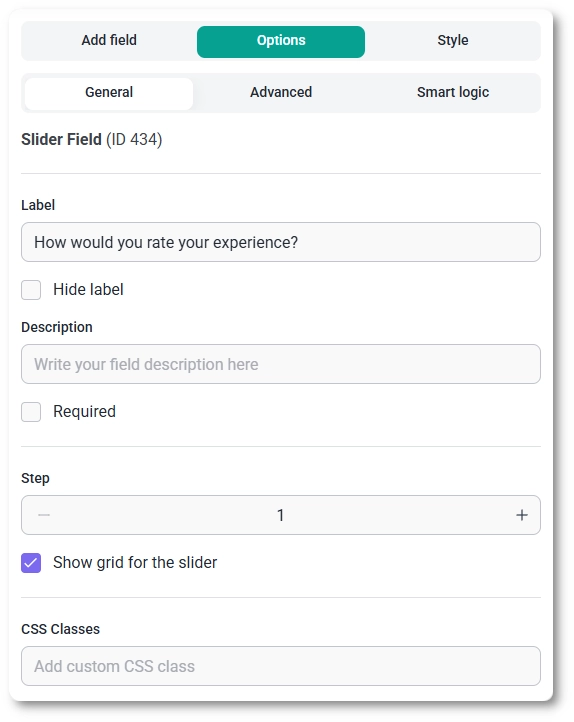
This happens when the grid is drawing a label for every step across a wide range. Show grid for the slider prints one mark per step, so a 0 to 100 range with a Step of 1 tries to fit 101 labels under the track and they overlap into an unreadable strip. Raise the step so the marks have room, or switch the grid off; the range itself is set on the Advanced tab.
If you keep Show grid for the slider on, pick a Step that splits the range into a readable number of marks. A step of 10 across 0 to 100 gives eleven clean labels instead of an overcrowded line.

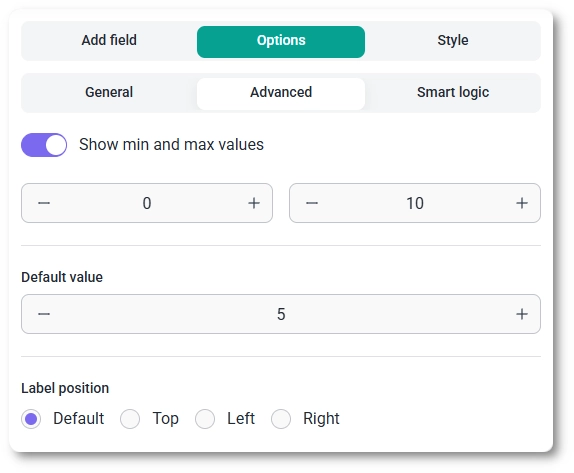
The Advanced tab is where you set the slider’s range and starting point. The options are:
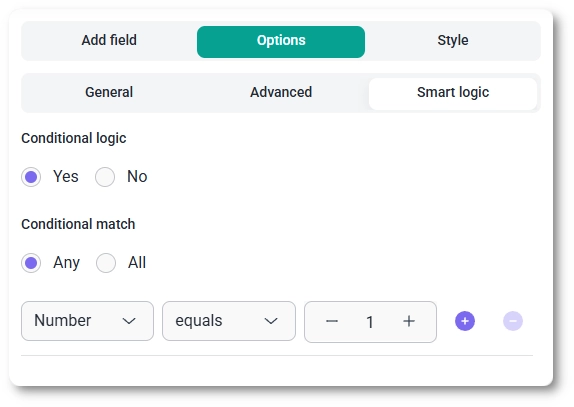
Smart logic is available only in the Pro version of IvyForms.
Smart logic lets the Slider field appear only when conditions tied to other fields are met, so it relies on your form having more than one field. It starts on No, which keeps the slider always visible; switch it to Yes and a Conditional match setting shows up. Pick Any to reveal the field when at least one condition is satisfied, or All to reveal it only when every condition is met at once. For the full walkthrough, see the conditional logic documentation.
To customize colors, spacing, typography, buttons, and the overall form appearance, see the style tab documentation.


