

Table of contents
The HTML field lets you display non-interactive content inside a form, such as instructions, headings, links, or formatted text. Visitors can see this content on the front end, but they cannot interact with it or submit any values from it.
This field is useful for adding context, explanations, or structure within your form without collecting input.
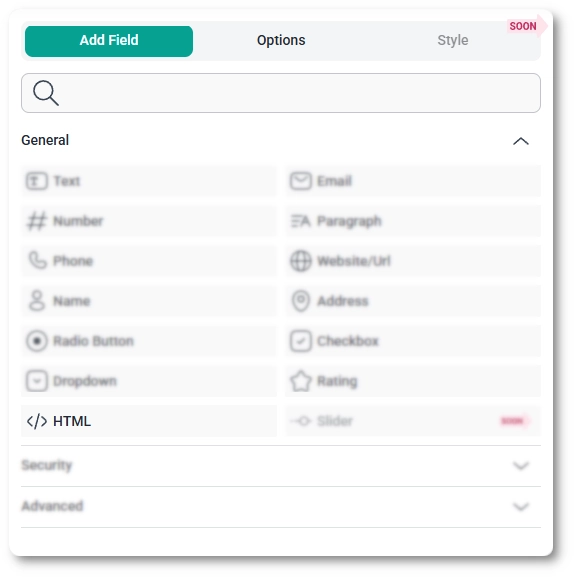
You can add the HTML field from the General fields section in the IvyForms builder. Once added, select it in the preview to open its configuration options in the sidebar.
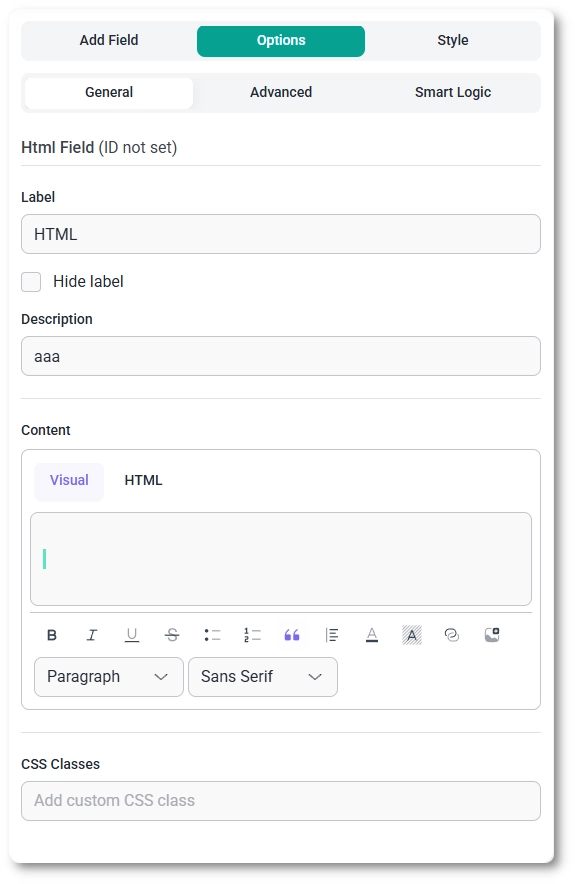
After adding the HTML field, selecting it in the preview switches the sidebar to the Options view. Settings are organized into three tabs: General, Advanced, and Smart logic.
These settings control how your content is displayed and when the field appears in the form.
The General tab shows the field type (HTML) and its ID. It also contains all available options for configuring the HTML field.
Content
The Content section is where you add the HTML field content. You can use two modes:
The Visual editor includes a toolbar for basic formatting such as text styling, lists, alignment, links, and inserting media.
CSS Classes
The Advanced tab includes a single layout-related option:
This setting affects only the label placement, not the content inside the HTML editor.
Smart Logic is available only in the Pro version of IvyForms.
The Smart logic tab allows you to show or hide the HTML field based on conditions from other inputs.
When enabled, you can define rules that determine when the field should be displayed. This is useful for showing contextual instructions only when they are relevant.
For example, you can display additional information only after a user selects a specific option or completes a previous step in the form.
To customize colors, spacing, typography, buttons, and the overall form appearance, see the Style tab documentation.


