






A form is usually the last thing standing between a visitor and whatever you actually want them to do: buy something, sign up, ask a question. Optimizing that form means…
Table of contents
Free plans are where most registration forms start, and their caps tend to matter before the layout does. Cognito Forms allows 100 entries a month. Microsoft Forms stops at 200 responses per form on free personal accounts (vendor documentation, as of October 2026). A Word or Google Docs file has no cap at all, but it doesn’t collect anything either.
IvyForms works differently. It runs inside WordPress, and its pricing page lists no monthly entry cap. The trade-off is that payment processing isn’t built in, which the payments section below covers.
A registration form template is a ready-made layout with fields, required-field rules and submission setup already in place, built for an event, course, camp or membership. Some are Word, PDF or Google Docs files. Others live inside online builders such as Jotform, Cognito Forms and Typeform. Either way you edit a form instead of building one.
Expected volume, payment needs and privacy duties usually pick the right template before the layout does.
Examples Of Registration Form Templates
User Registration Form
See the Pen
Modern User Registration Form by Bogdan Sandu (@bogdansandu)
on CodePen.
Event Registration Form
See the Pen
Modern Event Registration Form by Bogdan Sandu (@bogdansandu)
on CodePen.
Course Registration Form
See the Pen
Modern Course Registration Form by Bogdan Sandu (@bogdansandu)
on CodePen.
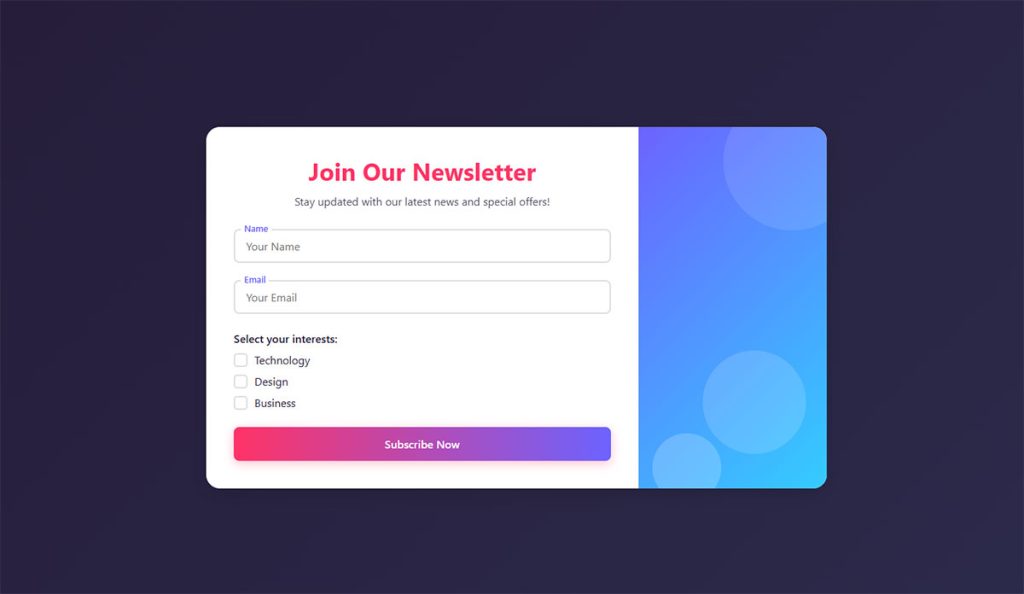
Newsletter Registration Form
See the Pen
Modern Newsletter Subscription Form by Bogdan Sandu (@bogdansandu)
on CodePen.
Product Registration Form
See the Pen
Modern Multi-step Product Registration Form by Bogdan Sandu (@bogdansandu)
on CodePen.
Job Application/Registration Form
See the Pen
Modern Job Application Form by Bogdan Sandu (@bogdansandu)
on CodePen.
Volunteer Registration Form
See the Pen
Volunteer Registration Form by Bogdan Sandu (@bogdansandu)
on CodePen.
Appointment Registration Form
See the Pen
Modern Appointment Registration Form by Bogdan Sandu (@bogdansandu)
on CodePen.
What do registration form templates include?
Labeled inputs, required-field rules and a confirmation message come standard. Online versions also give responses somewhere to land.
The fields themselves come from a small pool, and nearly every template draws on it:
- Full name, plus date of birth when age decides eligibility
- Email and phone, with a mailing address only if something actually gets posted
- Ticket type, session, team or shirt size
- Emergency contact, dietary needs and accessibility requests
Go with one Full Name input. In Baymard Institute’s checkout testing, 42% of participants typed their whole name into a “First Name” box at least once and then had to redo it. A single input avoids that.
In IvyForms, a Text field labeled Full name does the job. The Name field splits into subfields, which mostly helps when a Mailchimp sync needs first and last name separately.
Required versus optional is the other decision a template makes for you, and it’s easy to ignore. Nielsen Norman Group advises keeping optional fields to one or two and labeling each clearly (2016).
Dropdowns, checkboxes, date pickers and free text each validate differently. The details are in this breakdown of individual form fields, and the IvyForms field types guide shows how each one is configured in the builder.
Some things never come with the template. A payment processor account, a place to host the form and consent wording that fits your jurisdiction all come from the builder, and from the payment and privacy sections further down.
How many fields should a registration form have?
About 8, unless every extra field feeds a decision you actually have to make.
Baymard Institute puts the average checkout form in 2024 at 11.3 fields, while 8 is what most checkouts need. Length isn’t the whole story, though. Seckler et al. (CHI 2014, reported by Nielsen Norman Group in 2016) found that 78% of people submitted without errors on the first try when a form followed usability guidelines. When it broke them, only 42% did.
Those two sources describe different failures. Baymard links each extra field to extra effort, and Seckler and colleagues link guideline violations to failed first attempts. A short form with vague labels still loses people.
Separate first and last name inputs can go. So can Address Line 2, and the company name if nobody follows up on it.
Keep the email, the ticket or session choice, and an emergency contact for minors and physical events. Dietary or access fields only earn their place if someone acts on the answer.
Field count is one lever among several, and these ways to bring form abandonment down cover the rest.
Baymard also found that the number of checkout steps matters less than the number of fields. Spreading a long list across pages doesn’t shrink the work, which is worth remembering when you weigh multi-step against single-step forms.
Short forms do break down in one situation. An event that books meals, buses or accessible seating needs those answers at registration. Cut a field only when nothing depends on it.
One way to hold the visible count near 8 is to hide the extras until they matter. IvyForms conditional logic (Pro) shows the guardian, dietary or accessibility fields only after an earlier answer calls for them.
Which template type fits your registration?
Start from what you have to do with the answers. Events need headcounts and tickets, courses need prerequisites, memberships need renewal dates, and youth sports need guardian and medical details.
The IvyForms template library splits registration into two categories. Event registration forms (14 templates) are for a dated event. Registration forms (6 templates) enroll people in ongoing classes, workshop series or vendor lists.
| Use | IvyForms templates |
|---|---|
| Webinars and simple events | General Webinar Registration Form (with automatic access link delivery), Simple Event Registration Form |
| Conferences | General, Marketing, Tech, Medical and Education conference forms |
| Weddings and charity events | Wedding forms, General Charity Event Registration Form |
| Classes and workshops | General Workshop Registration Form, Fitness class and Cooking class registration forms |
| Vendor lists | Food vendor and Craft vendor registration forms |
Each template page shows whether it is free or paid. Templates with a signature field or multi-step layout need Pro.
Event, conference and webinar templates
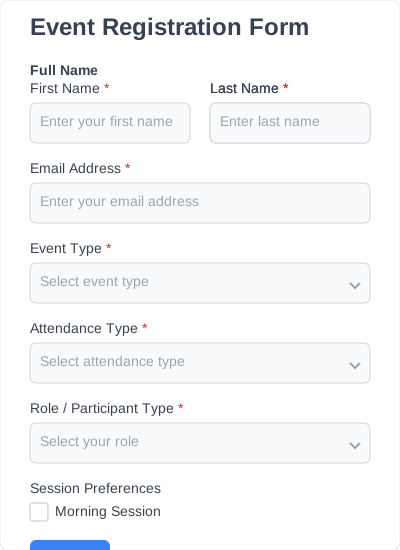
These share name, email, ticket or session choice and company. What separates them is the extra layer on top.
Starting from prebuilt event registration forms saves you the ticket and session wiring, and the good ones include early bird pricing and a waitlist for full sessions.
A webinar gets by on email and time zone, since the join link is all it has to send. Conferences add session choice, employer and dietary needs. A general event leans on ticket type, group size and accessibility requests.
The IvyForms conference templates cover tracks, sessions and access passes. The webinar template is built around delivering the access link after sign-up, and its event page suggests adding an in-person, virtual or hybrid attendance question.
Course and student templates
Prior experience or prerequisites fit in a single dropdown. After that comes the module or cohort, with a start date if intakes repeat.
Students under 18 change things. You’ll need a guardian name, phone number and consent, and the form becomes a minors-data form, with the privacy rules covered below.
The class registration forms in IvyForms add the course-specific fields for you, such as dietary preferences and skill level on the cooking class form.
Membership and volunteer templates
Both describe an ongoing relationship, so dates matter.
A membership form needs the tier and a start or renewal date. Volunteer sign-ups built on volunteer registration form layouts trade those for availability windows, skills and a preferred role.
IvyForms has no membership template, as of October 2026. For volunteers, the closest match is the Volunteer Event Participation Waiver Form, which you can pair with the general workshop form for availability and role questions.
Sports team and summer camp templates
No other template type collects as much:
- Date of birth, and age group or team
- Medical notes and allergies
- Emergency contact
- Guardian signature or waiver
- Shirt size
The medical and guardian fields put these squarely in minors-data territory. Sort out the consent wording before you publish.
IvyForms has no dedicated camp or team template. A workable build starts from the Fitness class registration form, which already carries health info and a waiver acknowledgment, then adds fields from the waiver form templates and the photo consent forms.
Word, PDF, Google Docs or an online form: which format?
Pick a file if a person will read every submission anyway. Once responses need counting, sorting or payment, go online.
Word prints cleanly and edits freely, Google Docs is easy to share and edit with other people, and Canva covers designed print layouts. All of them share one limit. Nothing gets collected, so every paper or emailed copy gets keyed in by hand.
Fillable PDFs add typed-in fields, built in Adobe Acrobat. The Prepare a form tool analyzes a document and adds fields automatically, and the Send button distributes the form and collects the data, per Adobe’s Acrobat help pages. Recipients can fill it in with the free Acrobat Reader.
A PDF emailed as a plain attachment comes back one file per person, which is the same hand-keying problem as Word.
Only an online form gives you structured responses, validation, confirmation emails and an export to a spreadsheet.
Files do win in a couple of places, namely onsite check-in with no connection and signatures on paper. They lose on any registration with a deadline, a cap or a fee, because nothing counts the sign-ups for you.
A hybrid works well. Run sign-up online, export the responses to Google Sheets, and print the check-in list for the door.
If your site already runs on WordPress, a form plugin such as IvyForms puts the online option on your own pages, with entries stored in your WordPress dashboard instead of a separate service.
Which online builders have the best registration form templates?
For free sign-ups where nobody pays, Google Forms is enough. For paid registrations at small volume, the free plan at Cognito Forms is the stronger start. For a WordPress site that wants entries in its own database, IvyForms is the one to look at.
Limits below are as of October 2026, taken from each vendor’s own documentation.
| Builder | Cap or condition to check | Catch for registrations |
|---|---|---|
| Google Forms | File upload questions need a Google sign-in | Uploads fill the owner’s Drive |
| Microsoft Forms | 200 responses per form on free personal accounts | 1,000 on paid personal accounts |
| Jotform | 100 submissions per month on the free Starter plan | Jotform branding stays until you pay |
| Cognito Forms | 100 entries per month on the free plan | Payments allowed, Cognito branding shown |
| Typeform | 100 responses per month on Basic | Branding removal starts on Plus |
| IvyForms | No monthly entry cap listed; needs a WordPress site | No built-in payment processing; conditional logic and multi-step forms are Pro |
Google Forms and Microsoft Forms
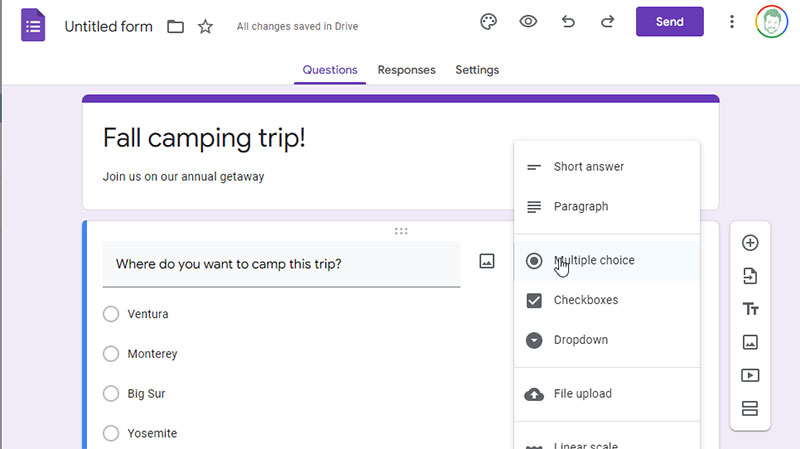
Both publish and share quickly, and the editors feel familiar if you already live in Google or Microsoft 365.
Registrations expose the weak spots fast. Google’s file upload question forces respondents to sign in and stores their files in your Drive (Google Docs Editors Help). Microsoft Forms caps free personal accounts at 200 responses per form. Neither is great on branding or payments.
Once a registration needs a fee or your own branding, these tools run out. A list of Google Forms alternatives shows where to go next.
Jotform
Jotform’s pricing page (2026) lists more than 20,000 form templates, and the free Starter plan includes templates, payment integrations and widgets. Stripe, PayPal and Square are among those integrations. The library is the real draw.
Free forms carry Jotform branding, and HIPAA features only arrive on Gold and Enterprise. There’s also a storage quirk that’s easy to miss: when stored submissions exceed the plan’s storage, the oldest response gets deleted to make room.
Facebook Live ran an event submission form on Jotform for an online event with President Barack Obama, according to a testimonial on Jotform’s own pricing page.
Cognito Forms
Payments work on every plan, free included, and so do unlimited forms. Save and resume plus e-signatures arrive with Pro.
Volume is the catch. The free Individual plan stops at 100 entries a month and shows Cognito branding. Pro runs $19 a month billed annually, drops the branding and raises the cap (Cognito Forms, 2026).
Typeform
Typeform looks the best of the group and is also the tightest on volume.
The conversational layout is a real plus, conditional logic starts at Basic, and Google Sheets, Mailchimp and Zapier integrations are there. Basic costs $25 a month billed yearly ($29 billed monthly) and caps at 100 responses a month. Branding removal starts only on Plus.
For registrations, the cheaper pick wins. Typeform’s entry paid plan hits the same 100-a-month ceiling that Cognito Forms gives away free, so weigh alternatives to Typeform before paying for design alone.
IvyForms
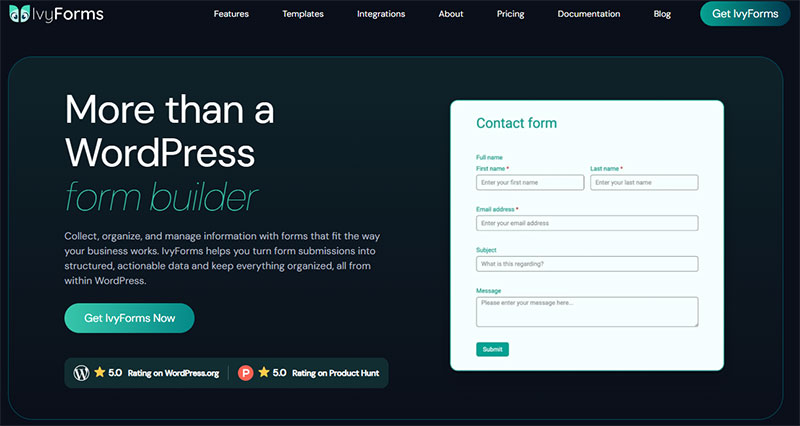
IvyForms is a WordPress plugin, so the form lives on your own site and every registration is stored as an entry in your dashboard. The free Lite version covers the basics: drag and drop building, 15 standard fields, templates, multiple email notifications, entry management, reCAPTCHA, Turnstile and hCaptcha, and a GDPR consent field.
Pro adds conditional logic, multi-page forms, the Signature field, conversational forms and the Mailchimp, Zapier and webhook integrations. Plans run on 1 domain (Essentials), 3 domains (Growth) or unlimited domains (Agency), with a lifetime Elite option and a 15-day money-back guarantee. Current prices are on the pricing page.
The catches are clear. It needs a WordPress site. The templates page states that IvyForms does not process payments, and the pricing page lists Square and multiple payment methods as coming soon. The general settings document a Published toggle but no entry cap or close date, so you close registration by hand.
How do payments and ticketing work in a registration form?
A payment field links the form to a processor such as Stripe or PayPal, so the sign-up and the charge happen in one submission. Ticket types, early bird windows and caps get set in the builder, or handed off to a ticketing platform such as Eventbrite.
Processors and ticketing platforms
Stripe’s standard US price is 2.9% plus 30 cents per successful domestic card payment, with 1.5% added for international cards and 1% when currency conversion applies (Stripe pricing page, October 2026).
The fixed 30 cents is what stings. On a $25 registration the fee is about $1.03, but on a $10 one the effective rate climbs to 5.9%.
Jotform and Typeform both document card payments through Stripe inside the form, and both list PayPal as a second option for registrants who prefer a wallet. Cognito Forms runs its own card payments through Cognito Pay, managed inside the builder.
Eventbrite is a different kind of tool, a ticketing platform. It adds a per-ticket service fee on top of payment processing, on a schedule that differs by country (Eventbrite Help Center).
Taking payments with IvyForms
IvyForms handles the pricing side but not the charge. The free Product, Quantity and Total fields let registrants pick a ticket, set a count and see the amount update before they submit. The choice and price are saved in the entry.
The money moves outside the form. One workable setup is to send registrants to your processor’s payment link through a confirmation set to redirect to a custom URL. The catch is that the entry is created before payment, so you reconcile paid and unpaid registrations yourself.
If the fee is part of the sign-up itself and you need one-step checkout, pick a builder from the table above that processes cards, or check the IvyForms pricing page again for payment integrations.
Ticket types, early bird pricing and waitlists
Set up one price item for each ticket type, and give every item a cap equal to real capacity. Early bird pricing goes in as a second item with a close date. Overflow gets routed to a separate waitlist form.
Two items beat one item with a changing price, because your report then shows which tier actually sold.
In IvyForms, build the tiers as rows in a Product field set to Radio, one row per ticket type with its own price. The Product field documentation describes no per-item stock cap, so watch the entry count in IvyForms, then All Forms, and remove a tier from the list when it sells out. Do the same on the early bird close date.
Keep the payment step as lean as the sign-up itself. These checkout optimization tips carry over to a registration form.
What a refund costs
Refunds do not return the processing fee.
Stripe states that the payment processing and currency conversion fees from the original transaction are not returned on refunds (Stripe pricing FAQ). Write the cancellation policy with that in mind, and offer a ticket transfer before a refund.
What consent and privacy fields does a registration form need?
Each optional use of the data gets its own unticked checkbox, and a notice at the point of collection should say what you gather and why. If children are involved, add a guardian step. Which of these apply depends on where registrants live and who fills in the form.
This is general information, not legal advice.
| Regulation | Applies when | What the form needs |
|---|---|---|
| GDPR | You collect data from people in the EU | Unticked consent box per separate purpose, plus a privacy policy link |
| CCPA | A covered business collects data from California residents | Notice at collection listing categories and purposes |
| COPPA | A child under 13 enters data directly | Verifiable parental consent before collection |
GDPR: unticked boxes, one per purpose
The European Data Protection Board’s Guidelines 05/2020 on consent say pre-ticked boxes and inactivity never count as consent, and that consent must be granular, with a separate request for each purpose.
The Court of Justice of the EU came down the same way on checkboxes in Planet49 (Case C-673/17, October 2019). A pre-ticked box is not valid consent.
The registration itself doesn’t always need a checkbox, since consent is only one lawful basis under Article 6. Marketing emails do need their own unticked box, never bundled with the terms, and a photo or recording release gets one as well.
Mailchimp’s GDPR fields add opt-in checkboxes to signup forms and record the signup time and IP address. Mailchimp itself says that enabling them does not make a form compliant (Mailchimp Help).
The full build, from wording to withdrawal, is in this guide to creating GDPR compliant forms.
Ready-made wording sits in these GDPR consent form examples.
In IvyForms, use the GDPR field for the terms and privacy policy link, since its agreement text accepts HTML. Add a separate Checkbox for marketing emails and confirm it has no default selection.
With the Mailchimp integration (Pro), smart logic can send a contact to your audience only when that box is ticked, so people who didn’t opt in never reach the list.
CCPA: a notice at collection
The California Attorney General’s regulations require a notice at or before collection that lists the categories of personal information gathered and the purposes they serve.
A business may not collect a category it never disclosed, and a new category needs a new notice. Adding a medical-notes field to a camp template changes the notice, not just the form.
IvyForms field descriptions accept links, so a short line under the form or its first field can point to your notice at collection. Revisit that line every time you add a field.
Children’s data: who fills in the form
COPPA protects children under 13. The FTC’s FAQ (updated July 2026) says it covers information collected online from children, not information that parents or other adults submit about them.
When a parent registers the child, COPPA’s consent mechanics do not reach the parent’s input. Keep a guardian checkbox anyway for waivers and photo release.
When the child fills in the form, verifiable parental consent has to come first. Civil penalties run up to $53,088 per violation (FTC).
The rule targets commercial operators. Most nonprofits sit outside it, though the FTC encourages them to follow it, and the April 2025 amendments tightened consent methods for everyone covered.
A practical IvyForms pattern is a radio question such as “Who is registering?”, with a conditional rule (Pro) that reveals the guardian name, phone and consent fields only for a child registration. For photo or media release, start from the Photo and Video Consent Form or the School Photo Consent Form.
How to make a registration form accessible
Build to WCAG 2.2 Level AA. W3C advises WCAG 2.2 as the target even where policies still cite 2.0 or 2.1 (W3C Recommendation, December 2024 edition).
Seven criteria decide most of whether a form works for everyone:
- Labels or Instructions (3.3.2, Level A) means every input has a visible label, and format rules show up before anyone types.
- Error Identification (3.3.1, Level A) names the field in error and describes the problem in text.
- Error Suggestion (3.3.3, Level AA) goes a step further. When the fix is known, the message has to state it.
- Identify Input Purpose (1.3.5, Level AA) puts the HTML autocomplete attribute on name, email and phone fields, so browsers and assistive tools can fill them in.
- Redundant Entry (3.3.7, Level A) is new in 2.2. Information already entered in the same process must be auto-populated or selectable.
- Target Size, Minimum (2.5.8, Level AA) is also new in 2.2. Pointer targets need to be at least 24 by 24 CSS pixels, with exceptions for spacing and inline links.
- Error Prevention (3.3.4, Level AA) applies to paid registrations, which must let people review, correct or reverse before the charge is final.
Redundant Entry bites hardest in multi-step layouts. Asking for the email on step 1 and again on step 3 fails the criterion, while a “same as above” checkbox passes.
A longer checklist sits in these form accessibility best practices.
A few IvyForms settings map onto these criteria:
- Keep labels visible. The builder has a Hide label option on most fields, and using it on a registration field works against 3.3.2.
- Put format rules in the field Description, which holds up to 1,000 characters, and set a custom Required message so the error says what to fix.
- For logged-in visitors, a Default value such as the WordPress email placeholder pre-fills the field, which helps with Redundant Entry (see the field types guide).
- Failed submissions scroll to the first field in error, a behavior added in version 0.7.
Test the public form with a keyboard and a screen reader yourself. The WCAG option in IvyForms settings covers the admin side only.
HTML5 input types
Native input types do part of the work. The email, tel and date types bring up the right mobile keyboard and basic validation, and the required attribute flags empty fields before submission.
CAPTCHA and bot checks
WCAG 1.1.1 requires a CAPTCHA to identify its purpose in text and to offer alternative forms for different senses, so an image-only puzzle fails.
reCAPTCHA v3 needs no user interaction and returns a score you act on yourself (Google reCAPTCHA documentation). The v2 checkbox asks for a click and can escalate to a challenge, and the v2 invisible badge challenges only the most suspicious traffic by default.
Teams that want no CAPTCHA at all can compare CAPTCHA alternatives.
IvyForms supports reCAPTCHA, Cloudflare Turnstile and hCaptcha in the free version, so you can pick the one with the least friction. See the spam protection feature page for the overview.
How to set up a registration form template
Copy the template, trim its fields, wire up confirmation and response routing, then publish. The order matters because every later step depends on the fields you keep.
- Duplicate the template. Edit a copy so the original stays clean for the next event.
- Trim the fields. Delete every field no one will act on, then order what remains: identity, ticket choice, safety details.
- Add your logo and colors. Check which plan removes the builder’s own branding before you promise a clean look.
- Add conditional logic. Reveal guardian fields only for under-18 registrants and dietary detail only after a yes.
- Group the form into steps. Attendee, tickets, payment and review make natural pages, and the review page covers the error-prevention criterion.
- Write the confirmation. Show a message on screen and send an email with the date, the place and what to bring.
- Route the responses. Sync to a Google Sheet for the door list, send opted-in contacts to Mailchimp, and use Zapier for anything else.
- Turn on spam protection. Use the builder’s reCAPTCHA or a honeypot field.
- Publish. Share the link, or paste the embed code into your site.
Conditional logic does most of the work in step 4, and this explainer on how conditional logic works in forms covers how the rules chain.
The confirmation deserves more care than it usually gets. A good confirmation message after a form submission repeats the date, the place and the next step.
Doing these steps in IvyForms
Install IvyForms, choose Add New and pick a registration template, or describe the form to the AI form builder. Edit it in the drag and drop builder, and style it through form customization.
For longer forms, multi-page forms (Pro) give you a progress bar or rootline and Previous and Next buttons. Stay clear of the Redundant Entry trap by asking for each detail on one page only.
Confirmations come in two parts. The on-screen message is set under confirmations, and the Pro plan adds multiple and conditional confirmation messages, so an in-person registrant and a virtual one can see different next steps.
The email goes out through notifications. Add a second notification whose Send to field uses the registrant’s email answer, and keep the default admin notification for your own inbox. Smart logic on notifications (Pro) can route each session to the right organizer.
To publish, embed the form with a shortcode, the Gutenberg block or Elementor.
For the door list, Google Sheets syncs entries to a spreadsheet, and Zapier (Pro) covers other apps. Inside WordPress, the entry management screen lets you filter, search and export registrations.
Settings to check before publishing
- Response limit equal to capacity
- A close date
- Confirmation email sent from the organizer’s name
- Duplicate-response protection switched on, where the builder offers it
In IvyForms, those four translate to a few specific checks. There is no entry cap or close date setting, so note the capacity and unpublish the form with the Published toggle when you reach it. Set the Reply to address on the confirmation email. Turn on the No Duplicates option on the email field where the field offers it. Keep Store entries in database enabled in the general settings, or registrations will only exist as emails.
When does a registration form template not fit?
A template stops fitting when the data is regulated, the price depends on the answers, or not everyone who applies gets in.
Health data and patient registration
Clinics collect protected health information, and free tiers are rarely built for that. Cognito Forms and Typeform both reserve HIPAA features for their top plans, the same pattern Jotform follows (vendor pricing pages, 2026).
That makes a patient registration form a paid-plan project from day one. Clinics usually call it an intake form, and samples of clinic intake forms show the extra fields it needs.
That guide also covers the BAA question for IvyForms, where the hosting provider matters because entries live in your own WordPress database.
Pricing that depends on the answers
Group discounts by head count, add-on workshops with their own caps and per-session scheduling with conflicts all break the one-price-per-ticket model a template carries.
Typeform lists price and score calculations as a feature, and a ticketing platform such as Eventbrite is built around ticket tiers. Check both before building formulas by hand.
IvyForms covers simple cases with its Product, Quantity and Total fields. Its pricing page lists calculations and extra payment methods as coming soon, so confirm what is live before you promise a complex pricing rule.
Registration that needs approval
Open sign-up means everyone who submits is in. If someone has to review each entry, an application form built from a template fits better, with room for statements and attachments.
The IvyForms template library has application templates too, and the File upload field handles CVs or portfolios.
Legal waivers and signatures
A template’s waiver text is generic.
Have counsel review the wording, and confirm that your builder and plan support e-signatures before the form depends on them. In IvyForms, the Signature field is Pro only, and the liability waiver forms are the place to start.
Registration Form Templates FAQ
What is the difference between a registration form, a sign-up form and an RSVP form?
Registration forms do the heavy lifting. They gather whatever you need to admit and manage attendees, such as ticket type, contact data and payment.
A sign-up form just claims a spot or joins a list, and an RSVP only confirms attendance, often with a headcount.
Are registration form templates free?
Many are. Word, PDF and Google Docs files cost nothing, and builders such as Google Forms and Cognito Forms offer free plans.
Scale is where it gets pricey. Monthly response caps, vendor branding and higher volumes usually sit behind a paid plan.
How do I make a fillable PDF registration form in Adobe Acrobat?
Open the file in Acrobat, choose Tools, then Prepare Form. Acrobat analyzes the document and adds form fields automatically.
Adjust the fields, select Preview to test them, save, then use the Send button to distribute the form and collect data (Adobe Acrobat help).
How can I embed a registration form on my website?
Open the builder’s share or publish menu, copy the embed code, and paste it into an HTML or custom code block on the page. Typeform and Jotform both offer this option.
Check the embedded form on a phone before you announce the page.
On WordPress, IvyForms skips the embed code. You add the form with a shortcode, the Gutenberg block or the Elementor widget, as described in the Gutenberg integration guide.
Can I use an HTML registration form template without a form builder?
You can, but plain HTML only draws the form. A server script or form backend service has to receive and store the submissions.
That code needs its own validation and spam protection. These best practices for HTML form markup cover the front-end side.
Does IvyForms have registration form templates?
Yes. As of October 2026 the library has 14 event registration templates (webinars, conferences, weddings, charity events) and 6 registration templates (workshops, classes, vendors). Every template can be edited freely in the builder.
Can IvyForms take payments for registrations?
Not directly, as of October 2026. The Product, Quantity and Total fields calculate and record the amount, but the charge itself happens outside the form. The pricing page lists Square and more payment methods as coming soon.
Testing a Registration Form Before and After Launch
A template can’t know your fields, plan limits or payment account, so run your own checks before attendees see the form. Submit it as a new visitor on a phone. Run a test payment through to the confirmation email. Once real registrations start coming in, read the first batch yourself.
Keep that order. The first check changes fields, and any field change invalidates earlier payment tests.
Vendors revise response caps and branding rules, so limits verified in October 2026 need rechecking before each event.
In IvyForms, submit a test registration, then open the entry to confirm every answer was saved, and check that both the admin notification and the registrant confirmation arrived. If you sync to Mailchimp, use real values for email, address and date fields, because Mailchimp can reject obviously fake test data without showing an error on the form.
Once the first batch looks clean, these form optimization tips cover the next round of changes.