






A new client doesn’t sign with an accounting firm because a landing page convinced them. They sign because someone they trust vouched for the firm, or because the firm showed…
Table of contents
A 9 AM Zoom webinar scheduled for 2 hours takes registrations until 11 AM. Zoom’s support documentation says the close-registration setting works off the projected end time, so sign-ups stay open while the session is already running.
That’s the kind of rule a standalone template knows nothing about. A built-in form carries the platform’s quirks with it.
Templates for webinar registration come from webinar platforms such as Zoom Webinars, from form builders such as Typeform, and from CRM tools such as HubSpot. Whichever you pick should send registrant data to the system where your team works.
Hosts use them before a live or on-demand session to collect names and work emails, and sometimes a qualifying answer or two.
Which webinar registration form template source fits your setup?
Start with your webinar platform’s built-in form if it already asks what you need. Move to a form builder or a CRM form when you need conditional logic or lead routing the platform can’t do, or when the branding has to match your site.
As of October 2026, the main difference between the source types is where registrant data ends up.
| Source type | Examples | Where registrants land | Best fit |
|---|---|---|---|
| Platform built-in form | Zoom Webinars, GoToWebinar, Livestorm | Platform attendee list | One-platform events, fastest launch |
| Form builder template | Typeform, Jotform, Google Forms | Builder dashboard, Google Sheets, synced apps | Custom design, forms on your own site |
| CRM form | HubSpot forms | Contact records | Teams that qualify leads in the CRM |
Webinar platform built-in forms
Zoom Webinars lets you add custom questions with single or multiple answers. Approval can be automatic, so registrants get the join email at once, or manual, so the host okays each person.
GoToWebinar is stricter. First name, last name and email are always required, and admins cannot change that default, per GoTo’s community forum.
Livestorm only demands an email by default. Custom fields and custom consents get added per event.
Zoom has a catch. When a host edits the Questions or Custom Questions tabs after launch, registrants must re-register, according to Zoom’s support documentation.
With Livestorm the problem runs the other way. Editing or deleting a custom field in the workspace changes every event registration form that uses it (Livestorm help center).
Pick this route when one platform runs the whole event. Lock the field list before the first invitation goes out.
Form builder templates
Builders win on design control. Typeform lets you change the text and colors, plus your logo, and you can embed the form on a site or in an email. Answers can feed straight into Google Sheets.
Jotform’s webinar forms page lists conditional logic, pre-populated fields, autoresponder emails and a Zoom sync that turns submissions into webinar registrations. Google Forms is free and general purpose, so join links and reminders need a separate tool.
A general registration form template from any builder works for a webinar once you add the webinar-specific fields. The connection to your webinar platform is yours to build.
On a WordPress site, IvyForms ships a General Webinar Registration Form built around automatic access link delivery, and the wider webinar registration templates category adds conference variants. Each one is editable in the drag and drop builder.
You get more control over the form and one more integration to keep alive. Woorise warns that a misconfigured Zoom connection leads to missing attendee data.
CRM and email marketing forms
HubSpot’s knowledge base (updated July 2026) says a dependent field in its legacy form editor cannot carry another dependent field. It recommends the updated forms editor for new forms.
Check which editor a template uses before you plan branching questions.
A CRM form writes straight to contact records, so scoring and follow-up workflows start without an import. Livestorm also maps registration attributes to HubSpot, Marketo and Salesforce fields, so a CRM form isn’t the only way into those systems.
What fields belong in a webinar registration form template?
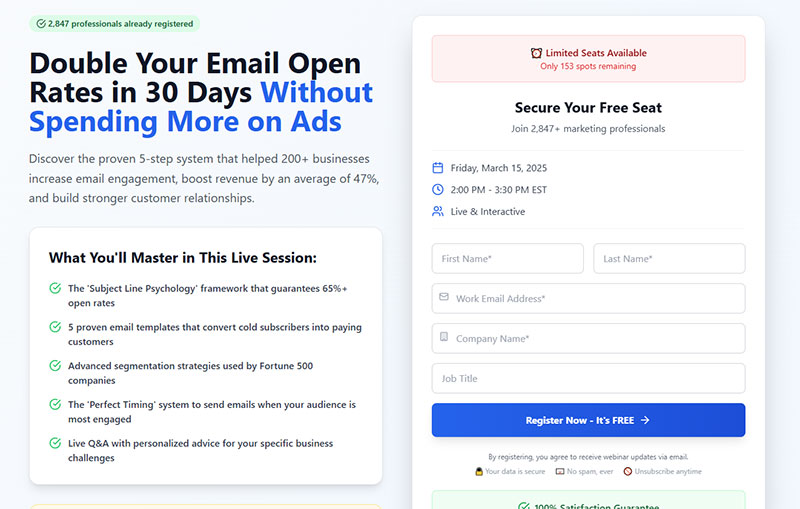
First name and email address are the floor. Every other field earns its place by what you will do with the answer.
ON24 lists email, first name, last name, company and job title as the most common fields across its registration pages (ON24, 2020).
The rest depends on the goal. Lead generation wants a work email, company, job title and one qualifying question. Internal training needs less: a name, a work email and the team or department.
A paid webinar adds a payment field, and WPForms supports PayPal, Stripe, Square and Authorize.net.
Asking attendees how they heard about the webinar pays off fast. The answer shows which channels fill seats, and WPForms ships it as a radio field.
Hidden fields record the traffic source without a visible question. Livestorm expects UTM values to travel in the registration page URL, then pushes them to the CRM.
One optional question for the host, such as “What would you like covered?”, gives you material for the agenda (SurveyMonkey’s template includes it).
Phone number is the field to skip unless a rep will actually call. Orbit Forms names it the biggest conversion killer on registration forms.
Qualification is a separate decision from registration. A short list of form fields that capture higher-quality leads helps you pick the one or two your sales team will read.
In a WordPress form plugin, the standard field types cover all of this. Name and Email fields handle the floor, Text fields take company and job title, a Dropdown or Radio field carries the “how did you hear” question, and a Paragraph field holds the optional agenda request. Each entry also stores the page it came from (Source URL), so channel tracking does not depend on a visible question.
How many fields should a webinar registration form have?
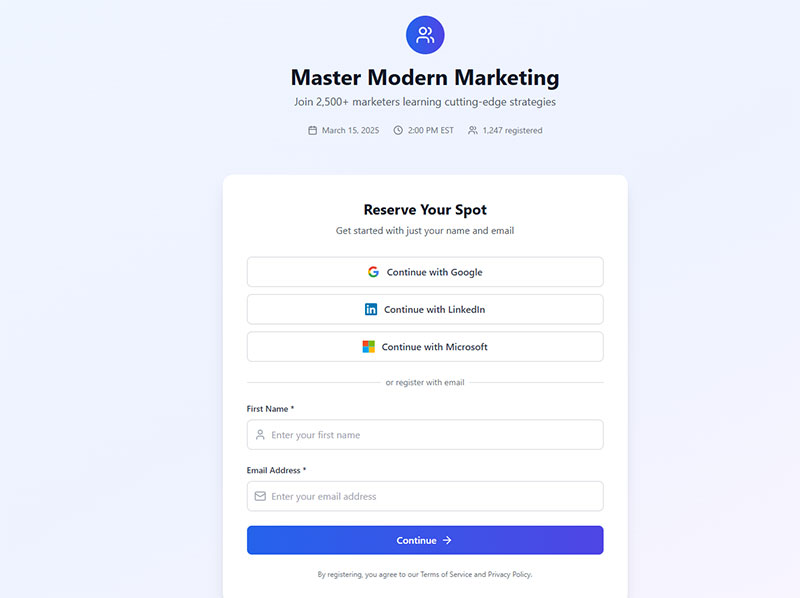
Guides cluster around three to five required fields, with one capping the form at six. Hosts run longer forms in practice: ON24 found an average of seven registration fields per event.
The ON24 numbers come from January to June 2020 registration pages, which averaged 7 registration fields per event. Pages with a banner image saw 32% higher conversion than pages without one (ON24, 2020). On the advice side, Orbit Forms recommends 3 to 5 required fields (undated guide), and Communique Conferencing’s 2016 guide says 6 fields or fewer.
ON24 counted every field on the page. Orbit Forms only talks about the required ones, so the numbers were never measuring the same thing.
Field type matters too. An older HubSpot analysis of more than 40,000 landing pages found conversion fell only slightly as one-line text fields were added, but multiple text areas and drop-downs pulled it down harder.
Count friction, not just fields.
A longer form can be justified for limited-seat executive webinars, where Orbit Forms allows six or seven fields. Past six, Orbit Forms’ guides suggest splitting the form into steps with a progress indicator.
Whether steps beat one page depends on the audience, so read up on multi-step and single-step forms before you commit. Multi-page forms in WordPress add a progress bar or rootline and Previous and Next buttons, and each page can hold its own set of fields.
Guides on webinar registration forms rarely agree on a number. Treat any figure as a starting point and test it against your own registration rate.
How to customize a webinar registration form template
Work through it in this order, since the later steps lean on the earlier ones.
- Add your logo, brand colors and a banner image.
- Rewrite the heading and button so they name the benefit.
- Cut or reorder fields to match the webinar goal.
- Add custom questions and any conditional logic.
- Place the form above the fold, or embed it on an existing page.
- Test on a phone, then submit a test registration and check where the data lands.
Branding and copy
Start with the banner image. It is the one design element with measured lift in the ON24 data, and ON24 suggests a product shot or a preview of the content.
The heading should name the topic and the outcome. “Webinar Registration” is a lazy label, according to Orbit Forms. On the button, “Save My Seat” or “Join the Webinar” beats “Submit”. Typeform’s template lets you change the logo and colors, so that part takes a minute.
In WordPress, form customization sets the colors, spacing, typography and labels, and the submit button text is editable, so “Save My Seat” takes one edit.
Conditional logic and custom questions
Conditional logic shows a field only when an earlier answer calls for it. Orbit Forms gives the standard example: someone who picks an enterprise company size sees procurement questions, and everyone else skips them.
It helps to understand how conditional logic works before stacking rules. Every extra rule is another path to test.
Jotform’s webinar forms support it alongside pre-populated fields, which speeds up repeat registrants.
The conditional logic in IvyForms sits on each field’s Smart Logic tab, with Any or All matching. One gotcha from its documentation is that rules compare the stored option value, not the visible label, so keep the values stable once rules depend on them.
Page placement and embedding

A hosted registration page, whether the platform or the builder hosts it, is the fastest to launch. You give up some control over layout.
Embedding the form on your own site keeps branding and tracking in one place, though you maintain the page yourself.
Either way, put the form above the fold with the title and date visible. Communique Conferencing advises against burying it under paragraphs of copy.
Use a single column on mobile. WCAG 2.2 success criterion 2.5.8 sets a 24 by 24 CSS pixel minimum for tap targets (W3C), and the AAA criterion 2.5.5 asks for 44 by 44.
Treat 24 as the floor and 44 as the target. Broader mobile form guidelines cover spacing, keyboards and load speed.
A WordPress form embeds with a shortcode, the Gutenberg block or Elementor, and the layout adapts to phones, tablets and desktops. For a standalone registration page, a conversational form gets its own permalink and a welcome step with a title, description and start button.
What consent wording does a webinar registration form need?
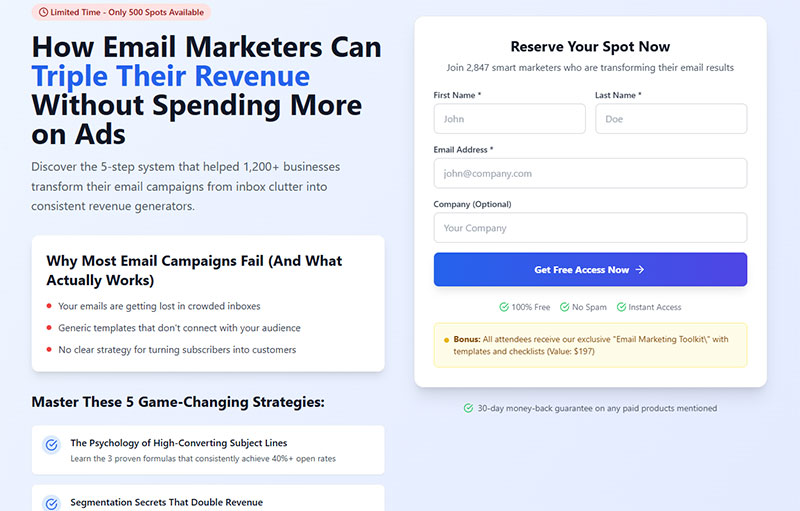
Use a separate, unticked checkbox for marketing email, and keep it apart from the registration itself. A pre-ticked box does not count as consent under the GDPR.
Recital 32 of Regulation 2016/679 lists silence, pre-ticked boxes and inactivity as things that do not constitute consent. The Court of Justice of the EU confirmed it in Planet49 (case C-673/17, 1 October 2019).
The European Data Protection Board adds two tests in its Guidelines 05/2020 (4 May 2020). Consent must be granular, with one choice per purpose, and it must be freely given. A registrant who has to tick the marketing box to get the join link has not given free consent.
The three regimes ask for different things. Under the GDPR it’s opt-in, with one checkbox per purpose and nothing ticked by default.
The CAN-SPAM Act uses an opt-out model instead, so every commercial email explains how to opt out and requests are honored within 10 business days (FTC compliance guide).
CCPA wants a notice at collection, shown at or before the point where the form collects data (California AG regulations, as summarized by Dechert, 2020).
A form that serves EU and US audiences follows the stricter rule, which is the GDPR opt-in.
Confirmation and reminder emails for the event itself are transactional, and the FTC exempts transactional and relationship messages from most CAN-SPAM requirements. A promotional follow-up after the webinar is a commercial message. This is general information, not legal advice.
For wording, an unticked checkbox reading “Yes, email me product news and offers. I can unsubscribe at any time.” does the job. Under the button, a short line like “We use your details to run this webinar. Read our privacy policy.” covers the rest.
For the build side, this guide to creating GDPR compliant forms covers the setup.
Looking at real GDPR consent form examples helps when you need checkbox wording that fits your own audience.
The GDPR field adds a required, unticked consent checkbox, and its agreement text accepts a link to your privacy policy. Keep the marketing opt-in as a separate optional Checkbox with no default selection. With the Mailchimp integration, smart logic can sync only the registrants who ticked that box, and each entry stores the submission date, IP address and Source URL as a consent record.
Confirmation page, email and reminders after sign-up
A registration doesn’t end at the submit button. Who actually shows up depends on what happens next, starting with a thank-you page that gives the date, time, time zone and an add-to-calendar button.
The confirmation email should carry the personal join link, a calendar file and a reply address. Reminders go out before the session, each with the join link again. After the event, absentees get a replay link and attendees get a next step.
Keep the thank-you page short and specific. These registration success message examples show phrasing that works.
The calendar file is an .ics document, the format defined by RFC 5545 (IETF, September 2009). The standard describes events independent of any particular calendar service, which is why one file works across different calendar apps.
Zoom’s confirmation template builds its Add to Calendar links from internal variables, and a Zoom developer forum thread reports they cannot be edited. A customized confirmation email therefore keeps Zoom’s own .ics link.
For the email text, plain wording wins. This guide to the form submission confirmation message lays out the patterns.
In a WordPress form plugin, the on-screen part is the confirmation, either a success message (with an HTML mode for links and buttons) or a redirect to a thank-you page. The email part is a notification addressed to the registrant, using the Email field as a placeholder in the Send to field, with Reply to set to your event inbox. Your own admin notification stays as a separate entry.
Zoom’s webinar email settings offer reminders 1 week, 1 day and 1 hour before the session, according to a January 2020 reference guide from the University of West Florida.
ON24’s 2024 data shows 57% of B2B webinar registrations convert to attendees (reported by MarketingProfs, 2025).
ON24’s 2022 benchmarks, summarized by MarTech Zone, put live attendance at 35% of registrants and on-demand viewing at 24%.
Those two shares add up to 59%, yet ON24 reported 55% of registrants converting to attendees overall in its 2022 benchmarks, because some registrants watched both ways. That 55% sits close to the 57% reported for 2024 (2023 was 56%). The datasets differ (all webinars in 2022, B2B in 2024), so the match is a hint, not proof, that headline conversion counts replay viewers.
So the sequence shouldn’t stop at the live date. Send absentees the replay link, which fits Zoom’s defaults: its follow-up emails to attendees and absentees go out one day after the webinar (University of West Florida guide, 2020).
How to send registrant data to your CRM and email platform
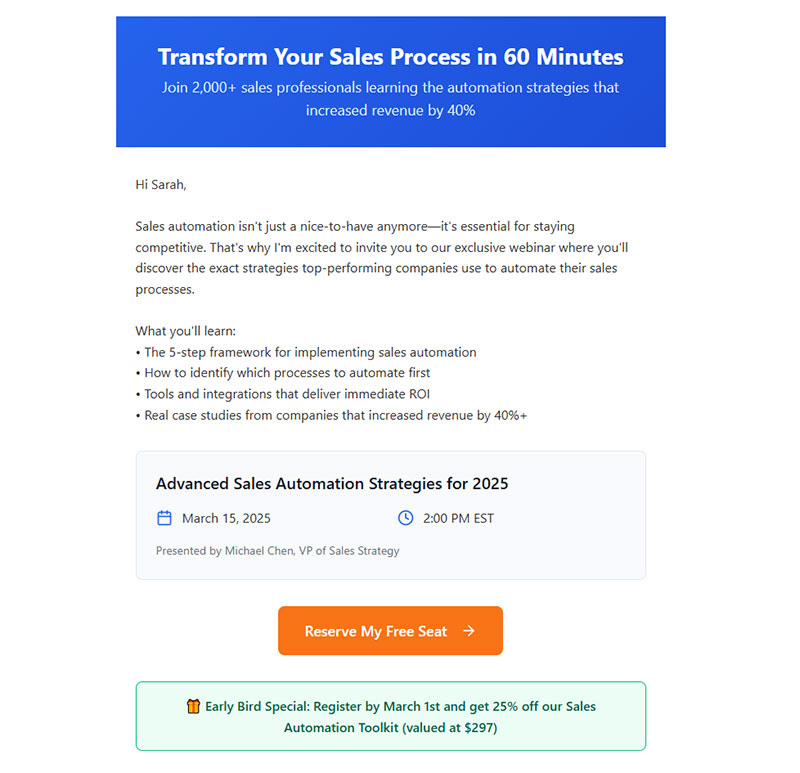
Connect the form to the webinar platform first, then to the CRM. You can do that with a native sync, a connector such as Zapier, or the platform’s API and webhooks.
| Route | Example | Watch for |
|---|---|---|
| Native sync | Livestorm to HubSpot | Every form attribute needs a mapped CRM field |
| Connector | Zapier: form submission triggers Create Webinar Registrant in Zoom | Only the fields the Zap passes will arrive |
| Webhook or API | Livestorm webhooks and registrant endpoint | Retries stop after 5 failures, 5 requests per second cap |
Livestorm does more than copy your mapped fields. It also writes its own contact properties into a “Livestorm” group in HubSpot, including first registration date, last registration event name, last connection link, registration count and last live attendance (Livestorm help center).
Webhooks fail quietly if your endpoint is down. When it does not return a 2xx response, Livestorm retries 5 times, at roughly 30 seconds, 1 minute, 2.5 minutes, 6 minutes and 12 minutes, then disables the subscription and emails you.
That subscription covers every session in the workspace, and you cannot limit it to one event (Livestorm developer documentation, as of October 2026).
Zapier lists form submission triggers from tools such as Gravity Forms and Leadpages that feed Zoom’s Create Webinar Registrant action.
The Zapier integration for IvyForms triggers on every new form entry and sends the answers, plus the entry ID and submission time, to any of more than 5,000 apps. Webhooks post each entry to any endpoint you control, with JSON or form data and an optional signing secret.
In a September 2022 Zoom Community thread about Zoom’s missing 24-hour reminder, a Community Super Champion said they had used Zapier to write every registrant, with their personal join link, into an Excel file. That file let them email any or all registrants individually. The host who started the thread had been copying names from the registrant list into bulk email software.
For events with a few hundred registrants, a spreadsheet fed by a connector is enough. A CRM sync pays off once sales follows up on the list.
Source tracking needs care. Livestorm marks its referrer attribute as no longer used and points to UTM values instead, so pass UTM parameters through hidden fields and map them to CRM properties.
On the analytics side, count the thank-you page as a conversion. This walkthrough on how to track form submissions in Google Analytics shows the setup. Redirecting the confirmation to a dedicated thank-you page gives each webinar its own URL to count, and the entries table lets you check that count against the submissions per form.
Where webinar registration form templates break down
Standard templates work fine for a simple, free, single-region event. They struggle with bot registrations, approval-only events at scale, paid webinars, regions with stricter consent rules, and forms that are hard to use with assistive technology.
Spam and bot registrations
IT@Cornell guidance (Cornell University) describes recording services such as WebinarTV that capture publicly available events and often register with disposable email domains. Its advice: don’t post registration links publicly, deny registrations from suspicious or unusual email addresses, vet participants before admitting them (a waiting room), and avoid local recording.
The scale can be large. A host in a September 2026 Zoom Community thread reported over 800 spam registrations, with deletion possible only one at a time and manual approval as the only stopgap.
A second host in that thread said Zoom support told them a platform-level fix was scheduled for the October 2026 release. Check Zoom’s release notes to see whether it shipped.
Google’s reCAPTCHA v3 returns a score from 0.0 to 1.0, where 1.0 is very likely a good interaction and 0.0 very likely a bot. Verify the token on your server, check that the action name matches, and do it within two minutes, because each token expires then and works only once (Google reCAPTCHA documentation).
A score alone will not stop a determined bot service. Challenge widgets also add friction, so compare a few CAPTCHA alternatives before defaulting to one.
Validate emails at submission and reject duplicates and throwaway domains. These form validation best practices cover the mechanics.
On the WordPress side, spam protection offers reCAPTCHA, Turnstile and hCaptcha, the Email field checks the address format, and the No Duplicates option on the field stops the same address from registering twice.
Approval-only events
Manual approval puts every registrant in your queue. Switching it on mid-registration also means reviewing everyone who already signed up.
Paid webinars
A free-webinar template has no payment step. Add one through a builder that supports payment fields, and keep the registration fields minimal.
Regions with stricter consent
A US-built template that ships with a pre-ticked marketing box fails the GDPR standard. Untick it before the form goes live for EU registrants.
Accessibility gaps
WCAG success criterion 3.3.2 (Level A) requires labels or instructions wherever a form asks for input. Do not rely on placeholder text as the only label.
A visible label is not enough on its own. The W3C notes that criterion 1.3.1 separately requires the label to be programmatically associated with its field.
In the builder, keep each field’s label visible and use the Description option for format hints or the time zone note. The Hide label option is better left off on registration fields.
Common Questions About Webinar Registration Form Templates
Does every webinar need a registration form?
No. Zoom lets hosts schedule a webinar with or without registration, and without it the invite carries a direct join link.
You then lose the registrant list, and a Rutgers University guide to Zoom webinar settings ties attendee reminder emails to using Zoom registration.
What separates a registration form from a registration page?
Fields and a submit button make up the form. The registration page wraps that form in the topic, speakers, schedule and benefits, as Leadpages’ webinar templates do.
A template can supply either one, so check which you are getting.
Do I need a new form for each webinar?
No. Zoom lets you schedule a webinar from an existing one used as a template, and the same Rutgers guide recommends saving custom questions for repeat events with the same questions.
Livestorm stores custom fields at workspace level, so one field can serve many event forms.
How can one form handle several session times?
Zoom supports a recurring webinar series where attendees pick a time slot at registration, and the confirmation email lists the sessions they chose, per a Zoom Community reply.
Livestorm organizes an event into sessions that registrants select from, according to its developer documentation.
In a WordPress form, a Radio or Dropdown field can list the session times, and each choice is saved in the entry. Conditional logic can then show a different confirmation message for each slot.
Can the same form serve the on-demand replay?
Yes, on some platforms. Zoom’s support documentation says that once a webinar is made available on demand, people can use the original registration link to register for the recording.
On GoToWebinar, a community answer says to link the cloud recording to the original event, so new registrants answer your custom questions first.
Which Numbers Show Your Registration Form Is Working
A template is working when the share of registrants who attend rises after a change, not when sign-ups alone climb. Sign-up volume rewards a short form, while attendance shows whether the right people registered.
Confirm that a test registration is delivered, track registration-to-attendance for one full cycle, then change one field and compare.
Delivery comes first because a broken sync or a missing reminder distorts every later rate. Changing two fields at once hides which one moved the result.
Every cut has a price. A shorter form lifts sign-ups, but sales gets fewer answers to score, so keep the one qualifying question your team reads.
Once delivery and attendance are tracked, a broader read on increasing form conversions is the natural next step.