

Table of contents
The Confirmations section in IvyForms defines what happens after a user submits a form. You can display a success message, redirect users to another page, or send them to a custom URL.
Confirmation settings are applied per form, allowing each form to have its own post-submission behavior.
To configure confirmations, open your form and navigate to the Settings tab, then select Confirmations from the left-side panel. At the top of this section, you can enable or disable confirmations using the Active toggle.
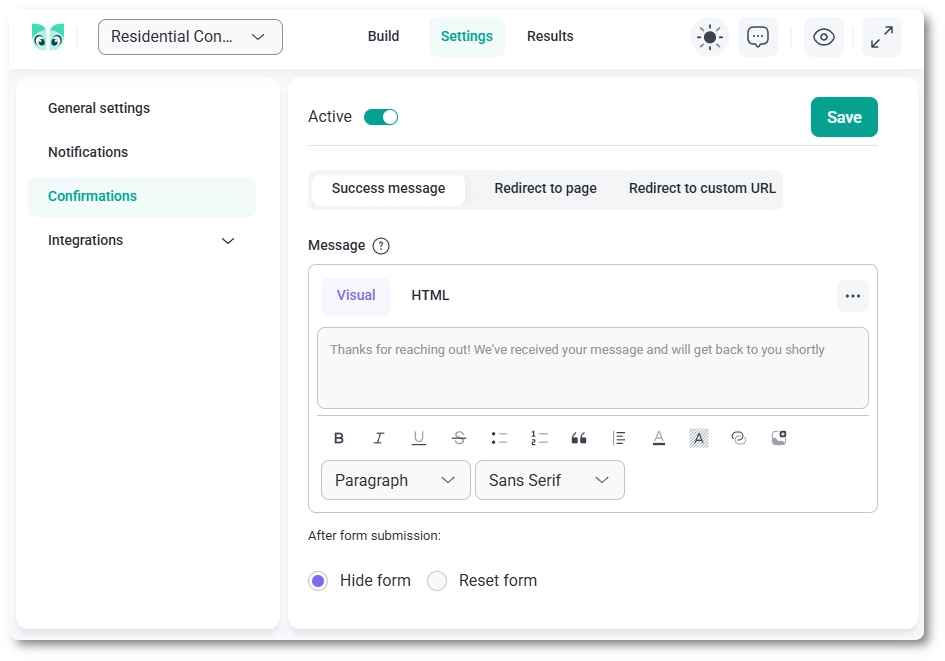
IvyForms provides three different confirmation types that define what users see after submitting a form:
The Success message option is enabled by default. It displays a confirmation message immediately after the form is submitted.
A default message is prefilled, but you can fully customize it using the editor. You can switch between visual editing and HTML mode to adjust formatting and content as needed. This is useful when you want to keep users on the same page and simply confirm that their submission was successful.
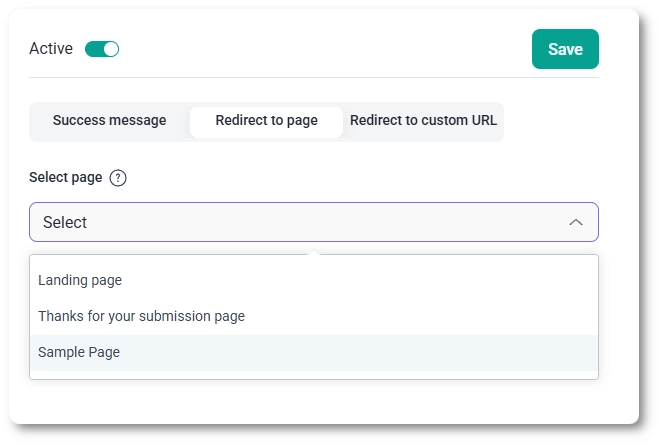
The Redirect to page option allows you to send users to another page on your website after they submit the form.
You can select the destination from a dropdown list of existing pages.
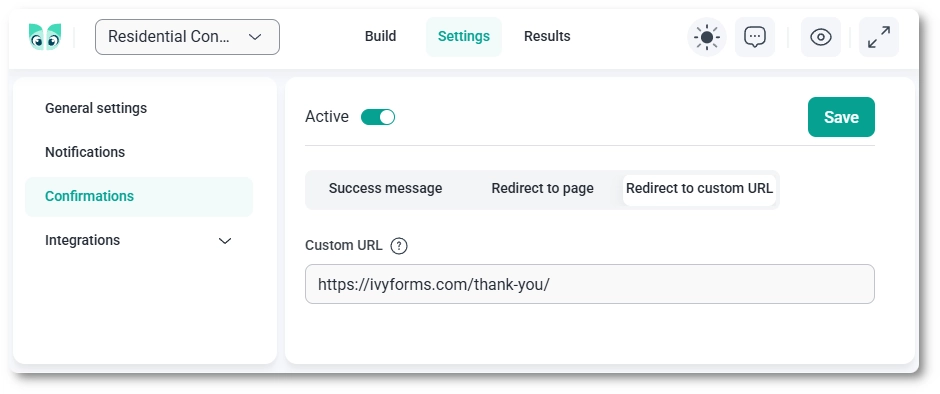
The Redirect to custom URL option allows you to send users to any specific URL after submission. You can enter a full URL in the provided field, whether it is an internal page or an external website.
This option is useful when redirecting users to external services, landing pages, or custom workflows outside of your website.
The After form submission option is available only when using the Success message confirmation type.
Since the other two options (Redirect to page and Redirect to custom URL) automatically take the user to another location, this setting does not apply to them.
These options allow you to control the user experience after a successful submission when the confirmation message is displayed on the same page.


