


How do I configure notifications in IvyForms
Table of contents
Notifications in IvyForms allow you to automatically send emails after a form is submitted. These emails can be sent to administrators, users, or any custom recipients, and can be fully customized using static values or dynamic placeholders.
Notifications are configured per form, meaning each form can have its own email setup and behavior.
Where can I manage notifications?
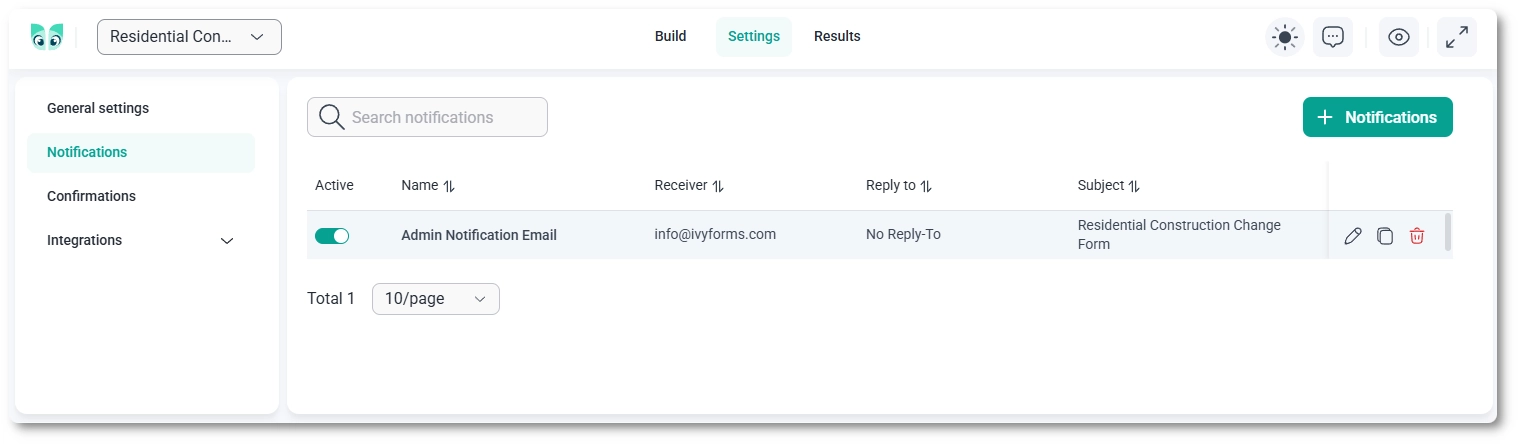
To configure notifications, open your form and navigate to the Settings tab, then select Notifications from the left-side panel.
By default, IvyForms includes an Admin Notification Email that is enabled and used to notify the website owner when a new submission is received.
How do I create and manage notifications?
You can create additional notifications by clicking the + Notifications button. This allows you to define different email scenarios, such as sending confirmation emails to users or notifying multiple recipients.
Each notification in the list includes the following actions:
- Edit – Modify the notification settings and content.
- Duplicate – Create a copy of an existing notification to reuse its configuration.
- Delete – Remove the notification.
You can also enable or disable each notification using the toggle in the Active column.
How do notification settings work?
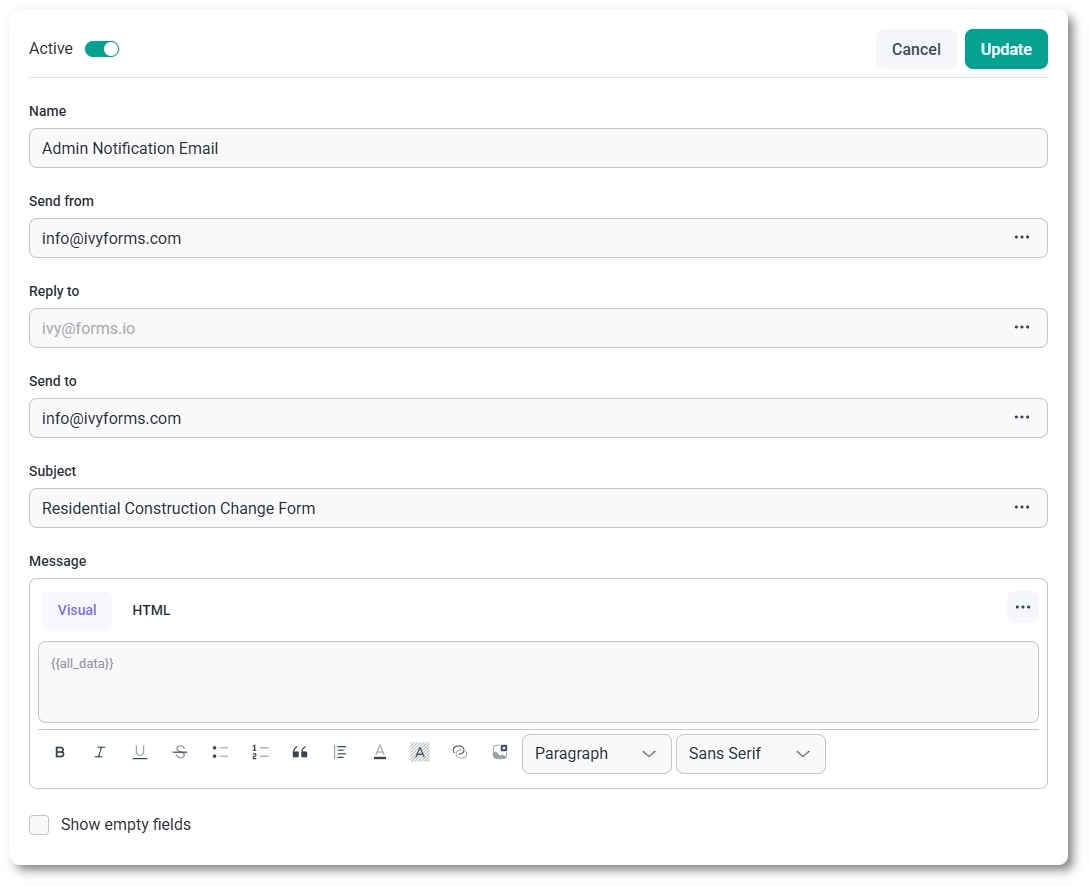
When editing a notification, you can configure how the email is sent and what it contains. Each notification includes fields such as sender, recipient, subject, and message content.
- Active – Enable or disable the notification.
- Name – Internal name used to identify the notification.
- Send from – Defines the sender email address.
- Reply to – Defines where replies to the email will be sent.
- Send to – Defines the recipient of the email.
- Subject – The email subject line.
- Message – The email body content.
How do placeholders work in notifications?
IvyForms allows you to use dynamic placeholders in notification fields to automatically insert values from form submissions or system data.
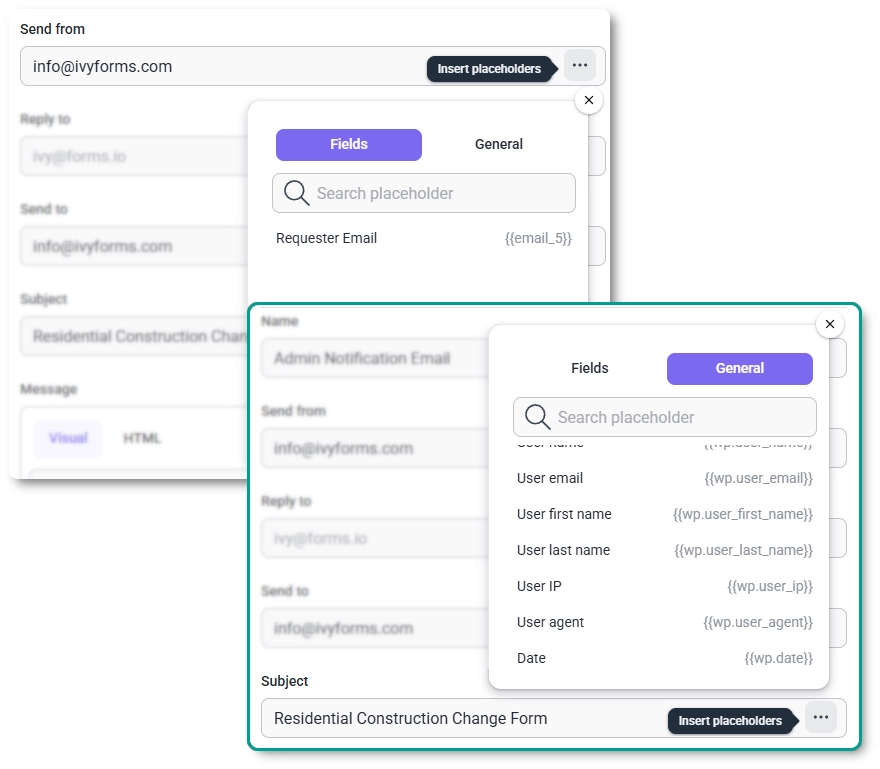
When clicking the three-dot menu next to fields like Send from, Reply to, Send to, or Subject, a placeholder selector will appear with two tabs:
- Fields – Includes values collected from the form, such as email fields or other user inputs. Selecting a field will dynamically insert the submitted value into the email.
- General – Includes system-level placeholders, such as the WordPress admin email or user-related data.
For example, if your form contains an email field, selecting it as a placeholder allows IvyForms to automatically use the submitted email address for sending or replying to messages.
Can I use static values instead of placeholders?
Yes, all email fields such as Send from, Reply to, and Send to can also be filled manually.
This means you can use fixed email addresses like [email protected], or combine static values with dynamic placeholders depending on your needs.
How does the subject and message work?
The Subject field is automatically populated with the form name by default, but it can be customized. You can also use placeholders to dynamically include values from the form or system data.
The Message field defines the content of the email. By default, it includes the {{all_data}} placeholder, which outputs all submitted form data.
You can fully customize the message using the visual editor or switch to HTML mode for advanced formatting. This allows you to structure the email exactly how you want, including specific fields, labels, and formatting.
- {{all_data}} – Includes all submitted form data in the email.
- Custom content – You can replace or modify this with specific placeholders or manually written content.
What does “Show empty fields” do?
The Show empty fields option controls whether fields without values are included in the email. When enabled, all form fields will appear in the message, even if they were left empty. When disabled, only fields with submitted values will be included.
How do I send a notification only when certain conditions are met?
Conditional logic is available only in the Pro version of IvyForms, not in Lite.
Each notification has a Smart logic toggle at the bottom of the editor that sends the email only when the visitor’s answers match conditions you set, instead of on every submission. Turn it on and you build rules from a form field, a condition such as equals, and a value, adding or removing rules with the purple plus and minus buttons. The Conditional match option controls how the rules combine:
- Any – the notification sends if at least one rule is met.
- All – the notification sends only if every rule is met.
For example, if your form has a checkbox like “I want to receive confirmation via email,” you can set the visitor confirmation notification to send only when that box is checked, so anyone who opts out never receives it. The rules compare the stored field value the same way field-level logic does; for the full detail on conditions and values, see the conditional logic documentation.
When should I use multiple notifications?
Using multiple notifications allows you to create different email flows for different scenarios. For example, you can:
- Send one email to the administrator with full submission details.
- Send a confirmation email to the user with a custom message.
- Notify different departments based on form inputs.
Each notification can have its own recipients, content, and logic, giving you full control over how form submissions are handled.