

Table of contents
Form Settings in IvyForms allow you to control how each individual form behaves after it is created. From basic details and visibility to notifications, confirmations, and integrations, all configuration options are managed in the Settings tab of the form builder.
Note: All settings are applied per form, meaning each form can have its own unique configuration.
You can access form settings by opening any form and switching to the Settings tab located at the top of the builder interface. This section is divided into multiple tabs on the left side, allowing you to configure different aspects of your form.
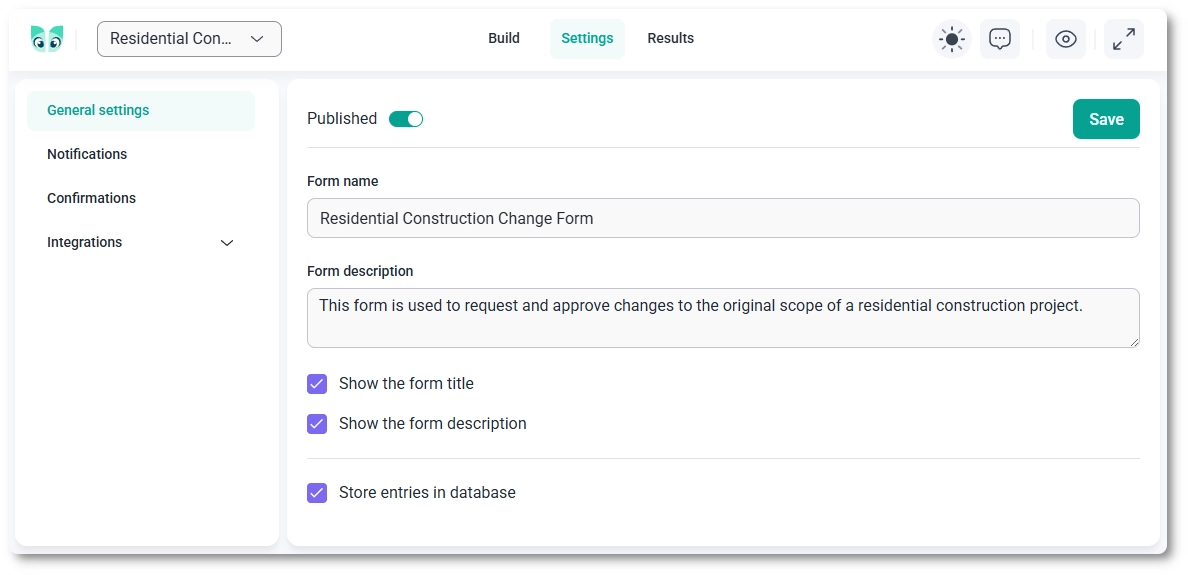
Form settings are organized into several sections, each responsible for a different part of the form’s behavior:
After building your form and adding fields, the next step is to configure its behavior using form settings. This ensures that submissions are properly handled, users receive feedback, and any connected services are triggered as expected.
Each section of the settings can be configured independently, giving you full control over how your form works.


