

Table of contents
A client booking a consultation needs to choose both a day and a time in one step, not hunt through two separate fields. The Date & Time field handles both together: the visitor sets a date and a time from a single control, in the format and style you choose. This article covers where to find the field, the three ways it can be presented, the settings behind each one, and where the values land after submission.
The Date & Time field is a premium feature, available on the Essential plan and above.
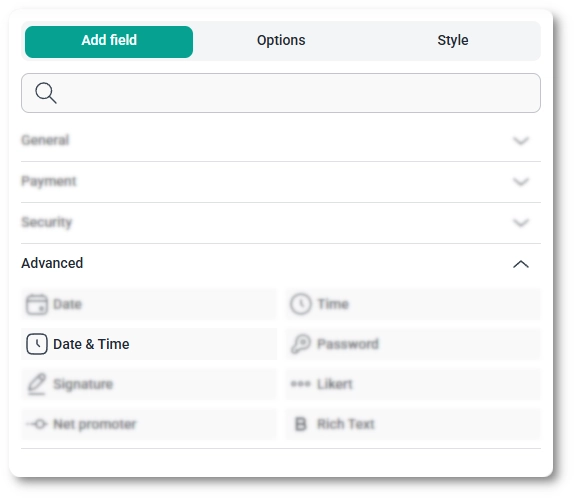
You can add the Date & Time field from the Advanced fields section in the left panel of the IvyForms builder. Expand Add field → Advanced, select Date & Time, and it is added to your form, ready to configure in the options panel.
After selecting the Date & Time field in the preview, the side panel switches to the Options view, split across the General, Advanced, and Smart logic tabs. One choice shapes everything else: the Date & Time type you pick on the General tab decides which settings appear on both tabs, so it is worth setting first.
The General tab shows the field type (Date & Time) and its field ID, along with the options that control labeling, presentation, and format.
The Date & Time format dropdown offers four date layouts, MM/DD/YYYY, DD/MM/YYYY, YYYY-MM-DD, and DD.MM.YYYY, each available in either 24-hour or AM/PM time, for eight combinations in total. Pick the one that matches your audience’s region.
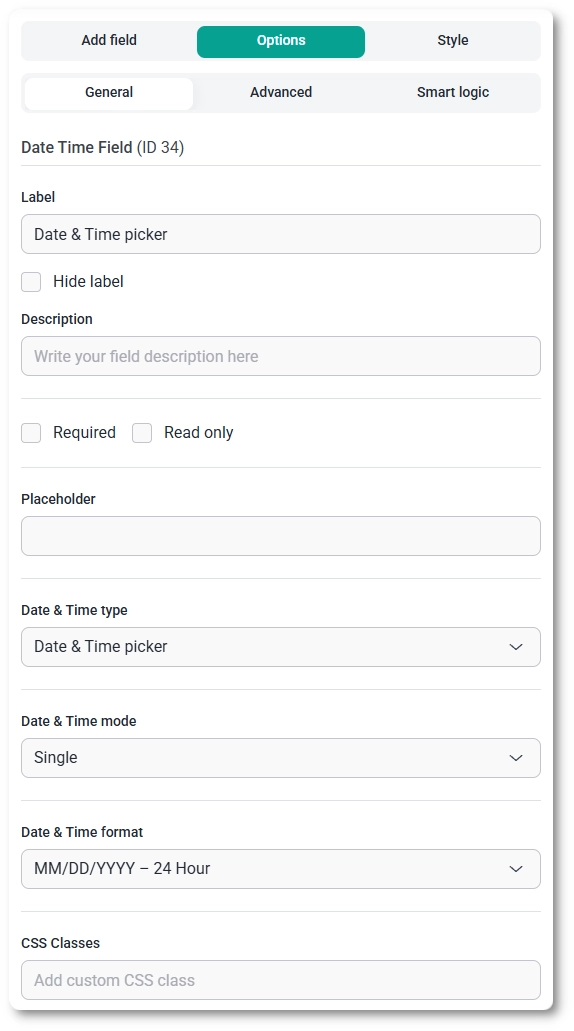
The Date & Time type selector offers three presentations, and your choice changes which other options appear.
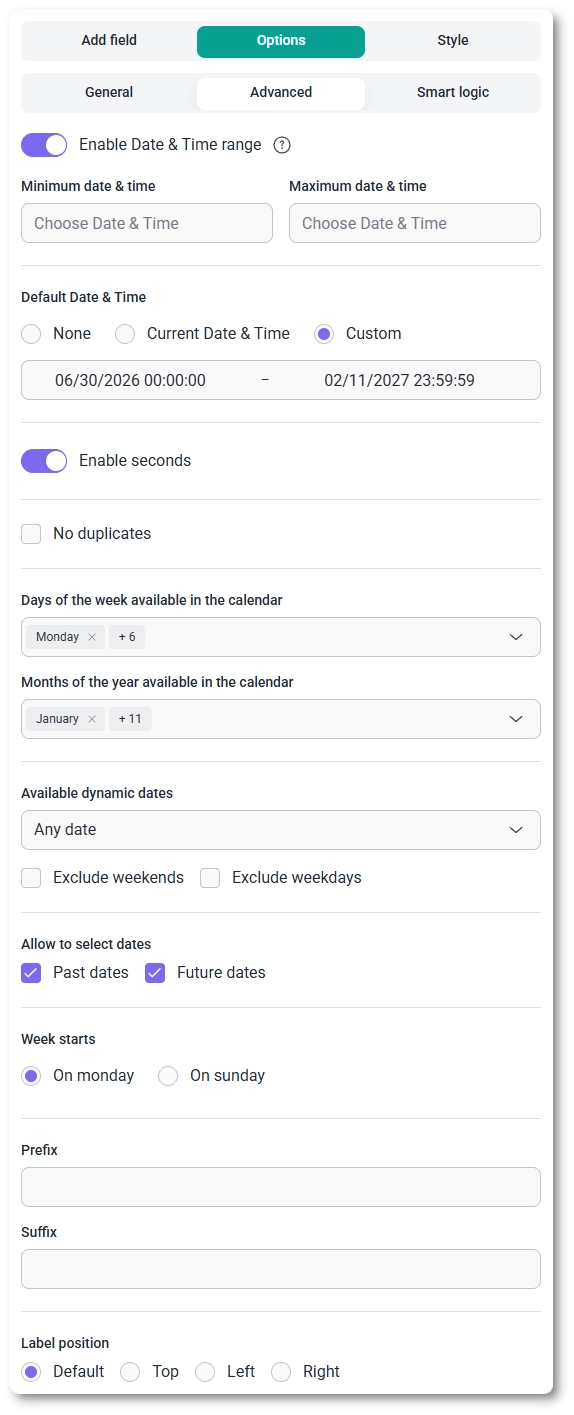
The Advanced tab keeps every date and time setting in one place, with no separate date and time sections.
The options shown here depend on the Date & Time type. The dropdown type shows a reduced set (range, default, seconds, no duplicates, and label position); the input type adds a prefix and suffix to that set; the picker type shows all the options below.
It helps to think of these in two groups. Available dynamic dates, Exclude weekends, and Exclude weekdays decide which dates appear in the calendar at all, while Minimum and Maximum date & time, Allow to select dates, and the day and month availability options control what a visitor can actually pick from those. For an appointment form, for instance, you might allow only future dates and exclude weekends.
Smart logic is a Pro feature. It lets you show or hide the Date & Time field based on what visitors enter in other fields: set Conditional Logic to Yes, choose whether Any or All rules must match, then build rules from a source field, an operator, and a value. The operators available depend on the source field; see which conditions you can use in a rule for the full list.
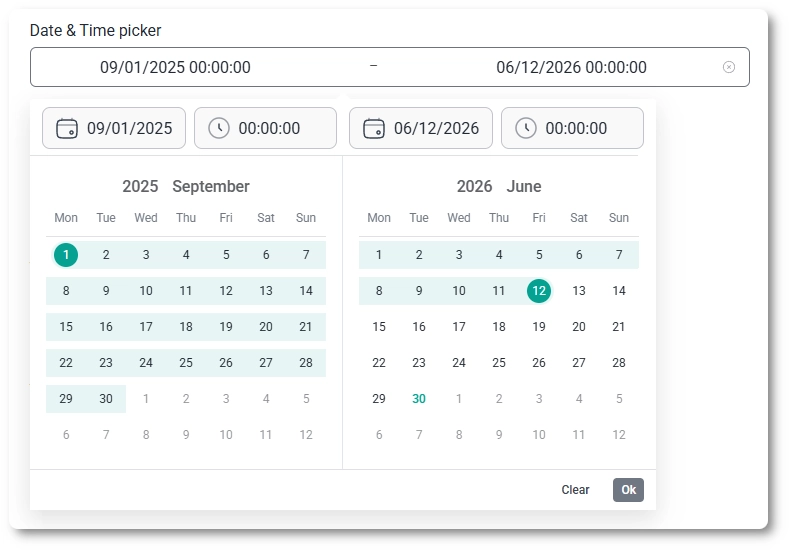
How the field appears depends on the type you chose. The picker opens a calendar and clock the visitor clicks through; the input type is a single box they type into following your format; the dropdown type shows separate selectors for year, month, day, hour, and minute. In Range mode the picker and input collect a start and an end value, and any prefix or suffix text frames the field on the input and picker types.
After a form is submitted, the chosen date and time appear in both the single entry view and the all-entries table, shown in the format you set, and the value is included in email notifications and webhook payloads when those are enabled. Range selections carry both their start and end values through to each of these places.
Pick the Date & Time type first, since it decides which other options you have, and choose a Date & Time format that matches your audience’s region so the order of day, month, and year is not ambiguous. Use the availability and dynamic-date options to keep visitors inside valid dates; for bookings, allowing only future dates and excluding weekends is a common setup. To customize colors, spacing, typography, buttons, and the overall form appearance, see the Style tab documentation.


