

Table of contents
Your form lets customers pick a USB-C cable length and choose how many they want, and now you need to show them what they owe. The Total field does that: it adds up every product and quantity on the form and displays the amount due, updating on its own as selections change. It is the last of the three payment fields in IvyForms, following the Product and Quantity fields, and it is free to use. This article covers where to find the field, how it calculates the amount, the settings behind it, and where the total shows up after submission.
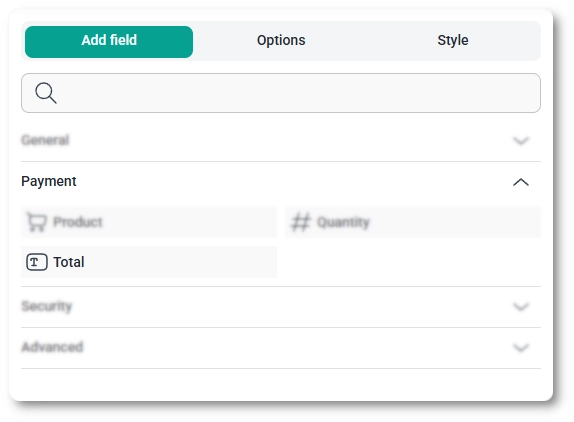
You can add the Total field from the Payment fields section in the left panel of the IvyForms builder. Expand Add field → Payment, select Total, and it is added to your form, ready to configure in the options panel. Add it after your Product and Quantity fields, since it works from the values they produce.
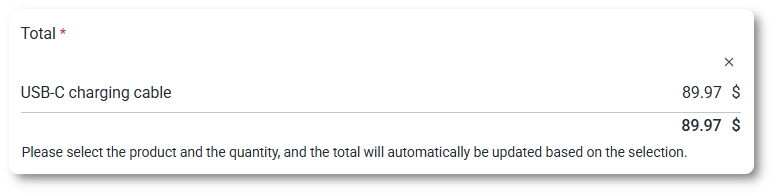
The Total field adds up each product on the form multiplied by its mapped quantity, with no setup needed beyond having those fields in place. Carrying the cable example through: if a customer selects the 5 m cable at $29.99 and sets the quantity to 3, the field shows $89.97, and if the form has more than one product, every line is summed into a single amount. For how items and prices are defined, see the Product field documentation, and for how quantities are mapped to a product, see the Quantity field documentation.
With Custom Formula turned on (Essentials plan and above), the field uses your own arithmetic formula instead of the product sum. The formula can include numbers, products, quantities, coupons, and other Total fields. Learn more in the General settings section below.
After selecting the Total field in the preview, the side panel switches to the Options view, split across the General, Advanced, and Smart logic tabs. These control the labeling and messaging, the summary breakdown and surrounding text, and when the field appears.
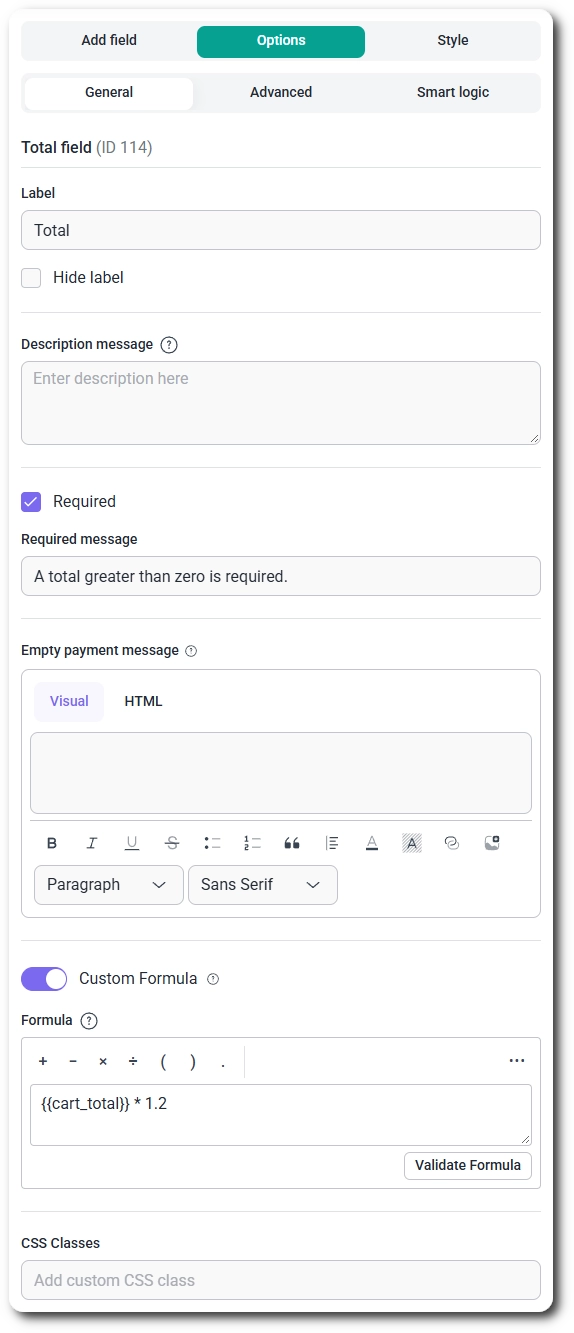
The General tab shows the field type (Total) and its field ID. It controls how the amount is labeled, what appears when there is nothing to pay, and, with the Custom Formula option, how the total itself is calculated.
Switch on Custom Formula and a Formula box appears with a toolbar for +, −, ×, ÷, parentheses and the decimal point. Type your calculation in the box, then click Validate Formula to check it before you save. For example, {{cart_total}} * 1.2 adds a 20% fee to the default product sum.
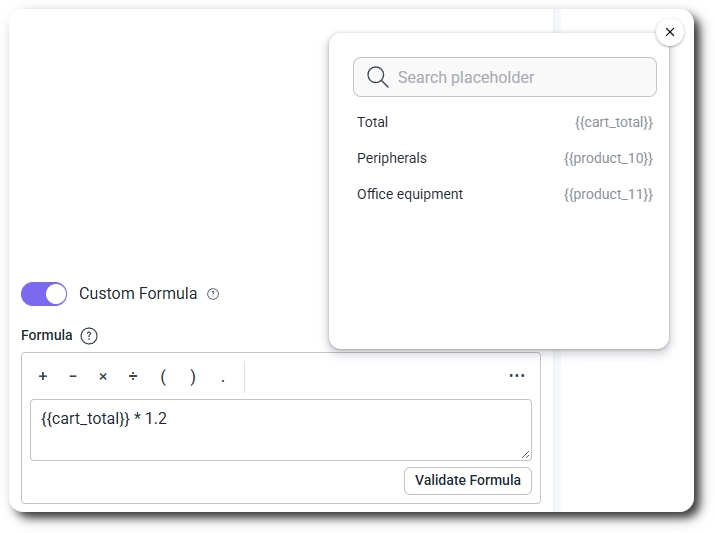
To reference other fields in your formula, click the ••• button in the formula toolbar and pick a field from the list. You can insert Total (the default product sum), Number, Product, Quantity, Coupon, or other Total fields. Each one is added as a placeholder such as {{cart_total}} or {{product_10}}, and you can use the search box to find a field quickly.
A Total field cannot reference itself or create a circular formula, for example two Total fields that use each other. The builder shows an error when this happens.
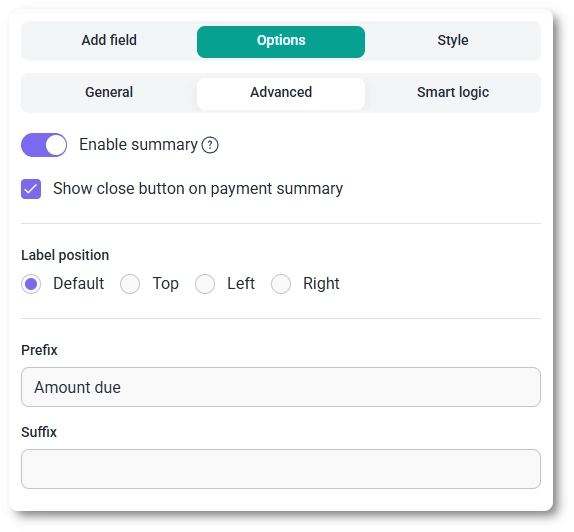
The Advanced tab controls the breakdown summary and the text around the amount.
Smart logic is a Pro feature. It lets you show or hide the Total field based on what customers enter in other fields: set Conditional Logic to Yes, choose whether Any or All rules must match, then build rules from a source field, an operator, and a value. The operators available depend on the source field; see which conditions you can use in a rule for the full list.
On the front end the field recalculates automatically as the customer changes products or quantities. With Enable summary on, it shows a small table listing each selected product with its price and the combined total beneath, and a close button in the corner lets customers dismiss it when you have enabled that option. Your Description message sits below the field, and when a selection carries no payable amount, the Empty payment message shows in place of a figure.
When a custom formula is active, the field shows the formula result and updates it as the customer changes any field used in the formula.
After a form is submitted, the calculated total appears in both the single entry view and the all-entries table, and the value is included in email notifications and webhook payloads when those are enabled. This is the figure the customer agreed to pay, drawn from the products selected and the quantities entered, so it gives you the final amount for each entry at a glance.
With a custom formula, the total is recalculated on the server when the form is submitted, so the stored value and the amount sent to your payment gateway always match the formula, not a value edited in the browser. The result is rounded to two decimals.
Turn on Required so a form cannot be submitted with a zero total when a payment is expected, and use Enable summary when you want customers to see exactly how the amount breaks down before they commit. Set a clear Prefix such as “Amount due”, and write an Empty payment message for the cases where a selection carries no charge. To customize colors, spacing, typography, buttons, and the overall form appearance, see the Style tab documentation.
Click Validate Formula before saving a custom formula. If a formula cannot be calculated or returns a negative number, the field falls back to the default product sum.


