

Table of contents
You have a USB-C charging cable on your form with three length options, and now you want customers to say how many they need. The Quantity field handles that: it captures a number and ties it to a specific product so the price can be multiplied out. It is the second of the three payment fields in IvyForms, sitting between the Product field that defines what is for sale and the Total field that adds everything up, and it is free to use. This article covers where to find the field, how it maps to a product, the settings behind it, and where the values land after submission.
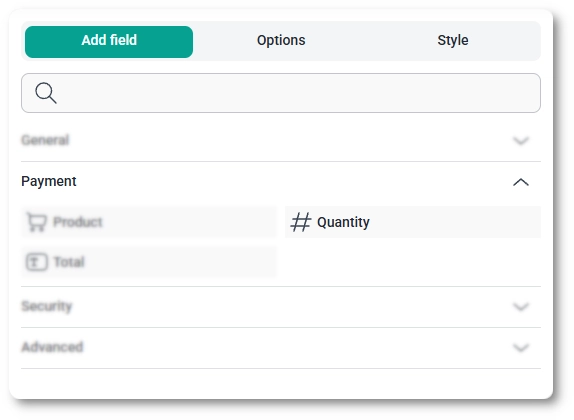
You can add the Quantity field from the Payment fields section in the left panel of the IvyForms builder. Expand Add field → Payment, select Quantity, and it is added to your form, ready to configure in the options panel. Add it after the Product field it will be tied to, since you map the two together in the next step.
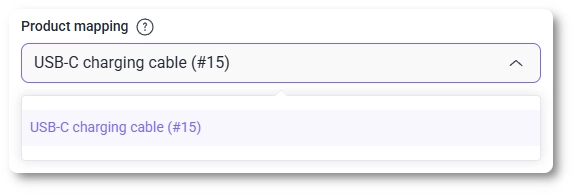
The Quantity field connects to a product through the Product mapping setting in its General tab, where you choose which product field this quantity counts. Only products created in the same form appear in the list, so a quantity field cannot pull products from another form. Once mapped, the quantity multiplies the price of the selected product: if a customer picks the 5 m cable at $29.99 and sets the quantity to 3, that line comes to $89.97, which the Total field then adds up. For how the items and prices are defined in the first place, see the Product field documentation.
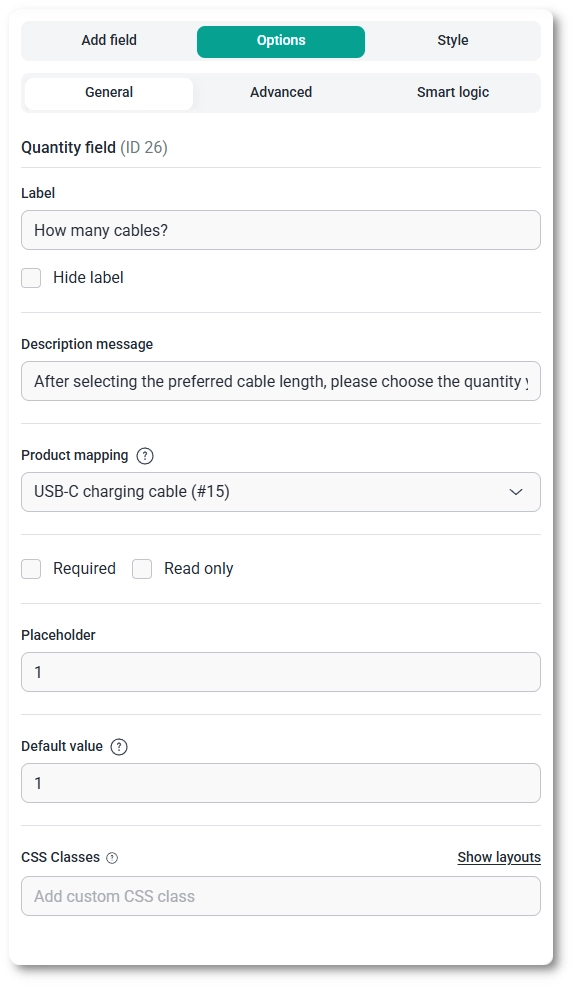
After selecting the Quantity field in the preview, the side panel switches to the Options view, split across the General, Advanced, and Smart logic tabs. These control how the field is labeled and mapped, the range and step of the numbers it accepts, and when it appears.
The General tab shows the field type (Quantity) and its field ID, along with the core options that control labeling, mapping, and input.
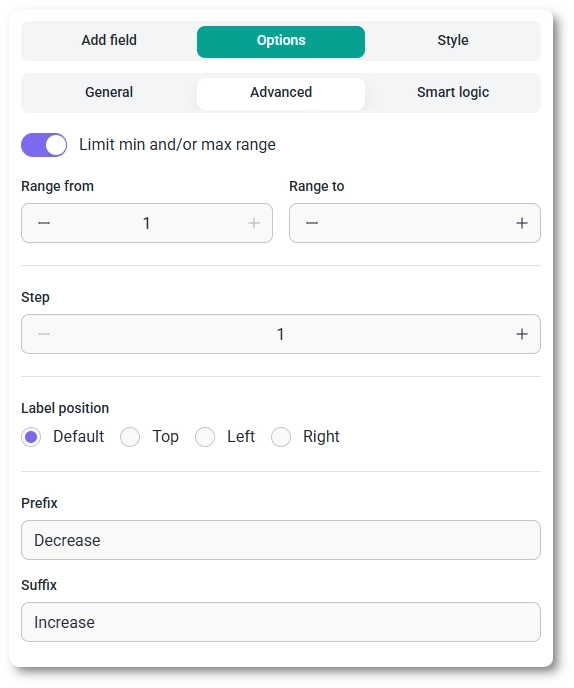
The Advanced tab controls the allowed numbers, the increment, and the layout around the field.
Smart logic is a Pro feature. It lets you show or hide the Quantity field based on what customers enter in other fields: set Conditional Logic to Yes, choose whether Any or All rules must match, then build rules from a source field, an operator, and a value. The operators available depend on the source field; see which conditions you can use in a rule for the full list. For example, you can reveal the quantity only after a product has been selected.
On the front end the field shows a number box with minus and plus steppers, framed by any Prefix and Suffix text you set, with the description message below it. Customers can type a number or use the steppers, which move in whatever Step you configured and stay within the range you allowed.

After a form is submitted, the quantity appears in both the single entry view and the all-entries table, and the value is included in email notifications and webhook payloads when those are enabled. The same value feeds the Total field, which multiplies it by the mapped product’s price to produce the amount the customer pays.
Always set Product mapping so the quantity has a price to multiply; without it, the number has nothing to calculate against. Use Range from and Range to to keep orders sensible, and reach for a fractional Step only when partial amounts genuinely make sense. A short Suffix naming the unit (such as the item being counted) reads more clearly than leaving the box bare. To customize colors, spacing, typography, buttons, and the overall form appearance, see the Style tab documentation.


