Table of contents
A visitor filling out your form needs to submit something formatted, maybe a short bio with a bold name and a couple of bulleted highlights, or a description with a link or two. The Rich Text field gives them a full editor to do exactly that, then stores everything they wrote as clean HTML. This article covers where to find the field, what people can format with it, the settings you can configure, and how submissions are saved and displayed.
The Rich Text field is a Pro feature, so it is available only on paid IvyForms plans.
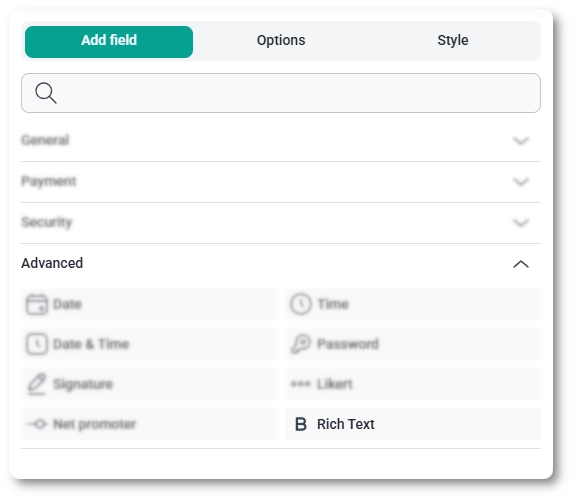
You can add the Rich Text field from the Advanced fields section in the left panel of the IvyForms builder. Expand Add field → Advanced, select Rich Text, and it is added to your form, ready to configure in the options panel.
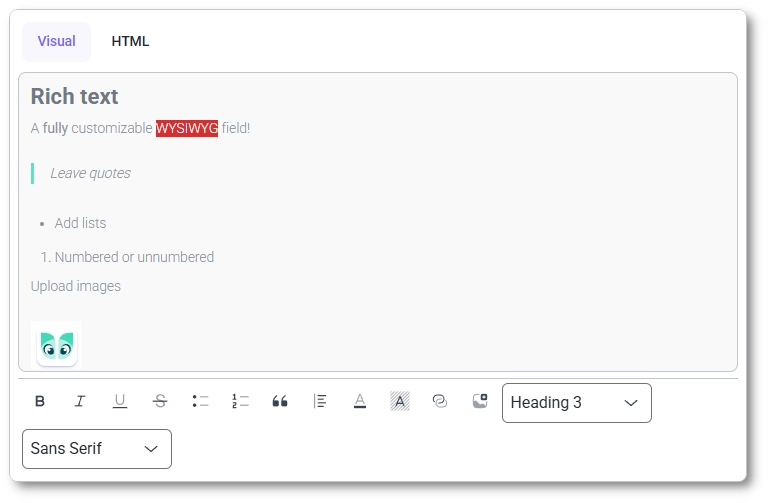
The Rich Text field gives users a full WYSIWYG (What You See Is What You Get) editor with two modes: a Visual tab for formatting without code, and an HTML tab for entering or reviewing raw markup. The toolbar covers the formatting people expect, including bold, italic, underline, and strikethrough; bulleted and numbered lists; blockquotes; alignment and indentation; text color and highlight; links; and inserting media. Two dropdowns let users pick a block format (such as Paragraph or a heading) and a font family. Whatever they produce is sanitized when the form is submitted, so inline scripts are stripped and the content stays safe to display.
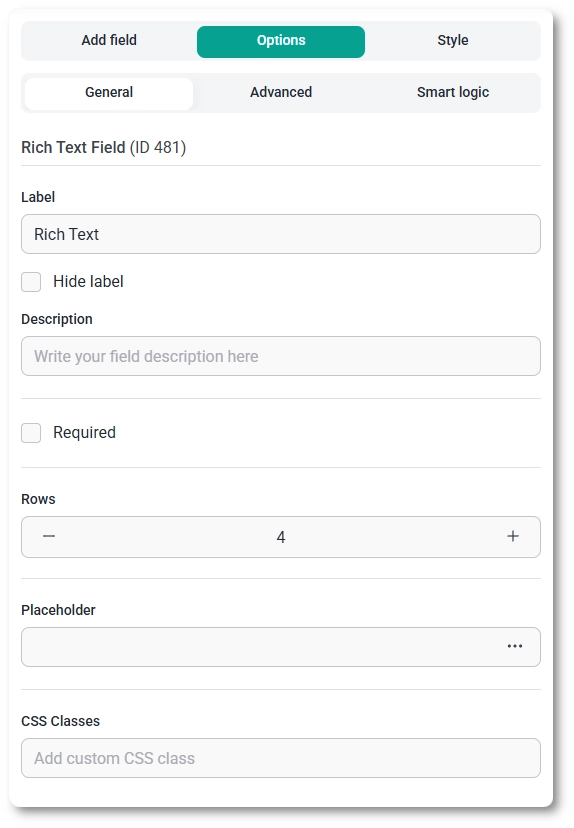
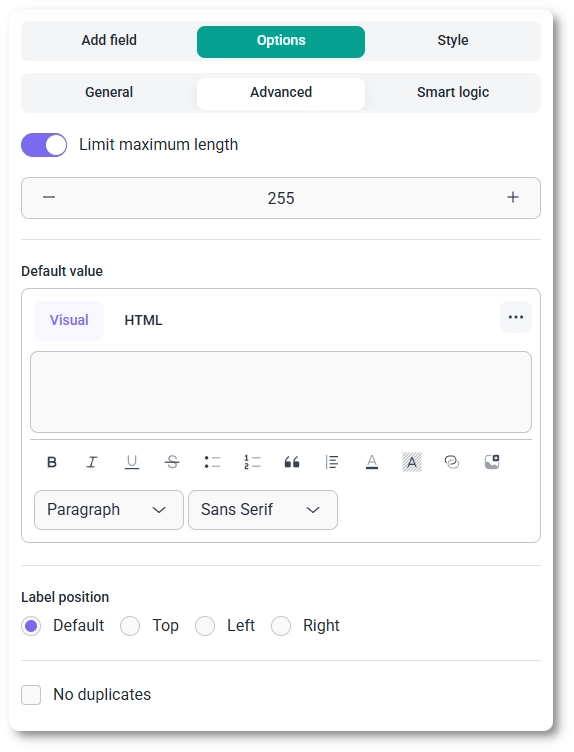
After selecting the Rich Text field in the preview, the side panel switches to the Options view. The settings are split across three tabs, General, Advanced, and Smart logic, which control how the field looks, how it behaves, and when it appears.
The General tab shows the field type (Rich Text) and its field ID, along with the core options that control how the field appears and how users interact with it.
The Advanced tab adds options that shape what the field starts with and how input is constrained.
The Smart logic tab lets you show or hide the Rich Text field based on what users enter in other fields. Set Conditional Logic to Yes, choose whether Any or All rules must match, then build rules from a source field, an operator (equals, does not equal, contains, or does not contain), and a value. For example, you can reveal the editor only when a dropdown selection equals a specific option.
The Rich Text field can be controlled by conditional logic, but it cannot be used as a condition for other fields; it will not appear in the source-field dropdown when you build rules elsewhere.
Submissions from the Rich Text field are stored as HTML, so the formatting users applied is preserved exactly. The value renders with its formatting in the single entry view and is available in the entries table, email notifications, and webhook payloads, which means bold text, lists, links, and highlights all carry through to wherever the data ends up.
Use the Rich Text field when you genuinely need formatted input; for plain multi-line text, the Paragraph field is the lighter choice. Keep the maximum length sensible so entries stay manageable, set a Default value when you want to hand users a starting template, and remember the field cannot drive conditional logic for other fields. To customize colors, spacing, typography, buttons, and the overall form appearance, see the Style tab documentation.