

Table of contents
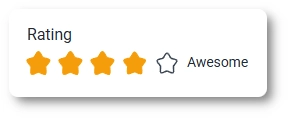
The Rating field allows you to collect quick feedback from users using visual rating icons such as stars, hearts, or likes. Instead of typing an answer, users simply select a rating level that represents their experience.
This field is commonly used in feedback forms, surveys, and post-interaction evaluations where you want users to respond quickly and intuitively.
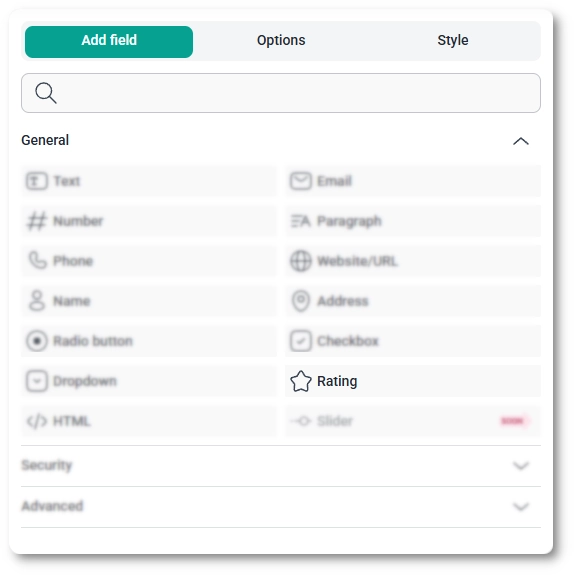
You can add the Rating field from the General fields section in the IvyForms builder. When you expand this panel, you will see the Rating field listed alongside other input types.
Click it to insert it into your form, then select the field in the preview to open its configuration options.
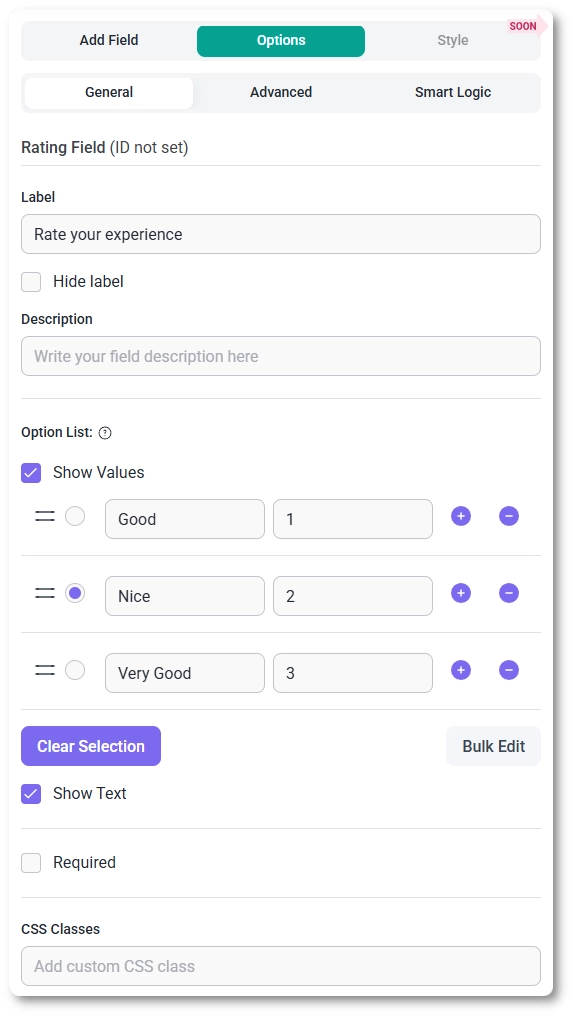
After adding the Rating field, selecting it in the preview switches the sidebar to the Options view. Settings are organized into three tabs: General, Advanced, and Smart logic.
These settings control how rating values are defined, how they are displayed, and when the field becomes visible in the form.
The General tab contains all core options for configuring how the Rating field behaves. This is where you see the field type, it’s ID, and where you define the rating scale, labels, and submission requirements.
You can also manage the rating options:
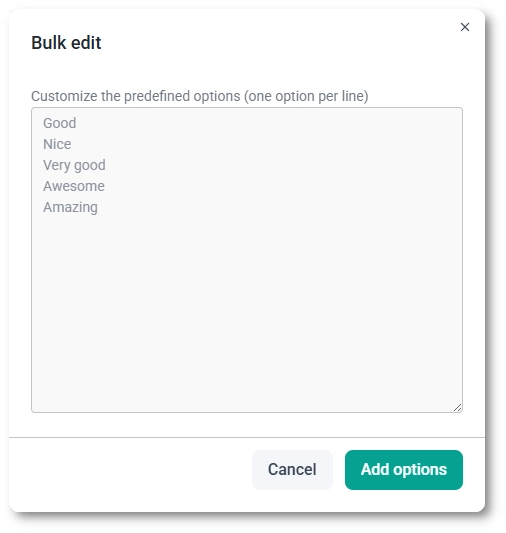
The Rating field includes a Bulk Edit option that allows you to update all rating labels at once.
When you click Bulk Edit, a panel opens where you can quickly modify the entire list of rating values instead of editing each option individually.
After saving, the updated values are applied directly to the field and can still be adjusted manually if needed.
The Advanced tab contains display-related settings that affect how the rating appears in your form.
These options allow you to adjust the look and feel of the Rating field to better match your form design.
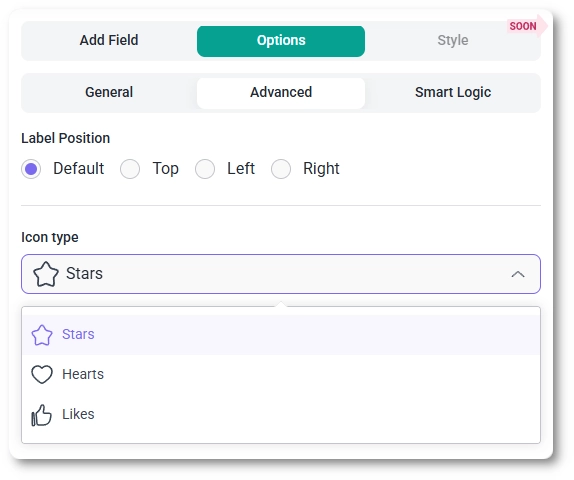
Smart Logic is available only in the Pro version of IvyForms.
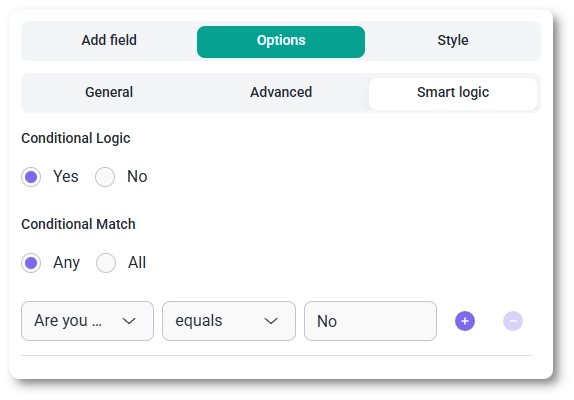
The Smart logic tab allows you to show or hide the Rating field based on conditions from other inputs. Once enabled, you can define rules that determine when the field should be displayed.
When smart logic is active, the Conditional match setting lets you choose how rules are evaluated:
For example, you can display the Rating field only after a user selects a service, completes a section, or submits specific answers earlier in the form.
To customize colors, spacing, typography, buttons, and the overall form appearance, see the Style tab documentation.


