


Table of contents
Imagine asking an AI assistant to “list my forms, then add a phone field to the contact form” and watching it happen without you clicking through the admin yourself. That’s what MCP (Model Context Protocol) brings to IvyForms; it lets an AI assistant work with your forms through conversational tools that run on the same REST API as the admin interface. The main in-product use is with Angie, Elementor’s AI assistant, which can call IvyForms tools while you’re in the WordPress admin. This article explains what MCP can do, how to turn it on or off, and where its limits are.
A few things have to be in place before MCP will work:
The first time you activate Angie it sends you to an Elementor login, but that account is free to create, so you don’t need a paid Elementor license to use Angie with IvyForms. Angie runs on daily-renewing credits during its beta.
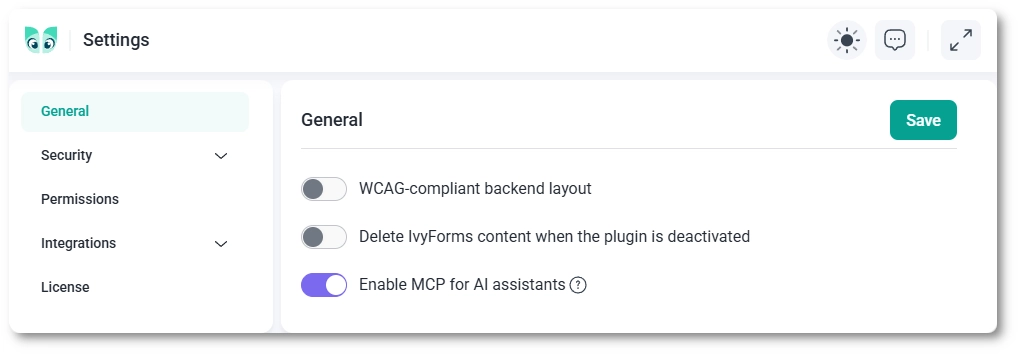
IvyForms MCP is turned on by default, so you can start using it with Angie right away. To turn it off, go to IvyForms → Settings → General, switch off Enable MCP for AI assistants, and save. To turn it back on, switch the option on again and save. While MCP is off, the MCP endpoint isn’t registered and any agent that tries to reach it gets a 404 (not found) error. For more on this screen, see the general settings documentation.
Developers can override the stored setting with the ivyforms/mcp/enabled filter to force MCP on or off, but the toggle in settings is the normal way to do it.
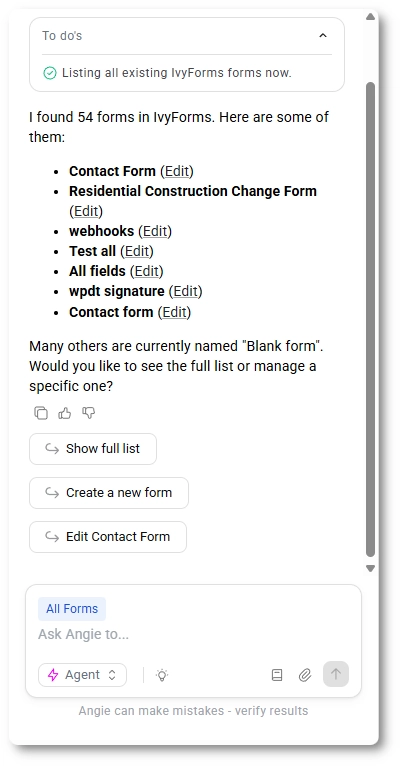
When Angie is active, IvyForms loads a small script on its admin screens that connects to the WordPress MCP endpoint at /wp-json/mcp/ivyforms-mcp-server and registers a server named IvyForms. From then on, when you ask Angie to manage your forms, it calls IvyForms tools that run through the same REST API as the admin interface, with the same permissions as your logged-in WordPress user, so Angie can only do what that user is allowed to do in IvyForms. You need to be logged into WordPress in the browser for this to work, since the connection uses your logged-in WordPress session. If you’d rather drive IvyForms from an external assistant like Claude Desktop, Cursor, or Claude Code, that’s a separate and more technical setup; see the connecting an external MCP client documentation.
Administrators can use every IvyForms MCP tool, and other users can use the tools that match the IvyForms permissions they have been given. You assign these permissions in IvyForms → Settings → Permissions; see how permissions work in IvyForms for the full setup. Users without any IvyForms permission can’t use MCP.
Each permission unlocks a group of tools:
If a permission rule is limited to specific forms, the AI can work with only those forms.
With MCP on, the assistant can use a fixed set of tools across these areas:
MCP deliberately leaves some actions out, both for safety and for privacy:
Because the assistant acts with the permissions of the logged-in user, you keep MCP secure by controlling who holds those permissions. Follow these practices:
The assistant can change live forms, fields and notifications, not just read them, within the permissions of the logged-in user. Be careful about who you give those permissions to.
If Angie isn’t listing IvyForms tools, check that Enable MCP for AI assistants hasn’t been turned off, that you’re on WordPress 6.9 or newer, that the Angie plugin is active, and that you’re on an IvyForms admin page. A 404 on the MCP URL means MCP is turned off in settings. A permission error usually means you’re not logged in, or your user doesn’t have the IvyForms permission that tool needs, so check IvyForms → Settings → Permissions. If tools went missing right after a deploy, the front end build may not have run, so the bridge script isn’t present.

