









A form is usually the last thing standing between a visitor and whatever you actually want them to do: buy something, sign up, ask a question. Optimizing that form means…
Table of contents
A portfolio PDF that runs past 10 MB gets rejected by a Typeform upload field and goes straight through on Jotform. Typeform limits each file to 10 MB, while Jotform accepts up to 1 GB, a gap of roughly 100 times (Typeform and Jotform help documentation, October 2026).
Gaps like that are why the template matters. The file field comes pre-configured, so the form collects documents, images or videos without any custom upload code. Recruiters use these templates for resumes and insurers use them for claim photos. Agencies mostly lean on them for client documents.
What does an upload form template include?
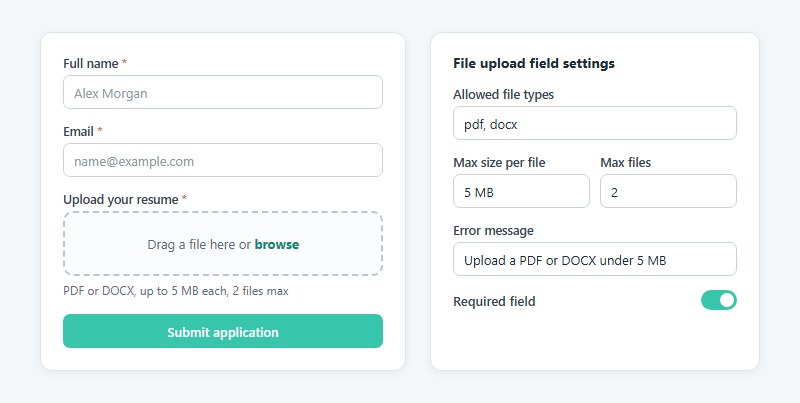
A contact form template collects text and nothing else. The file field is what separates an upload template from it, and the settings on that field decide how the whole form behaves.
Accepted file types
The allow list limits the field to extensions like PDF, JPG, PNG, DOCX or MP4, and builders disagree about how much say you get. Typeform accepts every file type and gives you no list to edit (Typeform Help Center). SurveyMonkey sits in the middle, offering a fixed set of PDF, DOC, DOCX, PNG, JPG, JPEG and GIF to choose from (SurveyMonkey Help Center). Jotform is the most flexible. You type your own extensions into the File Types box under Options.
Allow only what you’ll actually open. Resume forms get by on PDF and DOCX, and a photo contest only needs JPG and PNG.
File size limits
Each file gets checked against a per-file cap, and the whole submission (or sometimes the whole account) gets checked against a bigger one.
On WordPress, a form plugin often has no cap of its own. WPForms sets none and falls back on the PHP limits upload_max_filesize and post_max_size, according to its documentation.
Raising that ceiling means editing PHP settings or asking the host, which this guide to raising the WordPress upload size covers.
I’d set the per-file cap at the largest file you expect plus a small margin. Go much higher and you’re inviting oversized videos nobody asked for. In IvyForms, the File Upload field takes that cap in MB, along with the allowed file types and the number of files.
Number of files per submission
Jotform recommends a maximum of 25 files per entry (Jotform Help Center), and the field’s Multiple tab has a Limit Number of Files toggle if you want your own cap.
Typeform goes the opposite way. Each File Upload question holds one file, so a form that needs three documents uses a question group with three upload blocks.
Mark the field required when the document is mandatory, like a resume or an ID scan. Leave it optional for supporting material. These form validation best practices help the required message say what is missing.
Which form builders offer upload form templates?
Most of the big ones do. IvyForms, Jotform, Typeform, Fillout, Google Forms and WPForms all ship a file upload field with templates built around it, and the real differences show up in the per-file cap and in whether respondents have to sign in. File counts vary too.
| Builder | Per-file cap | Files per submission | Catch |
|---|---|---|---|
| IvyForms | Set per field, in MB | One on Lite, several on Pro with an optional cap | Multiple files, file type limits and email attachments need Pro |
| Jotform | 1 GB | 25 recommended per entry | Free plan stores 100 MB in total |
| Typeform | 10 MB | One per question | Basic plan or higher |
| Fillout | 20 MB to 5 GB, by plan | Unlimited, within fair use | Cap rises only on higher plans |
| Google Forms | Up to 10 GB | Set per question | Respondents must sign in |
| WPForms | Server PHP limit | Several, with Modern style | Upload field is in the paid version |
Figures come from each builder’s help documentation as of October 2026. How-To Geek reports the 10 GB Google Forms ceiling, while Google’s own help page confirms the sign-in rule and the Drive folder. IvyForms details come from its file upload field documentation.
How IvyForms handles uploads
IvyForms gives respondents a drag and drop area, and single-file uploads are free. Pro adds multiple files, a cap on how many can be sent (0 means no limit) and a list of allowed extensions such as PNG, JPG, GIF or WebP.
You also choose where files land: the IvyForms default location or the WordPress Media Library. Pro can attach uploads to notification emails too, but that is off by default for each notification.
The per-file size limit is yours to set, in MB, so the real ceiling is your server’s PHP limit. One more thing. Version 1.5.2 patched an arbitrary file upload vulnerability (CVE-2026-109384), so update before you open a public upload form.
Templates split the same way. Free ones cover basic fields, while Pro templates are the ones built around file uploads, conditional logic and payments.
Typeform’s cap is fixed. Its help center sends oversized files to a Website question, where respondents paste a Dropbox or Google Drive link instead.
Google Forms has the biggest ceiling and the biggest catch. Respondents have to sign in with a Google Account, and every file lands in the form owner’s Drive. Forms stored in a shared drive can’t take uploads at all.
If your audience is the general public, it is worth checking alternatives to Google Forms before you commit.
WPForms keeps the File Upload field in its paid version, per WPForms support, and its Modern style adds drag and drop. The plugin route is covered in this guide to adding a file upload to a WordPress form.
Watch total storage, not only per-file caps. A free Jotform account holds 100 MB of uploads in total (Jotform Support), so ten 10 MB files fill it.
If your files stay under 10 MB and volume is low, any builder in the table works. Videos or scans past 100 MB point toward Jotform, Fillout on a higher plan, or a Drive-backed form. If the form lives on a WordPress site and you want files stored on your own install, IvyForms is the simplest fit. And if the audience is anonymous and public, skip Google Forms.
Upload Form Templates
Modern Drag & Drop File Upload Form
See the Pen
Modern Drag & Drop File Upload Form by Bogdan Sandu (@bogdansandu)
on CodePen.
Modern Image Upload Form with Live Preview
See the Pen
Modern Image Upload Form with Live Preview by Bogdan Sandu (@bogdansandu)
on CodePen.
Modern File Upload Form with Validation
See the Pen
Modern File Upload Form with Validation by Bogdan Sandu (@bogdansandu)
on CodePen.
Modern Profile Picture Upload Form
See the Pen
Modern Profile Picture Upload Form by Bogdan Sandu (@bogdansandu)
on CodePen.
Modern Media Gallery Upload Form
See the Pen
Modern Media Gallery Upload Form by Bogdan Sandu (@bogdansandu)
on CodePen.
Modern Media Upload Form with Live Preview
See the Pen
Modern Media Upload Form with Live Preview by Bogdan Sandu (@bogdansandu)
on CodePen.
Drag & Drop File Reorder Form
See the Pen
Drag & Drop File Reorder Form by Bogdan Sandu (@bogdansandu)
on CodePen.
Modern Multi-Step Form with File Upload
See the Pen
Modern Multi-Step Form with File Upload by Bogdan Sandu (@bogdansandu)
on CodePen.
Modern Multi-Upload Form with Glassmorphism Design
See the Pen
Modern Multi-Upload Form with Glassmorphism Design by Bogdan Sandu (@bogdansandu)
on CodePen.
Accessible File Upload Form
See the Pen
Accessible File Upload Form by Bogdan Sandu (@bogdansandu)
on CodePen.
Which upload form template fits each use case?
Start from the document you’re collecting and set the field around that. A resume is a small PDF or DOCX. A contest entry might be a video, which changes the caps completely.
| Use case | File types | Size cap and count | Storage |
|---|---|---|---|
| Job application | PDF, DOCX | 5 MB, 2 files | Builder storage with email alert |
| Client intake | PDF, JPG, PNG, DOCX | 10 MB, up to 10 files | Google Drive or Dropbox folder per client |
| Insurance claim | PDF, JPG, PNG | 25 MB, up to 10 files | Encrypted storage, restricted access |
| ID verification | JPG, PNG, PDF | 10 MB, 2 files (front and back) | Restricted storage with a deletion date |
| Photo or video contest | JPG, PNG, MP4, MOV | 100 MB to 1 GB, 1 to 3 files | Cloud storage such as Amazon S3 or Dropbox |
These are starting points, not builder defaults. Adjust them to your storage plan and your real files.
For job applications, pair the resume field with the layout from these application form templates. Keep the form short, because the upload is already the heavy step.
Intake forms mix text answers with documents. Borrow the question order from these intake form examples and put the upload field last.
Jotform’s file upload gallery already covers most rows. Invoice, contract, photo contest entry and art submission forms are listed there as separate templates.
ID and claim forms are where this goes wrong most often. They hold personal data, so the storage choice matters more than the file type on those two rows.
How do respondents upload files through a template?
A respondent can pick a file with a browse button, drag it in, snap it with a phone camera, or pull it from cloud storage or a URL. Which of those show up depends on the builder and the field style.
Browse button and drag and drop
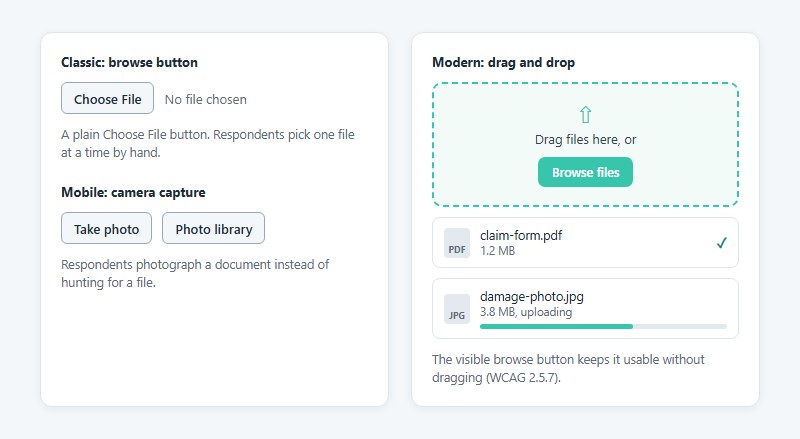
WPForms calls the plain version Classic, and it’s just a Choose File button. Its Modern style swaps that for a drag-and-drop box that takes several files at once.
Jotform’s drag and drop depends on the browser, and respondents on an unsupported browser fall back to picking files by hand (Jotform blog).
FormBuilder adds a file preview, which helps most when respondents upload images. To build the drop zone yourself, see this walkthrough on making a drag and drop file upload form.
Mobile camera capture
Camera capture lets a respondent photograph a document instead of hunting for a file. QuestionStar’s File Upload question offers it directly on mobile devices.
Phones are where uploads fail first. A Typeform Community post describes customers on weak connections losing a multi-file upload mid-transfer, so keep the per-file cap lower on forms aimed at mobile users.
The rest of the form deserves the same care, and these mobile form best practices cover it.
Cloud storage and URL imports
Dropbox, Google Drive, OneDrive, Box and a pasted URL all work as sources through Jotform’s Uploadcare integration, which sits alongside drag and drop.
A related option works in the background. Jotform can send files to Google Drive or Dropbox while the respondent is still filling in the form, which Jotform says raises completion rates.
Where do uploaded files go?
Unless you tell the form otherwise, files stay in the builder’s own storage. The alternatives are a connected cloud drive, your own website’s server, or an object store like Amazon S3, and each of those needs a setting or an add-on.
Files kept in builder storage stay in the account until submissions are deleted. A deleted submission sits in Trash for 30 days while still counting toward upload space (Jotform Support).
Cloud drives are the easy route. Google Drive, Dropbox and Office 365 are among the 120-plus apps Typeform connects to, with Zapier covering the rest (Typeform).
On WordPress, WPForms saves uploads in its own folder inside the site’s uploads directory. Its Dropbox and Google Drive add-ons send a copy elsewhere, with an option to delete the local files afterward.
Amazon S3 is usually reached through Zapier or a webhook that carries the uploaded files in its payload.
Routing files to Google Drive
In Jotform’s Google Drive integration, the Send Uploaded Files to Google Drive setting sends a copy of the files and not only the answers. Create Subfolders for Submissions then gives each entry its own folder, and the folder name can come from a form field, say the applicant’s name.
Per-applicant folders beat one flat folder as soon as two people need to find the same file.
One gotcha. A File Upload field added after the integration was created isn’t picked up automatically. Jotform Support’s fix is to delete the Drive action and set it up again.
Amazon S3 for large files
One PUT request to Amazon S3 uploads an object of up to 5 GB, and anything larger needs multipart upload (AWS S3 user guide).
The documents disagree on the ceiling. The S3 user guide gives 50 TB for a multipart object, while the AWS SDK for PHP guide still says 5 TB.
Check the figure for your SDK version before promising very large uploads. OpnForm describes how no-code builders get files to S3, with Zapier or a webhook forwarding each file to the storage you choose.
Notifications and automation
Notifications go to your team by email, and an autoresponder can go to the respondent. A webhook sends the same submission on to your own system.
Notification emails carry the file as an attachment or as a link. WPForms offers uploaded files as attachments, and Jotform falls back to links when a submission’s uploads are too large to attach. IvyForms has an option in each notification to attach uploaded files to that email.
When those emails never arrive, check the site’s mail setup first, starting with these WordPress email settings.
How do you secure an upload form?
A file type setting in the builder only does a sliver of the work, and it covers validation only partly. The rest is malware scanning, encryption and limiting who can open the files.
File validation and malware scanning
OWASP’s File Upload Cheat Sheet says not to trust the Content-Type header, because it can be spoofed, and to check the file’s signature against the type you expect.
An extension allow list comes first and catches the obvious wrong types. A MIME type check then compares the declared type with that list, and a file signature check goes further by reading the file’s leading bytes. Malware scanning comes last, with antivirus or a sandbox, plus content disarm and reconstruction for PDF and DOCX.
Run all of these on the server, not in the browser. The difference is covered in this piece on client-side versus server-side form input validation.
A GitHub advisory from November 2023 shows why one check is not enough. CarrierWave’s Content-Type allow list used partial matching, so a crafted value such as text/html;image/png passed a rule meant to allow only image/png.
Some platforms scan for you. FormBuilder says it scans every upload with ClamAV, and the Drupal ClamAV module blocks a file from being saved when ClamAV flags it as infected (Acquia documentation).
OpenProject takes the same approach with a quarantine option, which keeps an infected attachment in place but makes it unreachable.
Self-hosted scanning has a ceiling. Acquia’s documentation states that ClamAV cannot scan files above 1024 MB, so set the per-file cap below that line on any form that relies on it.
Encryption, access and privacy rules
Amazon S3 encrypts new objects by default with SSE-S3 (AWS documentation). On any other storage, confirm that encryption at rest is on before the first ID scan arrives.
Limit folder access to the people who process the documents. Turn on the builder’s CAPTCHA as well, so bots can’t fill storage with junk uploads.
GDPR Article 5(1)(e) requires personal data to be kept in identifiable form for no longer than necessary. Every resume or ID scan needs a defined deletion point, which this guide to creating GDPR compliant forms walks through.
HIPAA adds a plan requirement. Jotform’s HIPAA features need a Gold or Enterprise plan and a signed business associate agreement, and the apps you route files to need their own BAA too (Jotform HIPAA FAQ).
How to create an upload form from a template
Most of the work is in the file field and the storage connection, since that’s where these forms tend to break.
- Pick the template that matches the document you collect: resume, ID scan, claim photos or contest entry.
- Open the File Upload field. Jotform lists it under Form Elements, and Fillout calls it the File uploader.
- Set the allowed file types and the per-file cap. Then decide how many files one submission can carry, and mark the field required when the document is mandatory.
- Connect storage, whether that’s a Drive or Dropbox folder or an S3 route through Zapier or a webhook.
- Set up notifications for your team and an autoresponder for the respondent, then write the confirmation message.
- Embed the form on a page or share its link.
- Test with a file sitting right at the cap and another with a blocked type, then try one upload from a phone.
The confirmation text is where respondents learn their file arrived, so write it on purpose. This guide to the form submission confirmation message has wording that works.
What goes wrong and how to fix it
| Symptom | Cause | Fix |
|---|---|---|
| Upload rejected as too large | Per-file cap, plan storage or PHP limit | Raise the cap, upgrade, or collect a link instead |
| Blocked file type error | Allow list too narrow | Add the extension and name the allowed types in the error text |
| Upload fails on a phone | Weak connection, large file | Lower the cap, ask for a photo instead of a video |
| File missing in Drive | Field added after the integration | Rebuild the integration (Jotform Support) |
| Email arrives without the file | Uploads too large to attach | Open the link or the stored copy |
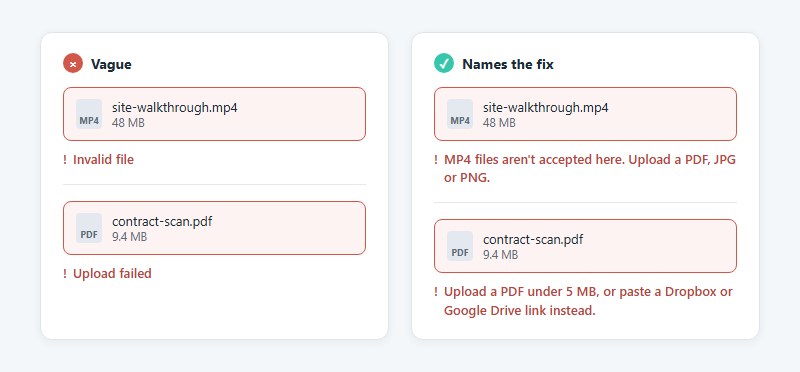
Error messages should name the fix. These form error message examples show the pattern, such as “Upload a PDF under 5 MB” in place of “Invalid file”.
When is an upload form template the wrong tool?
Templates stop making sense once files outgrow the builder’s caps or volume outgrows plan storage. They also fall short when regulated data has to stay in storage you control. At that point a coded or hosted uploader pays for itself.
Coded uploaders and hosted services
- The native HTML input type file works for one small file and is weak on upload progress reporting.
- Dropzone.js is an open source drag and drop library.
- Uppy, also open source, is modular and brings resumable uploads, webcam capture and an S3 plugin, per its documentation.
- Uploadcare and Filestack are paid managed services.
Uppy’s comparison page lists Uppy, Dropzone and Filepond as open source, and Uploadcare and Filestack as managed services.
Resumable uploads are the feature that rescues large files on weak connections. Uppy’s own docs concede that a plain input type file is fine in many situations, and these HTML form best practices cover the markup around it.
Template route versus coded route
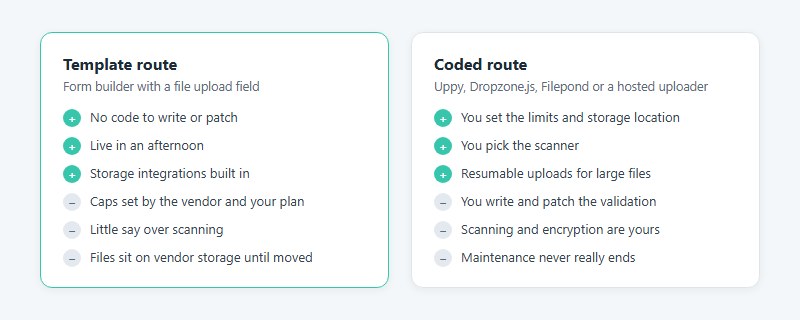
A template needs no code to write or patch, and it can be live in an afternoon. Storage integrations come built in. The vendor and your plan fix the caps, though, and you get little say over scanning. Files also sit on the vendor’s storage until you move them.
Going the coded route means you set the limits and the storage location, and you pick the scanner. Resumable uploads for large files come along with that. What you give up is time. You write and patch the validation, scanning and encryption are yours to handle, and maintenance never really ends.
Regulated and high-volume uploads
When an audit requires files to live in your own AWS account or on your own servers, builder storage is out. Keep the form as a front end and route every file to your bucket.
Use a template until a limit blocks you. Then replace the upload step only, not the whole form.
Upload Form Templates FAQ
Are upload form templates free?
Several builders offer them free, with limits. Jotform and Google Forms include the file upload field at no cost, but Typeform’s File Upload question needs a Basic plan or higher, and WPForms keeps its upload field in the paid version.
Why does an upload fail when every file is under the limit?
A total cap sits above the per-file cap. On WordPress, post_max_size limits the whole request, so several files that each fit under upload_max_filesize can still exceed it together.
Builders with account storage quotas fail the same way once the space runs out.
Is there a template for requesting files from a client by link?
Yes. A file request form is a short upload template with a name field, a file field and a submit button. Jotform’s gallery lists Upload Your Files Request Form and Send Your Files Form as ready-made examples.
Are drag and drop upload forms accessible?
Only when the drop zone has a click alternative. WCAG 2.2 success criterion 2.5.7 (Level AA) requires any dragging action to work with a single pointer without dragging, so a visible browse button satisfies it (W3C).
Labels, focus order and error text are covered in these form accessibility best practices.
How do I stop spam uploads from filling my storage?
Turn on CAPTCHA and restrict the field to the file types you actually open. Lowering the per-file cap helps too. A form that accepts only PDF and JPG gives bots little to fill storage with.
These tactics for form spam prevention go further.
Does deleting a submission also delete its uploaded file?
In Jotform, yes. Deleting a submission record removes the attached file and frees upload space, but trashed entries still count against that space until the Trash is emptied (Jotform Support).
Keeping Uploaded Files Under Control After Launch
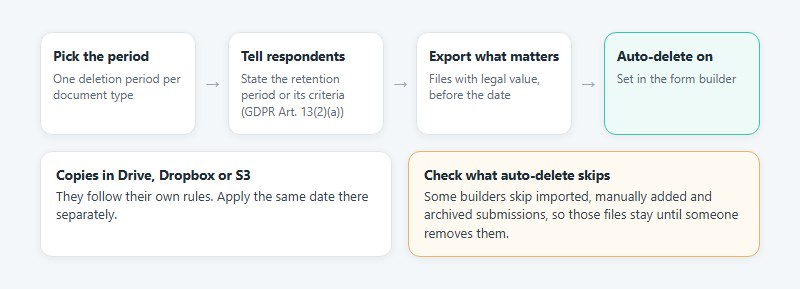
Set a retention rule before launch. That means a deletion period for each document type, enforced through the builder’s auto-delete setting. GDPR Article 13(2)(a) requires telling respondents that retention period, or the criteria used to set it. A consent checkbox next to the upload field is a natural place for that notice, as these GDPR consent form examples show.
Pick the period first, then turn on auto-delete in the builder. Copies in Drive, Dropbox or S3 follow their own rules, so apply the same date there separately.
Auto-delete has a boundary. Jotform skips imported, manually added and archived submissions, so an archived claim file stays until someone removes it (Jotform Help Center, verified October 2026).
Shorter retention also removes evidence, so export anything with legal value before the deletion date.
Once files flow in and expire on schedule, completion is the next thing to work on. These tips for improving form abandonment rate apply to the upload step as much as to any other field.