The Style tab allows you to control the visual appearance of your entire form. Instead of styling each field individually, you can apply a form style that defines colors, borders, spacing, typography, and button appearance across the whole form.
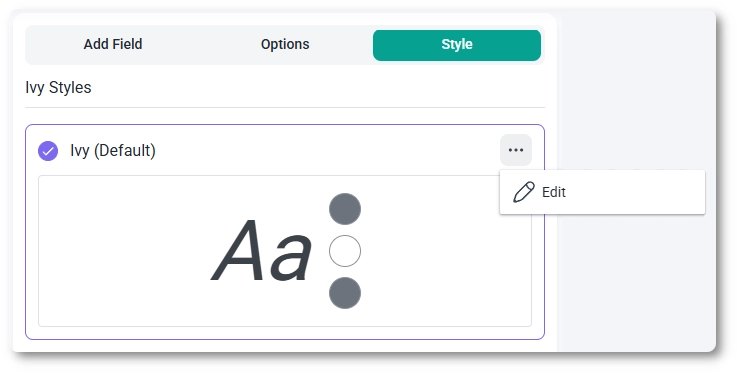
When creating or editing a form, open the Style tab in the form builder. Here you will see a list of available styles. Currently, IvyForms includes the default style called Ivy (Default), but additional styles may be added in the future.
Selecting a style applies a consistent design to the form, ensuring that all fields, labels, and buttons follow the same visual rules.
How do I edit a form style?
To customize a style, open the menu for the style and choose Edit.
The editor opens a panel where you can adjust the visual properties of the form. These settings control elements such as background colors, borders, spacing, typography, and button appearance.
All changes are applied to the form instantly, allowing you to preview how the design affects the overall layout.
What is Quick Start styling?
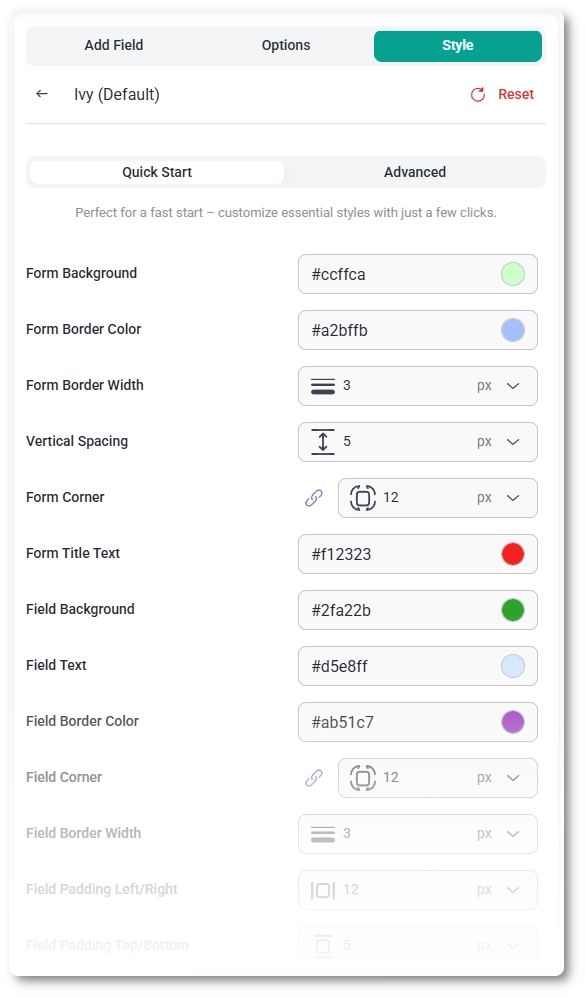
The Quick Start mode provides a simplified set of styling controls so you can adjust the most important design elements quickly.
These options typically include form background, borders, spacing, field appearance, and button styling. With only a few changes, you can adapt the form to match your website colors and overall design.
Quick Start is ideal when you want a fast visual adjustment without managing every design detail individually.
What is Advanced styling mode?
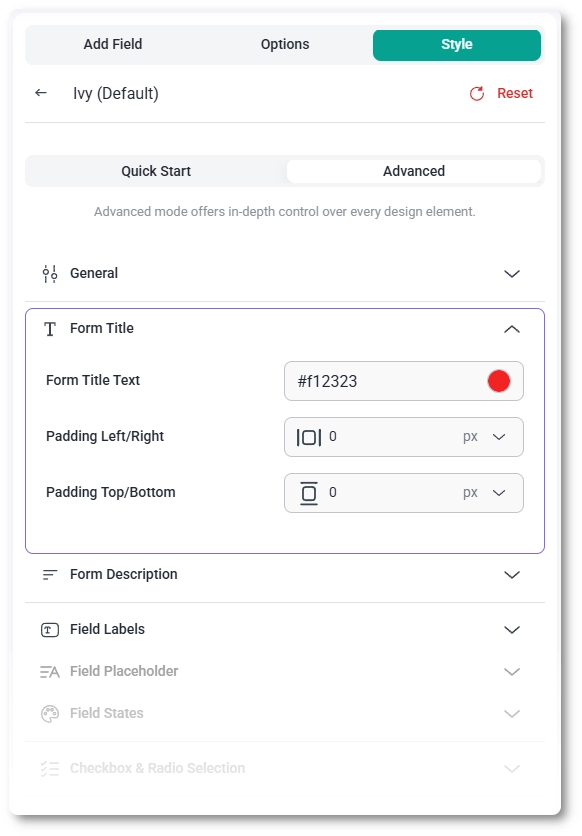
If you need deeper control over the form design, switch to Advanced mode.
Advanced styling divides the form into multiple sections such as form container, titles, descriptions, field labels, input fields, buttons, and confirmation messages. Each section includes its own settings for colors, spacing, borders, and other visual properties.
This allows you to fine-tune the appearance of individual elements while keeping the form design consistent.
How do I reset style changes?
If you want to discard your changes and return to the original style configuration, click the Reset button located at the top of the style editor.
Resetting the style restores all styling values to their defaults, which can be helpful if your design adjustments produce unexpected results or if you want to start over.
What should I consider when styling a form?
Keep contrast readable so labels and field text remain easy to see.
Use consistent colors that match your website theme.
Avoid excessive spacing which can make the form appear disconnected.
Test the form on the front end after making styling changes.
Reset the style if your adjustments produce an unintended layout.
Guides
Explore the IvyForms documentation through key sections like Get Started,
Form Creation, Entry Management, Settings, Integrations, Advanced Features,
and Support & Troubleshooting to make the most of your form-building experience