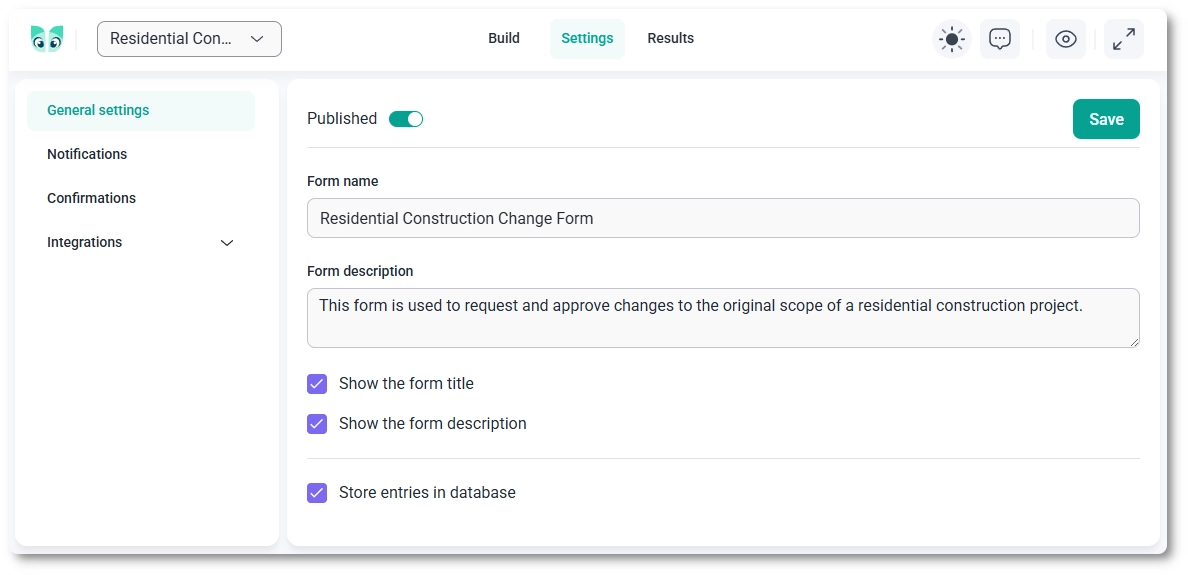
The General Settings section allows you to define the basic properties and behavior of your form. This includes the form name, description, visibility, and how submissions are stored.
These settings are applied per form and do not affect other forms in your dashboard.
Where can I find general settings?
To access general settings, open your form and navigate to the Settings tab, then select General settings from the left-side panel.
Here, you can configure all basic options related to your form.
How do I configure form details?
In the General Settings section, you can define the core information about your form:
Published – Enable or disable the form. When disabled, the form will not be available on the front end.
Form name – Set the internal name of the form used for identification in your dashboard.
Form description – Add a short description to provide additional context about the form.
How do display options work?
You can control whether the form title and description are shown on the front end:
Show the form title – Display the form name above the form.
Show the form description – Display the form description below the title.
How are form entries stored?
IvyForms allows you to control whether submitted data is saved in your database:
Store entries in database – When enabled, all form submissions are saved and can be viewed later in the results section. If disabled, submissions will not be stored.
When should I adjust general settings?
General settings should be configured right after creating your form. These options define how the form appears to users and how submissions are handled, making them an essential first step before setting up notifications or integrations.
Guides
Explore the IvyForms documentation through key sections like Get Started,
Form Creation, Entry Management, Settings, Integrations, Advanced Features,
and Support & Troubleshooting to make the most of your form-building experience