IvyForms stores all form submissions as entries, allowing you to review, manage, and track user responses directly from your WordPress dashboard. You can access entries in several ways, depending on whether you want to view submissions for a specific form or browse entries from a centralized location.
Where can I access form entries?
IvyForms provides multiple entry access points so you can reach submissions quickly without opening the form builder.
From the All Forms list
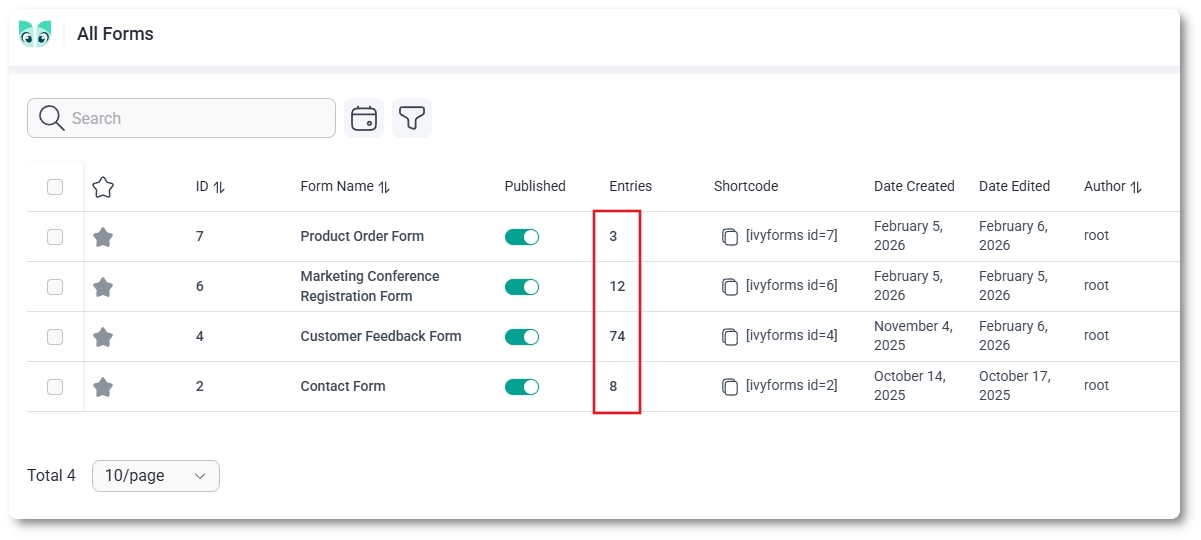
Go to WordPress Dashboard → IvyForms → All Forms. In the Entries column, each form displays the total number of submissions it has received. Clicking this number opens the entries list for that specific form.
From the form actions menu
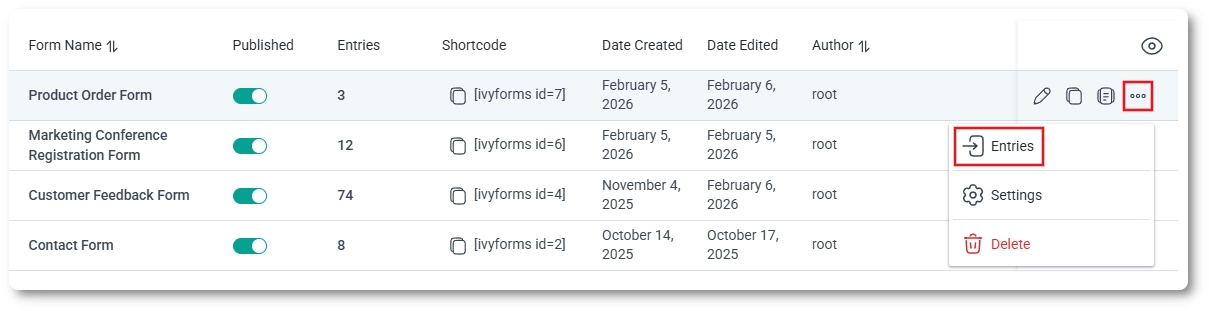
You can also access entries from the form’s action menu. Hover over a form row, click the three-dots menu, and select Entries. This opens the submissions list for the selected form.
From the Entries section
IvyForms also includes a dedicated Entries section in the admin menu. Navigate to WordPress Dashboard → IvyForms → Entries to access entries directly, without starting from a specific form.
What happens when I open the entries list?
When you open entries for a form, IvyForms displays a table containing all submissions for that form. Each row represents a single entry submitted by a user. From this view, you can see key submission details at a glance and continue working with individual entries as needed.
Viewing entries is the starting point for working with form submissions in IvyForms. From here, you can explore how entries are displayed, filtered, and managed, or open individual submissions to review their full details.
Guides
Explore the IvyForms documentation through key sections like Get Started,
Form Creation, Entry Management, Settings, Integrations, Advanced Features,
and Support & Troubleshooting to make the most of your form-building experience