Conditional logic in IvyForms allows you to create dynamic forms that respond to user input. Instead of displaying every field at once, you can configure the form to show or hide specific fields depending on the answers users provide while filling out the form.
This helps keep forms shorter, easier to complete, and more relevant for each visitor. Users only see the fields that apply to them, which improves the overall experience and helps reduce form abandonment.
In IvyForms, conditional logic is configured directly inside the field settings using the Smart Logic tab.
What is conditional logic in IvyForms?
Conditional logic allows a form field to appear only when a specific condition is met. When the condition is not satisfied, the field remains hidden.
For example, you may ask visitors how they would like to be contacted. If they select Email, the form displays an email field. If they select Phone, the form displays a phone number field instead.
The form evaluates these rules live while the user is filling out the form, so fields instantly appear or disappear depending on the selected answers.
This approach helps keep the form simple and prevents users from seeing questions that do not apply to them.
Where do you configure conditional logic?
Conditional logic is configured individually for each field.
To set it up:
Open the form builder
Click the field you want to control
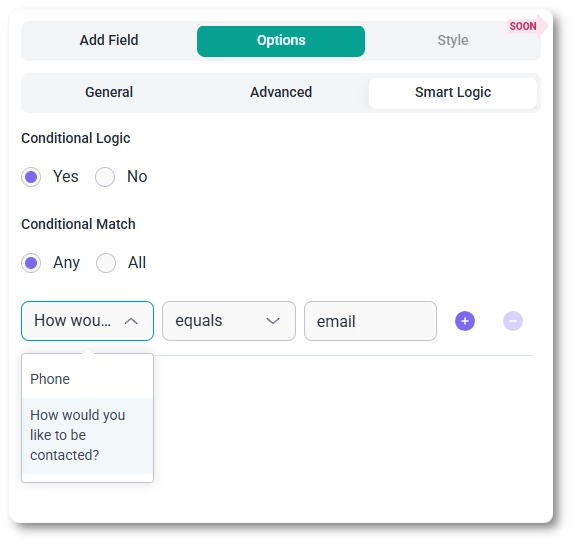
Open the Smart Logic tab
Enable Conditional Logic
Create the rule that determines when the field should appear
Once enabled, the field will remain hidden until the defined condition is satisfied.
How do conditional logic rules work?
Each conditional rule is made of three parts:
Field – the field whose answer will trigger the logic
Condition – the comparison used to evaluate the answer
Value – the value that must match the condition
For example:
Field: Contact method
Condition: equals
Value: phone
In this case, the field will appear only when the user selects the option whose value is phone.
Why do conditional rules use field values instead of labels?
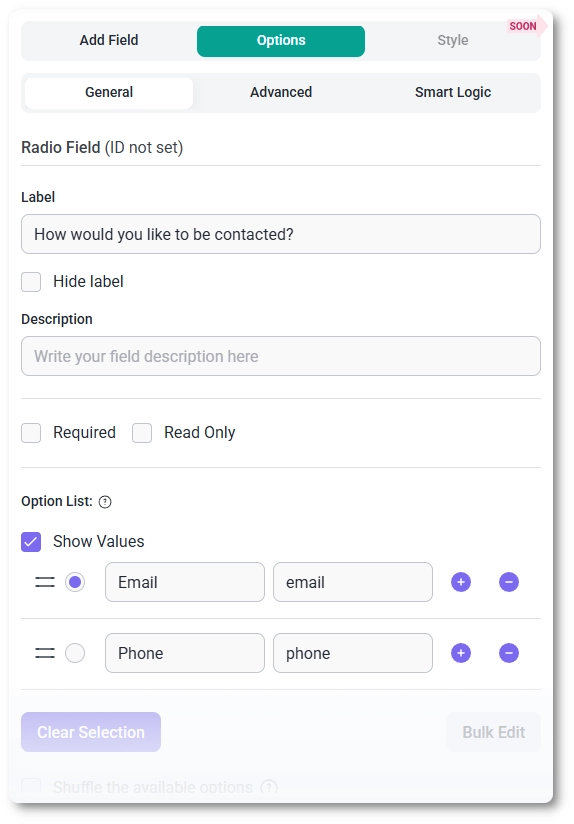
Conditional logic compares the stored field value, not the visible label shown to users. For example, a radio field may contain these options:
Label: Email → Value: email
Label: Phone → Value: phone
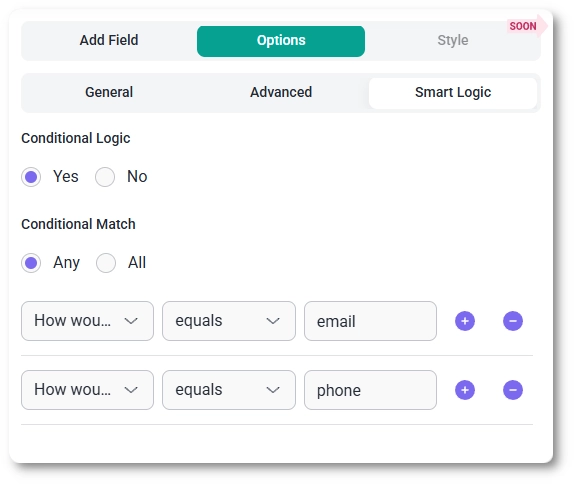
Even though the user sees Email and Phone in the form, the conditional rule must reference the stored values:
email
phone
As long as the rule uses the correct value, the logic will work regardless of what the visible label says.
What does Conditional Match mean?
When multiple rules are added, you can control how the form evaluates them using Conditional Match.
Any – the field appears if at least one rule is satisfied
All – the field appears only if every rule is satisfied
This allows you to create simple or complex conditions depending on how your form should behave.
Example of conditional logic in a contact form
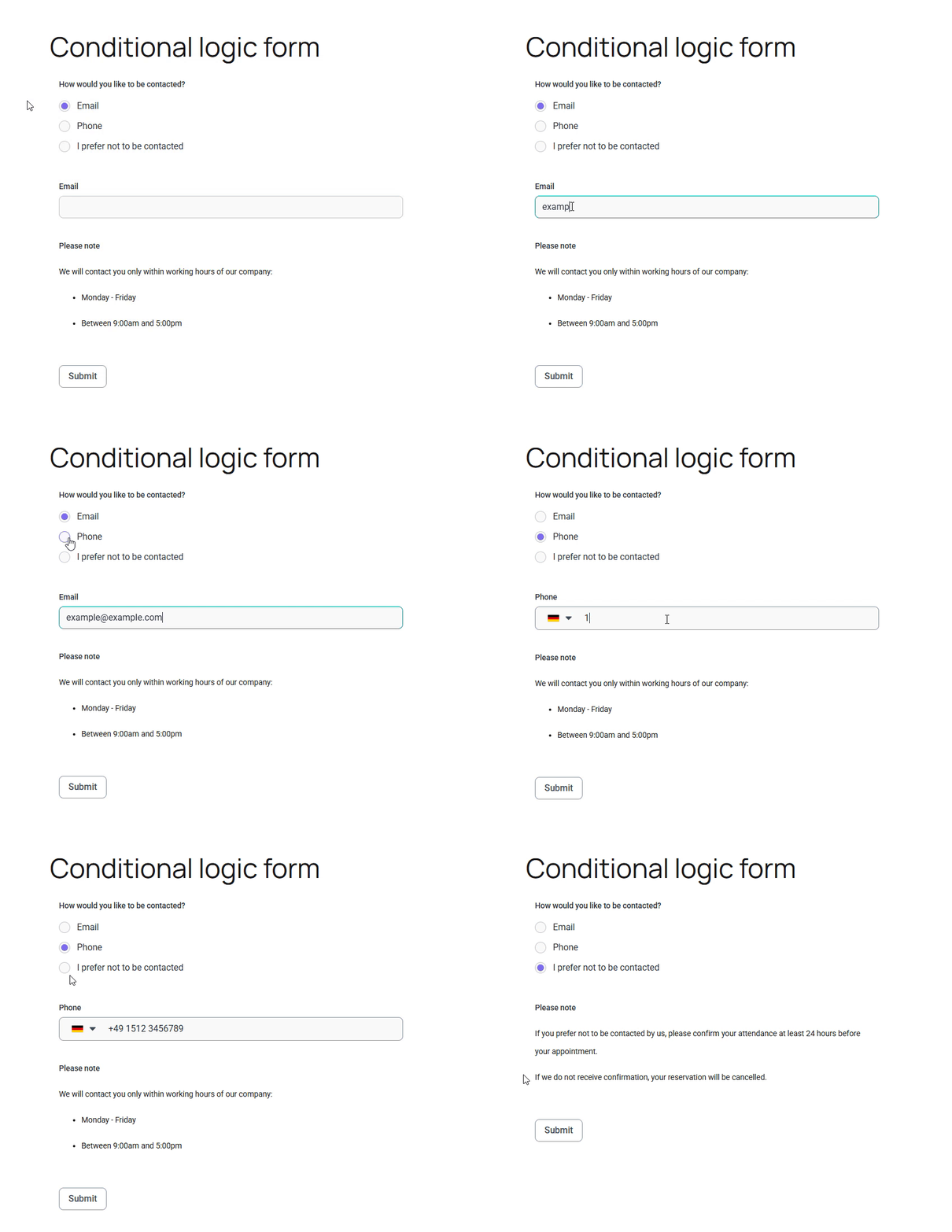
A common example is showing different contact fields depending on the preferred communication method.
For example:
If the visitor selects Email, the form shows the Email field
If the visitor selects Phone, the form shows the Phone field
The form instantly updates while the user interacts with it, showing only the field that matches their choice.
Guides
Explore the IvyForms documentation through key sections like Get Started,
Form Creation, Entry Management, Settings, Integrations, Advanced Features,
and Support & Troubleshooting to make the most of your form-building experience