

Table of contents
Conditional logic in IvyForms allows you to create dynamic forms that respond to user input. Instead of displaying every field at once, you can configure the form to show or hide specific fields depending on the answers users provide while filling out the form.
This helps keep forms shorter, easier to complete, and more relevant for each visitor. Users only see the fields that apply to them, which improves the overall experience and helps reduce form abandonment.
In IvyForms, conditional logic is configured directly inside the field settings using the Smart Logic tab.
Conditional logic allows a form field to appear only when a specific condition is met. When the condition is not satisfied, the field remains hidden.
For example, you may ask visitors how they would like to be contacted. If they select Email, the form displays an email field. If they select Phone, the form displays a phone number field instead.
The form evaluates these rules live while the user is filling out the form, so fields instantly appear or disappear depending on the selected answers.
This approach helps keep the form simple and prevents users from seeing questions that do not apply to them.
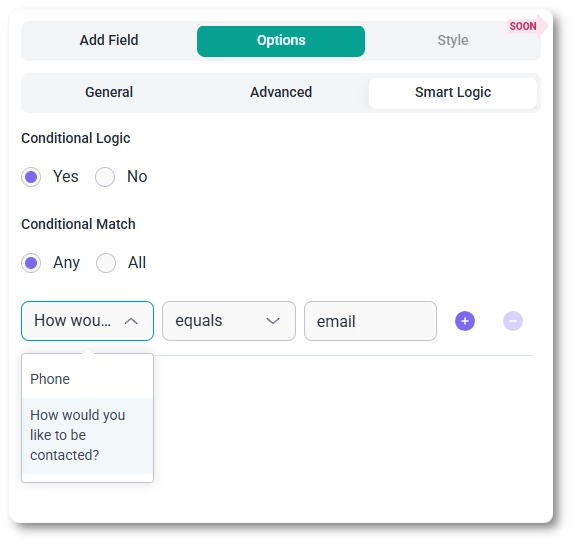
Conditional logic is configured individually for each field.
To set it up:
Once enabled, the field will remain hidden until the defined condition is satisfied.
Each conditional rule is made of three parts:
For example:
In this case, the field will appear only when the user selects the option whose value is phone.
The conditions available in a rule depend on the type of the field that triggers it. Choice fields offer Equals and Does not equal, text fields add Contains, Does not contain, Starts with and Ends with, and number-based fields let you compare values with Greater than, Greater than or equal to, Less than and Less than or equal to. Every field type also offers Is Empty and Is Not Empty, which check whether the field has been filled in at all.
The conditions above apply to field-level smart logic. Smart logic in notifications, confirmations, and integrations supports only Equals and Does not equal.
You can compare numbers in a rule when the trigger field is a Number, Net Promoter Score, Slider, Rating, Quantity or Total field. Pick the field, choose a comparison such as Greater than, and enter the number to compare against; decimals are supported. For example, you can show a “Delivery details” field only when Quantity is greater than 10, or show a follow-up question only when an NPS score is less than 7. The comparisons are also available for the Phone, Date, Time and Date & Time fields.
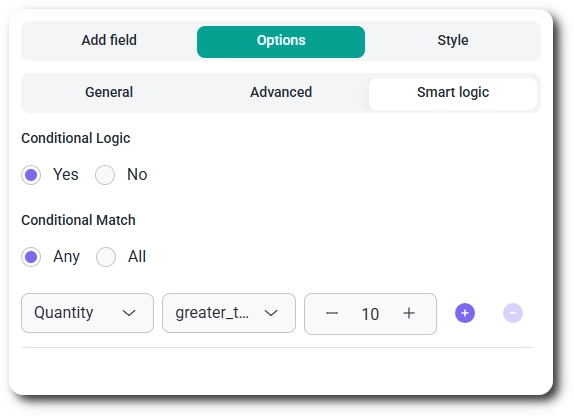
If a number comparison meets an empty or non-numeric answer, the rule is treated as not met instead of causing an error.
You can show a field based on whether another field has an answer by choosing Is Not Empty as the condition. For example, a “Tell us more” field can appear only after the visitor has typed something in a previous field. Is Empty does the opposite and is true while the field is unanswered, cleared or contains only spaces. Neither condition needs a value, so the value box disappears when you select one.
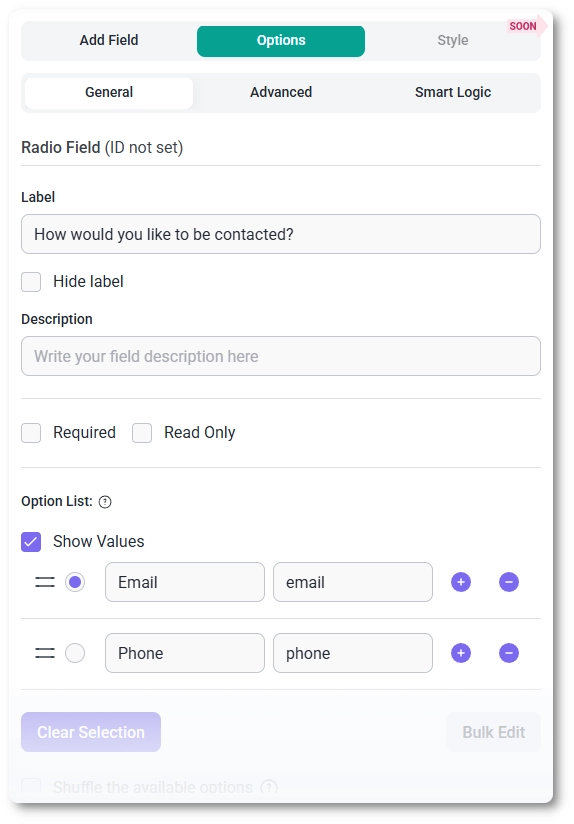
Conditional logic compares the stored field value, not the visible label shown to users. For example, a radio field may contain these options:
Even though the user sees Email and Phone in the form, the conditional rule must reference the stored values:
As long as the rule uses the correct value, the logic will work regardless of what the visible label says.
When multiple rules are added, you can control how the form evaluates them using Conditional Match.
This allows you to create simple or complex conditions depending on how your form should behave.
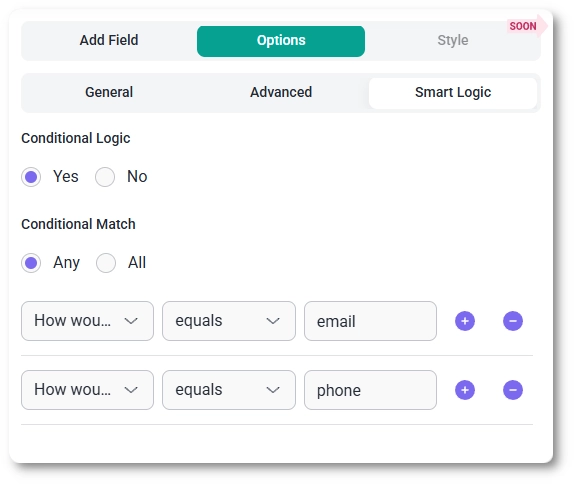
A common example is showing different contact fields depending on the preferred communication method.
For example:
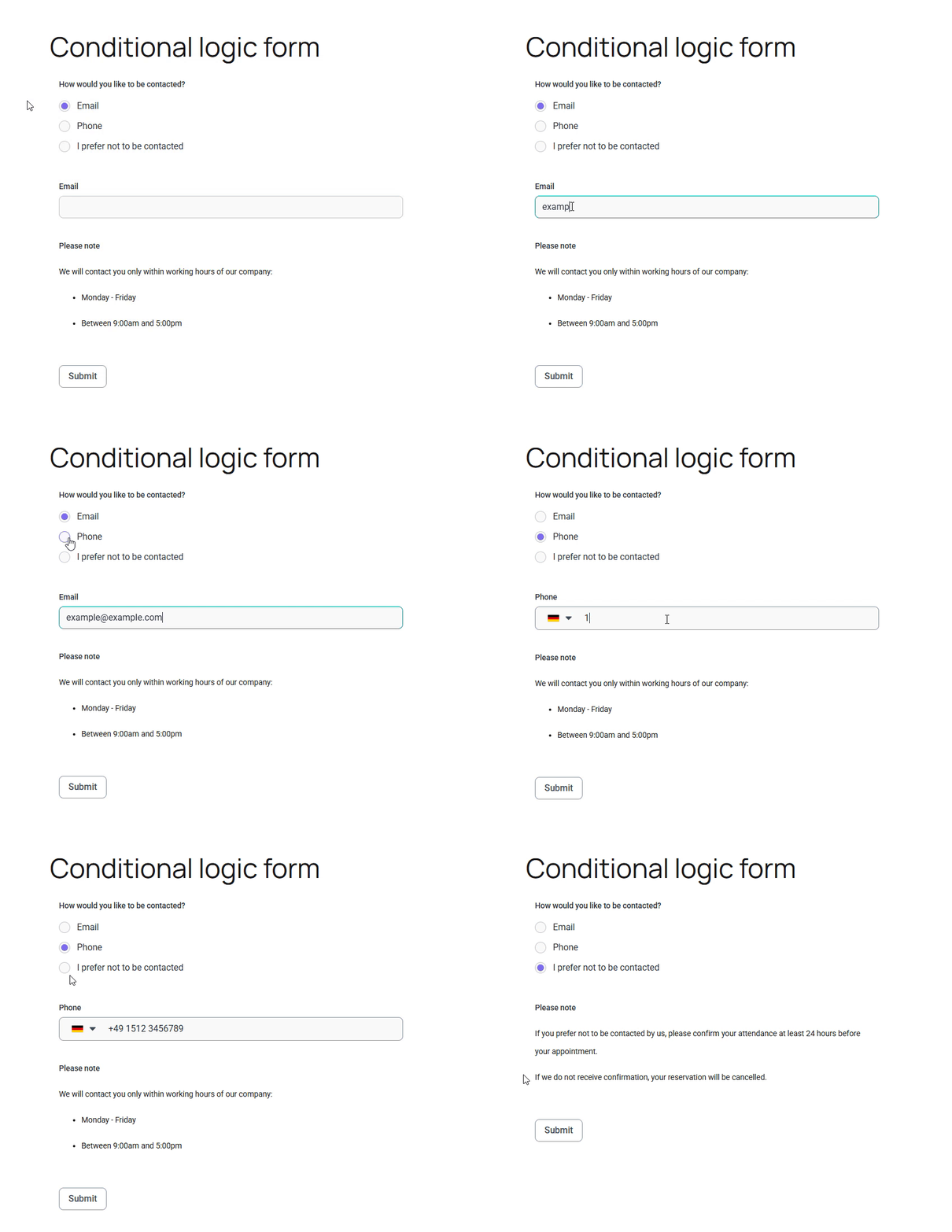
The form instantly updates while the user interacts with it, showing only the field that matches their choice.
Rules can also compare numbers or check whether a field has been filled in. For example, a Delivery details field can appear only when a Quantity field is greater than 10, and a Tell us more field can appear only when a previous field is not empty.


