





Version numbers are usually just numbers. Pro 1.0 is different.
Table of contents
You built the form. You set up the notifications. You check the entries every week. And every time something needs to change, like a new field, a different email address, or a quick entry count, you open WordPress, navigate to IvyForms, find the right form, and click through the same screens you’ve clicked through a hundred times.
What if you could just… ask?
“Add a required phone field after email on the contact form.” Done. “How many entries did the registration form get this week?” Answered. “Set up a notification for the job application form that sends to [email protected].” Created.
That’s what IvyForms MCP makes possible. And it’s different from every other AI form builder you’ve seen.
AI Form Builder vs. AI Form Management: What’s the Difference?
Most tools marketed as AI form builders help you generate a form from a prompt. You type “create a contact form with name, email, and message,” and the AI builds a starting point inside the form builder. It’s useful. But it’s still you, in the UI, reviewing, adjusting, and clicking publish.
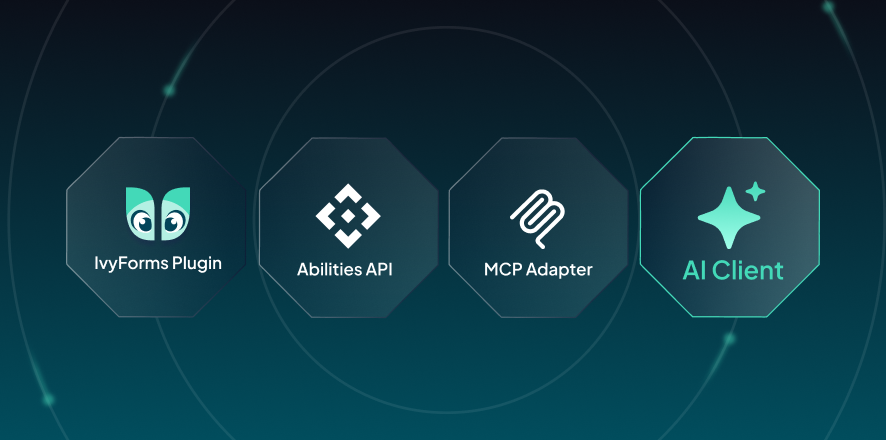
IvyForms AI form builder works differently. It connects your AI assistant, whether that’s Angie, Claude, Cursor, or another MCP-compatible tool, directly to IvyForms through a structured, authenticated endpoint. The AI doesn’t just help you build. It manages.
Create a form, add a field, list entries, set up a notification — these aren’t suggestions the AI makes for you to act on. They’re actions the AI takes on your behalf, in your actual IvyForms account, in real time.
What Your AI Assistant Can Actually Do with IvyForms
IvyForms MCP exposes a specific set of confirmed capabilities. Here’s what your AI can handle:
Build and edit forms
Create new forms from scratch, add fields, reorder them, or duplicate an existing form as a starting point. “Create a job application form with name, email, CV upload, and a cover letter field” becomes an actual form in your WordPress admin, no builder navigation required.
Review entries without opening the admin
List entries for any form, get a count, view a summary, or star entries to flag them. Useful for a quick weekly check: “How many leads did the contact form get this week?”, and you get an answer without logging into WordPress at all.
Worth knowing: actual submission field values are masked in MCP responses for privacy. The AI sees metadata, such as count, timestamps, status, and not the raw form answers. To read full submission data, you follow an admin link directly to the entry.
Set up notifications through a single command
“Set up a notification for the contact form that sends to [email protected] on each new submission.” The AI creates the notification, names it, and links it to the right form. What used to take three screens takes one sentence.
Manage forms and check integrations
List all forms, update settings, activate or deactivate a form, check which integrations are active on each one. Useful when you’re managing forms across multiple client sites and need a quick audit without clicking through everything manually.
Two Ways to Use IvyForms MCP
In the browser with Angie
Angie is Elementor’s free AI assistant for WordPress admins. Install the Angie plugin, open any IvyForms admin page, and Angie’s chat panel appears in the sidebar. IvyForms MCP is enabled by default and Angie connects automatically. No configuration needed.
This is the easiest path for most people. You stay in WordPress, you see the admin, and you talk to Angie about your forms. The changes happen right in front of you.
With an external AI client
Developers and power users can connect Claude Desktop, Cursor, or Claude Code directly to the IvyForms MCP endpoint. This is the more technical path, as you’ll need to configure the endpoint and authenticate, but it means you can manage IvyForms from inside your AI workflow without opening a browser at all.
What IvyForms MCP Can’t Do
Knowing the limits matters as much as knowing the capabilities. The AI cannot delete forms, entries, or notifications. It cannot change plugin settings. And it can’t read the actual values inside form submissions, since they are masked for privacy.
These aren’t oversights. They’re deliberate design choices that make it safe to give your AI assistant real access to live form data without worrying about irreversible mistakes.
Who This Is for
IvyForms MCP is most useful if you’re managing multiple forms across one or more WordPress sites, find yourself doing the same admin tasks repeatedly, or work in an AI-first workflow where you want your tools to respond to the same conversation you’re already in.
If you set up one contact form and never touch it again, MCP probably won’t change your life. But if you’re managing lead capture forms, job applications, event registrations, or client intake forms, and you’re logging into WordPress to manage them manually, this changes the workflow.
How to Get Started
IvyForms MCP is built into the plugin and enabled by default. There’s nothing to install or configure on the IvyForms side.
For the in-browser experience: install the Angie plugin (free, from the WordPress plugin directory), open any IvyForms admin page, and start asking.
For external clients: point Claude Desktop, Cursor, or Claude Code at the IvyForms MCP endpoint and authenticate with a WordPress admin account. For more details, check out our full setup guide.
Frequently Asked Questions
Does MCP replace the IvyForms form builder?
No. The form builder is still there and works exactly as before. MCP is an additional way to interact with your forms through an AI assistant and not a replacement for the existing interface.
Is it safe to give AI access to my forms?
MCP only responds to authenticated requests from WordPress administrators. Subscribers and guests cannot use MCP tools. The AI cannot delete forms or read raw submission data. You can disable MCP at IvyForms → Settings → General if you don’t need it on a given site.
Do I need to pay for Angie?
Angie is free. It requires a free Elementor account (no paid license). The plugin is available from the WordPress plugin directory.
Can I use Claude Desktop instead of Angie?
Yes. Claude Desktop, Cursor, and Claude Code all work with the IvyForms MCP endpoint. This setup requires a bit more configuration, see the external client documentation.