







You built the form. You set up the notifications. You check the entries every week. And every time something needs to change, like a new field, a different email address,…
Table of contents
Most WordPress form builders have a ceiling.
They let you collect a name, an email, a message. Maybe a choice between a few options. And then their job is done. What happens next, like the follow-up, the payment, the routing, the file, well, that becomes your problem to solve somewhere else.
IvyForms 1.2 and Pro 0.4 push past that ceiling.
With this release, your forms can take orders, collect files, enforce team permissions, handle complex scheduling, and capture rich structured input from users who need more than a text box. The distance between “WordPress form builder” and “business tool” just got a lot shorter.
Here is everything that shipped.
What’s New in IvyForms Lite 1.2
Product, quantity & total fields
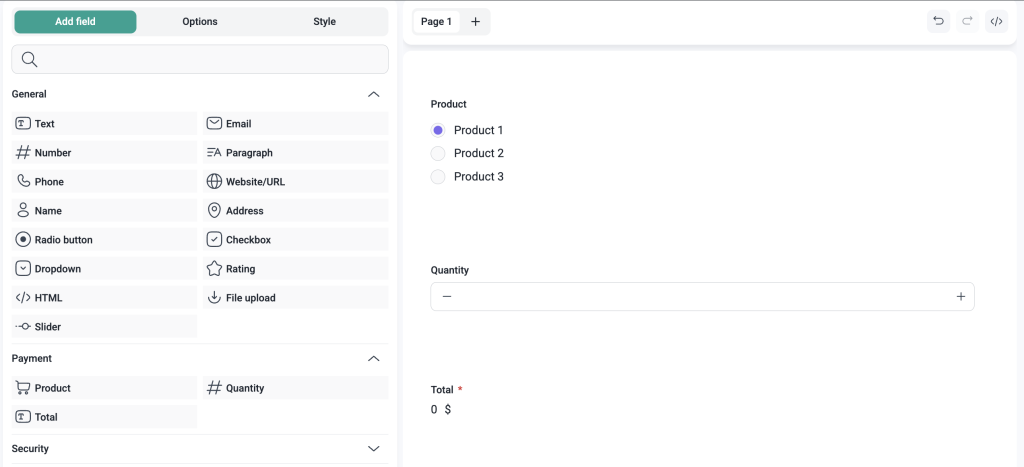
This is the feature many of you have been asking for since day one.
IvyForms now includes a complete set of payment-ready fields: the product field, the quantity field, and the payment total field. Together, they allow you to build order forms, service request forms, donation forms, and any other form where pricing and payment are part of the experience.
Here is how they work together.
The product field allows users to select or define a product. You control the name, price, and input type. The quantity field allows them to specify how many they want, with optional limits and product mapping. The payment total field then calculates and displays the running total, with an optional line-item breakdown so users can see exactly what they are paying for before they submit.
Why it matters
You can use these fields to build:
- Simple product order forms
- Service package selection forms
- Event registration forms with tiered pricing
- Donation and fundraising forms
- Booking request forms with add-on services
- Quote request forms with dynamic pricing
- Membership sign-up forms
- Workshop or class registration forms
For example, a fitness studio can build a class registration form where users select a class type, choose the number of sessions, and see the total cost before submitting. A nonprofit can set up a donation form with preset amounts and a quantity multiplier. A freelancer can create a service inquiry form where clients select deliverables and get an instant price estimate.
Selling something through a WordPress form used to require a separate plugin or a lot of workarounds. Now it is built right into IvyForms.
File upload field
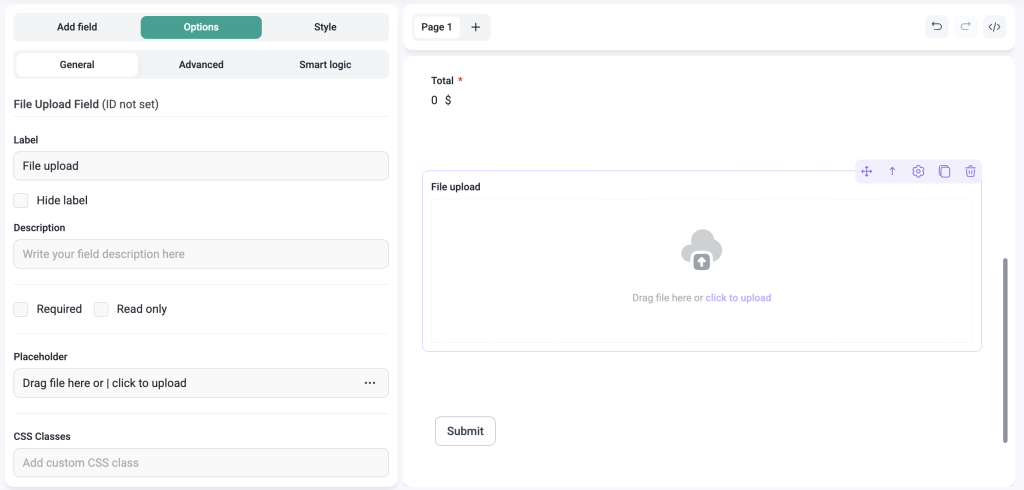
Users can now upload files directly through your forms.
The file upload field allows you to collect documents, images, portfolios, resumes, and any other file your workflow requires. The free version of the field supports single-file uploads, and all file types are accepted out of the box. No configuration required to get started.
Why it matters
A lot of forms do not just need answers. They need attachments. You can use the file upload field for:
- Job application forms
- Client onboarding forms
- Support request forms
- Creative brief or project intake forms
- Photo or portfolio submission forms
- Document collection forms
- Grant or scholarship application forms
- Medical or insurance intake forms
Pro users can unlock multi-file upload support in IvyForms Pro 0.4, which we cover further below.
Permissions
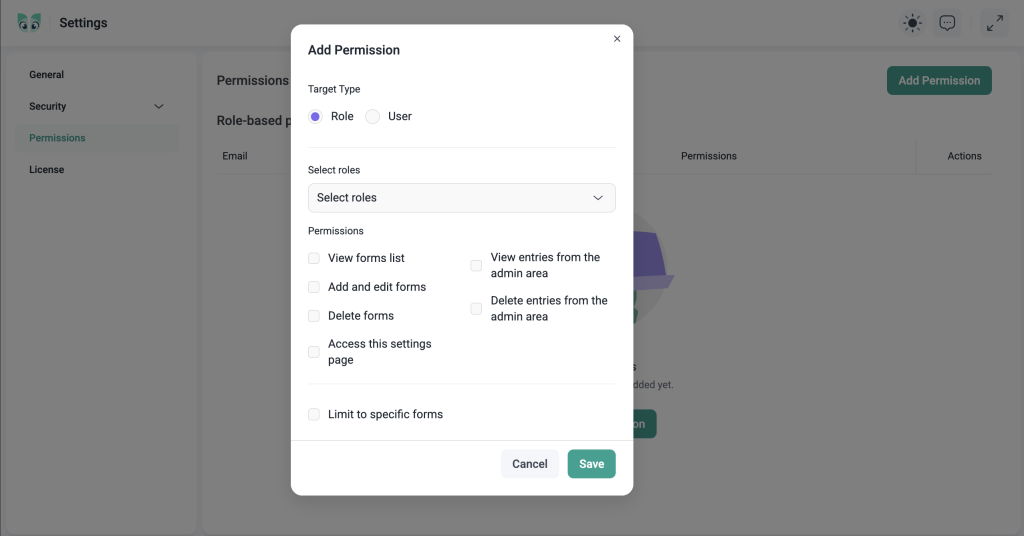
If more than one person manages your WordPress site or handles form data, this update is for you.
IvyForms now includes a flexible permissions system, accessible from the Global Settings page. You can control who can access forms and entries based on WordPress role or individual user. That means you can give a team member access they need without giving them more access than they should have.
So if a user has the Editor role on your site, you can use IvyForms permissions to expand what they can access, or to limit it, independently of what that role would normally allow. You can also go further and set permissions per individual user, for cases where a role-based rule is not quite the right fit.
Why it matters
You can use the permissions system to:
- Give a user with the Editor role access to specific forms only, limiting what they can see inside IvyForms
- Give a Subscriber access to view form entries they would not normally have access to, without changing their WordPress role
- Allow a team member to manage form settings without giving them access to entries, or the other way around
- Restrict which forms and entries each team member or department can see
- Set granular access per individual user for cases where a role-based rule is not specific enough
Sharing admin access just to give someone access to a form is not a good solution, and most WordPress users know it. The new permissions system solves that properly.
Undo and redo in the form builder
Accidentally deleted a field? Changed something and immediately regretted it? Now you can just undo or redo it.
The form builder now supports undo and redo, so you can step back through your recent changes without having to rebuild anything from scratch. It works the way you would expect it to.
Dynamic default values and placeholders for form fields
The form builder now comes with pre-filled example inputs in the Default Value and Placeholder options for each field type.
Instead of relying only on manually entered text, you can use dynamic placeholders that automatically pull in relevant information. For example, an email field can use the administrator email placeholder so that the field is automatically populated with the email address of the logged-in administrator.
This makes forms faster to configure, reduces repetitive work, and helps you create more personalized and context-aware form experiences.
Include styles in import & export
Form import and export now goes a step further.
When exporting a form, you will see a new checkbox: Include Styles. Check it, and your form’s visual styling travels with the form. On import, IvyForms handles the style data automatically. No extra steps, no manual redesign.
Disable styles option
For users who handle form styling entirely through their theme or custom CSS, IvyForms now includes an option to disable its built-in styles completely.
Turn it off and IvyForms steps out of the way. No default styling, no potential conflicts, full control over how your forms look.
Extended styling for slider & GDPR fields
The slider field and GDPR consent field, both introduced in IvyForms 1.1, now have their own dedicated styling options inside the form builder.
You can customize colors, sizing, and visual appearance to match the rest of your form and create a consistent, polished look from the first field to the last.
Additional confirmation before deleting data on uninstall
IvyForms gives you greater control over whether form data should be deleted when the plugin is uninstalled.
When you enable the option to remove IvyForms data during uninstallation, a confirmation popup appears asking you to explicitly approve this action. The confirmation is shown when the setting is enabled, rather than during the uninstallation itself.
This additional step helps prevent the option from being activated accidentally and ensures that permanent data deletion only happens after clear user confirmation.
What’s New in IvyForms Pro 0.4
Date & time field
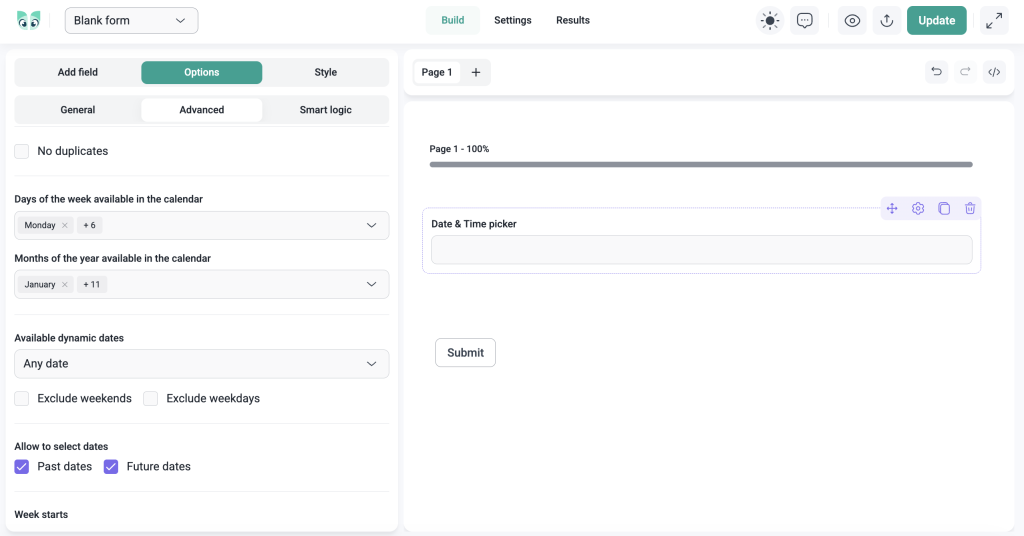
This one has been on the roadmap for a while, and we wanted to get it right.
The new date and time field combines date and time into a single, unified field. There are no separate tabs to configure. All settings live in one place, and the field is built to handle the complexity that real-world scheduling actually requires.
You can define minimum and maximum selectable datetimes, toggle seconds on or off, prevent duplicate submissions for the same slot, and restrict availability by days of the week or months of the year.
Default value options adapt to the field type you choose, whether that is a picker, an input, or a dropdown. You can set it to none, current, or a custom datetime.
For availability, you can use quick presets or build custom rules. Quick options include things like past dates, future dates, this week, next month, and more. Custom rules let you exclude weekends, exclude weekdays, allow only past or future dates, and set which day of the week the calendar starts on.
Why it matters
You can use the date and time field for:
- Appointment booking forms
- Event registration forms
- Service scheduling forms
- Reservation request forms
- Availability check forms
- Deadline or delivery date selection
- Tour or consultation booking forms
- Rental or accommodation inquiry forms
Date and time fields are deceptively complex. A simple date picker works for basic use cases, but real scheduling workflows need real constraints. This field is built for that.
Likert scale field
The Likert scale field lets you ask users to rate a set of statements or dimensions on a consistent scale.
Add your rows, configure your scale options, and IvyForms handles the layout. It is the format you see in almost every professional survey or feedback form, and it is now native to IvyForms.
Why it matters
You can use the Likert scale field for:
- Customer satisfaction surveys
- Employee engagement and feedback forms
- Product or service quality surveys
- Training and course evaluation forms
- Research and academic questionnaires
- Internal team feedback forms
- Event or conference feedback forms
- Healthcare patient experience surveys
If you need to measure attitudes, opinions, or levels of agreement across multiple dimensions, the Likert scale field gives you a clean and familiar way to do it.
Net Promoter Score field
The Net Promoter Score field gives you a 0 to 10 rating scale in a single field.
It is typically paired with a question like “How likely are you to recommend us to a friend or colleague?” and it is the standard format for measuring customer loyalty and satisfaction across industries. Now it is built right into IvyForms.
Why it matters
You can use the NPS field for:
- Customer loyalty measurement
- Post-purchase satisfaction surveys
- Support experience follow-up forms
- Product feedback forms
- Service quality assessments
- Client relationship check-ins
- Event feedback forms
NPS is one of the most widely used customer feedback metrics. Having it as a native field means you can build proper NPS surveys entirely inside WordPress, without external tools, embeds, or data leaving your site.
File upload (Pro)
The file upload field gets a Pro upgrade in IvyForms Pro 0.4.
With a Pro license, users can upload multiple files through a single field. By default, there is no cap on the number of files, but you can set a maximum if your workflow requires it. You can also restrict which file types and extensions are accepted, so users can only upload exactly what you need.
The free version of the field stays exactly as it is: single-file uploads with all file types accepted. Multi-file support and file type restrictions are Pro-only.
Why it matters
One file upload per field is a hard limit that blocks a lot of real-world use cases. You can now use multi-file uploads for:
- Portfolio or work sample submission forms
- Multi-document application forms
- Photo or media submission forms
- Legal document collection forms
- Client asset upload forms
- Product image submission forms
Pro users get the control they need, and free users keep the simplicity they already have.
Rich text field
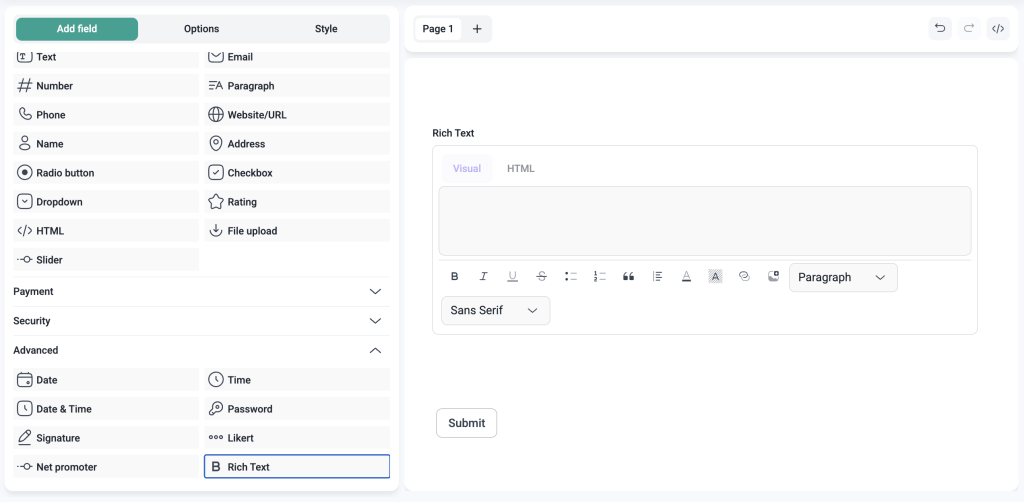
Pro users can now add a full WYSIWYG editor to their front-end forms.
The rich text field gives respondents a proper formatting toolbar with options like bold, italic, lists, and links. What they type and format is what gets submitted: real HTML, rendered cleanly on the frontend.
Why it matters
You can use the rich text field for:
- Detailed project brief or creative inquiry forms
- Long-form application and proposal forms
- Support or bug report submission forms
- Internal communication or feedback forms
- Content submission forms for editorial workflows
- Coaching or consulting intake forms
A plain textarea asks users to type. A rich text field invites them to communicate. For forms where the quality and structure of the response matters, this is a significant upgrade.
Default placeholders in rich text fields
Rich text fields now support default placeholder values, consistent with how placeholders work across all other field types in IvyForms.
Set example content inside the rich text area to show users what kind of input is expected before they start typing.
Entries import & export
You can now import and export form entries in IvyForms Pro.
When exporting a form, a new checkbox, Include Entries, lets you pull entry data along with the form itself. The import process handles entry data automatically on the receiving end.
This works alongside the existing forms import and export, giving you a complete migration path: move the form structure, the styles, and the entry data, all at once.
Why it matters
Entry data is often the most valuable thing stored in IvyForms. Being able to move it for backups, site migrations, or client handoffs means you are never locked into a single install and never at risk of losing the data that matters most.
What’s next?
The team is already working on the next round of updates, and there is plenty more coming to IvyForms.
Here is a preview of what we are working on next:
- Conversational forms
- Zapier integration
- Square integration
- REST API
- …and more
When we launched IvyForms, the goal was to give WordPress users a genuinely better way to build forms. What we did not fully anticipate is how quickly “better forms” would turn into something larger: a tool that handles real parts of how a business operates.
That is what 1.2 and Pro 0.4 represent. Not just new features. A shift in what IvyForms is capable of.
There is more coming. But what is already here is ready to put to work.
Thanks for building with us.